



Spam calls have become a daily tax on your attention. You pick up, it’s a robot offering an extended car warranty you don’t need. Or worse — a “social security fraud” scare.
The FTC received over 1.7 million robocall complaints in 2025 alone, and the numbers aren’t dropping.
The good news: your iPhone already has the tools to fight back. You just need to know where to look.
Quick Info
Why Blocking Spam Calls on iPhone Matters More Than Ever
Scam calls aren’t just annoying — they’re expensive and dangerous.
According to the FTC’s 2025 Consumer Sentinel Network report,
Americans lost over $10 billion to phone scams in 2025, with the average victim losing $1,480. Seniors and small business owners are hit hardest.
Beyond the financial risk, there’s the cognitive load.
Every unknown ring interrupts your flow, raises your anxiety, and costs you focus.
When you learn how to block spam calls on iPhone, you’re not just silencing annoyances — you’re protecting your money, your time, and your mental bandwidth.
iOS 26, released in 2025 and updated through 2026, gives you more controls than ever before.
Apple has expanded its “Screen Unknown Callers” feature with a new live screening option, and carrier integrations have improved significantly. Let’s put them all to work.
The Spam Call Problem Is Not Random — It’s Algorithmic
Here’s an analogy that might shift how you think about this: spam callers operate like email marketers with infinite lists.
They don’t call you once and move on — they run automated dialers that rotate through thousands of numbers per minute.
Each time you answer, or even just let it ring, your number gets flagged as “active.”
That’s why blocking one number doesn’t stop the calls.
The scammer’s system simply dials from a fresh number tomorrow.
This is why the best defense isn’t manual blocking — it’s filtering at the source, before your phone ever rings.
That’s exactly what the methods below accomplish.
Real-world case:
Mark, a Chicago-based contractor, was getting 10–15 spam calls a day on his business iPhone — so many he stopped answering his phone entirely.
After enabling Silence Unknown Callers and switching to T-Mobile Scam Shield Plus, his spam calls dropped to near zero within a week.
He now answers every call confidently, knowing unrecognized numbers either screened themselves out or left a voicemail he can review.
Method 1: Silence Unknown Callers (Apple’s Built-In Shield)
This is the single most effective simple way to block spam phone calls on iPhone without installing anything.
When enabled, any number not saved in your Contacts, Mail, or Messages gets automatically silenced and routed to voicemail.
How to turn it on (iOS 17 and later)
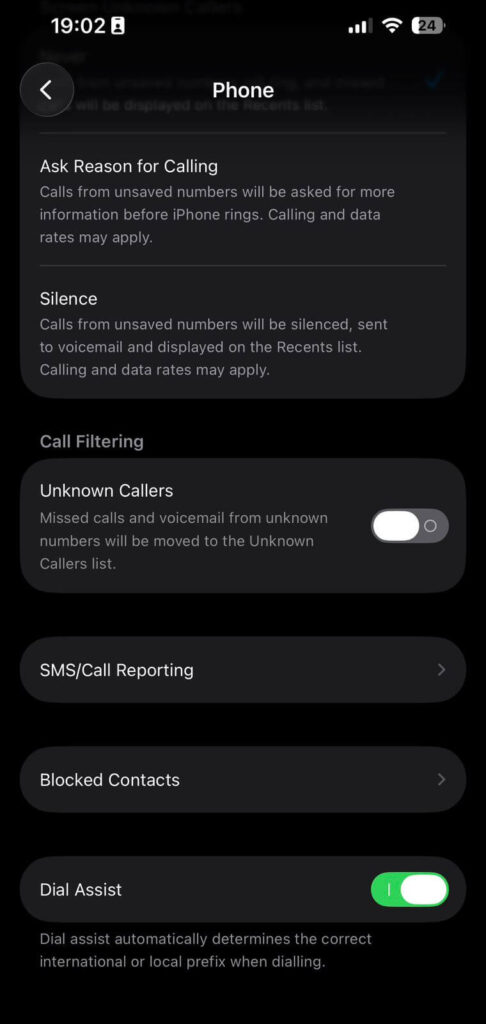
The three options are worth understanding before you pick:
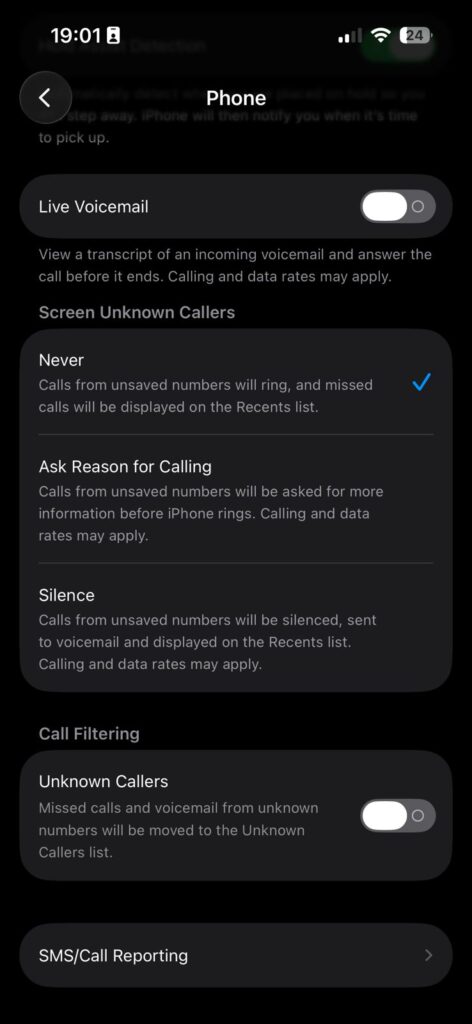
Important heads-up
Choosing “Silence” means your doctor’s office, a delivery driver, or a new job recruiter will also go to voicemail — unless you’ve saved their number first.
Make it a habit to save important contacts proactively. Also, if you call emergency services, call screening automatically turns off for 24 hours.
For most people, “Ask Reason for Calling” is the sweet spot. It screens out robocalls entirely while letting real humans through.
Method 2: Enable iOS Call Filtering to Silence Spam Automatically
Separate from the Unknown Callers setting, iOS has a dedicated Spam filter powered by your carrier’s spam database.
This catches numbers your carrier has already identified as fraud or scam — before they even reach your Unknown Callers layer.
How to turn on spam filtering in iOS 26
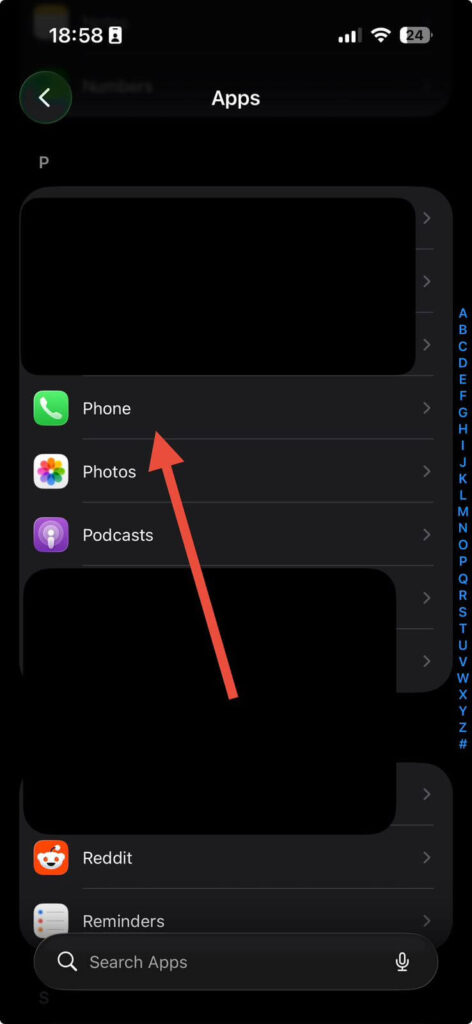
You can also turn on Unknown Callers filtering in this same section. Missed calls from unknown numbers get moved to a separate folder — still visible, but separate from your main call list. This is great if you want to catch important calls you might miss without being interrupted by every random ring.
Expert insight
Run both layers simultaneously — Spam filtering AND Screen Unknown Callers set to “Ask Reason.” Think of it as a two-checkpoint system: your carrier blocks known bad actors at the gate, and iOS screens everyone else at the door. Together, they catch the vast majority of spam before your phone makes a sound.
Method 3: Use Your Carrier’s Free Spam Protection
Your wireless carrier is fighting spam on your behalf — many Americans just don’t know to activate it. All three major US carriers offer free spam-blocking tools that work at the network level, meaning they stop calls before they reach your iPhone.
| Carrier | Free service | Paid upgrade | How to activate |
|---|---|---|---|
| AT&T | ActiveArmor (Free) | ActiveArmor Advanced ($3.99/mo) (Paid) | Download the ActiveArmor app |
| Verizon | Call Filter (Free) | Call Filter Plus ($2.99/mo) (Paid) | Download the Call Filter app or dial *611 |
| T-Mobile | Scam Shield (Free) | Scam Shield Plus ($4/mo) (Paid) | Download the Scam Shield app or use T-Mobile app |
The free tiers label or block calls that hit their network-level spam database.
The paid tiers add features like spam score ratings, the ability to see who’s calling even for unknown numbers, and more aggressive auto-blocking.
Method 4: Register on the Do Not Call Registry (For Legitimate Telemarketers)
This won’t stop scammers – they don’t follow the law anyway – but it will stop legitimate telemarketing companies from calling you. Registration is free and permanent.
How to register your number
If a company calls after you’ve registered and they’re a legitimate business, you can report them at the same site.
Enforcement does happen – the FTC filed dozens of cases against telemarketers in 2025 alone.
Method 5: Third-Party Apps That Actually Work
For the highest level of spam protection — especially if you get rotating scam numbers that bypass carrier filters — a dedicated spam call blocker app for iPhone adds an intelligent, crowdsourced layer of defense.
RoboKiller – $4.99/mo
AI-powered spam blocking with “answer bots” that waste robocallers’ time
YouMail – Free tier
Blocks spam and provides visual voicemail transcripts for missed calls
Truecaller – Free tier
Huge global caller ID database; identifies spam before you answer
Hiya – Free tier
Caller ID and spam detection; used by several carriers in the backend
Once you install one of these apps, go to Settings > Apps > Phone > Call Filtering and you’ll see the app listed as a filtering option.
Enable it to give the app permission to screen incoming calls using its database.
Method 6: Manually Block Persistent Numbers
For that one neighbor-spoofed number that keeps calling the same digits — manual blocking is quick and effective. It won’t stop rotating numbers, but it handles repeat offenders.
How to block a specific caller on iPhone
Blocked callers can’t call you, FaceTime you, or send you messages. They hear a brief ring before being sent to voicemail — so they won’t know they’re blocked.
You can review and unblock anyone in Settings > Apps > Phone > Blocked Contacts.
What If None of This Is Working? (Troubleshooting)
Still getting spam calls even with Silence Unknown Callers on?
Scammers increasingly use number spoofing — making their call appear to come from a real local number (like your own area code).
If a spoofed number happens to match someone in your Contacts, it will bypass the silence filter. Your best move: layer in a carrier filter or third-party app that cross-references live spam databases, not just saved contact lists.
My voicemail is filling up with spam, not just my call log
Turn on Live Voicemail in Settings > Apps > Phone > Live Voicemail. iOS will transcribe voicemails in real time, so you can scan them instantly and delete spam without listening. This requires iOS 17 or later and Live Voicemail must be supported by your carrier.
My third-party blocker app isn’t screening calls
Double-check that you’ve enabled the app in Settings > Apps > Phone > Call Filtering. The app needs iOS permission to screen calls — simply installing it isn’t enough. Also make sure the app itself has notification permissions so it can update its spam database in the background.
Calls from rotating numbers keep slipping through
Rotating numbers — where scammers use a new local number each call — are the hardest to block. No single method catches all of them. The most effective defense is a combination: carrier-level blocking + “Ask Reason for Calling” screen + a live-database app like RoboKiller or Truecaller. Between the three, most rotating spam gets caught.
I accidentally blocked someone important
Go to Settings > Apps > Phone > Blocked Contacts. Swipe left on the contact or number and tap Unblock. The unblock takes effect immediately.
Frequently Asked Questions
Yes. Apple’s built-in Silence Unknown Callers and iOS Call Filtering (Spam toggle) are completely free. Combined with your carrier’s free spam service (ActiveArmor, Call Filter, or Scam Shield), you can eliminate most spam calls without spending a dollar.
It can. Numbers not in your contacts — like a new doctor’s office, a job recruiter, or a delivery driver — will go straight to voicemail. To reduce this risk, use “Ask Reason for Calling” instead of “Silence,” and make a habit of saving important numbers as soon as you know them. Also, check your voicemail and Unknown Callers list regularly.
The “Ask Reason for Calling” setting in iOS 26 is your best option. Real people will speak their reason and get through. Robodialers will hang up or fail the screening prompt entirely. This lets legitimate unknown callers reach you while automatically eliminating most spam.
Truecaller and YouMail both offer solid free tiers. Truecaller has one of the largest caller ID databases globally, making it particularly good at identifying spam before you answer. YouMail adds visual voicemail transcription, which makes reviewing silenced calls much faster.
Scammers use a technique called number spoofing combined with rotating dialer software. Each call can appear from a different local number, making manual blocking useless and tricking some filters. The best defense against rotating numbers is a live-database blocker (like RoboKiller) that cross-references each incoming number against a constantly updated spam registry — not a static block list.
Take Back Your Phone Today
It takes under 5 minutes to turn on Silence Unknown Callers and your carrier’s spam filter. Do it now — before your next spam call interrupts you.Get the quick setup steps
Disclaimer: This article is for informational purposes only and does not constitute legal or professional advice. iOS settings and carrier offerings change with software updates — always verify steps against the latest iOS version on your device. Third-party app features, pricing, and availability are subject to change without notice. AppleHeadlines.com is not affiliated with Apple Inc., AT&T, Verizon, T-Mobile, or any app developer mentioned. Registering on the Do Not Call Registry reduces calls from compliant businesses; it does not stop illegal robocallers or scammers.
More Read


T’kal is the lead strategist and developer behind Apple Headlines. With a background in digital marketing and web development, he specializes in technical Apple troubleshooting, software news, and hardware rumors. T’kal focuses on delivering high-authority tech content that bridges the gap between Apple enthusiasts and the latest industry innovations.