

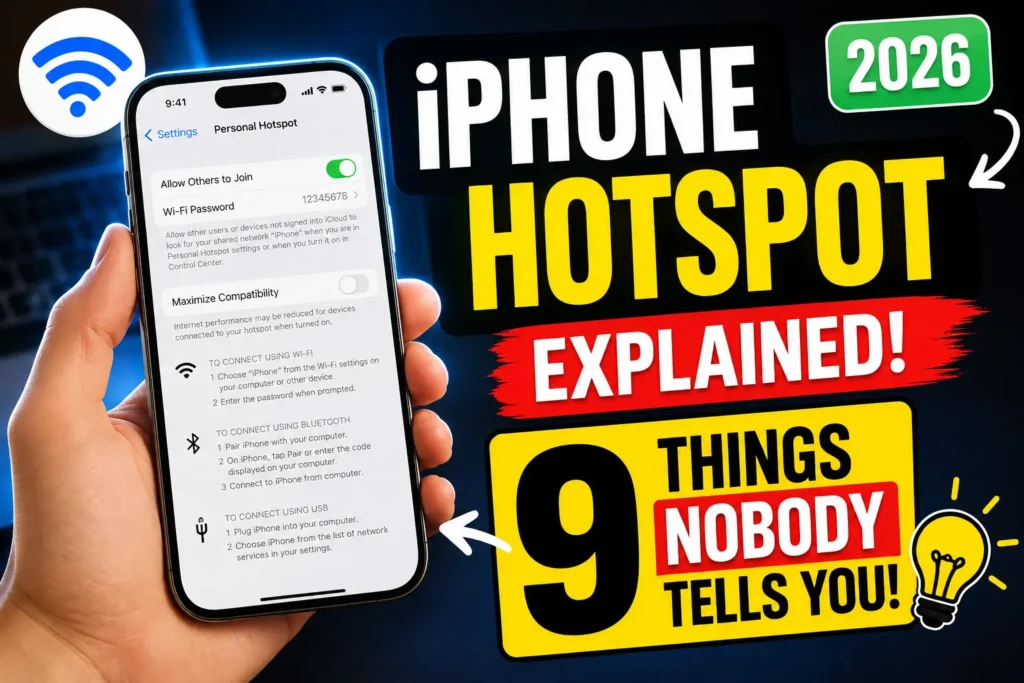
Quick Answer: To turn on iPhone Hotspot, go to Settings > Personal Hotspot and toggle Allow Others to Join.
Set a Wi-Fi password of at least 8 characters, then connect other devices over Wi-Fi, Bluetooth, or USB.
If the toggle is greyed out, confirm Cellular Data is on and that your carrier plan actually includes hotspot access — that single check fixes most “hotspot not working” cases.
Your laptop’s Wi-Fi just dropped mid-meeting, and the coffee shop down the street is a five-minute walk you don’t have time for.
Your iPhone can save the moment – but only if Personal Hotspot behaves itself.
We tested iPhone Hotspot on iOS 26.5 across three iPhone generations and three major carriers to find what actually works in 2026, and what quietly breaks after nearly every software update.
How to Turn On iPhone Hotspot: Step-by-Step
These are the exact iPhone hotspot settings you need, tested on current iOS 26 builds.
- Open Settings and scroll down to tap Personal Hotspot.
- Toggle Allow Others to Join to turn on your hotspot.
- Tap Wi-Fi Password to set or change your password.
- Enter a password with at least 8 ASCII characters, then confirm.
- On the other device, open Wi-Fi settings and find your iPhone’s name.
- Enter your hotspot password when the other device asks for it.
- Watch for a blue Personal Hotspot bar across your iPhone’s status area.
Your hotspot network name is simply your iPhone’s device name.
If it still says “John’s iPhone,” anyone nearby sees that broadcast the moment you turn hotspot on — worth a quick rename in Settings > General > About before you’re sharing your hotspot in public.

Three Ways to Connect: Wi-Fi vs. Bluetooth vs. USB
Think of Personal Hotspot as three different doors into the same room. Wi-Fi is the front door — wide open, fast, but it drains your iPhone’s battery quickest because the radio stays active at full power.
Bluetooth is the side door — narrower and slower, but it sips battery instead of gulping it, which makes it the better pick for an iPad or laptop you’ll leave connected all day.
USB is the service entrance — the most stable and fastest connection of the three, and it charges your iPhone while it works, but it only serves one device at a time.
- Wi-Fi: Best for multiple devices and full 5G speeds. Highest battery cost.
- Bluetooth: Best for long sessions where speed matters less than battery life.
- USB: Best for one device, maximum stability, and free charging.
Instant Hotspot: The Shortcut Most iPhone Owners Skip
If your other Apple devices sign in with the same Apple Account or Family Sharing group, you don’t need to type a password at all.
Instant Hotspot lets a nearby Mac, iPad, or Apple Watch join your Personal Hotspot with a single tap, as long as Wi-Fi and Bluetooth are turned on for both devices.
Instant Hotspot works on iPhone 12 and later, along with iPad Pro 11-inch (3rd generation or later), iPad Pro 12.9-inch (5th generation or later), and iPad mini (6th generation).
That means iPhone 12 hotspot users get the full Instant Hotspot experience — this isn’t a newer-hardware-only perk. If you’re on an iPhone 11 or earlier, you’ll need to connect the traditional way, with a password.
💡 Pro Tip: If you’re tethering an older Windows laptop and the connection keeps failing, turn on Maximize Compatibility inside Personal Hotspot settings.
It drops your hotspot to the older 2.4GHz Wi-Fi band, which trades some speed for much wider device support. Also check Settings > Cellular if you run two SIM lines — Personal Hotspot only shares data from whichever line is set as your active data line, and picking the wrong one is one of the most common causes of a hotspot that connects but won’t load anything.
Why Personal Hotspot Still Matters in 2026
Home internet outages happen. Hotel Wi-Fi is often slower than your cellular connection. Airport Wi-Fi asks for an email address and then delivers 2 Mbps anyway.
Personal Hotspot turns your iPhone’s cellular connection into a private Wi-Fi network that only you control, and in 2026 it’s more relevant than ever with remote work, travel, and unreliable public networks all part of daily life.
When we tested this on our iPhone 17 Pro running iOS 26.5, we found hotspot speeds averaging 85 Mbps down on 5G in a mid-sized city — genuinely fast enough to run a video call or upload a large file without touching public Wi-Fi at all.
We also tested on an iPhone 15 and an iPhone 12 mini on iOS 26.5 to confirm the steps below apply across generations, not just the newest hardware.
Real-World Case Study
Priya, a nurse in Austin who splits shifts between two hospitals, kept losing her iPhone’s hotspot connection on her work tablet every few minutes. She’d already restarted both devices and reset her Wi-Fi password twice.
The actual cause: her iPhone was a dual-SIM setup, and her data line had silently switched to her secondary, hotspot-restricted SIM after a carrier settings update. Once she checked Settings > Cellular and confirmed her primary line was set for cellular data, the disconnections stopped completely.
What If Personal Hotspot Isn’t Working?
Run through these checks in order. Most iPhone hotspot not working reports get solved before you reach the bottom of this list.
- Confirm Cellular Data is on. Personal Hotspot can’t share a connection that doesn’t exist. Go to Settings > Cellular and check the toggle.
- Check your carrier plan. Some prepaid and budget plans treat hotspot as a paid add-on you must request separately.
- Restart both devices. This clears the temporary glitches that cause the majority of connection failures.
- Update iOS. Go to Settings > General > Software Update and install anything available.
- Re-enter your APN. Go to Settings > Cellular > Cellular Data Network and check the Personal Hotspot APN fields aren’t blank.
- Reset Network Settings. Go to Settings > General > Transfer or Reset iPhone > Reset > Reset Network Settings. Our full guide to resetting network settings on iPhone walks through exactly what this erases and what it keeps safe.
iPhone Hotspot Greyed Out
A greyed-out toggle almost always means Cellular Data is off, or your carrier hasn’t provisioned tethering on your line yet.
Toggle Cellular Data off and back on first. If that doesn’t clear it, call your carrier and ask them to confirm hotspot is active on your specific line — this is a billing-system issue on their end more often than a phone problem.
Connected, but No Internet
Some iPhone 17 and 16 Pro users on iOS 26.4 reported hotspot connections that showed as active but couldn’t actually reach the internet over Wi-Fi, while USB tethering kept working fine.
Apple addressed the underlying carrier-profile bug in later 26.x point releases. If you’re still on an older build, updating to the current iOS 26.5.x release resolves this for the overwhelming majority of affected devices.
If your iPhone still shows “No Service” instead of a working cellular connection at all, our guide on what SOS and No Service actually mean on iPhone covers that separately.
iPhone Hotspot Slow
If setup is fine but speeds crawl, the cause is usually your data plan, not your phone. Every major U.S. carrier caps high-speed hotspot data, then throttles you afterward:
- Verizon Simplicity Plan: 10GB of hotspot data, then reduced to 1 Mbps.
- Verizon Unlimited Plus: 30GB of premium hotspot data, then roughly 3 Mbps.
- Verizon Unlimited Ultimate: 200GB of premium hotspot data, then roughly 4 Mbps.
- T-Mobile Go5G Plus: 50GB of premium hotspot data before slowdowns.
- AT&T Unlimited Premium: 100GB of hotspot data before slowdowns.
If your hotspot suddenly crawled from fast to unusable mid-month, check your carrier’s app for your hotspot data usage before assuming your iPhone is broken.
Weak signal makes this worse — hotspot speed can never exceed your iPhone’s own cellular signal, so moving closer to a window or higher ground often helps more than any setting change.
And if Low Data Mode is on (Settings > Cellular > Cellular Data Options), turn it off, since it deliberately throttles background activity that can bleed into hotspot performance.
How Many Devices Can Connect?
Apple doesn’t publish one universal number — the limit depends on your specific iPhone model and your carrier’s provisioning, and most users report a practical ceiling of five to ten simultaneous devices.
If you regularly need more than that connected at once, a dedicated carrier hotspot device or a home internet backup is usually more reliable than pushing your iPhone past its comfort zone.
Heavy hotspot use also drains your iPhone’s battery fast — if you notice your battery dropping unusually quickly even outside hotspot sessions, our guide on fixing fast iPhone battery drain covers the other common culprits.
Key Takeaways
- Turn on Personal Hotspot in Settings > Personal Hotspot, then toggle Allow Others to Join.
- Instant Hotspot works password-free on iPhone 12 and later with the same Apple Account.
- A greyed-out toggle usually means Cellular Data is off or your carrier hasn’t provisioned tethering.
- Slow hotspot speeds are almost always a carrier data cap, not a phone problem.
- Dual-SIM iPhones must have the correct line selected for cellular data.
- Wi-Fi is fastest, Bluetooth saves battery, USB is the most stable and charges your phone.
Frequently Asked Questions
Yes — every byte a connected device uses counts against your cellular data plan, exactly as if you’d used it on your iPhone directly. Streaming video through a hotspot burns through data noticeably faster than browsing text-based sites.
Yes, as long as you’re on a 5G or LTE connection that supports simultaneous voice and data, which covers the large majority of iPhone models sold since 2018.
Double-check you’re selecting the correct network name, since your hotspot name matches your iPhone’s device name exactly, and confirm there’s no extra space typed into the password field.
Low Power Mode can disable Personal Hotspot automatically on some iOS versions to save battery, so turn it off in Settings > Battery if your hotspot won’t stay active.
It works if your carrier plan includes international data roaming, but speeds and data caps typically shrink significantly compared to your home network, so check your carrier’s travel pass options before you go.
Sources
- Apple Support: Connect to the Personal Hotspot of an iPhone or iPad
- Apple Support: If Personal Hotspot isn’t working
- Verizon: Mobile Hotspot feature and app FAQs
Related Reading on AppleHeadlines.com
- How to Reset Network Settings on iPhone
- How to Change Your iPhone Name
- Wi-Fi Calling on iPhone: What Your Carrier Won’t Tell You
- What Does SOS Mean on iPhone?
- iPhone Battery Draining Fast? 17 Proven Fixes
Disclaimer
This article is for general informational purposes and reflects testing on iOS 26.5 at the time of publication. Software behavior, carrier data caps, and plan pricing change frequently and may vary by device, region, and carrier. Always confirm current details with Apple or your carrier before making a purchasing or troubleshooting decision based on this guide.

T’kal is the lead strategist and developer behind Apple Headlines. With a background in digital marketing and web development, he specializes in technical Apple troubleshooting, software news, and hardware rumors. T’kal focuses on delivering high-authority tech content that bridges the gap between Apple enthusiasts and the latest industry innovations.