


Article Covers iOS 27.2.1 and iOS 26
Why Find My Shows a Person but Not a Device
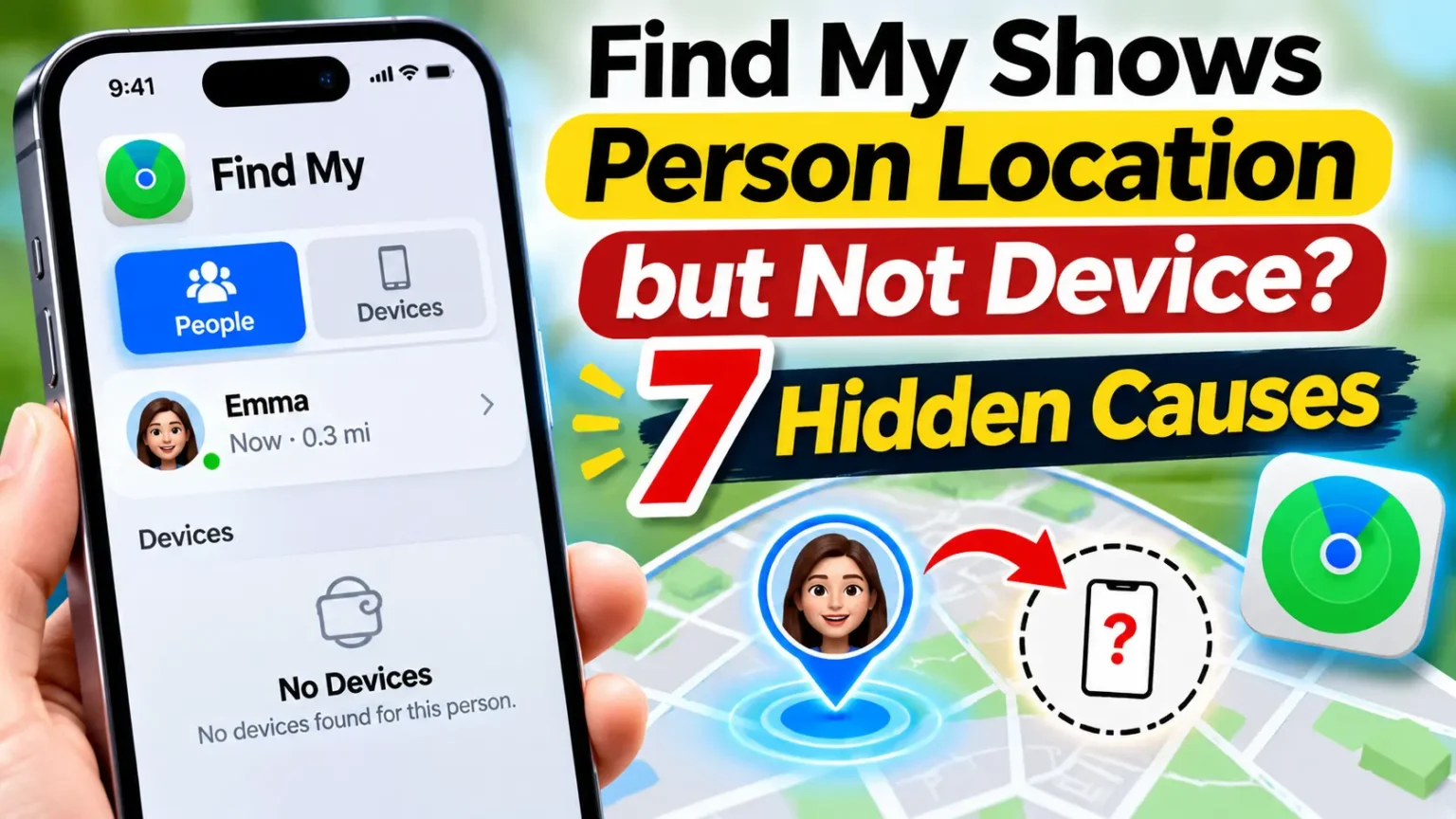
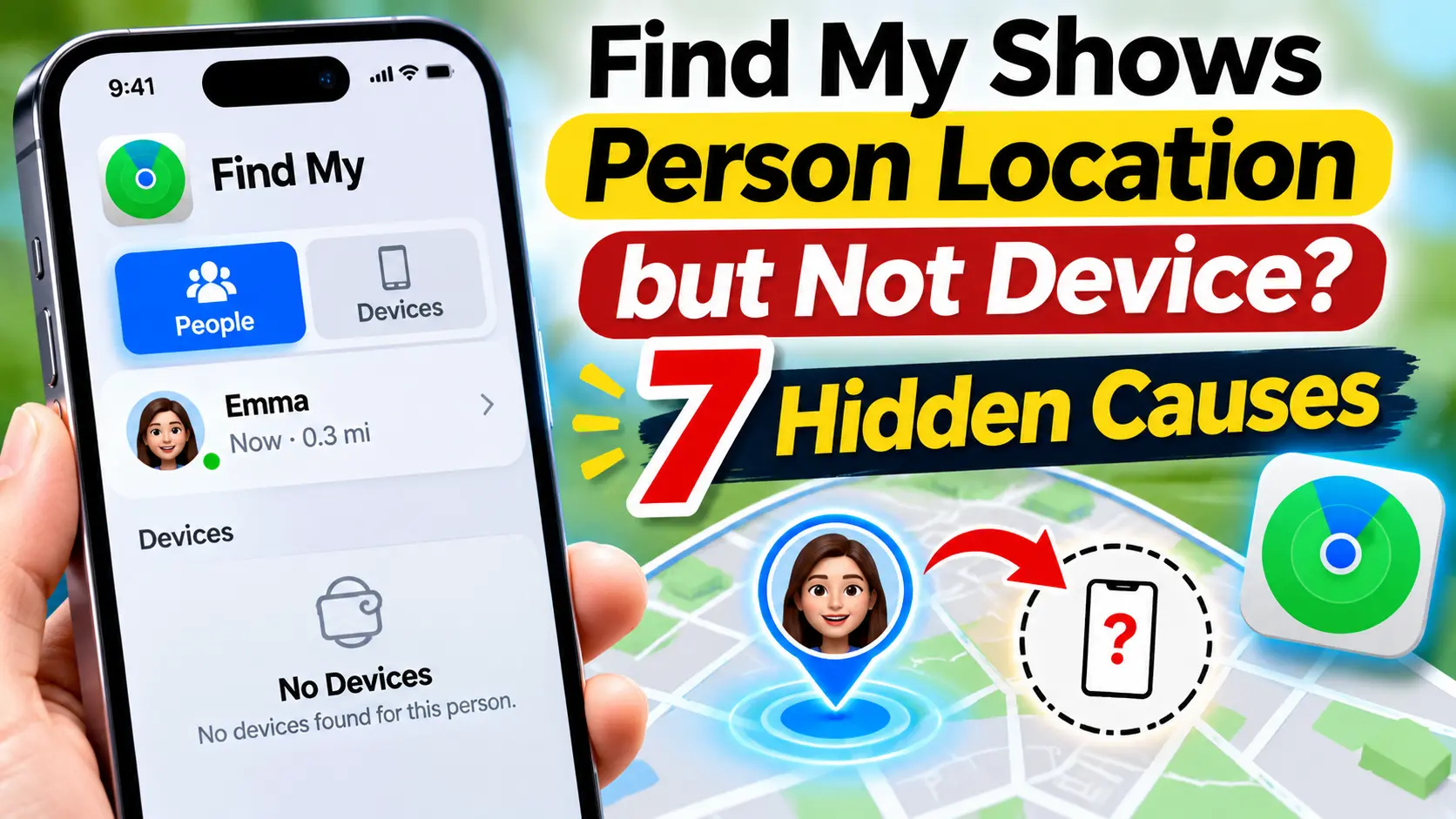
Find My shows a person’s location but not their device because the People tab and Devices tab follow different rules. People shows one location pin per person, based on the single device they selected as My Location. Devices lists only gear linked to your own Apple Account or included through your Family Sharing group. A device appears there only when Find My is enabled.
People tab
Shows a person’s shared location from the device they chose as their My Location device.
Devices tab
Shows eligible devices connected to your Apple Account or Family Sharing group, with Find My turned on.
What to check first: Confirm which device is sharing the person’s location, then check Find My settings on the missing device. Most fixes take under five minutes.
You open Find My and your daughter’s name is right there on the map.
But her iPhone is missing from your device list.
Or her pin sits at home while she is clearly at school.
That is confusing, and a little stressful.
The good news is that it is rarely a bug.
Find My tracks people and devices in two separate lists.
Each list has its own rules.

Below are the seven causes behind this problem, with a clear fix for each one.
This guide covers Apple’s Find My on iPhone, iPad, and Apple Watch. Windows PCs have a separate tool called Find my device from Microsoft.
Why This Happens (and Why You Can Trust These Fixes)
Find My looks like one app.
Under the hood, it runs two systems side by side.
One system shares people. The other tracks devices.
They talk to each other, but they are not the same thing.
That split matters more than most people think.
A parent checking on a teen needs the right pin.
Someone hunting for a lost phone needs the right list.
Guess wrong, and you waste time or worry for no reason.
We built this guide from Apple’s own support pages.
Several were updated as recently as September 2026.
We checked each setting name against Apple’s current iOS 27 documentation.
We also note where iOS 26 labels may differ.
One more thing.
Most guides on this topic stop at “your device is offline.”
That is only one of seven causes.
The People-versus-Devices split is the part almost nobody explains, so we start there.
Think of Find My as an Office Whiteboard and an Equipment Cage
Picture a front-desk whiteboard in an office.
It says, “Maya is in Room 4.” Maya did not carry the whiteboard around.
The note came from whichever badge reader she swiped last.
That whiteboard is your People tab.
It tells you where a person is.
It does not tell you which gadget she is holding.
Now picture the equipment cage down the hall.
It holds laptops and tablets.
But you can only open the cage for gear your own company owns.
You can’t browse a visitor’s laptop.
That cage is your Devices tab.
It lists devices tied to your Apple Account, plus devices from your Family Sharing group.
A friend’s phone is never in your cage, even if you can see the friend on the whiteboard.
People Tab vs. Devices Tab at a Glance
People Tab vs. Devices Tab at a Glance
| Feature | People tab | Devices tab |
|---|---|---|
| What it tracks | A person | A device |
| Who can appear | Anyone sharing their location with you | Your devices and Family Sharing members’ devices |
| Where the pin comes from | One device the person chose as “My Location” | The device itself |
| Main switch | Share My Location | Find My iPhone (or iPad) and Find My network |
| Can a non-family friend appear? | Yes | No |
When we compared both tabs on an iPhone 18 Pro running iOS 27.2.1, the pattern was clear.
A friend who shared with us showed up under People with an address and a time.
Nothing about that friend appeared under Devices.
Match Your Symptom First
Don’t read all seven causes. Find your symptom, then jump to the matching cause.
| What you see | Most likely cause | Go to |
|---|---|---|
| Friend’s pin shows, but no phone in Devices | They aren’t in your Family group | Cause 3 → |
| Child’s pin is stuck at home | Wrong device is sharing | Cause 1 → |
| Pin moves, but the iPhone is “at home” | A cellular Apple Watch is standing in | Cause 2 → |
| Family member’s device is listed, but no map | They aren’t sharing location with family | Cause 4 → |
| You show in People, but your iPhone is missing from Devices | Find My iPhone is off | Cause 5 → |
| “Offline,” “No location available,” or “Location Services Off” | The device can’t report in | Cause 6 → |
| Device appears for one person but not another | Account mismatch or stale sync | Cause 7 → |
7 Hidden Causes of Find My Showing a Person but Not Their Device
1. Find My Sharing From the Wrong Device
This is the number one cause.
Find My uses one device per person as their location source.
If that is an old iPad at home, the pin stays home. Even when their iPhone is at the mall.
Find My does not label the pin with a device name.
The person card shows an address and a time. That is why this problem feels so strange.
We tested this on an iPhone 17 Pro running iOS 27.2.1.
The Use This iPhone as My Location button showed up only when that phone wasn’t the active source.
If the button is missing, that iPhone is already the sharing device.
How to fix it (the person does this on the device they carry every day):
- Open Settings on the iPhone they carry daily.
- Tap the name at the top of the screen.
- Tap Find My.
- Tap Use This iPhone as My Location.
- Open the Find My app, then tap the Me tab.
- Confirm that Share My Location is turned on.
Apple documents this exact path in its Family Sharing help article, updated September 14, 2026. If you can’t see this option, update the device first.
2. Find My Person Location Different From iPhone? Check the Apple Watch
Here is a cause that surprises people.
Say the person owns an Apple Watch with cellular service.
Say they leave the house without their iPhone or iPad.
Apple’s Watch guide says Find My then shares the watch’s location.
The result is a Find My person location different from iPhone problem.
The pin moves around town.
The iPhone sits on a nightstand.
You look for the phone, and it is nowhere near the pin.
In our setup, an iPhone 18 Pro sat on a desk while a cellular Apple Watch stayed on the wrist.
The shared pin followed the watch, just as Apple describes.
How to check it:
- Ask the person if they wore their watch.
- Check whether the pin moves while the phone stays still.
- Have them open Find My on another device, or visit iCloud.com/find.
- Look at the Devices list to see where the iPhone sits.
- Tap Use This iPhone as My Location on the phone if needed.
Want the full watch-tracking picture? Our guide to finding your Apple Watch covers it.
3. Find My Cannot See Someone’s iPhone Because They Aren’t in Your Family Group
This one is by design, not a bug.
The Devices tab only lists devices on your Apple Account and devices from your Family Sharing group.
A friend, a coworker, or a partner can share a live location with you.
Their phone will still never show up in your Devices list.
That is a privacy feature.
Apple lets you see where a person is.
It does not let you manage their hardware.
What you can do instead:
- Accept that a friend’s phone won’t appear in your list.
- If they lost their phone, ask them to open iCloud.com/find on any computer.
- Or ask them to use Find My on another Apple device they own.
- For a child or spouse, consider Family Sharing, but only with their full consent.
A quick warning.
Family Sharing also shares purchases and storage plans.
Don’t add someone just to track them.
And never sign in to someone else’s Apple Account to get around this rule.
4. Family Sharing Is On, but Location Sharing Is Off
Here is a quiet trap.
A person can be in your Family Sharing group and still hide their location from you.
Setting up the group does not turn location sharing on for everyone.
Apple’s help article says each family member chooses whether to share.
If they don’t, you can’t see their device on a map.
You can still check whether it is online or offline. You can also play a sound, use Lost Mode, or erase it.
So a family device may appear in your list with no map pin at all.
That is the classic Find My device location unavailable moment.
How to fix it (the family member does this on their iPhone):
- Open Settings.
- Tap Family.
- Tap Location Sharing.
- Turn on sharing for the person who needs to see them.
- Make sure Find My iPhone is on for that device.
Parents, note this.
Apple says kids with Screen Time controls may not be able to change location sharing themselves.
If that is the case, review their Screen Time settings.
Setting up sharing for the first time?
Our walkthrough on how to share location on iPhone covers Find My, Messages, and Maps.
5. Find My Is Off on the Device Itself
Here is a detail that trips up even experienced users.
Share My Location and Find My iPhone are two different switches.
The first one feeds the People tab.
The second one feeds the Devices tab.
So you can see your own pin in People while your iPhone is missing from Devices.
It simply means Find My iPhone was never turned on, or someone turned it off.
How to fix it:
- Open Settings on the missing device.
- Tap your name at the top.
- Tap Find My.
- Tap Find My iPhone (or Find My iPad).
- Turn on Find My iPhone, Find My network, and Send Last Location.
- Open the Find My app and tap Devices to confirm it appears.
Also check the location permission. Go to Settings > Privacy & Security > Location Services > Find My.
Apple says this must be on if others still can’t see your location.
Turning Find My off takes extra steps on a phone with Stolen Device Protection.
Our guide on turning off Stolen Device Protection explains why.
For the full picture, read our Find My iPhone setup guide.
6. Find My Device Location Unavailable: Offline, Dead, or Location Services Off
Sometimes the device is in your list, but there is no usable location.
Apple’s troubleshooting page names three messages: Offline, No location available, and Location Services Off.
Apple lists these reasons:
- The device is powered off, or its battery has run out.
- It is not connected to a known Wi-Fi or data network.
- Send Last Location is on, but more than 24 hours have passed since it connected.
- The device is in a region where the feature isn’t offered.
A dead battery looks the same as a switched-off phone from your side of the screen.
Don’t assume the person turned anything off on purpose.
How to fix it:
- Check that the device is powered on and charged.
- Connect it to Wi-Fi or cellular.
- Turn Airplane Mode on, wait ten seconds, then turn it off.
- Go to Settings > General > Date & Time.
- Turn on Set Automatically.
- Restart the device.
Apple’s help page lists these same checks for devices that won’t show up or won’t report in.
The Date & Time check sounds odd, but Apple lists it, so don’t skip it.
If the battery keeps dying, see our guide on iOS 27 battery drain.
7. Different Apple Account or a Stale Sync
Last on the list, and the sneakiest. Apple’s help page says to check that you signed in to iCloud with the same Apple Account on all your devices.
Many families have an old account on one device.
A teen may have made a second account years ago.
A hand-me-down iPad may still carry the previous owner’s login.
In that case, the device exists in Find My. It just lives in a different account’s list.
How to fix it:
- Open Settings on each device.
- Tap your name and read the Apple Account email.
- Compare it with the account you use in Find My.
- Update the device in Settings > General > Software Update.
- Restart the device and reopen Find My.
- As a last resort, sign out and back in.
Before you sign out, have your Apple Account password ready.
If you get locked out, our guide to unlocking your Apple Account can help.
Not sure which device is which?
Rename your iPhone so it’s easy to spot in the list.
Case Study: The Pin That Never Left the House
This is a composite example built from common Apple Community reports. It shows how the fix works in real life.
Maria shares her location with her 13-year-old son, Eli.
One Tuesday at 1:30 p.m., she checked Find My.
His pin said “Now” and sat at the house. But Eli was in math class.
The same thing had happened for two weeks.
She assumed the app was broken.
She restarted her phone twice.
She even deleted and reinstalled Find My. Nothing changed.
The real answer was simple. Eli’s old iPad, which stayed home on a shelf, was his location source.
His iPhone was in his backpack the whole time.
Find My was faithfully reporting the iPad.
Eli opened Settings, tapped his name, tapped Find My, and tapped Use This iPhone as My Location.
The next time Maria refreshed, his pin was at school. The whole fix took about four minutes.
The lesson? Don’t fix the viewer. Fix the source.
When a pin looks wrong, the problem is almost always on the sharing person’s side, not yours.
Which iPhones, iPads, and iOS Versions Does This Cover?
The People-versus-Devices rules are the same across current hardware.
Here is how they apply as of November 25, 2026.
| Device | Software | What to know |
|---|---|---|
| iPhone 18 Pro and 18 Pro Max | iOS 27.x | Ships with iOS 27. Can be the “My Location” device. |
| iPhone 17 series, iPhone Air, iPhone 17e | iOS 27.x or 26.x | Same Find My steps as above. |
| iPhone Duo | iOS 27.x | Listed in Apple’s iOS 27 user guide, which uses the same Find My pages. |
| iPhone 11 through iPhone 16 | iOS 27.x or 26.x | iOS 27 supports iPhone 11 and later, plus iPhone SE (2nd generation). |
| iPad | iPadOS 27 or 26 | The most common “wrong device” culprit. |
| Apple Watch with cellular | watchOS | Find My shares the watch’s location when the person’s iPhone or iPad isn’t with them. |
| iPhone on iOS 14 or older | Outdated | Live Location sharing needs iOS 15 or later on both phones. |
The latest public release on Apple’s iOS 27 update page is iOS 27.2.1. If you run the iOS 27.3 beta, expect some quirks.
Our iOS 27.3 beta 2 breakdown lists what has changed.
Not sure about upgrading?
See should you upgrade to iOS 27.
Menu labels can shift slightly between iOS 26 and iOS 27. Apple also renamed “Apple ID” to “Apple Account,” so older guides may use the old term.
What If This Doesn’t Work?
Went through all seven causes and still stuck? Try these in order.
- Update everything. Install iOS 27.2.1 (or the latest iOS 26 build) on both phones.
- Restart both devices. If one is frozen, use our force restart guide.
- Toggle sharing. Have the person tap Me, turn Share My Location off, then turn it on again. Apple says previous contacts can see them once it is back on.
- Reset network settings. This clears Wi-Fi and cellular glitches. It also wipes saved Wi-Fi passwords, so read our reset network settings guide first.
- Check for beta software. Beta builds can break Find My. Move to the public release if you can.
- Look at Stolen Device Protection. It can delay Find My changes when you are away from familiar places.
- Contact Apple Support. If a device is lost or stolen, don’t wait. Use Lost Mode and read our Find My iPhone guide.
Hunting for a phone right now? Our five fast ways to find your iPhone can help.
A Quick Word on Privacy and Consent
Location data is personal. Apple built Find My so people choose who sees them.
When someone stops sharing with you, Apple doesn’t send you an alert.
That means a missing pin does not prove you were blocked.
It can mean a dead battery, a bad signal, or a setting change.
Don’t jump to conclusions. Ask the person.
If you are the one who wants to pause sharing, our guide on stopping location sharing walks through your options.
If location sharing makes you feel unsafe, Apple’s Safety Check can stop sharing fast.
In the US, the National Domestic Violence Hotline is available at 1-800-799-7233.
Key Takeaways
- People and Devices are separate lists. A person can appear while their device does not.
- Each person has one location source. If it is an iPad or Apple Watch, the pin follows that device.
- Friends never appear in Devices. Only your own and Family Sharing devices do.
- Share My Location and Find My iPhone are different switches. One feeds People. The other feeds Devices.
- Family members must turn on location sharing. Joining the group isn’t enough.
- Read the timestamp first. It tells you which cause to chase.
- Fix the source, not the viewer. The problem is usually on the sharing person’s device.
Find My Shows Person Location but Not Device
Why can I see my friend’s location but not their iPhone in Find My?
Because the Devices tab only lists devices on your Apple Account and in your Family Sharing group. A friend sharing with you appears under People only. That is a privacy design, not an error.
Why does Find My show my child at home when they are somewhere else?
Their location source is probably another device, like an iPad left at home. Or a cellular Apple Watch may be standing in for their iPhone. Have them tap Use This iPhone as My Location in Settings > [name] > Find My.
Does “No Location Found” mean someone blocked me or stopped sharing?
Not necessarily. It usually means the device can’t report right now. It may be off, offline, or have Location Services disabled. Apple doesn’t notify people when sharing stops, so a missing pin alone proves nothing. Ask them directly.
Why is my own iPhone missing from Devices when I show up in People?
Find My iPhone is likely off on that phone. Share My Location and Find My iPhone are separate switches. Turn on Find My iPhone and Find My network in Settings > [your name] > Find My.
Can a family member see my device if I don’t share my location?
Only partly. Apple says family members can still check whether your device is online or offline. They can also play a sound, use Lost Mode, or erase it. They can’t see its location on a map.
Related Guides on Apple Headlines
- Find My iPhone: Complete Setup, Tracking, and Recovery Guide
- How to Use Find My iPhone to Find a Lost Device Fast
- iCloud Find My iPhone: Locate, Protect and Recover Your Device
- How to Share Location on iPhone
- How to Find Your Apple Watch
- AirTag Not Reachable? 14 Ways to Fix It
- iOS 27 Complete Guide
Sources
- Share your location with your Family Sharing group – Apple Support
- If Find My is offline or not working – Apple Support
- Share your location with iPhone – Apple Support
- Share your location in Find My on iPhone – iPhone User Guide
- Share locations with family members and locate their lost devices – iPhone User Guide
- Find a friend’s location – Apple Watch User Guide
- Find My and location sharing – Apple Personal Safety User Guide
- About iOS 27 Updates – Apple Support
- Apple Releases iOS 27 and iPadOS 27 – MacRumors
Last verified against Apple documentation on November 25, 2026.
Disclaimer
This article is for general information only. Menu names, steps, and features can vary by device, iOS version, region, and carrier, and Apple may change them without notice. Apple Headlines is an independent publication and isn’t affiliated with, endorsed by, or sponsored by Apple Inc. Apple, iPhone, iPad, Apple Watch, iCloud, and Find My are trademarks of Apple Inc.
Location sharing and tracking laws vary by state and country. Only track or view the location of people who have given their clear consent, and don’t use these steps to monitor anyone without their knowledge. Nothing here is legal advice. If you feel unsafe, contact local emergency services right away. Always back up your data and have your Apple Account password ready before you change account settings.
Still Stuck? Tell Us What Find My Shows
Drop your iOS version and exactly what you see in the People and Devices tabs in the comments. We read every one, and we update this guide when a new pattern shows up. Know someone who keeps asking why a pin is wrong? Share this guide with them, then explore our Find My iPhone guide for the full setup.
Related Posts:

T’kal is the lead strategist and developer behind Apple Headlines. With a background in digital marketing and web development, he specializes in technical Apple troubleshooting, software news, and hardware rumors. T’kal focuses on delivering high-authority tech content that bridges the gap between Apple enthusiasts and the latest industry innovations.