

In today’s connected world, knowing how to share location on iPhone is more than just a convenience – it’s a safety feature, a productivity tool, and a way to stay close to the people who matter.
Whether you’re coordinating with friends, keeping family updated, or managing work travel, iPhone location sharing makes it simple.
This tutorial will walk you through everything: what it is, how it works, its features, pros and cons, and practical use cases.
Step 0: Turn On Location Services
Before you can share your coordinates, you need to make sure your iPhone is allowed to access your location.
- Open the Settings app.
- Scroll down and tap Privacy & Security.
- Tap Location Services at the top.
- Toggle the switch to On (it will turn green).
- Tap Share My Location right below it and ensure Share My Location is also toggled on.
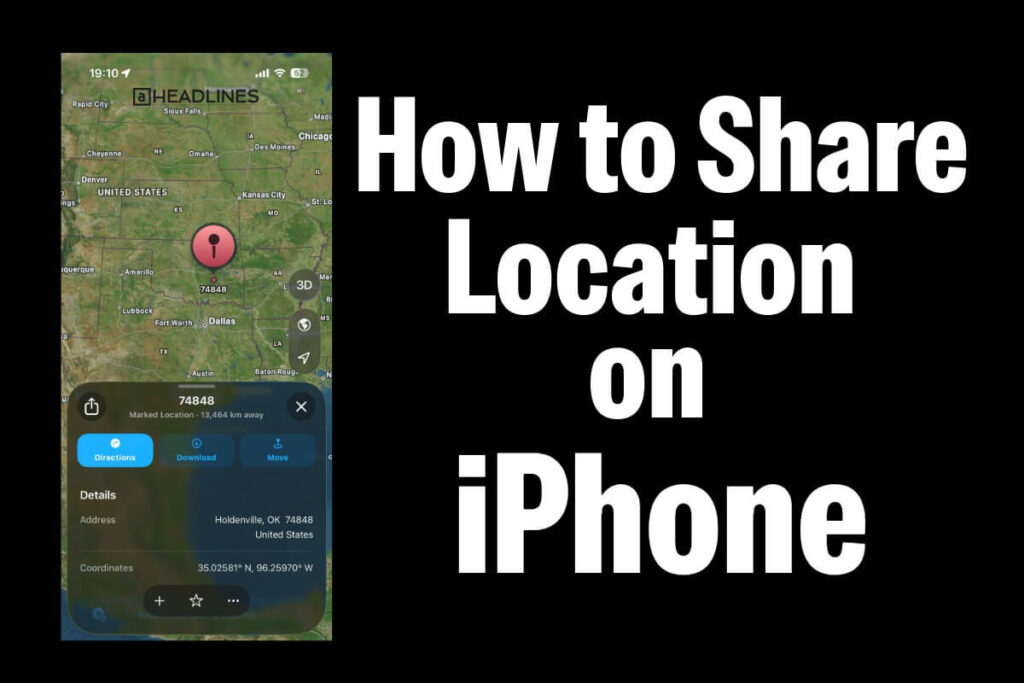
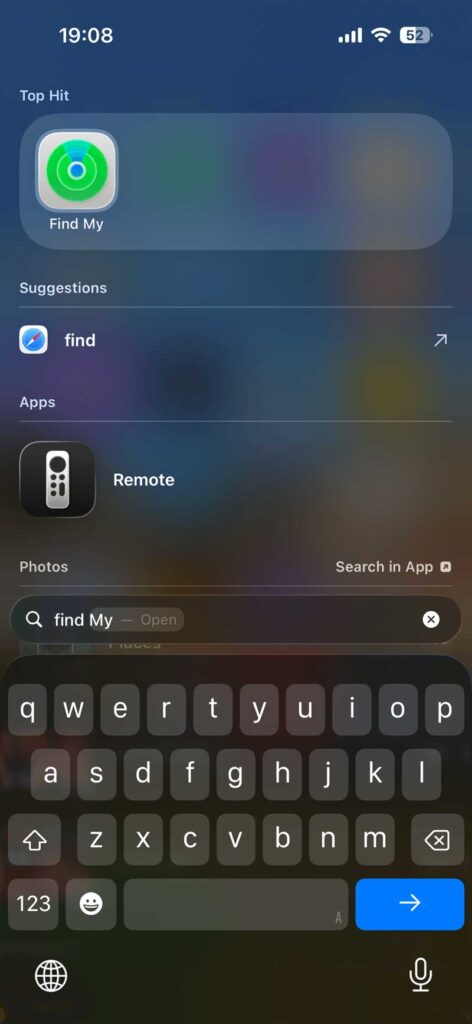
Method 1: Using the Find My App
The Find My app is the core hub for long-term or ongoing tracking. It allows you to share your live location, which updates in real-time as you move.
1.Open Find My:Prerequisite: Signed into iCloud.
Launch the built-in Find My app on your iPhone.
2.Start Sharing:People Tab.

Tap the People tab at the bottom left of the screen, then tap the “+” (Plus) button or select Start Sharing Location.
3.Select Your Contact:Choose recipients.
Type the name, phone number, or email address of the person you want to share with, then tap their contact.
4.Choose Time Duration:Set boundaries.
Tap Send, then select how long they can see you: Share for One Hour, Share Until End of Day, or Share Indefinitely.
Method 2: Directly inside a Messages (iMessage) Chat
If you are already texting someone, you can share your location right inside the conversation without closing the app.
- Open the Messages app and tap on a conversation.
- Tap the “+” (Plus) icon to the left of the text input field.
- Select Location from the pop-up menu.
- Tap Share (to share your moving, live location) and select a duration: One Hour, Until End of Day, or Indefinitely.
- Alternatively, if you just want to send a static map marker of where you are right now, tap the Map Pin icon in the top left, drop the pin, and tap Send Pin.
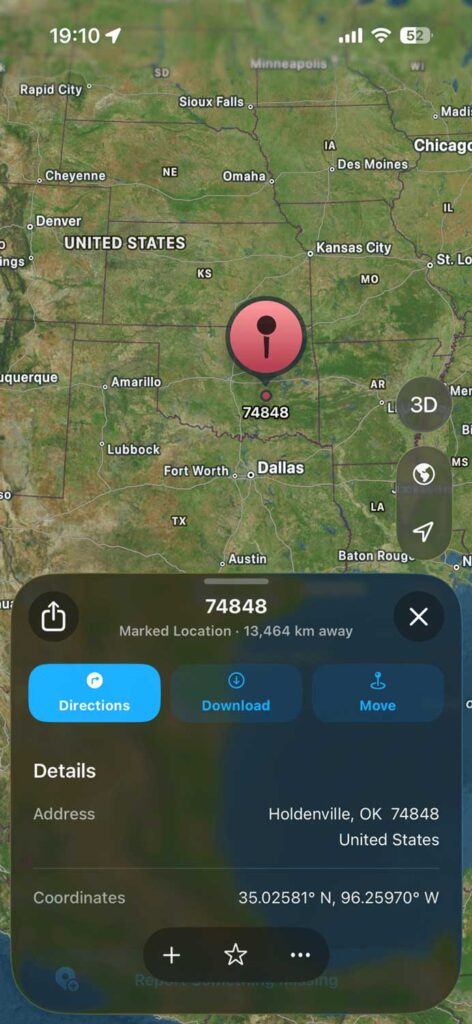
Method 3: Share Your Journey on Apple Maps (Share ETA)
When you are driving or walking using Apple Maps navigation, you can share your live progress and Estimated Time of Arrival (ETA).
- Start turn-by-turn navigation in Apple Maps.
- Swipe up on the route card at the bottom of the screen.
- Tap Share ETA.
- Select one or more contacts from your recent list.
How it works: Apple Maps will actively stream your location to them until you arrive at your destination or stop navigation. If you get stuck in traffic, their map automatically updates your arrival time.
Other Ways to Share iPhone Location
- Family Sharing: Auto-shares within groups for ongoing family tracking.
- Third-party apps: WhatsApp or Google Maps for cross-platform needs.
For one-time shares, say “Send my current location” in Messages.
| Method | Best For | Duration Options |
|---|---|---|
| Find My | Long-term friends/family | 1hr, Day, Indefinite |
| Messages | Quick chats/groups | Same as above |
| Maps | Pin drops | One-time |
| Family Sharing | Households | Always on |
What is iPhone Location Sharing?
iPhone location sharing is a built-in feature that allows you to send your real-time or static location to others. It works through Apple’s Find My app, Messages, and sometimes third-party apps like WhatsApp or Google Maps.
- Real-time sharing: Your contacts can see your live movement on a map.
- Static sharing: You send a one-time pin of your current location.
- Cross-platform support: While optimized for iOS, you can share with Android users via links.
This feature is part of Apple’s ecosystem, designed to integrate seamlessly with iCloud and Apple ID security.
How to Stop Sharing Your Location
Privacy is important, and you can revoke location access at any time.
- To stop sharing with one person: Open Find My > tap the People tab > select the person’s name > scroll down and tap Stop Sharing My Location.
- To stop sharing with everyone at once: Open Settings > Privacy & Security > Location Services > Share My Location > toggle Share My Location to Off.
FAQs
1. How do I stop sharing my location on iPhone?
Go to Find My > People > Stop Sharing My Location or disable it in Messages > Info > Stop Sharing.
2. Can I share location with Android users?
Yes. Use Apple Maps or Google Maps to send a link that opens in a browser.
3. Is iPhone location sharing secure?
Yes. It’s tied to your Apple ID and encrypted. However, always share only with trusted contacts.
4. Does sharing location drain battery?
Continuous real-time sharing can reduce battery life, but occasional static sharing has minimal impact.
5. Can I share location without internet?
No. Location sharing requires Wi-Fi or cellular data to transmit your position.
Conclusion
Sharing your location on iPhone is a powerful tool for safety, convenience, and connectivity.
With flexible options, strong privacy controls, and seamless integration, it’s ideal for both advanced and general users.
As Apple continues to enhance iOS, expect smarter, more customizable location-sharing features in the future.

Virginia J. Alfonso is a seasoned technology writer with a passion for all things digital. With over a decade of experience covering the latest in tech innovation, gadgets, and software, Virginia brings a unique blend of technical expertise and accessible writing to her work. Her articles focus on making complex tech topics easy to understand for readers of all levels.