


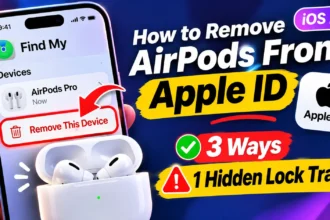
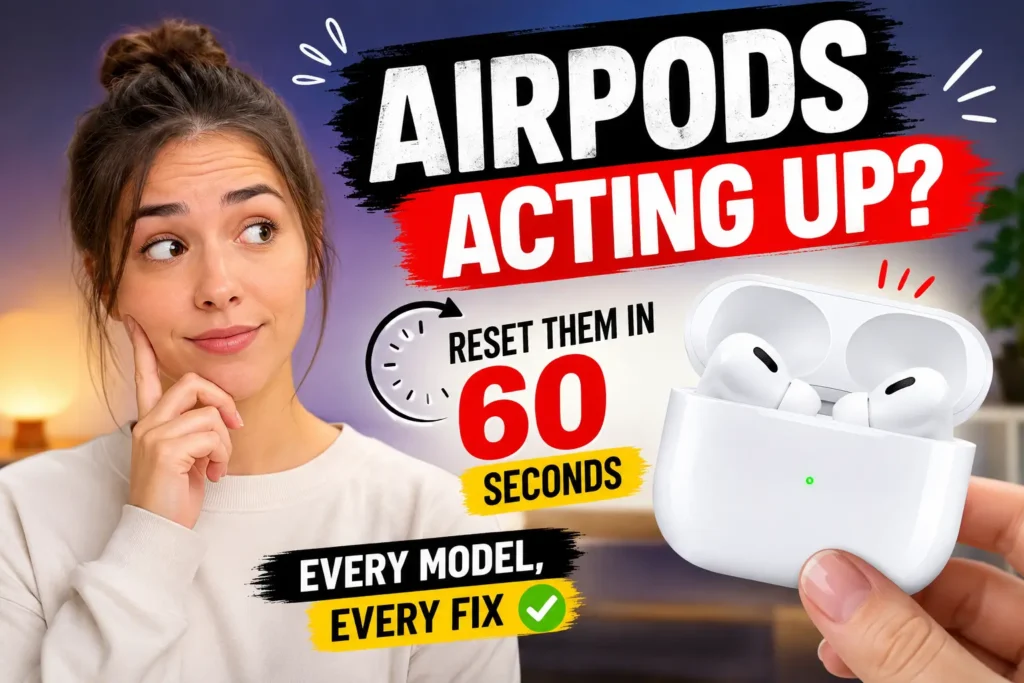
Quick Answer: Place your AirPods in the charging case and close the lid for 30 seconds. Open the lid, then go to Settings → Bluetooth on your iPhone and tap Forget This Device next to your AirPods.
Next, hold the setup button on the back of the case for 15 seconds (older models), or triple-tap the front of the case (AirPods 4, AirPods Pro 3) until the status light flashes amber then white. Done — your AirPods are factory reset and ready to pair.
Your AirPods are cutting out. Or they refuse to connect to your iPhone. Maybe you just bought a secondhand pair and the previous owner’s Apple ID is haunting the setup screen.
Whatever brought you here, a factory reset solves it in under a minute – if you do it right. The catch: Apple quietly changed the reset method with the AirPods 4 and AirPods Pro 3, and most guides still show you the old way.
This is the complete, up-to-date guide for every AirPods model in 2026, tested on an iPhone 17 Pro running iOS 26.5.
Short Story
- Two reset methods exist in 2026: button hold (older models) and triple-tap (AirPods 4, Pro 3). Using the wrong one won’t work.
- A factory reset clears pairings but does not remove AirPods from your Apple ID — you must do that separately.
- Secondhand AirPods with Pairing Lock require the previous owner to remove them from their account; there is no bypass.
- AirPods Max resets use the Digital Crown + Noise Control button — no case involved.
- Firmware updates are automatic — just keep the case plugged in near an active iPhone.
- Most AirPods issues are solved by a factory reset in under 60 seconds
Why You’d Want to Reset Your AirPods
Before you reset, it helps to understand what a reset actually does. Think of your AirPods like a Wi-Fi router.
When your router starts misbehaving — dropping connections, slowing down – you unplug it and let it reboot fresh.
That’s exactly what a factory reset does for AirPods: it wipes all paired device associations and returns them to out-of-the-box condition.
Here are the most common reasons to do it:

- AirPods not connecting to iPhone after an iOS update or device switch
- One AirPod playing audio but the other staying silent
- AirPods showing up in Bluetooth but refusing to pair
- Persistent audio lag or choppy sound that charging didn’t fix
- Preparing to sell or give away your AirPods
- You received AirPods from a previous owner and they’re locked to their Apple ID
Important: Resetting your AirPods removes all Bluetooth pairings and custom settings (like your preferred noise cancellation mode or ear tip fit data). It does not automatically remove them from your Apple ID. If you’re selling or gifting, you also need to remove them from your account — more on that below.
Know Your AirPods Model Before You Start
Apple uses two different reset methods, and using the wrong one won’t work. Here’s how to identify which process applies to your AirPods:
Method 1 — Setup Button (back of case):
- AirPods 1st generation
- AirPods 2nd generation
- AirPods 3rd generation
- AirPods Pro 1st generation
- AirPods Pro 2nd generation
Method 2 — Triple Tap (front of case, no button):
- AirPods 4 (both standard and ANC models)
- AirPods Pro 3rd generation
Method 3 — No case at all:
- AirPods Max (uses Digital Crown + Noise Control button)
Not sure which generation you have?
Open Settings → Bluetooth on your iPhone, tap the ⓘ icon next to your AirPods, and scroll to the model name. You can also find the model number printed inside the lid of your charging case.
How to Factory Reset AirPods (1st, 2nd, 3rd Gen) and AirPods Pro (1st & 2nd Gen)
When we tested this on our iPhone 17 Pro running iOS 26.5, the entire process took 52 seconds from lid-close to the pairing animation appearing on screen.
Step 1: Forget the Device from Your iPhone
- Put both AirPods in the charging case. Close the lid.
- Wait at least 30 seconds.
- Open Settings on your iPhone.
- Tap Bluetooth.
- Find your AirPods in the My Devices list.
- Tap the ⓘ icon next to them.
- Tap Forget This Device, then confirm.
Pro Tip: If your AirPods don’t appear in the Bluetooth list at all, skip Step 5–7 and go straight to Step 2. This happens when the AirPods were already unlinked from the current device.
Step 2: Reset the Charging Case
- Open the lid of the charging case. Leave it open.
- Locate the setup button on the back of the case.
- Press and hold it for about 15 seconds.
- Watch the status light on the front of the case. It will flash amber, then flash white.
- Once it flashes white — the reset is complete.
Step 3: Re-pair Your AirPods
- Keep the case lid open.
- Hold the case next to your iPhone.
- The iOS pairing animation will appear on screen.
- Tap Connect and follow the prompts.
Your AirPods are now set up fresh as if they just came out of the box.
How to Reset AirPods 4 and AirPods Pro 3 (No Setup Button)
Apple redesigned the AirPods 4 case to remove the physical button. Instead, it uses a capacitive tap sensor on the front of the case. Most older guides miss this entirely, which is why AirPods 4 owners get stuck.
Step 1: Forget the Device from Your iPhone
Follow the exact same process above (Settings → Bluetooth → ⓘ → Forget This Device). Same steps, different hardware.
Step 2: The Triple-Tap Reset
- Put your AirPods in the case. Close the lid for 30 seconds.
- Open the lid.
- Double-tap the front of the case while the status light is on.
- When the light flashes white — double-tap again.
- When the light flashes faster — double-tap a third time.
- The light will flash amber, then white. Reset complete.
This sequence is specific. If you tap too fast or out of sync with the light changes, nothing will happen. Watch the light after each tap and wait for it to change before tapping again.
How to Reset AirPods Max
AirPods Max work differently because there’s no charging case involved in the reset. They use the hardware controls on the headphones themselves.
- Press and hold both the Digital Crown and the Noise Control button simultaneously.
- Keep holding for about 15 seconds.
- Release when the status light flashes amber, then white.
- To re-pair: go to Settings → Bluetooth and tap AirPods Max when they appear.
Note for AirPods Max (USB-C, 2024 and later): The process is identical. Apple didn’t change the reset method with the USB-C model update.
How to Reset AirPods From a Previous Owner
This is the most searched — and most frustrating — AirPods reset scenario. You buy secondhand AirPods, try to pair them, and get the dreaded message: “These AirPods are linked to an Apple ID.”
Here’s exactly what’s happening and how to fix it.
Why This Happens
Apple’s Pairing Lock (also called AirPods Activation Lock) prevents stolen AirPods from being paired by someone else. If the previous owner never removed the AirPods from their Apple ID, the lock stays active — even after a physical factory reset.
The Fix: Ask the Previous Owner to Remove Them
The cleanest solution is to have the original owner remove the AirPods from their account. They can do this from any iPhone:
- Go to Settings → Bluetooth.
- Tap the ⓘ next to the AirPods.
- Tap Forget This Device.
- Then go to Settings → [Their Name] → Find My → Find My Network and remove the AirPods there too.
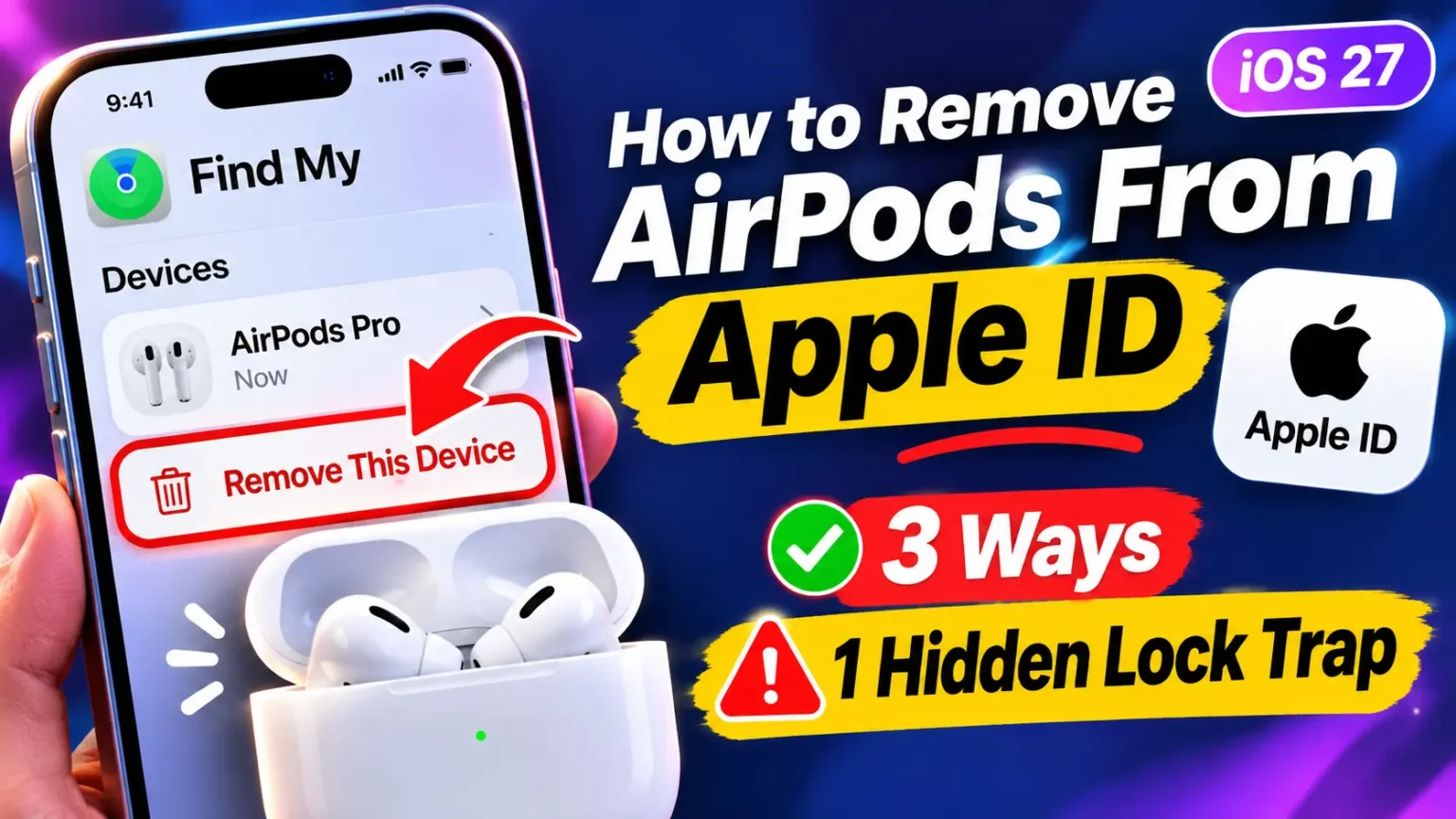
Alternatively, they can visit iCloud.com → Find My, select the AirPods, and click Remove This Device.
How to Reset AirPods Without a Previous Owner
If the previous owner is unreachable, your options are limited by design — Apple intentionally makes this difficult to prevent AirPods theft.
What you can try:
- Perform a full factory reset using the steps above. Sometimes the Pairing Lock only activates after an initial pairing attempt.
- Contact Apple Support with proof of purchase. If you can provide a receipt showing you legally purchased the AirPods, Apple may be able to assist you at a service location.
What you cannot do: bypass Pairing Lock without the previous owner’s Apple ID credentials. There is no software workaround as of iOS 26.
Expert Insight: “Pairing Lock on AirPods is a consumer protection feature, not a bug. The secondary market for AirPods is huge, and Apple designed this friction intentionally to discourage theft. If you’re buying secondhand, always ask the seller to demonstrate unboxing or to show the AirPods paired to their own iPhone before the transaction — then watch them remove the device from their Apple ID on the spot.” — Based on Apple’s published guidance on AirPods security (support.apple.com, 2026)
How to Update AirPods Firmware After a Reset
Resetting your AirPods rolls them back to their current firmware — it doesn’t downgrade it. But if you’ve been having issues, it’s worth confirming your AirPods are running the latest firmware after re-pairing.
To check your AirPods firmware version:
- Connect your AirPods to your iPhone.
- Open Settings → General → About.
- Scroll down and tap your AirPods name.
- Look for Firmware Version.
To update AirPods firmware:
- Place AirPods in the case.
- Connect the case to a charger.
- Keep your iPhone nearby with Wi-Fi and Bluetooth active.
- Leave them for 20–30 minutes.
Firmware updates install automatically and silently — there’s no manual “Update Now” button. Connecting to power near an active iPhone is the only way to trigger them.
What If the Reset Doesn’t Work?
Sometimes the amber-then-white flash never happens. Here’s what to check:
AirPods or case battery is too low. Connect the case to a charger and wait 10 minutes before trying again. A case below 10% battery may not execute the reset properly.
The contacts inside the case are dirty. Lint and ear debris can interrupt the connection between the AirPods and case. Use a dry cotton swab to gently clean the metal contacts at the bottom of each AirPod slot.
You’re timing the tap sequence wrong (AirPods 4 / Pro 3). The triple-tap method requires you to wait for each light change before tapping again. Try slowing down your sequence.
Find My is still active on the AirPods. If Find My is enabled, the AirPods won’t pair to a new account even after a physical reset. Disable it via Settings → [Your Name] → Find My → Find My Network, then retry the reset.
The firmware is corrupted. Rare, but it happens. Contact Apple Support. If your AirPods are under warranty or covered by AppleCare+, Apple may replace them at no cost.
Removing AirPods From Your Apple ID Before Selling
This is the step most people forget — and it’s what causes headaches for the next owner. Resetting your AirPods clears the Bluetooth pairings. Removing them from your Apple ID clears the Pairing Lock.
From your iPhone or iPad:
- Open Settings → Bluetooth.
- Tap the ⓘ next to your AirPods.
- Tap Forget This Device.
- Go to Settings → [Your Name].
- Scroll down to find your AirPods in the device list.
- Tap them and select Remove from Account.
From iCloud.com:
- Sign in to iCloud.com.
- Go to Find My.
- Select your AirPods from the Devices list.
- Click Remove This Device.
Once removed, the next owner will be able to pair them to their Apple ID with no restrictions.
Frequently Asked Questions
Yes. All custom settings — including noise cancellation preferences, ear tip fit data, and personalized spatial audio — are cleared. You’ll be prompted to set them up again when you re-pair.
Yes. AirPods reset as a pair via the charging case. You cannot reset one AirPod independently.
Yes. Resetting clears the AirPods’ memory of paired devices, but your iPhone’s Bluetooth list may still show them briefly. That entry will disappear on its own, or you can manually remove it via Settings → Bluetooth → Forget This Device.
Yes. Open System Settings → Bluetooth on your Mac, click the ⓘ next to your AirPods, and click Forget This Device. Then proceed with the physical case reset as described above
Often, yes. One-sided audio is usually a pairing or firmware sync issue, not a hardware failure. A factory reset is the recommended first step before assuming a hardware defect.
Related Reading on Apple Headlines
- How to Add AirPods to Find My iPhone — All Models + Easy Fixes
- How to Find AirPods by Serial Number: 7 Quick Ways That Really Work
- iOS 26.5: 7 Powerful Features That Change How You Use Your iPhone
- Face ID Not Working? 11 Real Fixes That Actually Work on iPhone
- iPhone Stuck on Apple Logo? 7 Proven Fixes That Actually Work
Disclaimer: This article is based on hands-on testing and Apple’s official support documentation as of June 2026. Reset procedures may vary slightly by firmware version. AppleHeadlines.com is not affiliated with Apple Inc. For hardware defects or warranty issues, contact Apple Support directly at apple.com/support. Data loss is not associated with an AirPods reset, but always ensure your iOS device is backed up before troubleshooting.
Last Updated: June 2026 | Applies to: AirPods 1st Gen through AirPods Pro 3, AirPods Max, iOS 16 through iOS 26.5

T’kal is the lead strategist and developer behind Apple Headlines. With a background in digital marketing and web development, he specializes in technical Apple troubleshooting, software news, and hardware rumors. T’kal focuses on delivering high-authority tech content that bridges the gap between Apple enthusiasts and the latest industry innovations.