



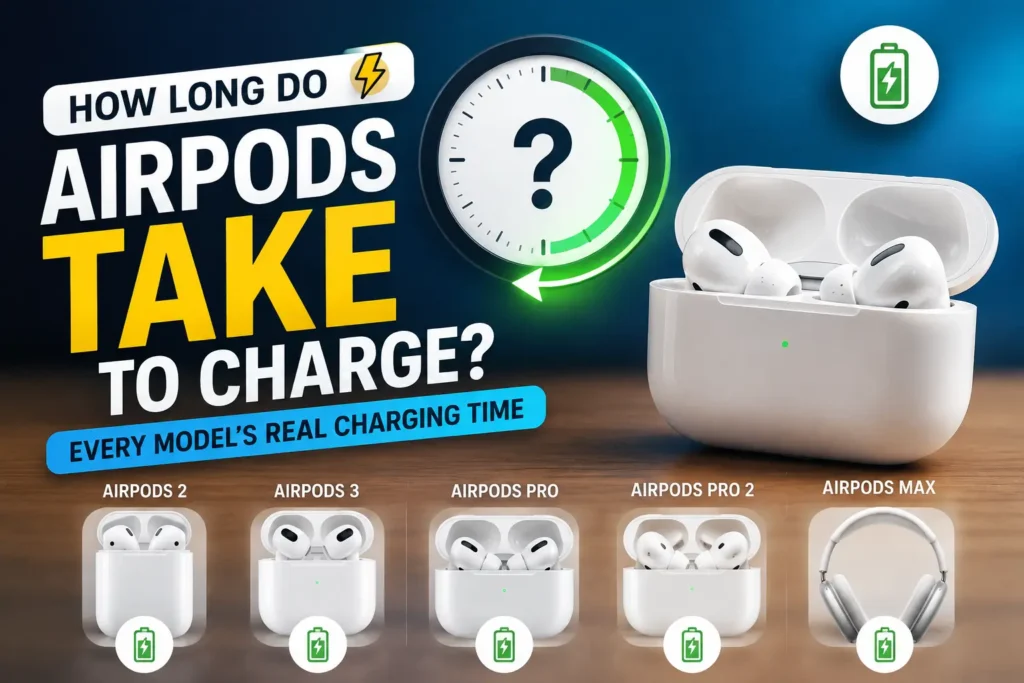
Most AirPods go from empty to fully charged in the case in 30 to 60 minutes, and Apple’s fast-charge feature gives you about an hour of listening time from just a 5-minute top-up (15 minutes on the original AirPods 1st and 2nd gen).
The charging case itself takes longer — usually 1 to 2 hours on a cable and 2 to 3 hours on a wireless pad. AirPods Max and AirPods Max 2 need about 2 hours plugged directly into power, since their case is for storage only.
Those are the averages.
The real number depends on which AirPods you own, whether you’re charging the earbuds or the case, and how you’re powering them – so here’s the breakdown by model, tested against the current 2026 lineup.
How Long It Takes to Charge Each AirPods Model
We charged a set of AirPods 4, AirPods Pro 3, and an older pair of AirPods Pro 2 from completely dead, using an iPhone 17 Pro on iOS 26.5 to track the percentages.
The results lined up closely with Apple’s own fast-charge claims, with the case adding roughly 5–10 minutes to the earbud numbers when everything charges together.
| Model | Earbuds: Empty to Full | 5-Min Quick Charge Gives You | Single-Charge Listening Time |
|---|---|---|---|
| AirPods (1st/2nd gen) | ~25–30 min | 3 hrs listening (15-min charge) | ~5 hrs |
| AirPods 3rd gen | ~45–60 min | ~1 hr listening | ~6 hrs |
| AirPods 4 | ~45–60 min | ~1 hr listening | ~5 hrs |
| AirPods 4 (ANC) | ~45–60 min | ~1 hr listening | ~4 hrs (ANC on) |
| AirPods Pro (1st gen) | ~45–60 min | ~1 hr listening | ~4.5 hrs (ANC on) |
| AirPods Pro 2 | ~45–60 min | ~1 hr listening | ~6 hrs (ANC on) |
| AirPods Pro 3 | ~30–45 min | ~1 hr listening | ~8 hrs (ANC on) |
| AirPods Max (1st gen) | ~2 hrs (plugged in) | 1.5 hrs listening | ~20 hrs |
| AirPods Max 2 | ~2 hrs (plugged in) | 1.5 hrs listening | ~20 hrs (ANC on) |
Two things jump out once you put the current lineup side by side.
First, AirPods Pro 3 actually charges faster than every other earbud model despite packing in a heart rate sensor and a much stronger ANC chip – Apple shrank the case battery to squeeze the earbuds’ single-charge time up to 8 hours, and the trade-off is a case that tops up itself in less total time.
Second, if you’re still using original AirPods 1st or 2nd generation, those charge fastest of all, since they don’t run Optimized Battery Charging’s slower top-up cycle at the end.
If you’re trying to figure out how long your specific pair will last on a single charge rather than how fast it fills up, that’s a separate question — see our full breakdown of how long AirPods last on one charge and over their lifespan.



How Long the Charging Case Takes to Charge
The case is the part people forget to budget time for, since it holds several extra full charges for your earbuds and needs its own top-up separately.
- Cable (USB-C or Lightning, depending on model): about 1–2 hours from empty to full
- MagSafe or Qi-certified wireless pad: about 2–2.5 hours
- A basic 5W wireless pad: can stretch to 2.5–3 hours
- Apple Watch charger: works for AirPods 4 (ANC), AirPods Pro 2, and AirPods Pro 3, at roughly the same speed as a standard Qi pad
If your AirPods are sitting inside the case while it charges, expect the total time to run 15–30 minutes longer than charging an empty case alone, since the system prioritizes getting the earbuds to 100% first.
If you need both ready as fast as possible, charge the case by itself for the first hour, then drop the earbuds in afterward.
Charging Without a Wall Outlet
This is the part most charging guides skip, and it’s usually the actual question behind “how long do AirPods take to charge” when you’re not near an outlet.
Power banks: Any USB-C power bank charges the AirPods case at essentially the same speed as a wall adapter, since the case doesn’t draw much current. A 10,000mAh power bank can top up an AirPods case dozens of times before it needs recharging itself.
Laptop USB port: Works, but slower — a laptop’s USB-A port typically outputs less power than a wall charger, so add 20–30 minutes to the numbers above.
Straight from your iPhone (reverse wireless charging): If you have an iPhone 15 or later, you can place your AirPods Pro 3 case on the back of your iPhone and it’ll trickle-charge the case using the phone’s own battery — handy in a pinch, though it’s slow (think 45+ minutes for a meaningful top-up) and it noticeably drains your iPhone in return. It’s a “get me through the next hour” option, not a primary charging method.
Car USB port: Similar to a laptop — it’ll charge, just more slowly than a wall adapter, and older car USB ports (5W or less) will be the slowest of all.
What Actually Slows Down Your Charging Time
- Battery level when you start. Like any lithium-ion device, AirPods charge fastest from 0–80% and then slow down deliberately for the final stretch — that’s not a fault, it’s how the battery avoids heat and wear near full charge.
- Temperature. Charging outside roughly 32°F–95°F (0°C–35°C) will slow the process or pause it entirely. Leaving your case in a hot car is the most common culprit here.
- Cable and adapter quality. A worn or uncertified cable, or a very low-wattage adapter, can meaningfully add to charging time. Apple’s own iPhone or MacBook chargers work fine — you don’t need anything AirPods-specific.
- Dirty contacts. The metal charging pins inside the case pick up lint and earwax over time. A dry, soft-bristled brush (or the back of a SIM tool) run gently across the pins clears this up in seconds and is worth doing monthly.
- Battery age. AirPods batteries typically hold up well for 2–3 years of daily cycles, but an aging battery does take slightly longer to reach 100% as it nears the end of its useful life, since it can’t accept charge at the same rate a fresh cell does.
Pro Tip: If you only have a few minutes before you need to leave, don’t bother closing the case lid and waiting — open the lid, drop the AirPods in, and leave it open.
The fast-charge circuitry kicks in immediately either way, but an open lid lets you watch the status light change from amber to green in real time instead of guessing.
Optimized Battery Charging — Why Your AirPods Might “Pause” at 80%
If you’ve noticed your AirPods Pro or AirPods 3rd gen and later seem to stall around 80% overnight and then finish right before you wake up, that’s not a glitch — it’s Optimized Battery Charging.
The feature learns your daily routine and holds off on that last 20% until closer to when you’ll actually use them, since batteries age faster the longer they sit at 100%.
AirPods Pro 3 takes this a step further with an Optimized Charge Limit toggle in Settings, which can cap charging below 100% entirely if you tend to leave your case plugged in constantly.
Both features are on by default and are genuinely worth keeping enabled for long-term battery health, even though they technically make an overnight charge take “longer” in wall-clock time.
For the full explanation of how the learning works and how to turn it off if you need a guaranteed full charge before a flight, see our guide to Optimized Battery Charging.
How to Tell Your AirPods Are Actually Charging
The status light on the front (or inside the lid, on older Lightning cases) tells you everything at a glance:
| Light | What It Means |
|---|---|
| Solid amber | Currently charging, less than one full charge remaining |
| Pulsing amber (AirPods 4, Pro 2, Pro 3) | Under 95% charged |
| Solid green | Fully charged |
| No light at all | Case has no power, or the cable/charger isn’t making contact |
For exact percentages rather than a light color, hold the open case near your unlocked iPhone and wait for the battery pop-up card — we cover every method, including the Batteries widget, in our guide to checking AirPods battery on iPhone.
Real Case: The Case That “Charged” All Night But Wasn’t
A reader who works overnight hospital shifts wrote in after her AirPods Pro 2 case sat on a wireless charger for eight hours and still showed only 40% the next evening.
The cause turned out to be simple: her nightstand charging pad was rated for phones only and output just 2.5W — well below what the case needs for a reliable wireless charge, so it was trickle-charging at a fraction of normal speed the entire night.
Switching to a cable for one night got the case to 100% in under two hours. If your case seems to take unusually long on a wireless pad, checking the pad’s wattage rating is worth doing before assuming your AirPods themselves have a problem.
Troubleshooting: Case Shows Charging, But AirPods Aren’t Gaining Charge
This is a different problem from a case that won’t charge at all, and it has its own set of causes:
- The AirPods aren’t seated correctly. Each earbud needs to click into place — a slightly crooked AirPod can show a charging light without actually making contact. Remove and reseat both earbuds firmly.
- The case itself is nearly empty. If the case is below roughly 10–15%, it may power the status light without having enough charge left to pass on to the earbuds. Charge the case alone for 15–20 minutes, then try again.
- Corroded or dirty contacts on the earbuds. Sweat and earwax buildup on the small metal contacts at the bottom of each AirPod is the single most common cause of this issue. Clean them with a dry cotton swab or soft brush.
- A firmware hang. Rare, but it happens. Placing both AirPods back in the case, closing the lid for 30 seconds, then reopening it usually forces a reconnect. If that doesn’t help, a full reset resolves the vast majority of stuck-charging cases — our AirPods reset guide walks through the exact steps for every generation.
- The case has a hardware fault. If none of the above works and the case is out of warranty, Apple’s battery/hardware service for AirPods cases typically runs $49–$99 depending on model.
Key Takeaways
- Most AirPods earbuds fully charge in 30–60 minutes; AirPods Pro 3 is currently the fastest at 30–45 minutes despite having Apple’s longest single-charge listening time.
- A 5-minute charge buys you about an hour of listening on every current model except original AirPods 1st/2nd gen, which need 15 minutes for a similar boost.
- The case takes noticeably longer than the earbuds — 1–2 hours wired, 2–3 hours wireless — and charging the earbuds inside it adds 15–30 minutes to that.
- AirPods Max and AirPods Max 2 must be plugged in directly; their case is for storage, not charging.
- Optimized Battery Charging pausing your AirPods at 80% overnight is normal and protects long-term battery health — it’s not a malfunction.
- If the case shows a charging light but your AirPods’ percentage isn’t moving, it’s almost always a seating, cleanliness, or low-case-battery issue rather than a hardware failure.
FAQ
Not to full, but 3 minutes in the case on AirPods Pro 3 or 3rd-generation AirPods typically adds 30–40 minutes of listening time — enough to get through a short commute.
No. Apple’s charging circuitry stops drawing power once the battery hits 100%, and Optimized Battery Charging actively manages overnight charging to reduce battery wear rather than cause it.
Yes. Any Apple-certified USB-C or Lightning wall adapter works fine for AirPods — there’s no AirPods-specific charger, and higher-wattage iPhone or MacBook adapters won’t overcharge or damage them.
Wireless charging is inherently slower than a cable for AirPods cases, but an unusually long wait is often a low-wattage pad (5W or less), a case that isn’t centered on the coil, or a case with debris in the charging contacts.
Speed is the same either way — the lid doesn’t affect charging rate. An open lid just lets you see the status light change in real time.
A fully charged case typically provides at least four additional full charges for the earbuds before the case itself needs to be plugged in again.
Sources
- Apple Support, Charge your AirPods
- Apple, AirPods Pro 3 Technical Specifications
- Apple Support, Optimized Battery Charging on AirPods
Disclaimer
Charging times vary based on battery health, ambient temperature, cable and adapter quality, and Apple’s own Optimized Battery Charging behavior, so your results may differ slightly from the figures above. This article reflects testing and specifications available as of publication and is intended for general guidance rather than a warranty of performance.

T’kal is the lead strategist and developer behind Apple Headlines. With a background in digital marketing and web development, he specializes in technical Apple troubleshooting, software news, and hardware rumors. T’kal focuses on delivering high-authority tech content that bridges the gap between Apple enthusiasts and the latest industry innovations.