



Updated October 17, 2026 · Checked against Apple’s current macOS 27 Golden Gate and macOS Tahoe 26 printing guidance
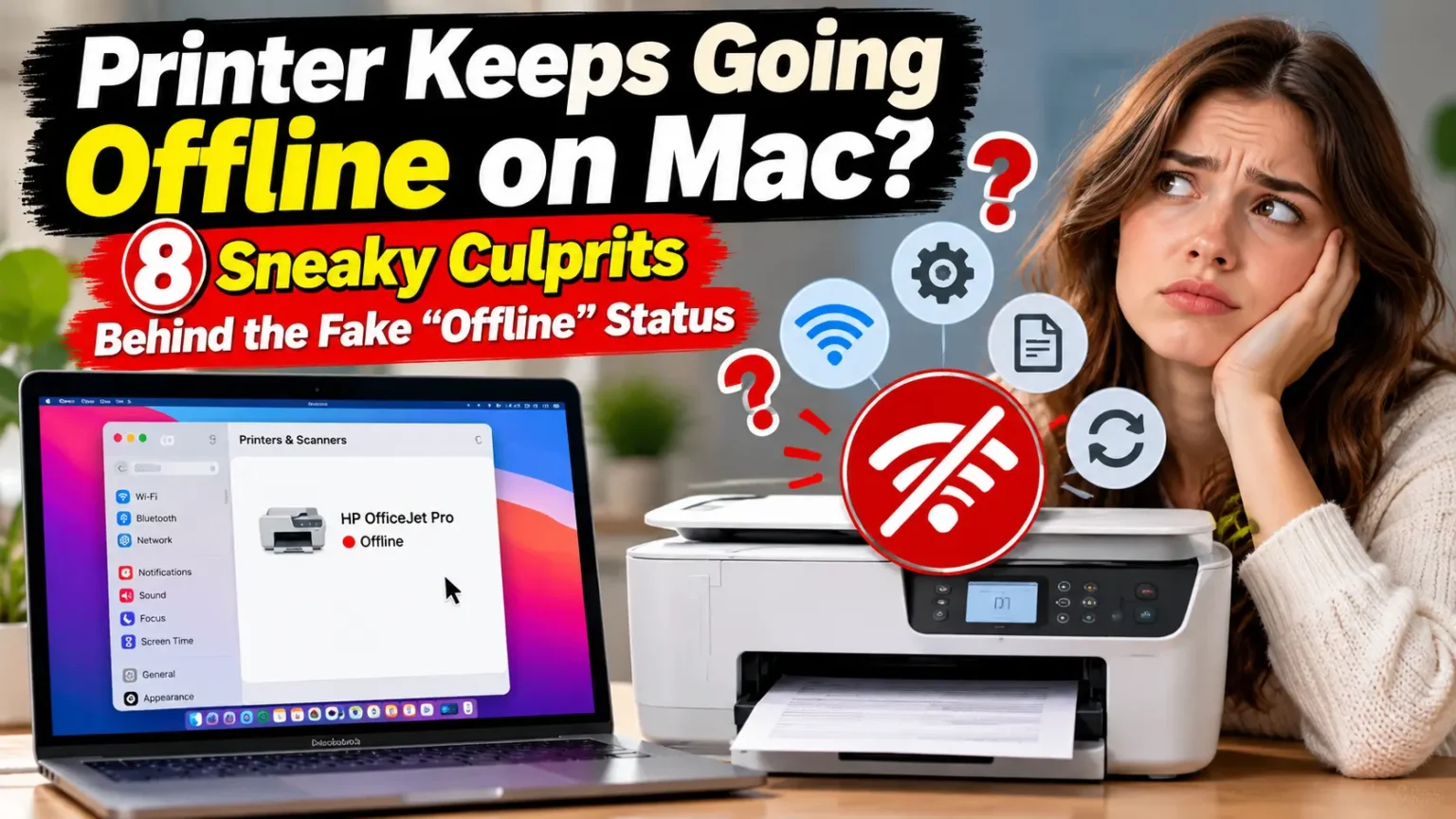
Quick Answer: A Mac shows a printer as offline when it can’t reach the printer’s network address.
The usual causes are a different Wi-Fi network, a changed IP address, a sleeping printer, or a stale printer entry.
Put both devices on the same network, restart the printer, then remove and re-add it in System Settings > Printers & Scanners.
Still offline?
Reset the printing system.
You hit Print. Your Mac says the printer is offline. But the printer is on, the light is green, and your iPhone printed fine five minutes ago.
Here’s the good news: “offline” rarely means broken. It usually means your Mac lost track of the printer. Or it’s talking to a ghost copy.
This guide covers eight checks, ordered to save you the most time. It works on macOS 27, macOS Tahoe 26, and older versions.
Why Your Mac Says “Offline” When the Printer Looks Fine
Your Mac keeps a saved entry for every printer. It’s called a print queue.
That entry remembers how to reach the printer and which driver to use.
When the printer’s address changes, or it lands on another network, the saved entry goes stale.
More Read


Apple’s printing guide says macOS then shows an offline, paused, or unavailable icon by the printer’s name.
We read Apple’s macOS 27 printing guide next to this year’s forum reports. One pattern stood out.
Most offline cases are network problems, not printer problems.
A smaller group appears right after a macOS update.
One MacRumors user said an older Brother printer began failing with a “Filter failed” error after macOS Golden Gate.
Another forum member hit printing trouble after a Golden Gate beta. Resetting the printing system fixed it.
The Phone Number Analogy
Imagine you saved a friend’s number in your phone.
Then they switch to a new number.
Your contact card still shows the old one.
Every call goes nowhere, even though your friend is fine.
Your Mac’s printer entry works the same way.
Your router hands out network addresses, called IP addresses, and they can change.
The Mac keeps calling the old address. The printer sits at its new address and never hears a thing.
Match Your Symptom to the Right Check
| What You See | Most Likely Culprit | Start At |
|---|---|---|
| Offline right after a Wi-Fi change | Different network or band | Check 1–2 |
| Works for a day, then goes offline | Changed IP address | Check 3 |
| Offline first thing each morning | Printer asleep | Check 4 |
| Status says Paused, jobs pile up | Stuck queue | Check 5 |
| Printer listed twice | Duplicate entries | Check 6 |
| Broke after a macOS update | Driver mismatch | Check 7 |
| Nothing else worked | Corrupt printing setup | Check 8 |
The 8 Checks, in Order
Check 1: Put Your Mac and Printer on the Same Network
This is the most common cause, and it’s easy to miss.
Apple’s guide says to confirm your Mac and the printer are still on the same network.
Guest networks, mesh extenders, and VPNs can all split them apart.
- Click the Wi-Fi icon in your Mac’s menu bar.
- Note the network name with the checkmark beside it.
- On the printer’s screen, open the Network or Wireless menu.
- Confirm it shows the exact same network name.
- Turn off any VPN, then try printing again.
- If you use a mesh system, join the main network name.
Check 2: Match the Wi-Fi Band and Signal
Many routers broadcast two bands: 2.4 GHz and 5 GHz.
Sometimes a printer and Mac get along better on one band. An HP user with two Macs kept seeing “The printer is offline.”
The HP app still worked. Reinstalling the driver only helped for about a day. Switching the printer to 5 GHz ended the problem for three days straight.
That’s one person’s report, not a guarantee. Many printers only support 2.4 GHz.
- Open your printer’s wireless settings.
- Check which band it currently uses.
- If it supports both, try the other band.
- Move the printer closer to the router for a test.
- Print a test page from TextEdit.
Check 3: Lock Down the Printer’s IP Address
This is the phone-number problem from earlier.
If your router gives the printer a new address each week, your Mac’s saved entry breaks. A fixed address stops that.
- On the printer, print a network configuration page.
- Find the IP address on that page. It looks like 192.168.1.45.
- Log in to your router’s admin page.
- Find a setting called DHCP reservation or address reservation.
- Assign that IP address to your printer.
- Restart the printer, then your Mac.
Want a fast refresh first? Turn off the printer.
Unplug the router for 60 seconds. Plug it back in and wait about two minutes.
Then turn the printer on and restart your Mac.
You can also add the printer by its IP address. Apple suggests this when the printer doesn’t appear in the list.
Pro Tip: The 60-Second Split Test. Print the same page from your Mac and from your iPhone. If the iPhone prints but the Mac won’t, the problem lives on the Mac.
Jump to Checks 5 through 8. If both fail, the printer or network is to blame. Stay with Checks 1 through 4.
This one test can save you an hour of guessing.
Check 4: Wake the Printer and Check Its Sleep Settings
Apple’s guide says the printer should be on and show normal status lights. Some printers also drop off Wi-Fi during deep power-saving sleep.
- Press any button on the printer to wake it.
- Wait for the Wi-Fi light to turn solid.
- Look for paper jams, low ink, or error messages.
- Open the printer’s Eco or Power Save menu.
- Lengthen the sleep timer, or turn off auto-off.
Sharing a printer through another Mac? Apple notes that Mac must be awake with sharing turned on.
Check 5: Resume a Paused Queue and Clear Stuck Jobs
One broken job can block everything behind it. Apple’s guide walks through this fix.
- Click the printer icon in the Dock to open Print Center.
- Look for a Resume button in the toolbar.
- Click Resume if you see it.
- Select any job showing an error.
- Click the Delete Job button.
- Print a fresh test page from TextEdit.
Printing from TextEdit also rules out a single misbehaving app. The HP user above saw errors only in Edge.
Check 6: Delete Duplicate Entries and Pick the Right Connection
Over time, a Mac can collect several entries for one printer.
Your Mac may be using a dead one.
Apple’s guide also says to check which printer you picked. It may differ from the one you think you chose.
- Open System Settings > Printers & Scanners.
- Count how many entries share your printer’s name.
- Click the + button to add the printer again.
- In the Use menu, choose AirPrint if it’s offered.
- Send a test page to the new entry.
- If it works, select the old entry and click −.
On AirPrint, an Apple Community helper told one HP owner to pick AirPrint and skip driver installs. The printer then worked.
Check 7: Update the Driver, Firmware, and macOS
Drivers are the printer’s translator. An old one can stumble after a big macOS update.
- Open System Settings > General > Software Update and install anything pending.
- Go to Printers & Scanners and click your printer.
- Read the Driver version shown there.
- Visit your printer maker’s support page for your exact model.
- Install the newest macOS driver and any printer firmware.
- Restart your Mac.
Two extras from Apple’s guide. If you see a “software not compatible” error, you may need Rosetta installed.
You can also click Options & Supplies and check Use Generic Printer Features.
That switches off Print Dialog Extensions, which helps when custom printer dialogs cause trouble.
Check 8: Reset the Printing System (Last Resort)
This wipes your printers, finished jobs, and printer presets. Apple lists it as the final step for a reason. Use it after the other seven.
- Open System Settings > Printers & Scanners.
- Control-click anywhere in the printer list.
- Choose Reset Printing System and confirm.
- Restart your Mac.
- Click + and add your printer again.
Real-World Case Study: The Printer Was Fine. The Mac Wasn’t.
A user on JustAnswer had an Epson ET-3850 and a Mac running macOS Sequoia. The printer showed as idle, then offline. They removed it from the Mac, restarted everything, and it still wouldn’t show up. The printer’s Wi-Fi signal was excellent.
The expert asked one question: is the Mac on the same Wi-Fi? It wasn’t. The MacBook had quietly joined the user’s phone hotspot. Once it rejoined the home network, printing worked again.
The lesson: run Check 1 first, even when you feel sure. It takes ten seconds.
What If This Doesn’t Work?
Don’t give up yet. Try these next.
- Test another device. If your iPhone prints, the printer is healthy. Our guide to printing from iPhone covers AirPrint basics.
- Try a USB cable. Apple says to check System Information for a USB-connected printer. If it appears there but won’t print, check the maker’s documentation.
- Flush the network name cache. After resetting the printing system, one forum user ran
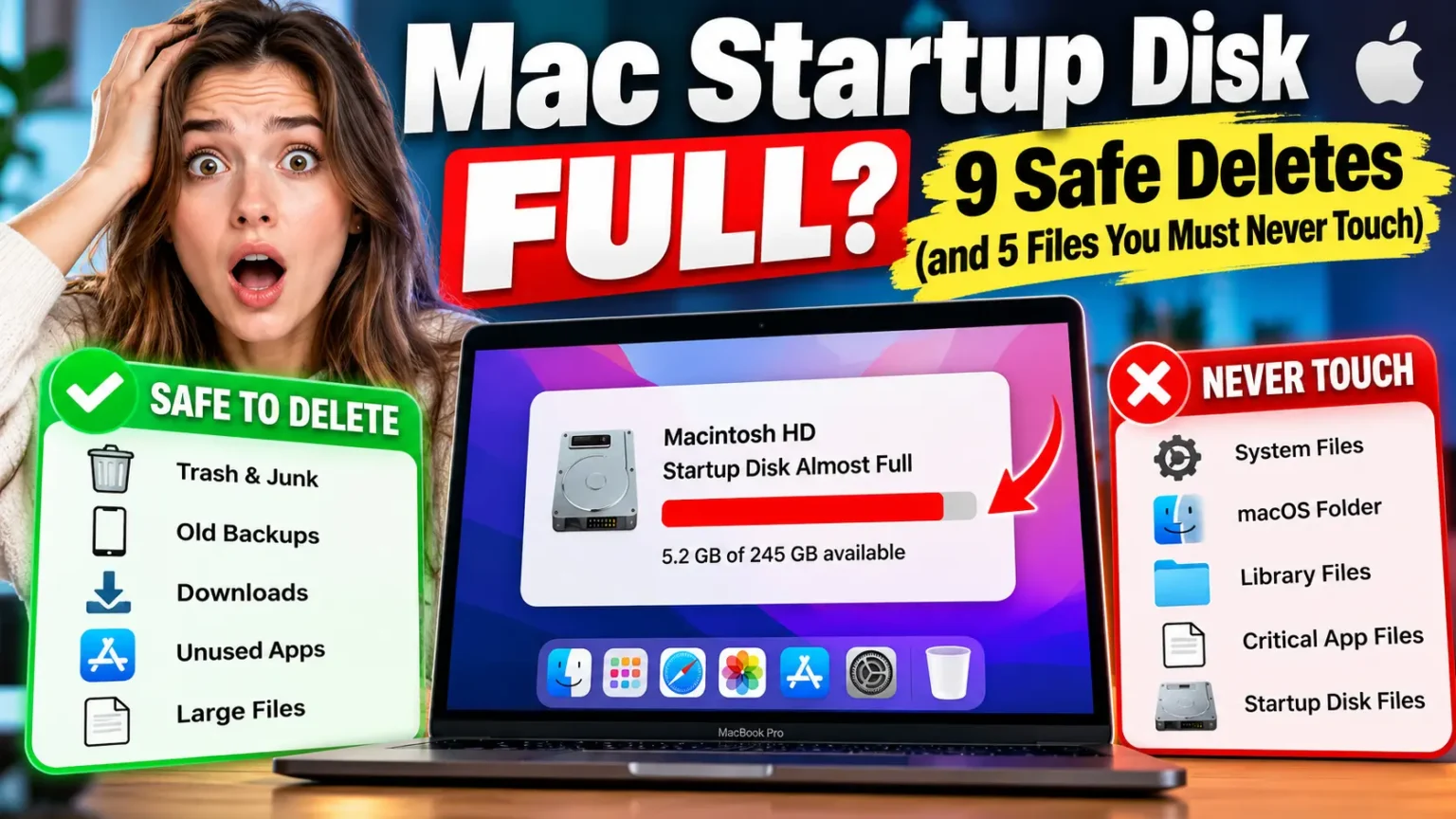
sudo killall -HUP mDNSResponderin Terminal, restarted, and re-added the printer. It’s an advanced, user-reported step. - Check your free space. Apple doesn’t list a full disk as a cause of offline status. Still, a Mac with almost no free space struggles with many tasks, printing included. If you see low-storage warnings, read our guide on a Mac startup disk full first.
- Unfreeze the Mac side. A stuck print app can hold the queue hostage. Learn how to force quit on Mac.
- Consider the printer’s age. One Apple Community user gave up on a ten-year-old printer. Their new wireless one almost set itself up.
- Get hands-on help. If the Mac itself seems at fault, book a Genius Bar appointment. Take a screenshot of any error first.
Key Takeaways
- “Offline” usually means your Mac can’t find the printer’s address, not that it’s broken.
- Check the network first. Both devices must be on the same Wi-Fi.
- A changing IP address is a top cause of “works one day, offline the next.”
- Run the split test: print from your iPhone and your Mac.
- Delete duplicate printer entries, and use AirPrint when it’s offered.
- Reset the printing system only after the simpler fixes fail.
- Expect extra printing hiccups after big macOS updates.
FAQ
Your Mac can’t reach the printer’s saved address. Common reasons include a different Wi-Fi network, a changed IP address, or a stale printer entry. Start with Checks 1 and 3.
Yes. It removes all printers, finished jobs, and presets from your Mac. You’ll add your printer again with the + button. Nothing happens to the printer itself.
Not always. If your printer supports AirPrint, you can pick AirPrint when adding it. Otherwise, install the maker’s latest macOS driver.
Updates can leave old driver or queue settings behind. Several users reported printing issues around macOS Golden Gate. Update your driver, re-add the printer, and reset the printing system if needed.
Often, yes. Your iPhone finds the printer on its own using AirPrint. That points to a Mac-side problem.
Sources
- Apple Support, “Solve printing problems on Mac” (macOS 27 Golden Gate edition):
- HP Support Community, “The printer is offline” for Mac Sonoma 14.6.1:
- Apple Support Community, “my 5200 series printer always says offline”:
- Mac Power Users forum, “Printing issues in Golden Gate”
- MacRumors Forums, “print to old brother not working”:
Disclaimer
This article is for general information. Menus and steps can vary by macOS version, printer brand, and router.
Resetting the printing system removes saved printers and presets.
Router and Terminal changes can affect your network, so write down your settings first.
Apple Headlines is an independent publication and isn’t affiliated with Apple, HP, Epson, Canon, or Brother. Contact your printer maker or Apple Support for model-specific help.
Still stuck? Tell us your printer model and macOS version in the comments. We’ll help you narrow it down. Want more Mac fixes like this? Bookmark Apple Headlines and check back weekly.
Related Posts:

T’kal is the lead strategist and developer behind Apple Headlines. With a background in digital marketing and web development, he specializes in technical Apple troubleshooting, software news, and hardware rumors. T’kal focuses on delivering high-authority tech content that bridges the gap between Apple enthusiasts and the latest industry innovations.