





Estimated Reading Time: 9 minutes
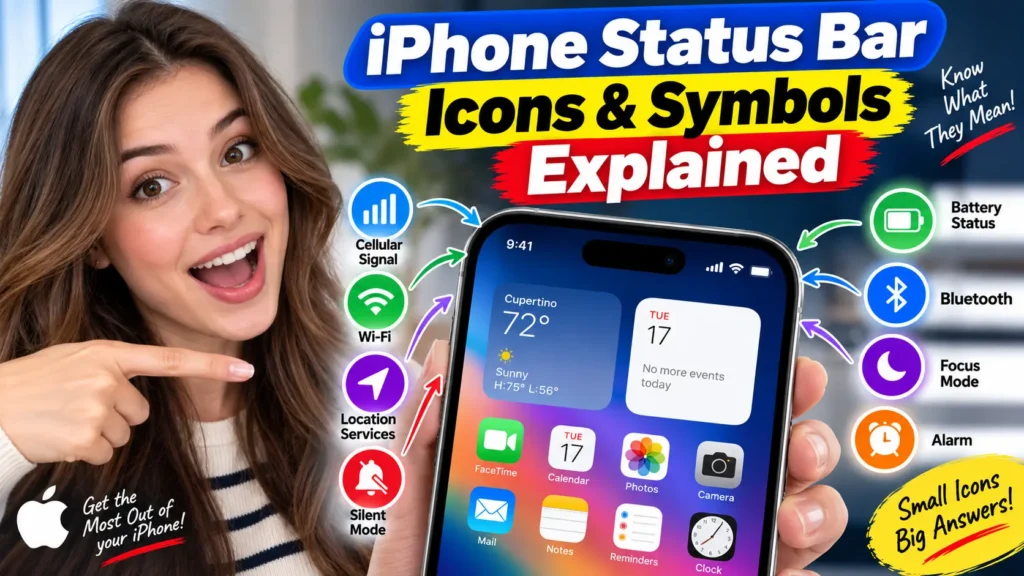
The icons in your iPhone’s status bar tell you what’s active right now: signal and connection type on the left, and system status (Bluetooth, battery, alerts) on the right.
The two icons people search for most are the green dot (an app is using your camera) and the orange dot (an app is using your microphone).
A hollow gray or purple arrow means an app recently used your location. Open Control Center to see the full set of icons with labels if one isn’t clear.
Glance at the top of your iPhone and you’ll see a small lineup of symbols next to the clock. Most of the time you ignore them.
Then one day there’s a green dot you’ve never noticed, or a padlock with a clock face, and suddenly you’re wondering if something’s wrong.
Nothing usually is. Every icon up there is Apple telling you, in shorthand, what your iPhone is doing in the background.


We pulled together the complete, current list, checked against Apple’s own iOS 26/27 documentation, and grouped it by what you’re most likely to actually be looking for.
Where to Find the Full List on Your iPhone
On an iPhone with Face ID (iPhone X and later), the status bar only has room for a handful of icons at a time.
To see everything that’s active, swipe down from the top-right corner to open Control Center.
Apple moved the full icon tray there once the notch and Dynamic Island ate up space at the top of the screen.
On older iPhones with a Home button, you’ll see more icons directly in the status bar itself, since there’s more horizontal room.
The Two Everyone Searches For: Green Dot and Orange Dot
Green dot.
An app is actively using your camera.
This could be the Camera app itself, but it’s just as often a video call, a QR scanner, or a social app that just opened your camera to record a Story.
Orange dot.
An app is actively using your microphone. Same logic: a call, a voice memo, or an app listening for a voice command.
Apple added both indicators specifically as a privacy feature.
If you see either dot and don’t recognize what’s using it, swipe down to open Control Center.
Tapping the indicator at the top shows you exactly which app triggered it.
If it’s an app you don’t expect, go to Settings > Privacy & Security > Camera (or Microphone) and revoke access.
Connectivity Icons: What’s Powering Your Internet
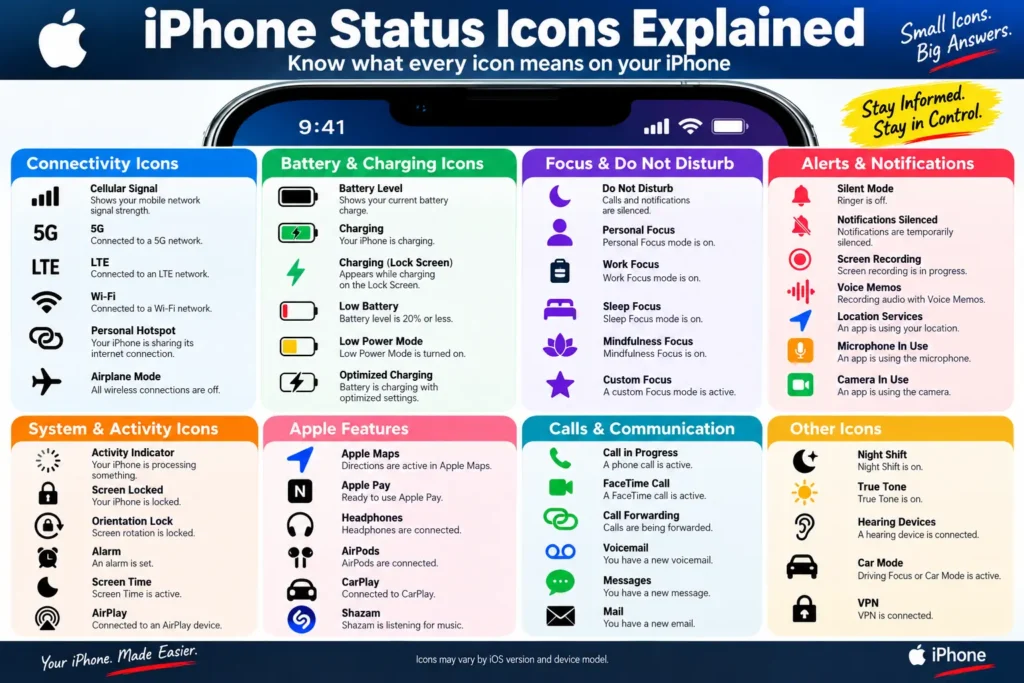
These live on the left side of the status bar and tell you how your iPhone is getting online.
| Icon | What it means |
|---|---|
| Wi-Fi (curved lines) | Connected to the internet over Wi-Fi |
| Cell signal bars | Signal strength for your cellular carrier; “No Service” appears with none |
| Dual cell signal bars | On Dual SIM iPhones, shows both lines at once |
| 5G / 5G+ / 5G UC / 5G UW | Your carrier’s 5G network is available; the suffix (UC, UW) marks higher-frequency variants |
| 5G E | A step below full 5G, still faster than standard LTE |
| LTE | Your carrier’s LTE network is available |
| 4G (UMTS) | A slower 4G-class network, used when LTE isn’t available |
| 3G (UMTS/EV-DO) | An older, slower network type, mostly seen in areas with limited coverage |
| EDGE | An even older, slower cellular network |
| SOS only | Full carrier service is unavailable, but emergency calls may still work |
| Wi-Fi calling | Your iPhone is set up to make calls over Wi-Fi instead of cellular |
| Personal Hotspot | Your iPhone is sharing its internet connection with another device |
| VPN | Connected to a network through a VPN |
| Airplane Mode | All wireless connections are off |
Pro Tip: If you’re seeing 3G or EDGE regularly in 2026, that’s usually not your iPhone’s fault. It means your carrier’s newer network doesn’t reach that specific location, and your phone has fallen back to whatever it can connect to. Switching Wi-Fi calling on under Settings > Phone often gets you a stronger connection indoors than waiting for better cell signal.
Location, Calls, and Navigation Icons
Solid arrow (filled). An app is actively using your location right now.
Hollow arrow (outline). An app used your location recently, within the last 24 hours.
Purple arrow. Typically tied to a geofencing feature, like reminders that trigger when you arrive somewhere or a Find My feature checking your location periodically.
If you don’t recognize why an arrow keeps appearing, go to Settings > Privacy & Security > Location Services, tap the app in question, and see whether it’s set to “While Using,” “Always,” or “Never.”
Other icons in this group:
- Phone icon: You’re on an active phone call
- FaceTime icon: You’re on an active FaceTime call
- Navigation icon: An app (usually Maps) is giving you turn-by-turn directions
- Satellite icon: Emergency SOS, Find My, or Messages via satellite is available where you are (iPhone 14 and later)
Focus, Sound, and Alert Icons
- Focus icon (varies by Focus): A Focus mode like Do Not Disturb, Work, or Sleep is turned on, and its specific icon appears in the status bar
- Crescent moon: Do Not Disturb is on
- Bell with a line through it: Notifications are silenced for that Focus
- Alarm clock: An alarm is set to go off
- Bluetooth icon: Bluetooth is turned on (it doesn’t always mean a device is connected)
System and Battery Icons
- Battery icon: Shows remaining charge; a lightning bolt inside means it’s charging
- Lock icon: Your iPhone is locked
- Syncing icon (two circular arrows): Your iPhone is syncing with a computer
- Network activity icon: Something (an app or a system process) is actively using data
- Call forwarding icon (arrow): Call forwarding is turned on for your phone number
- Recording indicator (red icon): Your screen is being recorded
Why Fewer Icons Show on Newer iPhones
If you’ve compared an iPhone 17 Pro to an older iPhone 8 sitting in a drawer, you’ve probably noticed the newer phone shows far fewer icons up top.
That’s not a missing feature.
The Dynamic Island and the notch before it both eat into the space Apple used to reserve for status icons, so starting with iPhone X, Apple moved the full icon set into Control Center instead of cramming it into the status bar itself.
This matters if you’re trying to diagnose something specific.
On an iPhone 17 Pro or iPhone 18 Pro, you might only see Wi-Fi, cell signal, and battery in the status bar itself, even though five or six other things are active.
Always check Control Center first before assuming an icon isn’t appearing at all. It’s very likely just tucked away out of sight rather than missing.
Case Study: Tracking Down a Mystery Icon
A reader wrote in after noticing a small orange dot appearing every few minutes on her iPhone 15, even though she wasn’t on a call or using Voice Memos.
She assumed it was a bug. We walked her through Control Center, where tapping the indicator showed the culprit: a smart home app she’d installed for a video doorbell was checking the microphone in the background to listen for a “someone’s at the door” voice alert feature she didn’t know she’d enabled.
Turning that specific permission off in Settings > Privacy & Security > Microphone stopped it immediately.
The icon wasn’t a glitch. It was doing exactly what it’s designed to do: telling her something she didn’t know was happening.
Troubleshooting: When an Icon Won’t Go Away
A green or orange dot stays on constantly.
Force-quit any app that might be running the camera or mic in the background (swipe up from the bottom, hold, then swipe the app away). If it persists after that, restart your iPhone. If it’s still there, check Settings > Privacy & Security to find exactly which app has recent access.
You keep seeing 3G, EDGE, or SOS-only in an area with normally good coverage. This usually points to a carrier outage or network congestion, not your iPhone. Check your carrier’s status page, or try toggling Airplane Mode on and off to force a network reconnect.
An unfamiliar Focus icon appears and you didn’t turn one on.
Automations can trigger Focus modes based on time, location, or a connected app like a car’s CarPlay. Check Settings > Focus to see which one is active and adjust or remove its automation.
The battery icon shows a percentage that doesn’t match how the phone is behaving. If your iPhone dies well before the stated percentage, that’s usually a battery health issue rather than a status bar problem. Check Settings > Battery > Battery Health & Charging for your Maximum Capacity.
Key Takeaways
- The green dot means your camera is active; the orange dot means your microphone is active. Both are privacy features, not bugs.
- Arrow icons (location) come in solid, hollow, and purple, each meaning a different level of location access.
- Slower network icons like 3G or EDGE usually reflect your carrier’s coverage in that spot, not a problem with your iPhone.
- Open Control Center to see the full set of active icons with labels attached, especially on Face ID iPhones where space is tight.
- Most “mystery icons” have a one-tap explanation once you check Control Center or the relevant Privacy & Security setting.
FAQ
It means an app is currently using your camera. Swipe down to Control Center and tap the indicator to see which app.
An app is using your microphone right now. Same process applies: check Control Center to identify which app.
It means an app used your location within the past 24 hours, even if it’s not using it at this exact moment.
Your carrier’s regular network isn’t reachable in your current location, but your iPhone can still attempt emergency calls through other available networks.
Yes. The icon shows that Bluetooth is turned on, not that a specific device is actively paired. You can check what’s connected under Settings > Bluetooth.
Sources: Apple Support (Learn the meaning of iPhone status icons, iOS 26/27 guide)
Disclaimer: Icon appearance and exact wording can vary slightly by iOS version and carrier. Steps above reflect iOS 27.
Related Posts

T’kal is the lead strategist and developer behind Apple Headlines. With a background in digital marketing and web development, he specializes in technical Apple troubleshooting, software news, and hardware rumors. T’kal focuses on delivering high-authority tech content that bridges the gap between Apple enthusiasts and the latest industry innovations.

