

If you have an iPhone and a compatible car, Apple CarPlay can make driving much easier.
Instead of holding your iPhone while driving, CarPlay puts useful iPhone features on your car’s built-in screen.
You can use Maps for navigation, make phone calls, listen to music, check messages, and use Siri with your voice.
But if you have never used CarPlay before, the setup can feel confusing.
The good news is that getting started is usually simple.
In this guide, I’ll show you how to use Apple CarPlay from the beginning.
You’ll also learn how to connect your iPhone, use Apple Maps, play music, customize CarPlay, and troubleshoot common problems.
What Is Apple CarPlay?
Apple CarPlay is Apple’s system for connecting your iPhone to a compatible vehicle.

Once connected, supported iPhone apps appear on your car’s display.
You can control many features using the touchscreen, steering-wheel controls, physical buttons, or Siri.
CarPlay can help you:
- Get turn-by-turn directions
- Make and receive phone calls
- Send and hear messages
- Listen to Apple Music and podcasts
- Use compatible third-party music apps
- Check your calendar
- Use Siri while driving
- Find nearby restaurants, parking, charging stations, and other places
- Use supported navigation apps such as Google Maps and Waze
Apple says CarPlay is available in select vehicles and regions, so your car needs to support it before you can use it.
What You Need Before Using Apple CarPlay
Before you try to connect your iPhone, check these things.
1. A compatible iPhone
You need an iPhone that supports CarPlay.
It is also a good idea to update your iPhone to the latest available version of iOS.
2. A CarPlay-compatible car
Not every vehicle supports Apple CarPlay.
Some cars support wired CarPlay, while others support wireless CarPlay. Some support both.
Check your vehicle’s manual or manufacturer’s specifications if you’re unsure.
3. Siri turned on
Siri needs to be enabled for CarPlay.
On your iPhone, open:
Settings → Siri
or
Settings → Apple Intelligence & Siri
Make sure Siri is enabled.
4. USB cable for wired CarPlay
If your car uses wired CarPlay, you’ll need a suitable USB cable.
Some newer iPhones use USB-C, while older models may use Lightning.
How to Use Apple CarPlay for the First Time
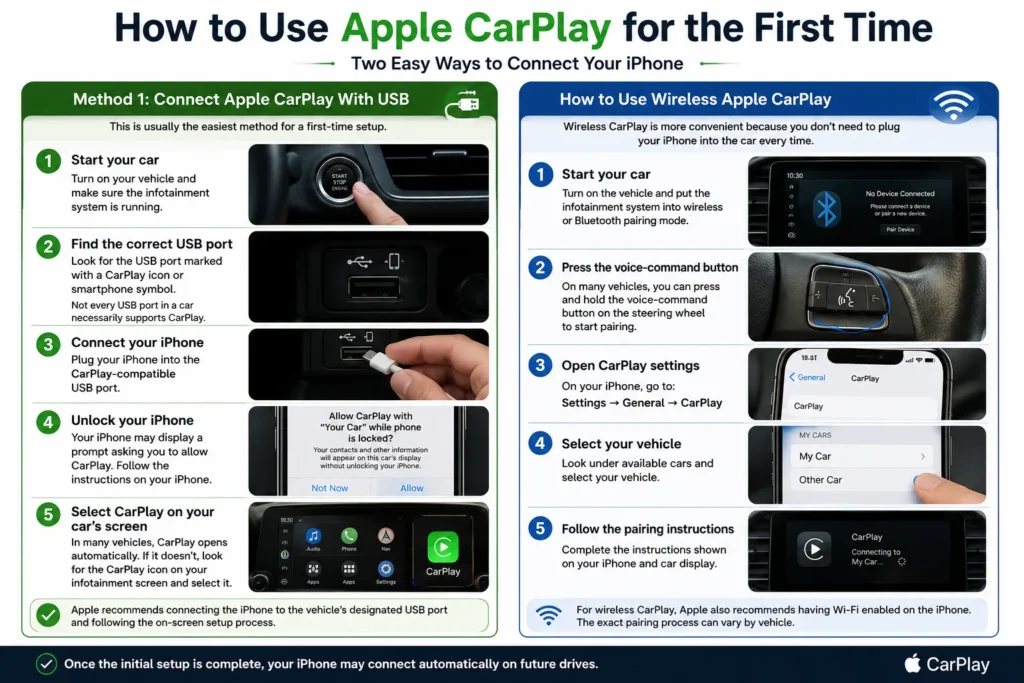
The setup process depends on whether your car supports wired or wireless CarPlay.
Method 1: Connect Apple CarPlay With USB
This is usually the easiest method for a first-time setup.
Step 1: Start your car
Turn on your vehicle and make sure the infotainment system is running.
Step 2: Find the correct USB port
Look for the USB port marked with a CarPlay icon or smartphone symbol.
Not every USB port in a car necessarily supports CarPlay.
Step 3: Connect your iPhone
Plug your iPhone into the CarPlay-compatible USB port.
Step 4: Unlock your iPhone
Your iPhone may display a prompt asking you to allow CarPlay.
Follow the instructions on your iPhone.
Step 5: Select CarPlay on your car’s screen
In many vehicles, CarPlay opens automatically.
If it doesn’t, look for the CarPlay icon on your vehicle’s infotainment screen and select it.
Apple’s current instructions recommend connecting the iPhone to the vehicle’s designated USB port and following the on-screen setup process.
How to Use Wireless Apple CarPlay
Wireless CarPlay is more convenient because you don’t need to plug your iPhone into the car every time.
However, your vehicle must support wireless CarPlay.
Step 1: Start your car
Turn on the vehicle and put the infotainment system into wireless or Bluetooth pairing mode.
Step 2: Press the voice-command button
On many vehicles, you can press and hold the voice-command button on the steering wheel to start pairing.
Step 3: Open CarPlay settings
On your iPhone, go to:
Settings → General → CarPlay
Step 4: Select your vehicle
Look under available cars and select your vehicle.
Step 5: Follow the pairing instructions
Complete the instructions shown on your iPhone and car display.
For wireless CarPlay, Apple also recommends having Wi-Fi enabled on the iPhone. The exact pairing process can vary by vehicle.
Once the initial setup is complete, your iPhone may connect automatically on future drives.
How to Use the CarPlay Home Screen
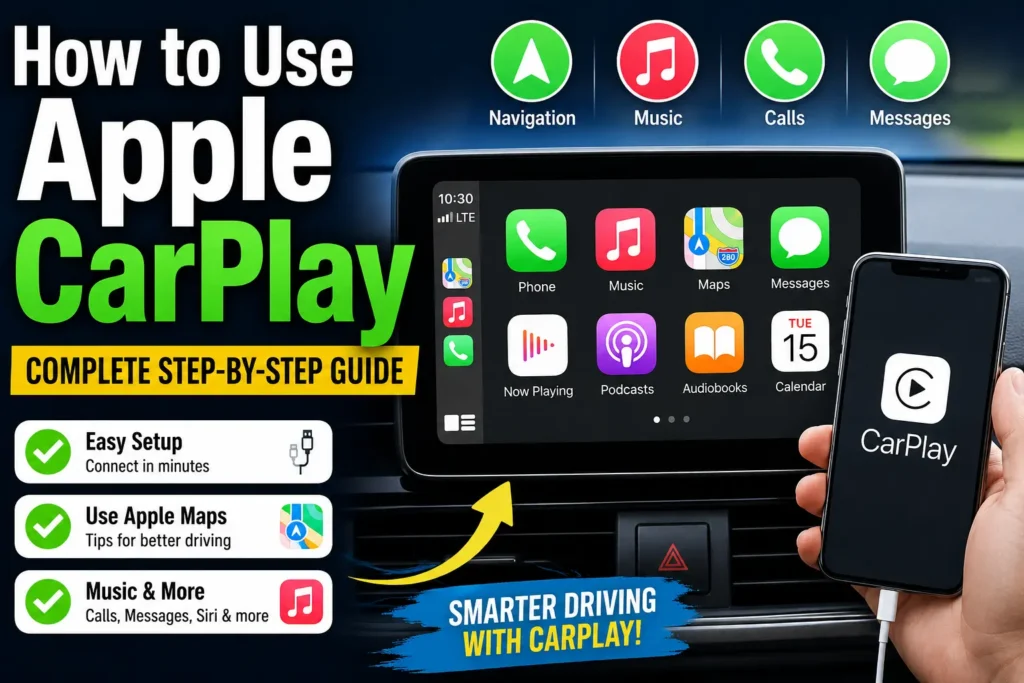
After connecting your iPhone, you’ll see the CarPlay interface on your car’s display.
You may see apps such as:
- Phone
- Messages
- Maps
- Music
- Podcasts
- Calendar
- Settings
- Audiobooks
- Supported third-party apps
You can switch between apps just like you would on your iPhone.
The exact appearance can vary depending on your iPhone, iOS version, vehicle, and supported apps.
Use the CarPlay Dashboard
The CarPlay Dashboard gives you quick access to multiple pieces of information.
For example, you may see:
- Navigation
- Current music
- Siri suggestions
- Upcoming information
This is useful because you don’t need to constantly switch between apps.
How to Use Apple Maps With CarPlay
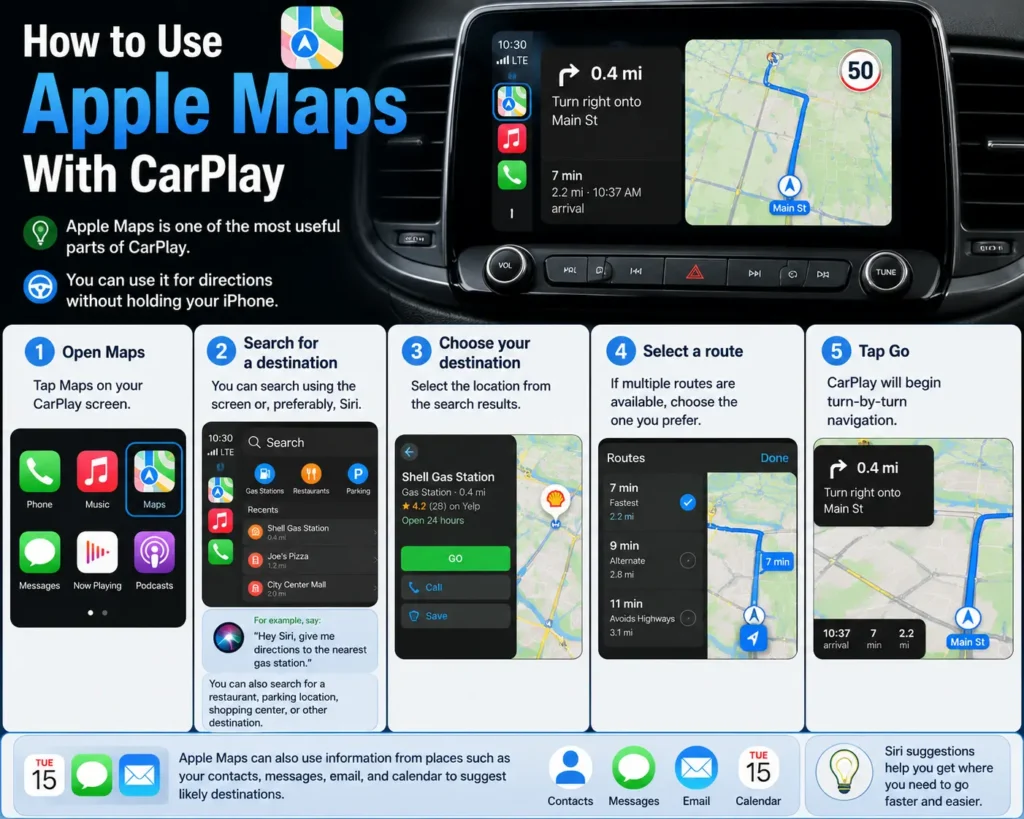
Apple Maps is one of the most useful parts of CarPlay.
You can use it for directions without holding your iPhone.
Step 1: Open Maps
Tap Maps on your CarPlay screen.
Step 2: Search for a destination
You can search using the screen or, preferably, Siri.
For example, say:
“Hey Siri, give me directions to the nearest gas station.”
You can also search for a restaurant, parking location, shopping center, or other destination.
Step 3: Choose your destination
Select the location from the search results.
Step 4: Select a route
If multiple routes are available, choose the one you prefer.
Step 5: Tap Go
CarPlay will begin turn-by-turn navigation.
Apple Maps can also use information from places such as your contacts, messages, email, and calendar to suggest likely destinations.
Apple Maps CarPlay Tips You Should Know
Here are some useful Apple Maps CarPlay tips that can make navigation easier.
1. Use Siri instead of typing
Typing on a car display can be distracting.
Instead, use Siri.
Try commands such as:
- “Give me directions home.”
- “Find the nearest gas station.”
- “Find a coffee shop nearby.”
- “What’s the traffic like?”
- “Take me to the airport.”
Voice commands are often faster and safer than typing.
2. Save important locations
Save frequently used destinations in Maps.
This makes it easier to access places such as your home, workplace, favorite restaurants, or regular shopping locations.
3. Check alternative routes
If Maps offers multiple routes, check the estimated travel time before starting navigation.
The fastest route isn’t always the best route.
4. Use your steering-wheel controls
Many vehicles allow you to adjust volume or interact with CarPlay using physical controls.
This means you don’t always need to reach toward the touchscreen.
5. Use third-party navigation apps
You’re not limited to Apple Maps.
CarPlay supports compatible navigation apps, including options such as Google Maps and Waze.
How to Use Apple CarPlay for Music
CarPlay isn’t only for navigation.
You can also use it as your in-car entertainment system.
The Apple CarPlay music features allow you to play music from compatible apps and control playback using the touchscreen, steering-wheel controls, or Siri.
How to Play Music
Step 1: Open your music app
Tap Music or another supported audio app.
Step 2: Choose what you want to hear
Depending on the app, you may be able to choose:
- Songs
- Albums
- Artists
- Playlists
- Stations
- Podcasts
- Audiobooks
Step 3: Control playback
You can usually:
- Play
- Pause
- Skip
- Go back
- Shuffle
- Repeat
You can also use your vehicle’s steering-wheel controls if supported.
Use Siri to Control Music
Siri can make music control much easier while driving.
For example:
“Hey Siri, play my driving playlist.”
Or:
“Hey Siri, play songs by Taylor Swift.”
You can also ask Siri to pause, resume, skip, or change what you’re listening to.
Apple supports Siri-based audio controls through CarPlay.
Share Music With Passengers
One useful CarPlay feature is SharePlay.
With compatible iPhones and supported software, passengers can join a SharePlay session and help control the music playing in the car.
This can be useful during road trips when everyone wants a say in the playlist.
Apple says CarPlay SharePlay can allow passengers to join through a notification or QR code.
How to Use Phone Calls With CarPlay
You don’t need to pick up your iPhone to make a call.
Step 1: Open Phone
Tap Phone on the CarPlay screen.
Step 2: Choose a contact
You can access compatible contacts and recent calls.
Step 3: Start the call
Select the person you want to call.
You can also ask Siri to call someone.
For example:
“Hey Siri, call Mom.”
Your vehicle’s speakers and microphone handle the call when supported.
How to Use Messages With CarPlay
CarPlay can help you handle incoming messages without looking at your iPhone.
When a message arrives, Siri can announce it.
You can then respond using your voice.
For example:
“Hey Siri, tell John I’ll be there in 20 minutes.”
You can also ask Siri to read messages or send a new message.
Apple supports sending, hearing, and replying to messages through CarPlay.
How to Customize Apple CarPlay Apps
You don’t have to keep the default CarPlay app arrangement.
You can change which compatible apps appear and where they appear.
On your iPhone, go to:
Settings → General → CarPlay → Your Car → Customize
From there, you can add, remove, and rearrange supported apps.
Put the apps you use most often near the top.
For example, you might want:
- Maps
- Music
- Phone
- Messages
- Podcasts
Apple provides the same customization path in its CarPlay guidance.
Apple CarPlay vs Android Auto
If you’re wondering about Apple CarPlay vs Android Auto, the biggest difference is the phone ecosystem they are designed for.
| Feature | Apple CarPlay | Android Auto |
|---|---|---|
| Designed for | iPhone | Android phones |
| Navigation | Apple Maps, Google Maps, Waze and others | Google Maps, Waze and others |
| Voice assistant | Siri | Google Assistant/Gemini depending on device and setup |
| Music | Apple Music and compatible apps | YouTube Music and compatible apps |
| Messages | Messages and supported apps | Messages and supported apps |
| Best for | iPhone users | Android users |
If you use an iPhone, CarPlay is usually the natural choice.
If you use an Android phone, Android Auto makes more sense.
The two systems offer many similar core functions, including navigation, calls, messaging, and audio.
The biggest practical difference is how deeply each system integrates with its phone platform.
How to Use Siri With Apple CarPlay
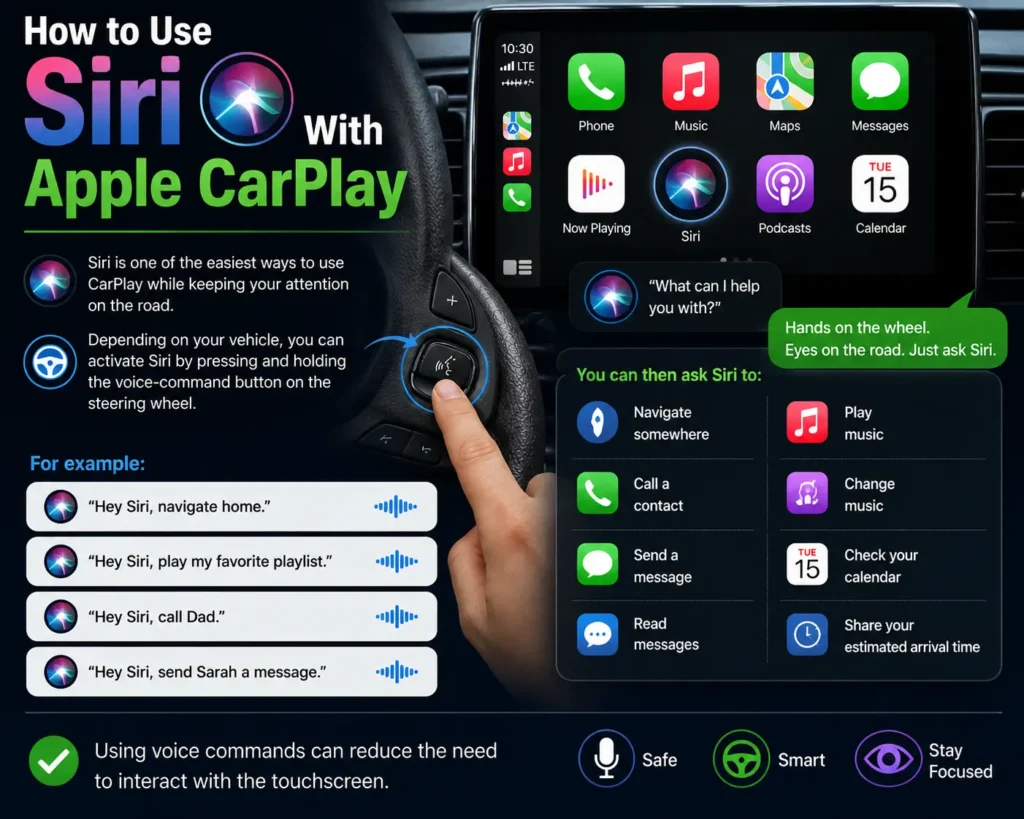
Siri is one of the easiest ways to use CarPlay while keeping your attention on the road.
Depending on your vehicle, you can activate Siri by pressing and holding the voice-command button on the steering wheel.
You can then ask Siri to:
- Navigate somewhere
- Call a contact
- Send a message
- Read messages
- Play music
- Change music
- Check your calendar
- Share your estimated arrival time
For example:
“Hey Siri, navigate home.”
“Hey Siri, play my favorite playlist.”
“Hey Siri, call Dad.”
“Hey Siri, send Sarah a message.”
Using voice commands can reduce the need to interact with the touchscreen.
How to Fix Apple CarPlay If It Isn’t Working
Sometimes CarPlay doesn’t connect.
Try these fixes in order.
1. Check CarPlay compatibility
Make sure your vehicle actually supports Apple CarPlay.
2. Restart your iPhone
A simple restart can fix temporary connection problems.
3. Restart your car
Turn off the vehicle and restart the infotainment system.
4. Check Siri
Make sure Siri is enabled.
CarPlay requires Siri for many voice-control functions.
5. Check the USB connection
For wired CarPlay, try another compatible cable or USB port.
Also check the iPhone’s charging port for debris.
6. Check Bluetooth and Wi-Fi
Wireless CarPlay uses wireless connectivity, so make sure the relevant settings are enabled.
7. Forget and reconnect the vehicle
On your iPhone, go to:
Settings → General → CarPlay
Select your vehicle and remove the connection if necessary.
Then set it up again.
8. Update your iPhone and vehicle software
Make sure your iPhone is running a current version of iOS.
Also check whether your vehicle manufacturer provides an infotainment software update.
Apple recommends checking both iPhone software and vehicle software when troubleshooting CarPlay connectivity.
Does Apple CarPlay Use Your iPhone’s Data?
Yes.
Many CarPlay functions rely on your connected iPhone and its internet connection.
For example, live navigation, streaming music, and online searches can use cellular data.
If you want to reduce data usage, download music or podcasts over Wi-Fi before your trip.
You can also manage cellular access for individual apps through your iPhone settings.
Can You Use CarPlay Without a USB Cable?
Yes, if your vehicle supports wireless CarPlay.
Wireless CarPlay allows your iPhone to connect without physically plugging it into the car.
However, wireless support depends on the vehicle.
A car that supports wired CarPlay does not automatically support wireless CarPlay.
Is Apple CarPlay Free?
Apple does not charge a separate fee to use CarPlay.
However, you may need:
- A compatible iPhone
- A compatible vehicle
- A cellular data plan for online services
- Subscriptions for certain music or other apps
For example, Apple Music requires a subscription for its full catalog.
Your vehicle manufacturer may also offer separate connected-car services, but those are different from CarPlay itself.
Is Apple CarPlay Safe to Use While Driving?
CarPlay is designed to provide a more convenient way to use iPhone features while driving.
But you should still avoid unnecessary interaction with the screen.
Use Siri and steering-wheel controls whenever possible.
If you need to type, change complicated settings, or troubleshoot something, pull over somewhere safe first.
Your primary focus should always remain on the road.
Frequently Asked Questions
Start your car and connect your iPhone using a compatible USB port or wireless pairing if your vehicle supports it. Then select the CarPlay option on your car’s display if it doesn’t open automatically.
Check your cable, USB port, Siri settings, Bluetooth and Wi-Fi settings for wireless CarPlay. Restart both the iPhone and vehicle, then try pairing again.
Yes. Compatible third-party navigation apps, including Google Maps and Waze, can work with CarPlay.
Yes. Spotify is among the supported third-party audio apps available for CarPlay.
Yes, but only if your vehicle supports wireless CarPlay.
Some basic functions can still work, but online services such as live traffic, streaming, and online searches generally require an internet connection.
Yes. With compatible iPhones and software, SharePlay can let passengers participate in controlling music in the car.
Final Thoughts
Learning To Use Apple CarPlay doesn’t take long.
Once your iPhone is connected, most of the important features are straightforward. You can use Apple Maps for navigation, Siri for voice commands, Phone and Messages for communication, and Music or compatible audio apps for entertainment.
For the best experience, set up CarPlay before you start driving. Customize the apps you use most, learn a few Siri commands, and save your regular destinations in Maps.
After a few trips, CarPlay should feel like a natural extension of your iPhone rather than another system you have to learn.
Related Reads:
iPhone Won’t Turn On? Here Are 9 Fixes That Actually Work (2026)
How to Clean Your iPhone Charging Port the Right Way

T’kal is the lead strategist and developer behind Apple Headlines. With a background in digital marketing and web development, he specializes in technical Apple troubleshooting, software news, and hardware rumors. T’kal focuses on delivering high-authority tech content that bridges the gap between Apple enthusiasts and the latest industry innovations.