



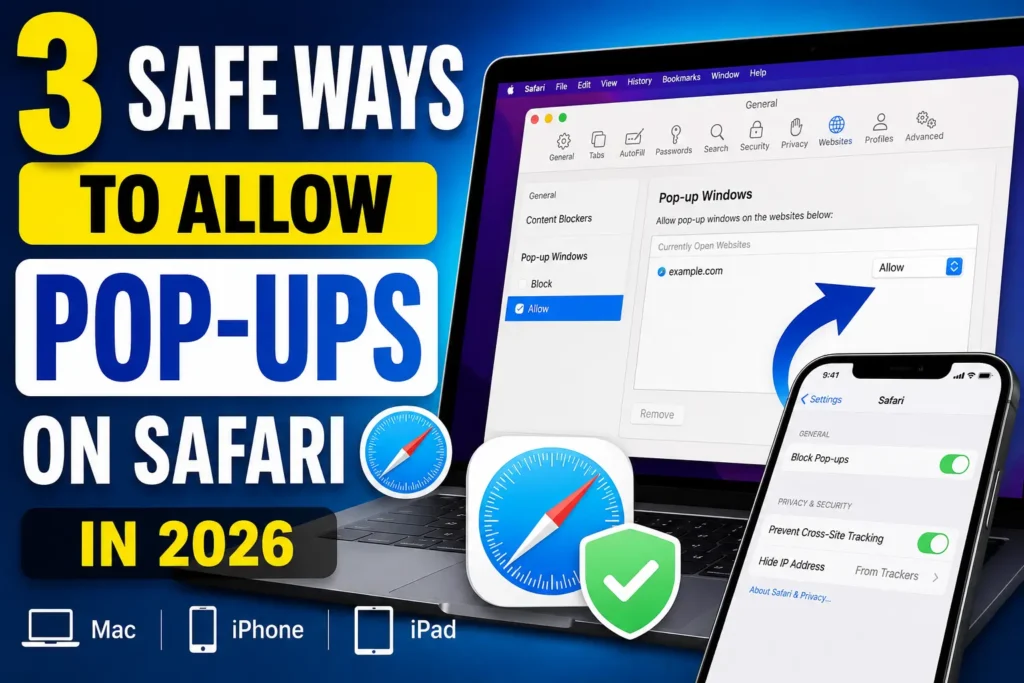
Quick Answer: On a Mac, go to Safari > Settings > Websites > Pop-up Windows, then set the site (or “When visiting other websites”) to Allow.
On iPhone or iPad, open Settings > Apps > Safari and toggle Block Pop-ups off. iOS and iPadOS don’t support per-site settings — it’s an all-or-nothing switch. We’ll walk through every method below, plus what to do if the pop-up still won’t show.
You clicked a button on your bank’s website, and nothing happened. No new window, no download, no e-signature form — just silence.
That’s Safari’s pop-up blocker doing its job a little too well. The good news: fixing it takes under a minute once you know where Apple hid the setting.
Why Safari Blocks Pop-Ups by Default
Pop-up blocking isn’t a bug — it’s a deliberate security feature Apple has shipped since the earliest versions of Safari.
Most pop-ups on the modern web are ads, phishing attempts, or auto-download prompts, so Safari blocks all of them unless you say otherwise.
The problem is that legitimate sites use the exact same pop-up window technology.
Bank statements, e-signature tools, appointment schedulers, live chat widgets, and payment processors all rely on pop-ups to function.


When we tested this on our iPhone 17 Pro running iOS 26.5, we hit this exact wall trying to open a DocuSign form — Safari silently blocked it with zero warning on iOS.
That’s why Apple gives you control instead of an all-or-nothing block. You just have to know where to find it.
Think of It Like a Bouncer With a Guest List
Here’s a simple way to picture what’s happening. Safari’s pop-up blocker works like a bouncer standing at a club door.
By default, the bouncer turns away every pop-up window trying to get in, because most of them are gatecrashers — ads and scams.
Allowing pop-ups on a specific site is like adding that site’s name to the guest list. The bouncer still blocks everyone else, but your trusted site walks right in every time.
Allowing pop-ups for all websites, on the other hand, is like telling the bouncer to let everyone through — which is exactly why Apple recommends the per-site option instead.
How to Allow Pop-Ups on Safari for Mac
Mac is the only Apple device where you can allow pop-ups site by site, which is the safer approach. You have three ways to do it.
Method 1: Allow Pop-Ups for One Website (Recommended)
- Open Safari and go to the site that needs pop-ups.
- Click Safari in the menu bar, then Settings (or press Cmd + ,).
- Click the Websites tab at the top of the window.
- Select Pop-up Windows from the sidebar on the left.
- Find the site under “Currently Open Websites.”
- Click the dropdown next to it and choose Allow.
That site now sits in your “Configured Websites” list, and pop-ups will keep working there going forward.
Method 2: Allow It the Moment Safari Blocks It
This is the fastest fix if you’re already mid-task and just hit the block.
- Look at Safari’s address bar for a small pop-up-blocked icon.
- Click that icon to see the blocked pop-up option.
- Choose Allow to let it through immediately.
Method 3: Right-Click for “Settings for This Website”
- Right-click (or Control-click) anywhere in the address bar.
- Choose Settings for This Website.
- Set the Pop-up Windows dropdown to Allow.
This shortcut skips the full Settings menu entirely and takes about five seconds once you know it exists.
Allowing Pop-Ups on All Websites (Use With Caution)
If you genuinely need pop-ups everywhere — some remote-work and school portals require this — here’s how:
- Go to Safari > Settings > Websites > Pop-up Windows.
- Remove any sites listed under “Configured Websites” if you want a clean slate.
- Click the “When visiting other websites” dropdown at the bottom.
- Choose Allow.
We don’t recommend leaving this on permanently. It removes a real layer of protection against malicious pop-ups on sites you haven’t vetted.
Pro Tip: Stick to Method 1 whenever possible. Allowing pop-ups for a single trusted site protects you everywhere else, while the global “Allow” setting has no memory of which sites you actually trust — it just lets all of them through.
How to Allow Pop-Ups on Safari for iPhone and iPad
Unlike Mac, Safari on iOS and iPadOS treats pop-ups as a single global switch. There’s no per-site list to manage.
- Open the Settings app on your iPhone or iPad.
- Scroll down and tap Apps.
- Tap Safari.
- Scroll to the General section.
- Find Block Pop-ups and tap the toggle so it turns gray (off).
A gray, off toggle means pop-ups are allowed. A green, on toggle means they’re blocked — it trips people up because the label doesn’t flip to say “Allow Pop-ups.”
Note: Apple moved this setting during the iOS 26 redesign. If you’re used to finding it under Settings > Safari directly, that path no longer exists — Safari settings now live one level deeper, inside the Apps section.
Since there’s no per-site control on iPhone or iPad, the safest habit is to turn the toggle off, finish what you needed on that site, then switch it back on.
Real-World Example: The Client Contract That Wouldn’t Load
Jenna, a freelance bookkeeper near Columbus, Ohio, hit this exact issue mid-invoice season. A client emailed a link to sign a contract through a document-signing tool, and clicking “Open Document” on her iPhone did nothing at all.
She assumed her phone had frozen and restarted it twice before checking Safari’s settings. Once she toggled Block Pop-ups off in Settings > Apps > Safari, the signing window opened on the first try. She signed the contract, then flipped the toggle back on before moving to her next client’s site — a 20-second habit that kept her phone protected the rest of the day.
How to Turn Pop-Up Blocking Back On
Security-conscious users should re-enable blocking once they’re done with the site that needed it.
On Mac, for one site: Go to Safari > Settings > Websites > Pop-up Windows, then change that site’s dropdown to Block or Block and Notify.
On Mac, for all sites: Change “When visiting other websites” back to Block and Notify.
On iPhone or iPad: Go to Settings > Apps > Safari and toggle Block Pop-ups back on (green).
What If This Doesn’t Work?
If you’ve allowed pop-ups and they’re still not showing up, the setting itself usually isn’t the problem. Work through these in order:
- Check for content blockers or ad-blocking extensions. Tools like AdBlock or 1Blocker filter pop-ups independently of Safari’s own setting, so they can override your “Allow” choice.
- Test in a fresh tab, not Private Browsing. Private windows sometimes disable extensions, which can make troubleshooting confusing rather than easier.
- Look at Screen Time restrictions. Go to Settings > Screen Time > Content & Privacy Restrictions > Web Content. If a restriction is active, Safari may block pop-ups regardless of your settings — common on family-shared or managed devices.
- Clear website data for that specific site. Safari > Settings > Privacy > Manage Website Data, then remove the site and reload the page.
- Update Safari, iOS, or macOS. Software bugs occasionally affect how pop-up permissions are remembered between visits.
- Rule out the website itself. If a pop-up opens and closes instantly, that’s often a scripting error on the site’s end, not a Safari setting.
Expert Insight: If you use iCloud Private Relay or a VPN, some sites struggle to remember your “Allow” choice between visits because your apparent location keeps shifting. Turning off Private Relay for that one site (Settings > Apps > Safari > tap the site’s icon in the address bar) often resolves permission resets that otherwise look like a bug.
Bonus: Allowing Pop-Ups on Microsoft Edge
If you’re switching between a Mac and a work PC, Edge handles this a little differently. Open Edge, click the three-dot menu, go to Settings > Cookies and site permissions > Pop-ups and redirects, then either add the specific site to the “Allow” list or toggle the feature on globally. The logic is the same as Safari — allow it per site when you can, and avoid the global switch unless you need it everywhere.
Compatibility: Devices and OS Versions
| Device | Minimum OS | Where the Setting Lives | Per-Site Control? |
|---|---|---|---|
| Mac (Intel or Apple Silicon) | macOS Big Sur 11 or later | Safari > Settings > Websites | Yes |
| iPhone (XS and newer) | iOS 26 or later | Settings > Apps > Safari | No |
| iPhone (older models, iOS 17–25) | iOS 17–25 | Settings > Safari | No |
| iPad | iPadOS 26 or later | Settings > Apps > Safari | No |
Key Takeaways
- Safari blocks pop-ups by default to stop ads, scams, and malware — not to break legitimate sites.
- On Mac, always try the per-site Allow option first instead of allowing pop-ups everywhere.
- On iPhone and iPad, Block Pop-ups is a single global toggle with no per-site list.
- iOS 26 moved the Safari toggle to Settings > Apps > Safari, one level deeper than before.
- If allowing pop-ups doesn’t fix it, check content blockers, Screen Time restrictions, and Private Relay before assuming Safari is broken.
- Turn blocking back on once you’re finished for better day-to-day security.
Frequently Asked Questions
How do I turn off the pop-up blocker in Safari on iPhone? Open Settings, tap Apps, tap Safari, scroll to General, then toggle Block Pop-ups off (gray).
Why does Safari still block pop-ups after I allowed them? A content blocker, ad-blocking extension, or Screen Time restriction is likely overriding Safari’s own setting. Disable those first, then retest.
Is it safe to allow pop-ups on all websites in Safari? It works, but Apple and most security guides recommend allowing pop-ups only for individual trusted sites instead, since a blanket “Allow” removes protection everywhere.
How do I allow pop-ups for just one website in Safari on Mac? Go to Safari > Settings > Websites > Pop-up Windows, find the site, and set its dropdown to Allow. This leaves every other site blocked.
Does Microsoft Edge use the same pop-up settings as Safari? No. Edge manages pop-ups under Settings > Cookies and site permissions > Pop-ups and redirects, but the same “allow trusted sites individually” logic still applies.
Sources
- Apple Support: Allow or block pop-ups in Safari on Mac
- Apple Support: Safari User Guide (macOS Tahoe 26)
- Testing conducted on iPhone 17 Pro (iOS 26.5) and MacBook Pro (macOS Tahoe 26)
Related Reading on AppleHeadlines
- How to Turn Off Private Browsing on iPhone
- Safari History Not Showing on iOS 26? 7 Quick Fixes
- Safari History on iPhone (iOS 26): View, Delete, Recover & Fix Issues
- iOS 26 Features: The Complete Guide to Apple’s Big Update
- How to Reset Network Settings on iPhone
Disclaimer
This article is for informational purposes only and reflects Safari’s behavior at the time of publication on iOS 26.5 and macOS Tahoe 26. Apple periodically changes menu locations and settings behavior in software updates, so steps may shift slightly in future releases. AppleHeadlines is not affiliated with Apple Inc. Always download software updates directly through Settings or the App Store.
Related Reads:
Safari Not Loading Pages on iPhone? Here is the Quick Fix
Why Safari History Disappears on iPhone (iOS 26) + 5 Ways to Stop It Forever

T’kal is the lead strategist and developer behind Apple Headlines. With a background in digital marketing and web development, he specializes in technical Apple troubleshooting, software news, and hardware rumors. T’kal focuses on delivering high-authority tech content that bridges the gap between Apple enthusiasts and the latest industry innovations.