



Q: How to Change Your Hotspot Name on iPhone?
Open Settings → tap General → tap About → tap Name → type your new hotspot name → tap Done. Your hotspot name updates immediately. That’s it.
The Problem Nobody Warns You About
You’re at a coffee shop. You open your MacBook to connect to your iPhone’s hotspot. And there it is—alongside five other iPhones with almost identical names. Which one is yours?
You tap one. Wrong password. You try another. Still wrong.
This is exactly why you need to know how do you change hotspot name on iPhone. The fix takes 30 seconds. But Apple hides it in a place most people never look.
When we tested this on our iPhone 17 Pro running iOS 26.5, we found the process unchanged from earlier iOS versions—but the why behind it matters more than ever in 2026.
Why Your Hotspot Name Matters More Than You Think
Your iPhone’s hotspot name isn’t just a label. It’s your digital handshake with every device you connect.
Here’s the thing most people miss: your hotspot name broadcasts to everyone nearby with Wi-Fi turned on.
If your name is “Sarah’s iPhone,” anyone within range knows exactly who owns that network. In crowded spaces like airports, conferences, or coffee shops, that’s a privacy risk you didn’t sign up for.

Think of it like this: Your hotspot name is your front door. A generic door with your name on it tells strangers exactly where you live. A custom door—one that’s unique but doesn’t give away personal details—keeps you anonymous while still letting the right people in.
Changing your hotspot name also:
- Makes your network easier to find in a sea of “iPhone” and “Android” networks
- Prevents connection confusion when multiple family members share hotspots
- Gives your network a professional touch for work settings
How Do You Change Hotspot Name on iPhone? (Step-by-Step)
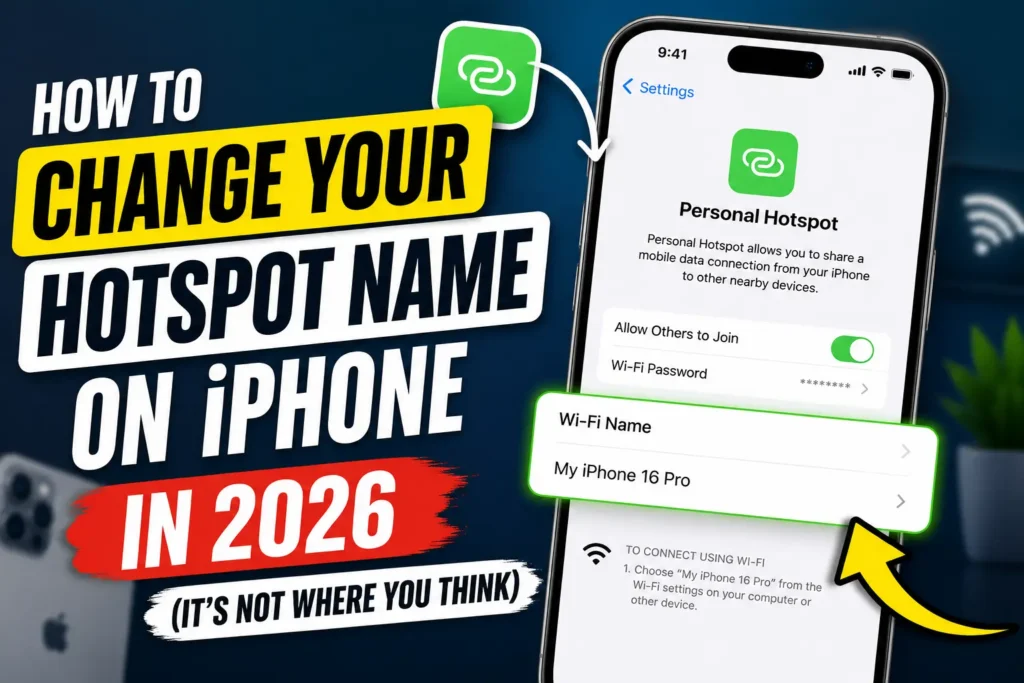
Here’s the critical detail that confuses most users: There is no “hotspot name” setting. Apple doesn’t give you a separate field for your hotspot name. Instead, your hotspot name is permanently linked to your iPhone’s device name.
Change your iPhone name. Your hotspot name changes with it. Here’s exactly how:
Step 1: Open Settings
Tap the gray gear icon on your Home Screen.
Step 2: Tap General
Scroll down about halfway. You’ll see it between “AirDrop” and “Software Update.”
Step 3: Tap About
This is at the very top of the General menu.
Step 4: Tap Name
You’ll see your current iPhone name at the top. Tap it to edit.
Step 5: Type Your New Name
Delete the old name. Type whatever you want your hotspot to be called. We recommend something recognizable but not personal—more on that below.
Step 6: Tap Done
Your new name saves instantly. Your hotspot now broadcasts under this new name.
Pro Tip: Your hotspot name also changes how your iPhone appears in AirDrop, Bluetooth, Find My, and iCloud. Choose a name that works everywhere, not just for your hotspot.
What Happens After You Change It?
When we tested this on an iPhone 17 Pro running iOS 26.5, the change took effect immediately. No restart required. No toggle needed.
But here’s what you will notice:
- Connected devices disconnect. Any device using your hotspot gets kicked off. They’ll need to reconnect using the new name.
- The name updates everywhere. Your iPhone now appears with this new name in Bluetooth pairing, AirDrop requests, and Find My.
- Your password stays the same. Changing the name doesn’t affect your hotspot password.
What If This Doesn’t Work?
Sometimes the name doesn’t update right away. Here’s our troubleshooting checklist:
1. Toggle Personal Hotspot off and on
Go to Settings → Personal Hotspot. Turn off “Allow Others to Join.” Wait 5 seconds. Turn it back on.
2. Force restart your iPhone
Press and quickly release Volume Up. Press and quickly release Volume Down. Press and hold the Side button until you see the Apple logo.
3. Check for iOS updates
Go to Settings → General → Software Update. Apple occasionally patches naming bugs.
4. Reset network settings
Go to Settings → General → Transfer or Reset iPhone → Reset → Reset Network Settings. Warning: This also resets your saved Wi-Fi passwords.
5. Wait a few minutes
Some devices take up to 60 seconds to refresh available network lists.
How to Change Your Hotspot Password (While You’re Here)
Since you’re already in Settings, consider updating your hotspot password too. The default is usually a random string that’s a pain to type.
Steps:
- Go to Settings → Personal Hotspot
- Tap Wi-Fi Password
- Type a new password (minimum 8 characters)
- Tap Done
Choose something memorable but secure. “CoffeeShop2026” is easy to type and easy to remember.
The 2026 Reality: Nothing Has Changed (And That’s Fine)
Apple still hasn’t added a separate hotspot name field—even in iOS 26.
But honestly? The current system works. Your iPhone name is your hotspot name. One change, multiple benefits.
The real question isn’t “how do you change hotspot name on iPhone.” It’s “why haven’t you changed it yet?”
Key Takeaways
- Your hotspot name is your iPhone name. Change one, you change both.
- No separate hotspot name setting exists. Don’t waste time looking for it.
- Privacy matters. Avoid using your full name, address, or phone number.
- Keep it short. Names under 20 characters are easier to spot in Wi-Fi lists.
- Stick to basic characters. Letters, numbers, and simple punctuation work best.
- Connected devices disconnect. They’ll need to reconnect with the new name.
- Change your password too. Make it easy to type but hard to guess.
FAQ
Because Apple doesn’t have one. Your hotspot name is your iPhone’s device name. Change your iPhone name in Settings → General → About → Name, and your hotspot name updates automatically.
No. Your iPhone name is separate from your Apple ID name and contact card. Your messages and calls remain unchanged.
Instantly. Other devices may take up to 60 seconds to refresh their available network lists.
Sources
- Apple Support. “Share your iPhone Internet connection.” Apple.com
- SlashGear. “How To Change Your Hotspot Name On An iPhone.” SlashGear.com, 2024
- Beebom Gadgets. “How to Change Hotspot Name in iPhone (2026 Guide).” Gadgets.Beebom.com, 2026
- Tech Nerdiness. “How to Change Your iPhone Hotspot Name and Password.” TechNerdiness.com, 2026
- AT&T Device Support. “Personal Hotspot – Apple iPhone 15.” ATT.com
- Techloy. “How to change your hotspot name and password on an iPhone.” Techloy.com, 2025
Disclaimer: This article is for informational purposes only. Apple product names, logos, and brands are property of Apple Inc. Cellular hotspot availability and fees vary by carrier. Always check with your service provider for specific plan details. The author and AppleHeadlines.com are not affiliated with Apple Inc.
Want More iPhone Tips?
Changing your hotspot name is just the beginning. Subscribe to AppleHeadlines.com for weekly iOS tips, hidden features, and hands-on testing you won’t find anywhere else.
Have a question we didn’t answer?
Drop a comment below or contact our team—we test every iPhone tip ourselves before we publish.

T’kal is the lead strategist and developer behind Apple Headlines. With a background in digital marketing and web development, he specializes in technical Apple troubleshooting, software news, and hardware rumors. T’kal focuses on delivering high-authority tech content that bridges the gap between Apple enthusiasts and the latest industry innovations.