AirPods auto-register with Find My when first paired to your iPhone — no extra action needed in most cases.
The Find My network toggle in Settings → [AirPods name] must be enabled for offline crowd-sourced tracking on AirPods 3, 4, Pro 2, Pro 3, and Max.
First and second-gen AirPods don’t show the Find My network toggle but still work with basic iCloud tracking.
“Setup Incomplete” error is fixed by cycling the AirPods in and out of the case and dismissing the popup.
Lost Mode is your most powerful tool — activate it the moment AirPods go missing.
iCloud.com lets you track AirPods even without your iPhone.
iOS 26 is the recommended version for the most reliable Find My experience in 2026.
Why Adding AirPods to Find My iPhone Actually Matters
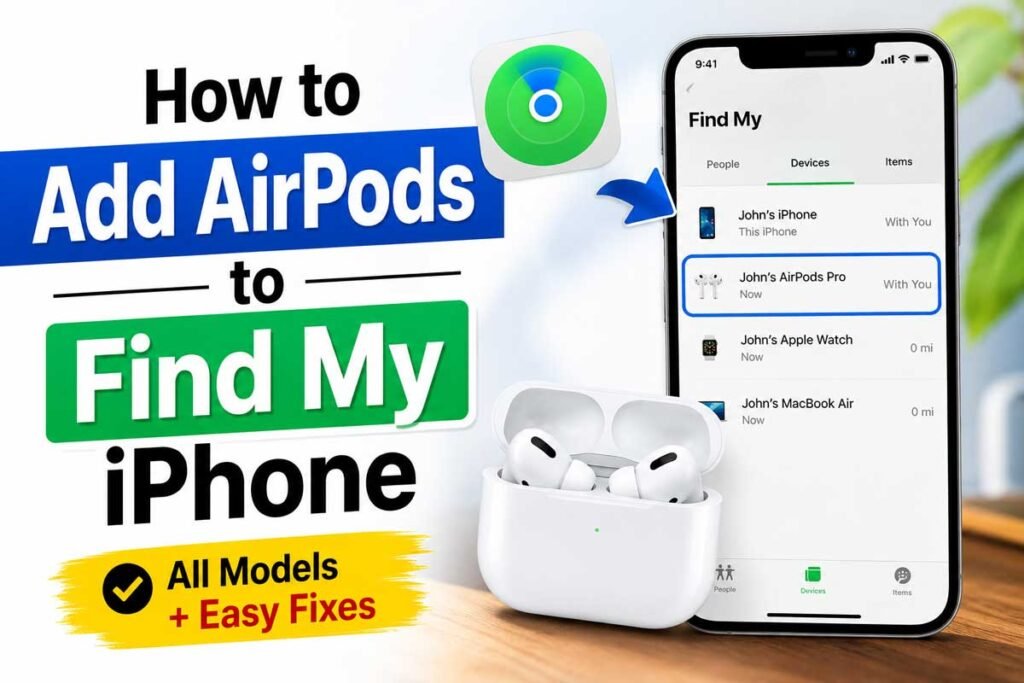
Step-by-step guide showing how to connect AirPods to the Find My app on iPhone
Think of Find My as a digital leash for your $179–$549 investment. Without it, a lost pair of AirPods is just… lost. With it, you get:
Real-time location on a map (when near your iPhone)
Precision Finding on AirPods Pro 2 and AirPods 4 (uses Ultra Wideband technology — like a compass that points directly at your earbuds)
Play Sound to ping them even in a dark room
Lost Mode — locks them to your Apple ID and shows a custom message if someone finds them
Last Known Location — shows where they were last detected, even if offline
AirPods now integrated into Apple’s broader device ecosystem alongside Vision Pro and Apple Watch, the Find My network has expanded to over 2 billion Apple devices acting as silent, anonymous location scouts.
Your AirPods are more findable than ever — but only if you set this up right.
Which AirPods Models Support Find My? (2026 Compatibility Chart)
Not all AirPods behave the same way in Find My. Here’s what you need to know:
AirPods Model
Find My Support
Precision Finding
Find My Network Toggle
AirPods 1st Gen
✅ Basic (via iCloud)
❌
❌ (no toggle)
AirPods 2nd Gen
✅ (iOS 16+)
❌
❌ (no toggle)
AirPods 3rd Gen
✅ Full
❌
✅
AirPods 4 (2024)
✅ Full
✅ (ANC model only)
✅
AirPods Pro 2
✅ Full
✅
✅
AirPods Pro 3 (2025)
✅ Full
✅ Enhanced
✅
AirPods Max (all gen)
✅ Full
✅
✅
iOS Version Note: You need iOS 14.5 or later for Find My network support. For the best experience in 2026, update to iOS 26 or the latest available version.
Step-by-Step: How to Add AirPods to Find My iPhone
Step 1: Enable Find My on Your iPhone
Before anything else, make sure Find My is turned on for your iPhone.
Open the Settings app on your iPhone.
Tap your name (Apple ID) at the very top.
Tap Find My.
Tap Find My iPhone and toggle it on.
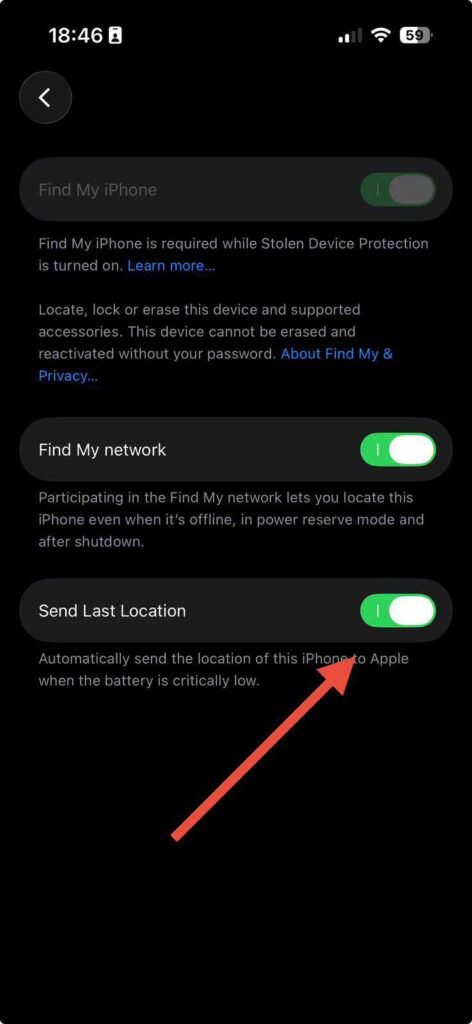
Also enable Send Last Location — this saves battery position data automatically.
Pro Tip: “Send Last Location” is a hidden lifesaver. It transmits your AirPods’ position to Apple’s servers the moment the battery hits critically low. Without it, a dead AirPod disappears from the map entirely.
Turn on Find My network and Send Last Location for accurate AirPods tracking.
Step 2: Turn On Location Services
Find My won’t work without Location Services active.
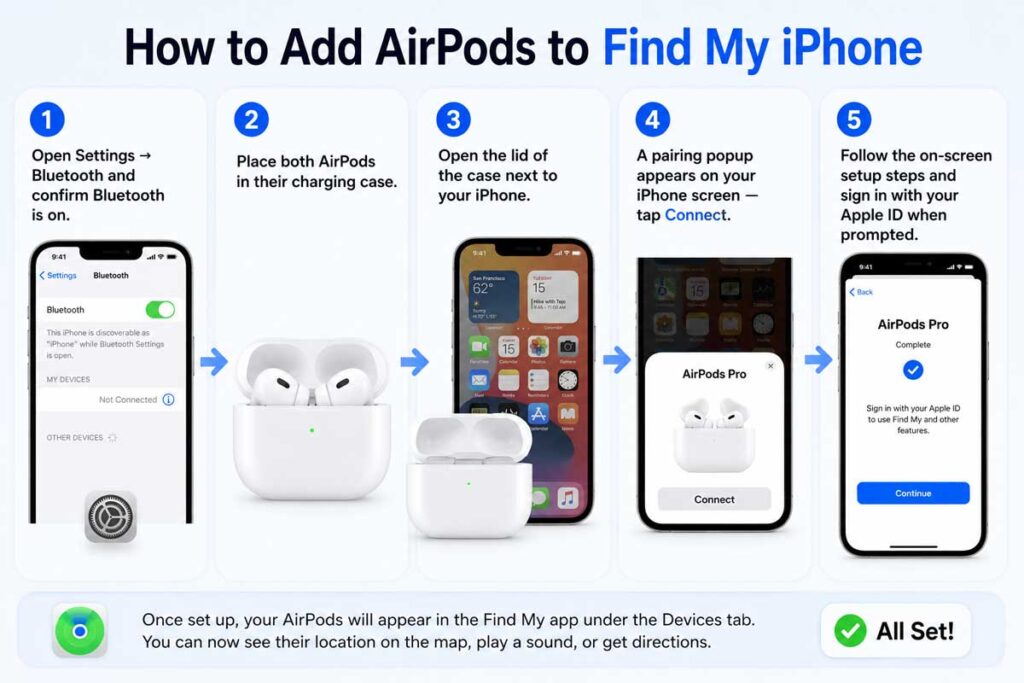
A pairing popup appears on your iPhone screen — tap Connect.
Follow the on-screen setup steps and sign in with your Apple ID when prompted.
Once paired, your AirPods are automatically linked to your iCloud account. This is the moment they become trackable.
Connect your AirPods to iPhone before enabling Find My features.
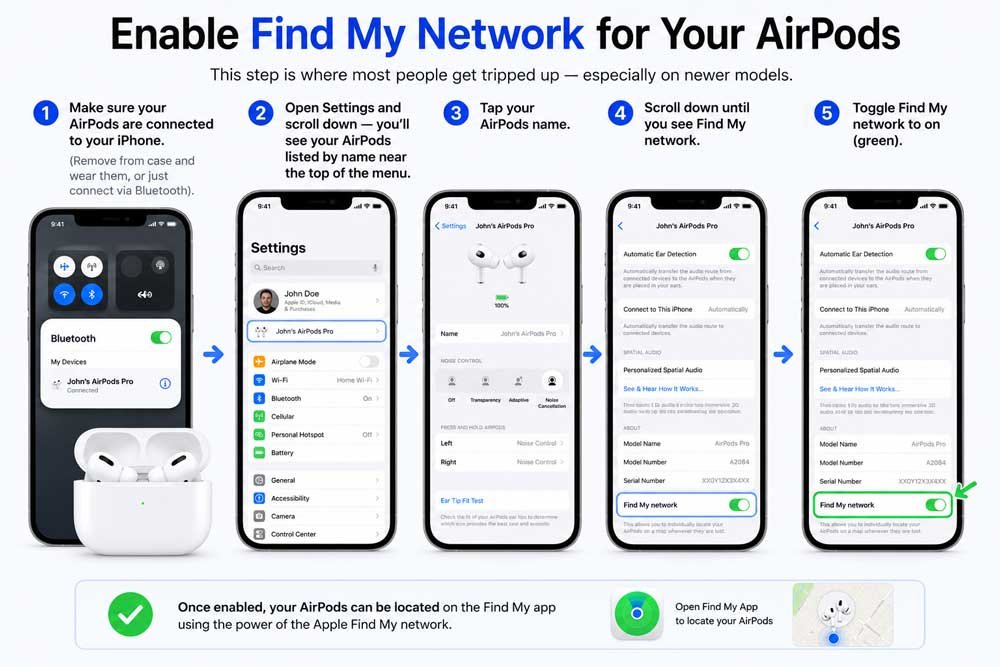
Step 4: Enable Find My Network for Your AirPods
This step is where most people get tripped up — especially on newer models.
Make sure your AirPods are connected to your iPhone (remove from case and wear them, or just connect via Bluetooth).
Open Settings and scroll down — you’ll see your AirPods listed by name near the top of the menu.
Tap your AirPods name.
Scroll down until you see Find My network.
Toggle Find My network to on (green).
Turn on Find My network to track AirPods even when offline.
Important for AirPods 1st & 2nd Gen users: This toggle does NOT appear for first-generation AirPods. Second-generation AirPods only show this toggle if you’re running iOS 16 or later. If you don’t see it, your AirPods are still tracked — just without the crowd-sourced offline network feature.
Step 5: Fix “AirPods Setup Incomplete” Error (If You See It)
This is one of the most common errors people hit. Here’s how to clear it in under a minute:
Put both AirPods back in the charging case.
Close the lid completely.
Wait 10 seconds.
Open the lid — a connection popup appears on your iPhone.
Dismiss the popup (tap away or swipe down) — do NOT tap Connect.
Go back to Settings → [Your AirPods] and check if Find My network now appears.
Step 6: Confirm Your AirPods Appear in the Find My App
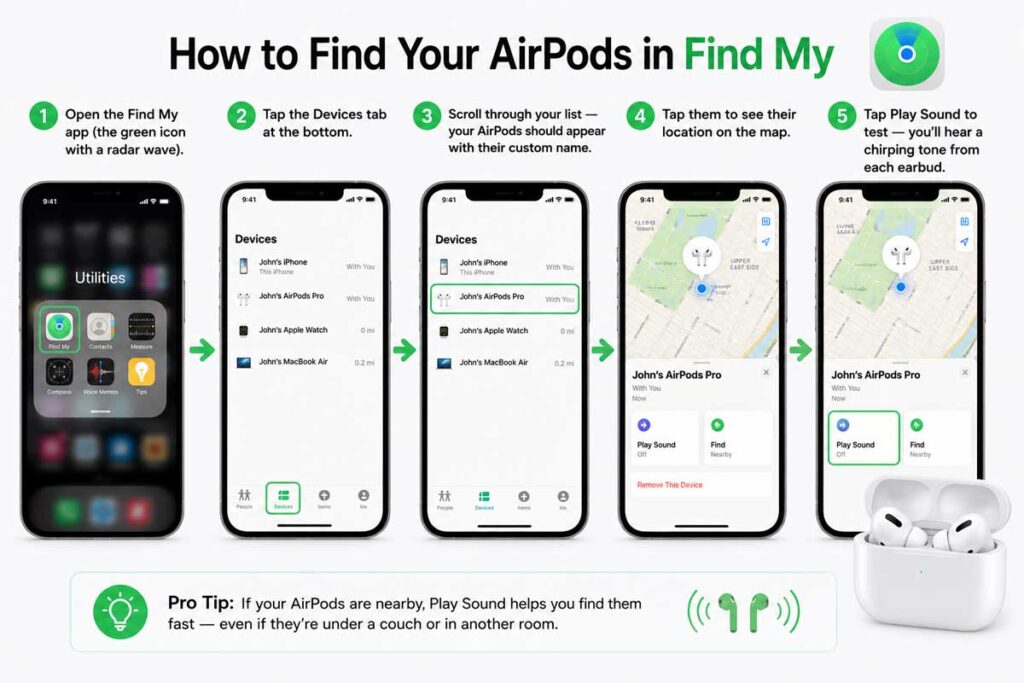
Open the Find My app (the green icon with a radar wave).
Tap the Devices tab at the bottom.
Scroll through your list — your AirPods should appear with their custom name.
Tap them to see their location on the map.
Tap Play Sound to test — you’ll hear a chirping tone from each earbud.
Verify that your AirPods appear in the Devices tab inside Find My.
Bonus Step 7: Set Up Lost Mode (Optional but Highly Recommended)
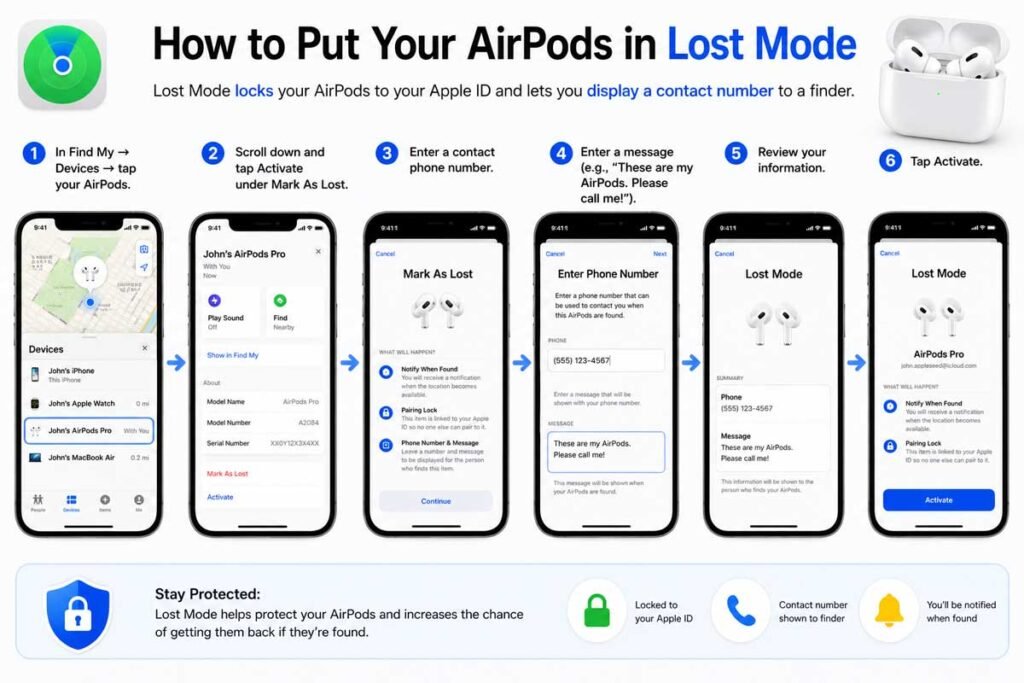
Lost Mode locks your AirPods to your Apple ID and lets you display a contact number to a finder.
In Find My → Devices → tap your AirPods.
Scroll down and tap Activate under Mark As Lost.
Enter a contact phone number and a message (e.g., “These are my AirPods. Please call me!”).
Tap Activate.
Use Lost Mode to lock AirPods and display contact information to finders.
The $249 Gym Bag Rescue
Marcus, a fitness trainer in Chicago, left his AirPods Pro 2 at a client’s gym in January 2026. He hadn’t set up Find My ahead of time. Without it, he filed a lost item report and gave up. Three days later, he bought a replacement pair — for $249.
His colleague ran into the same situation two months later. Same gym, same scenario. But she had Find My enabled with Send Last Location on. The app showed her earbuds sitting in the gym’s lost-and-found bin. She had them back in 20 minutes.
The 3-minute setup in this guide is worth every second.
Troubleshooting: What If My AirPods Still Don’t Show Up in Find My?
AirPods Not Showing in Find My App
Check these things in order:
Apple ID match: Your iPhone and AirPods must be signed into the same Apple ID. Go to Settings → [your name] to confirm which account is active.
Bluetooth is on: Find My for AirPods relies on Bluetooth. Settings → Bluetooth → On.
AirPods were previously paired to a different Apple ID: If you bought used AirPods, the previous owner’s Apple ID may still be linked. They need to remove the AirPods from their Find My account first.
Toggle the Find My network off and back on: Sometimes the toggle sticks. Turn it off, wait 5 seconds, turn it back on.
Reset network settings: Settings → General → Transfer or Reset iPhone → Reset → Reset Network Settings. Warning: this removes all saved Wi-Fi passwords.
Update iOS: Go to Settings → General → Software Update. iOS 26 fixed several Find My sync bugs for AirPods 4 and AirPods Pro 3.
Where Is Find My iPhone in Settings?
Many users search for “Find My iPhone” in Settings and can’t locate it. Here’s why — it moved in iOS 16.
Old location: Settings → [your name] → iCloud → Find My iPhone
New location (iOS 16+): Settings → [your name] → Find My → Find My iPhone
Both paths work in iOS 18, but the newer path is faster.
How to Add AirPods to Find My After Forgetting a Device
If you accidentally removed your AirPods from Find My (via “Forget This Device”), here’s how to re-add them:
Put AirPods in the case and hold the setup button on the back for 15 seconds until the light flashes white.
This factory-resets the AirPods.
Re-pair them with your iPhone following Step 3 above.
They’ll automatically re-appear in Find My as a new device.
How to Turn On Find My from Another Device
If you’ve lost your iPhone too, you can still check your AirPods’ location:
From any browser: Go to icloud.com/find → sign in with your Apple ID → click All Devices → select your AirPods.
From someone else’s iPhone: Download the Find My app, sign in with your Apple ID, and tap Devices.
From a Mac: Open the Find My app (pre-installed) → Devices tab → select AirPods.
Expert Insight: The Find My Network vs. Bluetooth Range
Here’s an analogy that makes the technology click: Imagine your lost AirPods are a letter you dropped on the street. Bluetooth is like shouting for the letter — it only works if you’re within earshot (about 30 feet). The Find My network is like having every mail carrier, pedestrian, and shopkeeper on the planet silently look for your letter as they go about their day, without ever knowing they’re helping.
When another Apple device walks near your AirPods, it detects their Bluetooth signal and securely, anonymously reports the location back to your iCloud account. Apple never knows which device reported it — the entire relay is end-to-end encrypted. This is why AirPods Pro 3 and AirPods 4 with the H2 chip can be found even in a park, a stadium, or another city.
How to Add AirPods Pro 3 to Find My (2025 Model — Special Notes)
AirPods Pro 3, released in late 2025, introduced Enhanced Precision Finding using the updated U1 chip. Setup is identical to the steps above, with two extra notes:
Spatial Audio for Lost Mode: When you tap Play Sound in Find My, AirPods Pro 3 uses directional audio to help you physically walk toward the sound source. It gets louder as you approach.
Vision Pro integration: If you own Apple Vision Pro, your AirPods Pro 3 also appear in the Vision Pro’s Find My panel — useful if you lose them during a mixed reality session.
Frequently Asked Questions
Can I add AirPods to Find My without my iPhone?
Yes. Go to icloud.com/find on any browser, sign in with your Apple ID, and your AirPods will appear under All Devices — as long as they were previously paired to your account.
Why are my AirPods not showing in Find My even though they’re paired?
The most common reasons are: the Find My network toggle is off in Settings → [AirPods name], your AirPods are still linked to a previous owner’s Apple ID, or your iPhone is running an outdated iOS version. Follow the troubleshooting steps above in order.
Can I track AirPods that are separated — one bud missing, one in the case?
Yes. Find My tracks each AirPod and the case as individual items on the map. You can play a sound on just the left bud, just the right bud, or just the case.
Do AirPods show their exact location or just a general area?
It depends on the model and situation. When your AirPods are in Bluetooth range of your iPhone, you get a precise location. When they’re out of range and relying on the Find My network, you get the last known location — which could be a street address or building, but not a room. AirPods Pro 2 and Pro 3 with Precision Finding can guide you to within a few feet when you’re close.
What happens if I mark my AirPods as lost and someone finds them?
The finder can hold the AirPods near their iPhone and a notification will appear showing your contact message (e.g., your phone number). They can’t pair the AirPods to their own account while Lost Mode is active — the AirPods remain locked to your Apple ID.
Don’t Wait Until They’re Gone
Setting up Find My for your AirPods takes less than 3 minutes — but it has to be done before you lose them. Open your Settings right now, run through Steps 1–6 above, and test it with Play Sound. Future you will be very grateful.
Have a model-specific question or a fix that worked for you? Drop it in the comments — we update this guide regularly with real reader solutions.
Published on AppleHeadlines.com | Last Updated: May 2026
Disclaimer: The steps and compatibility information in this article are based on Apple’s publicly available documentation and iOS 18 as of May 2026. Apple may update its software, features, or interface at any time. AppleHeadlines.com is an independent publication and is not affiliated with, endorsed by, or sponsored by Apple Inc. AirPods, Find My, iPhone, and iCloud are trademarks of Apple Inc. This article is for informational purposes only and does not constitute technical support. For official support, visit support.apple.com.
T’kal is the lead strategist and developer behind Apple Headlines. With a background in digital marketing and web development, he specializes in technical Apple troubleshooting, software news, and hardware rumors. T’kal focuses on delivering high-authority tech content that bridges the gap between Apple enthusiasts and the latest industry innovations.