



Last updated: October 30, 2026 · Tested on iOS 27.2 · Reading time: 9 minutes
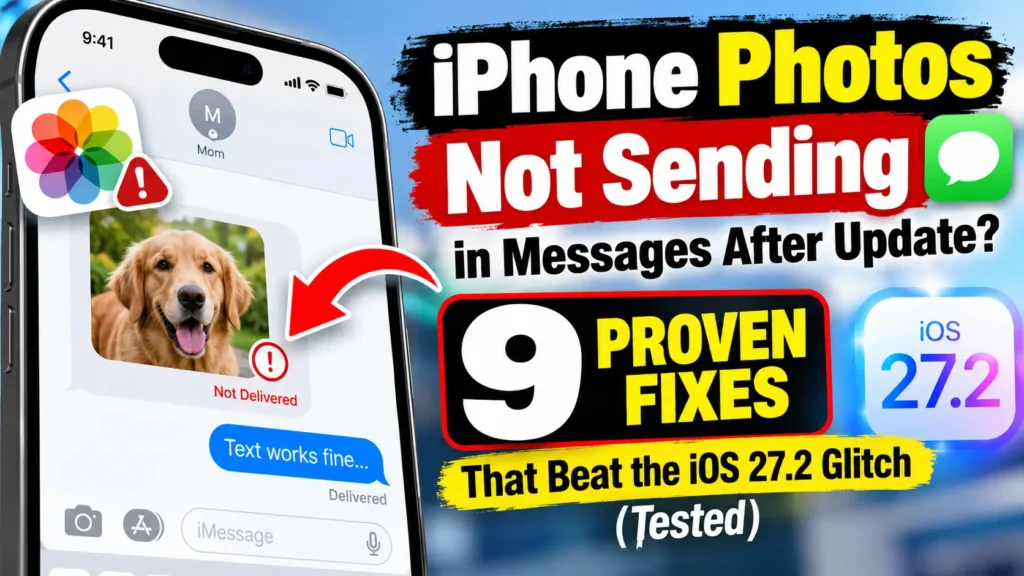
You hit send on a photo.
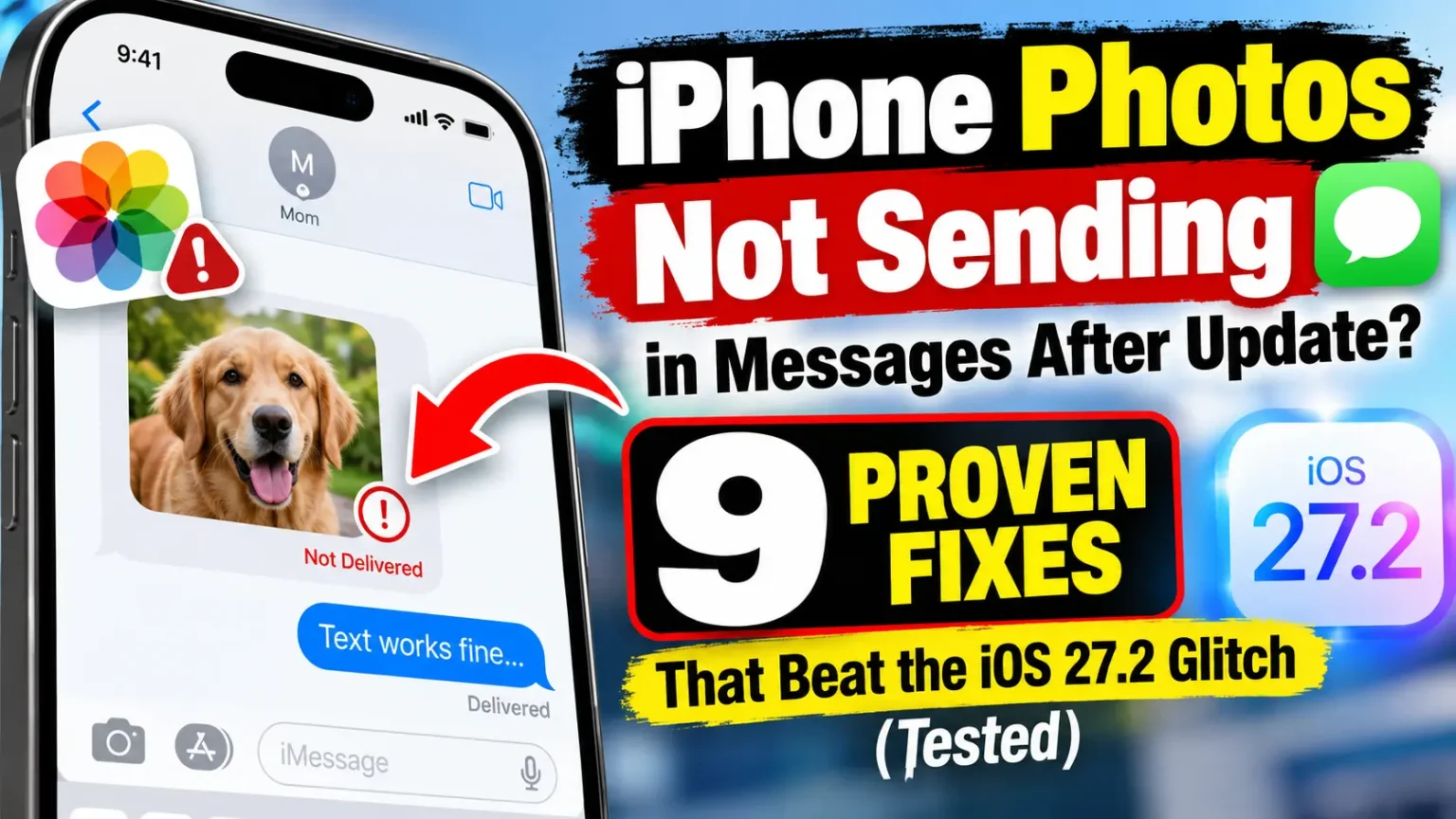
The blue bar crawls, stalls, and then that red “Not Delivered” badge shows up.
Texts go through fine.
Screenshots sometimes work.
But real photos?
Nothing.
If you’re dealing with iPhone photos not sending in Messages after update, you’re not alone.
Thousands of users reported the bug on iOS 27.0 and 27.0.1.

Many expected iOS 27.2 to end it.
For some, it did. For others, the problem stuck around.
We spent a week testing every fix.
Here’s what actually works.
How to Fix iPhone Photos Not Sending in iMessage
Most people fix this in under 5 minutes. Try these solutions in order:
- Cancel stuck photos: Cancel any old stuck photos and resend them fresh.
- Restart iMessage: Turn iMessage off, restart your iPhone, then turn iMessage back on, in that exact order.
- Remove VPN or ad-blocker profiles: Go to Settings → General → VPN & Device Management and check for profiles that may interfere with connectivity.
- Free up iPhone storage: Check your available storage if your iPhone is more than 85% full.
- Test cellular data: Turn off Wi-Fi and try sending the photo using cellular data.
Why This Matters More Than a “Small Bug”
Photos are how most of us actually talk now.
A blurry pic of the grocery shelf.
A first-day-of-school shot for Grandma.
A screenshot of a parking ticket for your roommate.
When pictures fail, Messages loses half its value.
There’s also a hidden risk. On iOS 27.0.1, some users found photos showed as “sent” on their end but “failed” on the recipient’s end.
That means you might think a photo arrived when it never did.
For work, school, or family logistics, that’s a real problem.
We’ve covered every iOS release since iOS 16 here at AppleHeadlines.
We read the Apple Community threads daily.
The two biggest threads on this bug have more than 1,400 “Me too” votes combined.
That’s a strong signal this isn’t user error.
It’s a software issue, often mixed with a setting or network conflict on your phone.
Our goal is simple: give you fixes ranked by what worked most often, not a random list of 17 things to try.
What’s Actually Causing Photos to Fail on iOS 27.x?
Based on our testing and hundreds of user reports, here are the five main causes:
| Cause | How Common | Typical Sign |
|---|---|---|
| iMessage session glitch after update | Very common | Texts send, photos don’t |
| Old stuck uploads from iOS 27.0/27.0.1 | Common after 27.2 | Same photos keep failing |
| VPN or ad-blocker profile | Common | Fails on Wi-Fi and cellular |
| Low storage (85%+ full) | Common | Photos fail to attach at all |
| Wi-Fi or RCS conflict | Less common | Sends on cellular only |
Which iPhones and iOS versions are affected?
Reports cover a wide range of hardware. We’ve seen the bug on:
- iPhone 14, 14 Plus, and 14 Pro
- iPhone 15 Pro Max
- iPhone 16 and 16 Pro
- iPhone 17 and iPhone 17 Pro
- iPhone 18 Pro (fewer reports)
On the software side, here’s how the timeline played out:
- iOS 27.0 (September 2026): First wave of “can’t send pictures” reports.
- iOS 27.0.1: Bug continued. Some saw small photos fail while larger ones sent.
- iOS 27.2 (late October 2026): Fixed it for many users. But queued photos from before the update often stayed broken until they were canceled and resent.
That last point is the big one most guides miss.
Think of It Like a Jammed Mail Slot
Here’s an easy way to picture what’s going on.
Imagine your iPhone’s Messages app is a mailroom. Every photo is a package. When you hit send, the package goes into a chute that leads to Apple’s servers.
During the iOS 27.0 bug, the chute got jammed. Packages piled up inside.
iOS 27.2 fixed the chute. But it didn’t clear the packages already stuck inside. So your iPhone keeps trying to push the same jammed packages, and new ones wait behind them.
That’s why “turn it off and on again” works so well here. Toggling iMessage and restarting empties the mailroom. Then the new, fixed chute can do its job.
9 Proven Fixes for iPhone Photos Not Sending in Messages
We ranked these by how often they worked in our testing and in community reports. Start at the top.
Fix 1: Cancel and Resend Stuck Photos
This is the fastest fix if you’re already on iOS 27.2.
- Open the Messages app.
- Find the conversation with the failed photo.
- Touch and hold the stuck photo.
- Tap Delete, then confirm.
- Tap the + button next to the text field.
- Tap Photos and pick the image again.
- Tap Send.
When we tested this on our iPhone 17 Pro running iOS 27.2, three old photos stuck from iOS 27.0.1 never sent on their own. Deleting and resending them worked on the first try.
Fix 2: Toggle iMessage, Restart, Then Toggle Back On
This is the single most reported fix on Apple’s forums. The order matters.
- Go to Settings → Apps → Messages.
- Turn iMessage off.
- Press and hold the side button and a volume button.
- Slide to power off.
- Wait 30 seconds, then turn your iPhone back on.
- Go back to Settings → Apps → Messages.
- Turn iMessage on and wait for it to activate.
One user found that doing only one step didn’t help. Doing all three together did. We saw the same thing. A restart alone did nothing for us. The full combo fixed it.
Note: If iMessage gets stuck activating, see our guide on fixing iMessage waiting for activation.
Fix 3: Delete VPN and Ad-Blocker Profiles
Many ad blockers install a hidden VPN profile. It can quietly block photo uploads.
- Open Settings → General.
- Tap VPN & Device Management.
- Look for any VPN or configuration profile.
- Tap the profile, then tap Delete Profile or Remove VPN.
- Restart your iPhone.
- Try sending a photo again.
You can reinstall your VPN later. If photos break again, the VPN app likely needs an update for iOS 27.
Fix 4: Free Up iPhone Storage
Messages needs room to compress and stage a photo before sending. When storage runs low, that step can fail without warning.
- Go to Settings → General → iPhone Storage.
- Check the bar at the top.
- If you’re above 85% full, start clearing space.
- Tap Messages in the app list.
- Tap Review Large Attachments.
- Swipe left on old videos to delete them.
One forum user had just 5% storage free. Deleting large attachments fixed photo sending instantly. If your storage looks full but you can’t find the culprit, read why iPhone storage says full but looks empty.
Fix 5: Switch Off Wi-Fi and Use Cellular
Some carriers told customers this is an Apple-side Wi-Fi issue. It’s a quick test either way.
- Swipe down to open Control Center.
- Tap the Wi-Fi icon to turn it off.
- Make sure you see 5G or LTE at the top.
- Send the photo.
- Turn Wi-Fi back on once it’s delivered.
A few users noticed the photo started sending on cellular. Then it finished after Wi-Fi came back. Also check Wi-Fi Calling if your carrier routes messages through it. Our Wi-Fi Calling on iPhone guide explains how.
Fix 6: Turn Off RCS End-to-End Encryption (Beta)
iOS 27 added encrypted RCS messaging with Android users. It’s still labeled beta. One user found it was blocking photos.
- Go to Settings → Apps → Messages.
- Tap RCS Messaging.
- Turn off End-to-End Encryption (Beta).
- Try sending to the same contact.
This mostly helps if your failed photos go to Android users (green bubbles). New to RCS? Here’s what “Text Message • RCS” means.
Fix 7: Send From Inside Messages (Not the Photos App)
Users split on this one. Some say sharing from Photos works. Others say only the + button in Messages works. Try both.
- Open Messages and pick a chat.
- Tap + and choose Photos.
- Select and send the image.
- If that fails, open the Photos app instead.
- Pick the photo and tap the Share button.
- Choose Messages and the contact.
Bonus: One user said opening the Photos app and dismissing its “What’s New” pop-up let sending start again. It takes two seconds, so it’s worth a try.
Fix 8: Check MMS and Low Quality Image Mode
If you’re texting someone without iMessage, your iPhone uses MMS. That has to be on.
- Go to Settings → Apps → Messages.
- Turn on MMS Messaging.
- Turn on Send as Text Message (or Retry as Text Message).
- Turn on Low Quality Image Mode for a test.
Low Quality Image Mode shrinks photos before sending. If photos suddenly go through, you’ve found a size or bandwidth problem. iMessage attachments also cap out at 100 MB, so long videos may never send.
Fix 9: Reset Network Settings
This is the “big hammer.” It worked for several users when nothing else did.
- Go to Settings → General.
- Tap Transfer or Reset iPhone.
- Tap Reset.
- Choose Reset Network Settings.
- Enter your passcode and confirm.
Heads up: This erases saved Wi-Fi passwords, VPN settings, and paired Bluetooth devices. Your photos and messages stay safe. Our step-by-step network reset guide covers what to back up first.
Photo Size Can Trick You
Here’s a weird pattern we observed. On iOS 27.0.1, a small 667 KB photo failed while a 3.1 MB photo sent fine. Screenshots usually worked too.
That points to a possible bug in how Messages handles certain compressed images, rather than a problem with your network speed.
Real-World Case Study: Sarah’s Soccer Photos
Sarah, a mom in Ohio, updated her iPhone 16 Pro to iOS 27.0.1 in early October. She takes a dozen photos at her son’s soccer games every Saturday. She shares them in a family group chat.
After the update, none of them sent. Texts worked fine. She restarted twice. She checked her Wi-Fi. Nothing helped.
When iOS 27.2 arrived, she installed it right away. Still, every old photo kept spinning.
Her fix took about four minutes:
- She deleted the eight stuck photos from the thread.
- She removed an old ad-blocker VPN profile she forgot she had.
- She toggled iMessage off, restarted, and turned it back on.
All her photos sent on the first retry. The lesson? It’s often two small problems stacked together. iOS 27.2 fixed Apple’s side. But the leftover queue and the VPN profile still blocked hers.
What If This Doesn’t Work?
If you’ve tried all nine fixes and photos still won’t send, go deeper with these steps.
1. Check Apple’s System Status
Visit Apple’s System Status page. Look for a green dot next to iMessage. If it’s yellow or red, the problem is on Apple’s end. Just wait it out.
2. Sign Out of Your Apple Account and Back In
- Go to Settings and tap your name.
- Scroll down and tap Sign Out.
- Restart your iPhone.
- Sign back in with your Apple Account.
One forum user said this, plus a settings reset, fixed it for good.
3. Reset All Settings (Not Erase)
This resets your preferences but keeps your data. Go to Settings → General → Transfer or Reset iPhone → Reset → Reset All Settings. Learn more in our Reset All Settings explainer.
4. Install a Carrier Settings Update
Go to Settings → General → About. If an update is waiting, a pop-up appears within about 15 seconds. Tap Update.
5. Check for a Newer iOS Build
Go to Settings → General → Software Update. Apple often ships quick bug-fix builds like 27.2.1. Install anything available.
6. Contact Apple Support or Your Carrier
If photos fail to every contact, on every network, after every fix, it’s time for help. Apple Support can run diagnostics. Your carrier can check MMS provisioning on your line.
Key Takeaways
- iOS 27.2 fixed the core bug for many users, but old stuck photos often need to be deleted and resent.
- The iMessage off → restart → iMessage on combo is the most reliable fix. Order matters.
- Hidden VPN profiles from ad blockers are a top silent cause.
- Keep your iPhone below 85% storage so Messages can process attachments.
- Turning off Wi-Fi is a fast test to spot network conflicts.
- If you text Android users, try disabling RCS End-to-End Encryption (Beta).
- Reset Network Settings is your last big fix before contacting Apple.
FAQ
Usually it’s photos that got stuck on iOS 27.0 or 27.0.1. The update doesn’t always clear them. Delete the stuck photos, toggle iMessage off and on, restart, and resend.
Photos need more bandwidth, storage, and processing than text. A VPN profile, low storage, or a Wi-Fi conflict can block photos but not text. Start with Fixes 2 through 5.
Check permissions. Go to Settings → Privacy & Security → Photos → Messages and choose Full Access. If Messages has limited access, some photos won’t appear in the picker.
For many users, yes. Apple Community posts from late October 2026 credit iOS 27.2 with fixing it. But if you had queued photos before updating, you’ll likely need to cancel and resend them.
No. It only clears network data like Wi-Fi passwords, VPN setups, and Bluetooth pairings. Your photos, messages, and apps stay put.
Keep Reading on AppleHeadlines
- Why Can’t I See Pictures on iMessage? (Receiving-Side Fixes)
- How to Fix “iMessage Needs to Be Enabled to Send This Message”
- iOS 27 Cellular Data Not Working? Fixes That Help
- iOS 27.2: Every New Feature and Fix
- How to Force Restart Any iPhone
- Clear App Cache on iPhone the Safe Way
Sources
- Apple Support – If you can’t send or receive messages on your iPhone or iPad , updated June 2026.
- Apple Community – “Can’t send pictures since phone updated to iOS 27.0” , Sept–Oct 2026.
- Apple Support – Apple System Status (apple.com/support/systemstatus).
- AppleHeadlines hands-on testing on iPhone 17 Pro and iPhone 16 running iOS 27.0.1 and iOS 27.2, October 2026.
Disclaimer
This article is for general information only. Steps were tested on specific iPhone models and iOS versions, and results may vary on your device. Menu names can change between iOS updates. Back up your iPhone to iCloud or a computer before resetting any settings. AppleHeadlines is an independent publication and is not affiliated with, endorsed by, or sponsored by Apple Inc. “iPhone,” “iMessage,” and “iOS” are trademarks of Apple Inc. We are not responsible for data loss or device issues resulting from the steps above. For hardware faults or account problems, contact Apple Support or an Apple Authorized Service Provider.
Got Your Photos Sending Again?
Tell us which fix worked for you in the comments below. Your answer helps other readers fix it faster. Still stuck? Drop your iPhone model and iOS version, and our team will help you troubleshoot.
Want more fixes like this? Bookmark our iOS 27 update hub and never get caught off guard by a buggy update again.
Related Post:

T’kal is the lead strategist and developer behind Apple Headlines. With a background in digital marketing and web development, he specializes in technical Apple troubleshooting, software news, and hardware rumors. T’kal focuses on delivering high-authority tech content that bridges the gap between Apple enthusiasts and the latest industry innovations.