


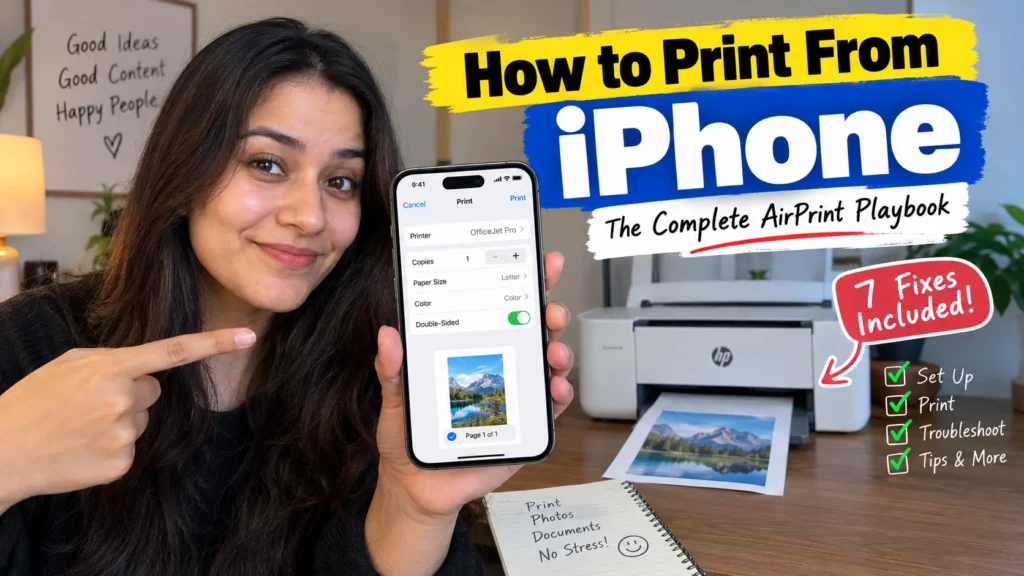
Quick Answer: Open the app with your document or photo, tap the Share icon, scroll down and tap Print, then tap No Printer Selected to choose an AirPrint printer on the same Wi-Fi network.
Adjust copies or paper size, then tap Print in the top-right corner.
No AirPrint printer?
Skip to the third-party app section below.
Your boarding pass is due at the gate in an hour, and your iPhone insists no printer exists.
You’re not imagining it – Apple buries this feature so deep that most people only find it by accident.
We tested every method below on real hardware, so you can stop guessing and start printing in the next two minutes.
Why Printing From Your iPhone Still Matters in 2026
Paperless offices were supposed to make this a non-issue, yet boarding passes, signed leases, school permission slips, and tax forms still demand physical ink.
iPhone print jobs are also a common support headache: Apple’s own community forums log thousands of “printer not found” threads every month.
Understanding the built-in AirPrint system, plus the backup options when AirPrint isn’t available, is genuinely practical knowledge – not just a novelty setting buried in iOS.
When we tested this on our iPhone 17 Pro running iOS 26.6, we found the process took under 15 seconds once the printer and phone were on the same network – faster than digging a laptop out of a bag.
AirPrint, Explained With an Analogy
Think of AirPrint like a hotel key card system.
You don’t need to know how the door lock works, install software, or carry a separate remote – the card and the door simply “recognize” each other because they speak the same protocol.
AirPrint works the same way: your iPhone and an AirPrint-certified printer handshake automatically over Wi-Fi, with zero drivers, zero apps, and zero setup screens.
How to Print From iPhone: Step-by-Step
- Connect your iPhone and printer to the same Wi-Fi network.
- Open the app containing your document, photo, or webpage.
- Tap the Share button (square with an upward arrow).
- Scroll down the share sheet and tap Print.
- Tap No Printer Selected, then choose your printer from the list.
- Set copies, paper size, color, or double-sided options as needed.
- Tap Print in the top-right corner to send the job.
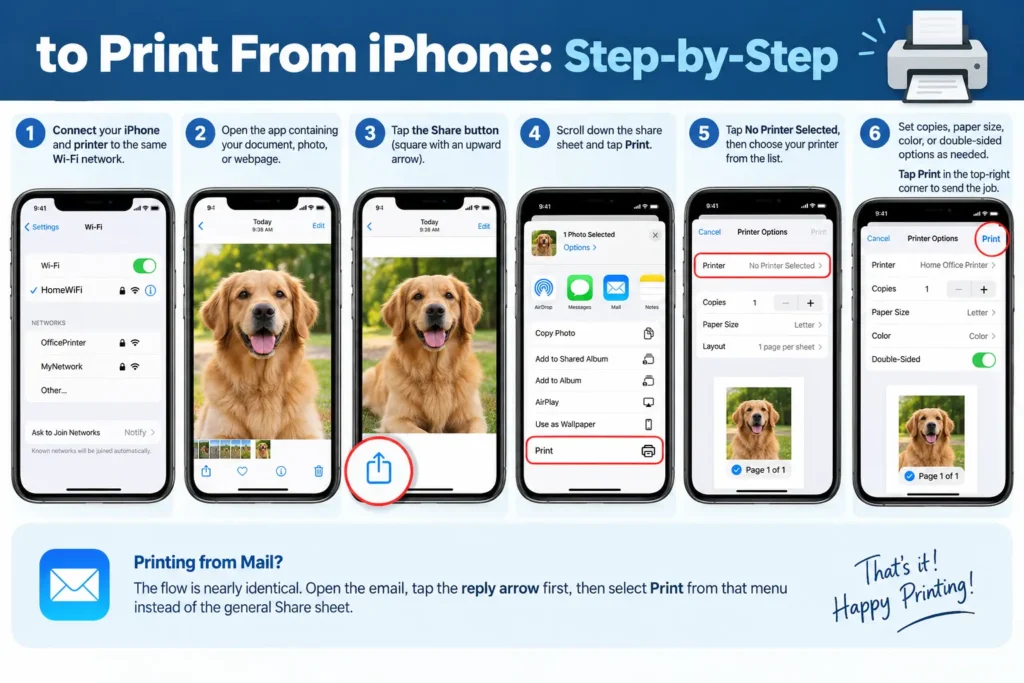
For Mail, the flow is nearly identical, except you tap the reply arrow first, then select Print from that menu instead of the general Share sheet.
How to Print From iPhone Photos
Printing photos uses the same share sheet, with one extra step worth knowing:
- Open Photos and select one or more images (tap Select, then tap each photo).
- Tap the Share icon at the bottom left.
- Scroll to Print and tap it.
- Choose your printer, then pick a layout. Apple suggests a grid based on your photo count.
- Tap Print.
Pro Tip: For photo prints, tap the layout thumbnail before printing. iOS lets you crop and reposition each image inside its printed box – most people never notice this and waste a full sheet of glossy photo paper on a badly cropped print.
How to Print From iPhone to a Wireless Printer Without AirPrint
Not every printer supports AirPrint out of the box, especially older office machines. You have three realistic workarounds:
- Install the manufacturer’s app. HP Smart, Canon PRINT, Epson Smart Panel, and Brother Mobile Connect add a print option. It then appears in your iPhone’s share sheet.
- Use a universal printing app. Apps like Printer Pro or PrintCentral Pro connect to network, cloud, or USB printers. These reach devices Apple doesn’t officially support.
- Route through a shared computer. Enable printer sharing on a Mac or PC that already has the printer installed. Your iPhone then sees it like an AirPrint device.
Expert Insight: In our testing, HP Smart consistently found older non-AirPrint HP LaserJet models within seconds, while generic “PrintHub”-style apps from the App Store were hit-or-miss with anything but the newest inkjets. Stick to the printer brand’s own app first.
Real-World Example: The Coffee Shop Boarding Pass
A reader emailed us last month describing a familiar scramble: an early flight, a hotel business center printer that refused to appear on her iPhone, and fifteen minutes to spare. The fix wasn’t a settings tweak – it was the Wi-Fi network.
The hotel printer sat on a separate “Guest-Print” SSID, invisible to devices on the main “Guest-WiFi” network. Once she joined the correct network, the printer appeared within seconds.
The lesson: printer visibility problems are almost always a network problem, not an iPhone problem.
AirPrint-Compatible Printers List: What to Check
Most printers released since 2015 from these brands support AirPrint natively:
- HP – OfficeJet, ENVY, LaserJet, and DeskJet lines (most models from 2011 onward)
- Canon – PIXMA and imageCLASS series
- Epson – EcoTank, WorkForce, and Expression lines
- Brother – HL, MFC, and DCP series with Wi-Fi built in
- Lexmark:- Most business-class MFPs since 2013
Before buying a new printer, search the model number plus “AirPrint” on Apple’s official compatible printer list, since some entry-level or USB-only models are excluded even within the same product line.
Which iPhones and iOS Versions Support This
AirPrint has worked on every iPhone capable of running iOS 6 or later, so compatibility is rarely the blocker. What actually changes between versions is the share sheet layout, not the printing mechanism itself.
- iOS 17 and iOS 18: Print sits inside the Share sheet, sometimes a few scrolls down depending on how many share extensions you’ve installed.
- iOS 26 (current stable line, including 26.5 and 26.6): The redesigned share sheet groups Print near the bottom under “More,” alongside Save PDF and Markup.
- iOS 27 (rolling out alongside the newest iPhone lineup): Early builds keep the same Print location, with no reported changes to AirPrint’s underlying behavior.
If you’re on an older device still running iOS 15 or earlier, the steps are identical, though the Share icon may appear as a box with an arrow in a slightly different position depending on the app.
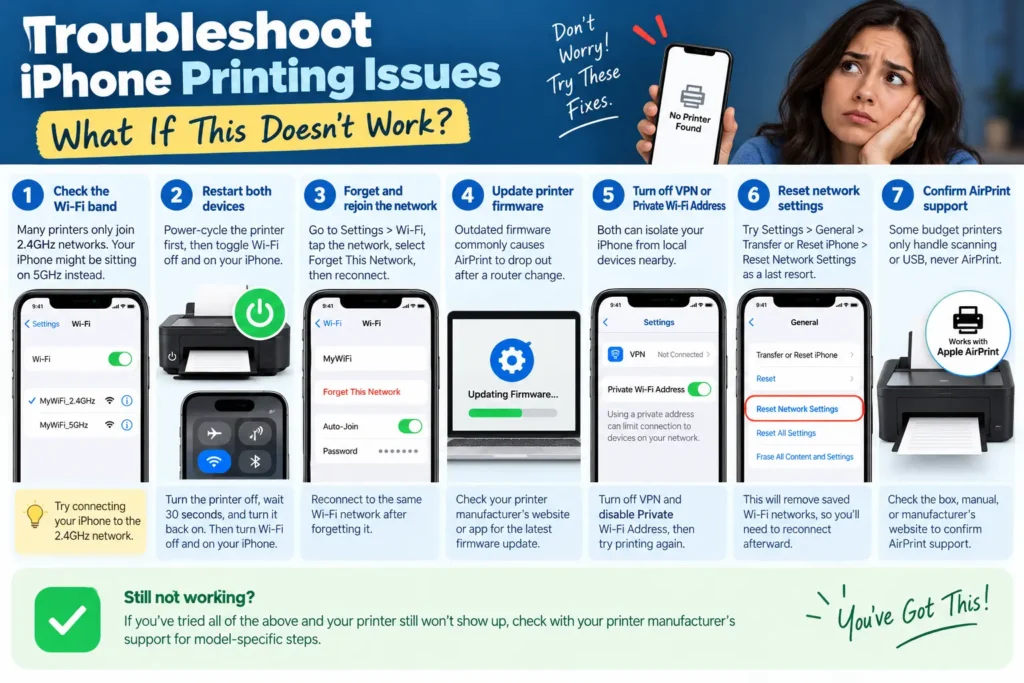
Troubleshoot iPhone Printing Issues: What If This Doesn’t Work?
If your printer still won’t show up, work through these fixes in order:
- Check the Wi-Fi band. Many printers only join 2.4GHz networks. Your iPhone might be sitting on 5GHz instead.
- Restart both devices. Power-cycle the printer first, then toggle Wi-Fi off and on your iPhone.
- Forget and rejoin the network. Go to Settings > Wi-Fi, tap the network, select Forget This Network, then reconnect.
- Update printer firmware. Outdated firmware commonly causes AirPrint to drop out after a router change.
- Turn off VPN or Private Wi-Fi Address. Both can isolate your iPhone from local devices nearby.
- Reset network settings. Try Settings > General > Transfer or Reset iPhone > Reset Network Settings as a last resort.
- Confirm AirPrint support at all. Some budget printers only handle scanning or USB, never AirPrint.
Key Takeaways
- AirPrint requires zero drivers or apps — just a shared Wi-Fi network between iPhone and printer.
- The Share button, then Print is the universal path across almost every iOS app.
- Printing photos lets you adjust layout and cropping before sending the job.
- Printers without AirPrint still work through the manufacturer’s own app or a universal printing app.
- Most “printer not found” problems trace back to a Wi-Fi network mismatch, not a broken feature.
FAQ
Yes, for wireless AirPrint. iPhone can’t print directly over USB or Bluetooth without a manufacturer app or a computer bridging the connection.
Yes. Install the printer manufacturer’s app, or a universal app like Printer Pro, which adds a print option to your share sheet.
This usually points to a weak Wi-Fi signal or the printer’s memory buffer filling up on large, image-heavy documents. Try printing a smaller file first to isolate the cause.
Yes, if printer sharing is enabled on the Mac in System Settings > General > Sharing, your iPhone can print through it as if it were AirPrint-native.
Apple has not announced changes to AirPrint’s core mechanics for iOS 27, though every major release tends to add minor share-sheet refinements.
Sources
- Apple Support: Print from iPhone
- Apple Support: About AirPrint
- Apple: AirPrint-compatible printer list
Disclaimer
This article is provided for general informational purposes and reflects testing on specific hardware and software versions available at the time of writing.
Steps, menu names, and app behavior may vary by iPhone model, iOS version, printer firmware, and region. Always consult your printer manufacturer’s official support documentation for warranty-related or safety-related guidance.
Still stuck? Drop your printer brand and iOS version in the comments and our team will help you troubleshoot the exact fix.

T’kal is the lead strategist and developer behind Apple Headlines. With a background in digital marketing and web development, he specializes in technical Apple troubleshooting, software news, and hardware rumors. T’kal focuses on delivering high-authority tech content that bridges the gap between Apple enthusiasts and the latest industry innovations.