
Quick Answer: Open Messages, press and hold the conversation you want on top, then tap Pin. You can pin up to nine conversations total. To reverse it, press and hold the pinned bubble and tap Unpin. No messages are deleted either way.
If your Messages app is constantly flooded with delivery notifications, two-factor authentication codes, and promotional texts, keeping track of conversations with family, close friends, or colleagues can quickly become a chore.
Fortunately, iOS makes it simple to keep your favorite people just a tap away.
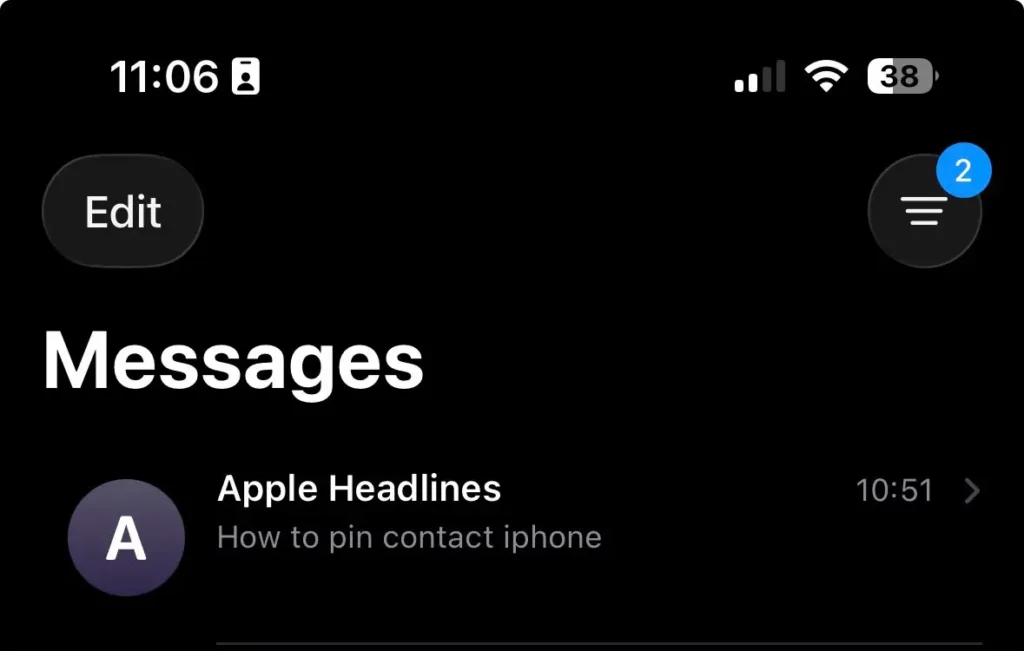
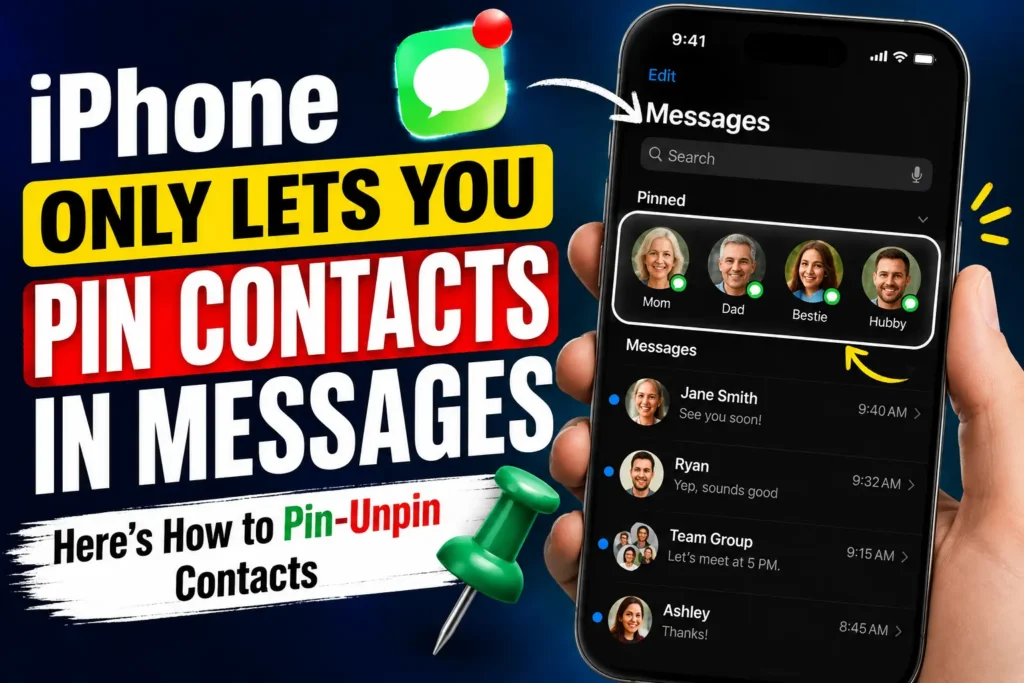
While iOS doesn’t have a system-wide “contact pin” button, you can pin up to 9 conversations or contacts to the top of your Messages app as prominent visual avatars.
You can also create quick-access Favorites in the Phone app or place dedicated Contact Widgets right on your Home Screen.
Here is everything you need to know about pinning and organizing your essential contacts on your iPhone.
Pinning Contacts in the Messages App (3 Easy Ways)
You can pin up to 9 individual contacts or group chats at the top of your chat list. Once pinned, their avatars remain fixed at the top, showing real-time typing indicators, unread message badges, and recent tapback reactions.
Option A:
Swipe Right (Fastest):Ideal for pinning a single conversation instantly.
- Open the Messages app on your iPhone.
- Find the chat thread with the contact you want to pin.
- Swipe right across the conversation row.
- Tap the yellow Pin icon that appears on the left side.
Option B:
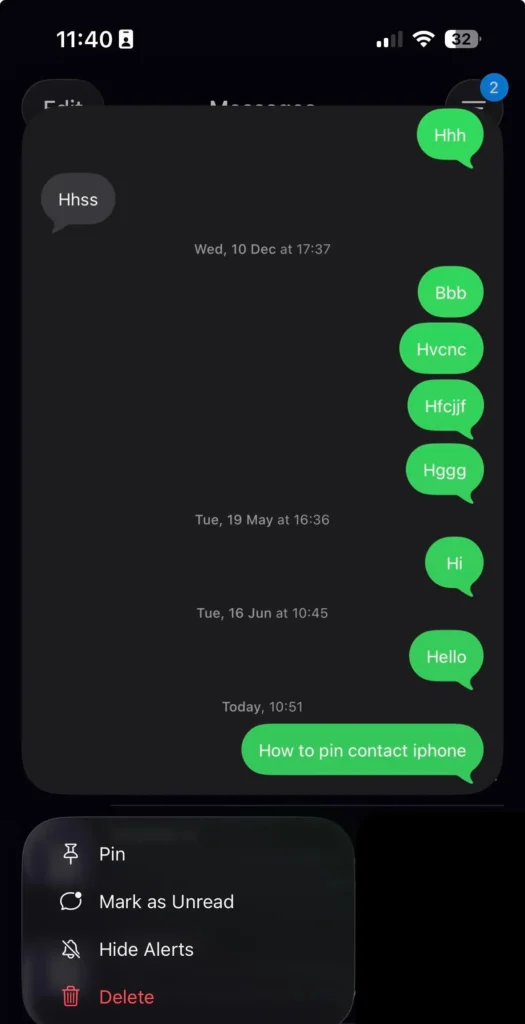
Press & Hold (Long Press):Quick context-menu shortcut.
- Open Messages.
- Press and hold down on the contact’s conversation thread until the context menu pops up.
- Tap Pin (with the yellow pin icon next to it).
Option C:
Edit Pins Grid:Best for rearranging or pinning multiple contacts at once.
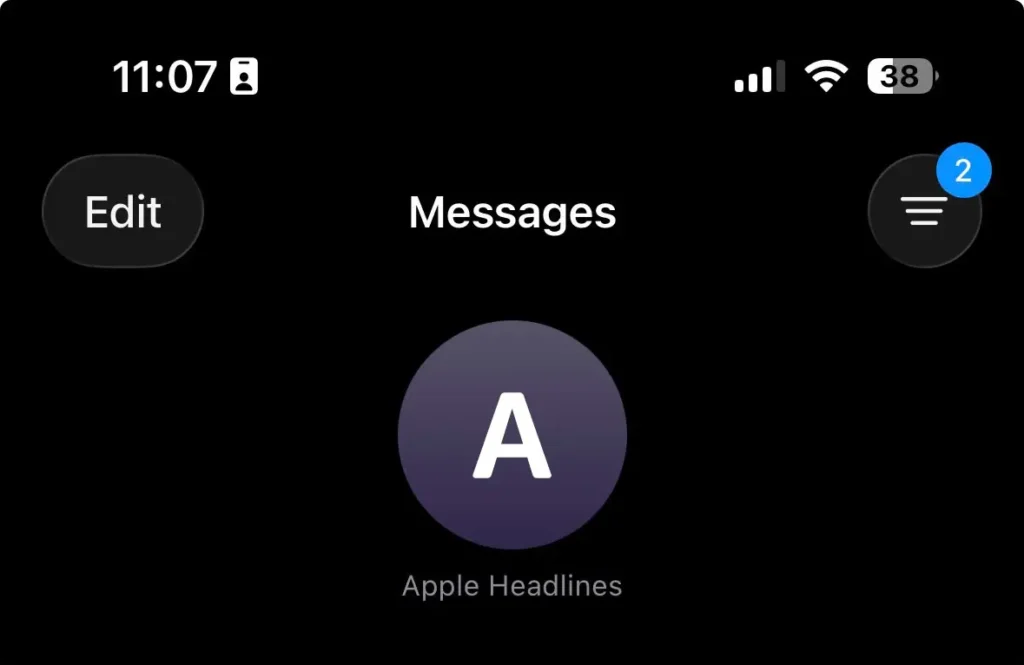
- Tap Edit (or the three-dots icon) in the top-left corner of the Messages screen.
- Select Edit Pins.
- Tap the yellow Pin icon next to any contact you want to pin.
- Drag and drop the pinned bubbles to reorder your top grid.
- Tap Done in the top-right corner when finished.
How to Unpin a Contact in Messages
If you ever need to declutter or swap out a pinned contact:
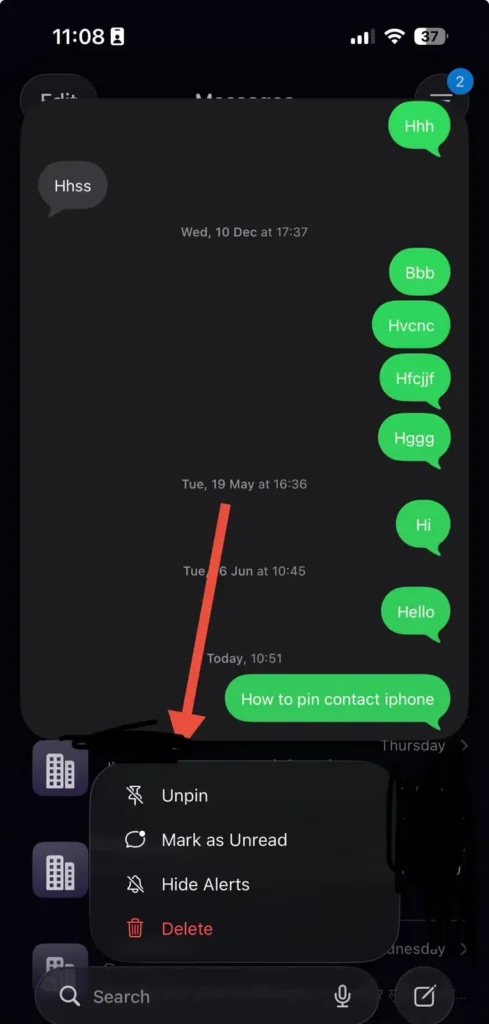
- To Unpin: Press and hold the contact’s round avatar bubble at the top of the Messages screen, then tap Unpin.
- To Rearrange: Press and hold any pinned bubble and drag it to your preferred position within the 3×3 grid, or use Edit > Edit Pins to move them around freely.
Alternative Ways to Keep Contacts Front & Center
If you want fast access to call or message contacts outside of the Messages app, iOS offers two additional built-in tools:
1. Add Contacts to Your Phone Favorites
The Phone app features a dedicated Favorites tab that lets you make 1-tap phone calls, FaceTime, or send messages.
- Open the Phone app and tap the Favorites tab (star icon) at the bottom left.
- Tap the + (Plus) icon in the top-left corner.
- Select a contact, then choose your default communication preference (Message, Call, Video, or Mail).
2. Put a Contact Widget on Your Home Screen
For instant 1-tap access directly from your iPhone home screen:
- Long-press any empty space on your Home Screen until the apps jiggle.
- Tap the + (Plus) button in the top-left corner to open the Widget Gallery.
- Search for Contacts and choose your preferred widget size (Single Contact, 4-Pack, or 6-Pack).
- Tap Add Widget, position it on your screen, and tap Done.
Quick Summary: Features & Limits
| Feature | Messages Pins | Phone Favorites | Home Screen Widget |
| Max Capacity | Up to 9 conversations | Unlimited | Fits widget size (1, 4, or 6) |
| Supports Group Chats? | Yes | No | No |
| Best Used For | Fast texting & group monitoring | Quick phone & FaceTime calls | One-tap direct access |
| Visual Indicators | Typing dots, unread badges | None | Status & recent updates |
Troubleshooting: What to Do If Pins Disappear or Won’t Show
If your pinned contacts suddenly vanish or the pin option is missing altogether, check these common causes and quick fixes:
1. You Have Hit the 9-Pin Limit
Apple limits the Messages app pin grid to a maximum of 9 pinned contacts or group chats. If you attempt to pin a 10th item, the “Pin” option won’t trigger or will be grayed out.
- Fix: Press and hold one of your existing pinned avatars at the top and tap Unpin to clear a slot before adding a new one.
2. Check Your iOS Version
Pinning conversations natively in the Messages app requires iOS 14 or later.
- Fix: Go to Settings > General > About to check your iOS version. If you are running an older release, head to Settings > General > Software Update to update your iPhone.
3. Force-Quit and Relaunch the Messages App
Sometimes a minor background process freeze can cause pinned avatars to disappear temporarily from the top of the screen.
- Fix: Swipe up from the bottom of your screen (or double-click the Home button on older models) to open the App Switcher. Swipe up on the Messages app card to close it completely, then reopen it.
4. Restart Your iPhone
If force-closing the app doesn’t restore your pinned bubbles, a system reboot usually resolves stuck UI elements.
- Fix: Turn your iPhone off via Settings > General > Shut Down, wait 30 seconds, and turn it back on.
5. Check iCloud Messages Sync
If you use multiple Apple devices (like an iPad or Mac) and your pins aren’t syncing or keep resetting across devices:
- Fix: Navigate to Settings > [Your Name] > iCloud > Messages (or Saved to iCloud), then make sure Sync this iPhone is turned ON.
Key Takeaways
- Pin a contact by pressing and holding its Messages thread, then tapping Pin.
- iPhone allows a hard maximum of nine pinned conversations at once.
- Unpin the same way: press, hold, tap Unpin — nothing gets deleted.
- Group texts pin identically to single contacts.
- WhatsApp pinning is a completely separate feature inside the WhatsApp app.
- Works on iPhone 11 and later, running iOS 14 through iOS 26.5.
Readers Asking
Nine total, combining iMessage and SMS threads on one device.
No. Pinning happens entirely on your device and is invisible to the other person.
Not directly — pinning always applies to the conversation thread, not a standalone contact card.
No. Pinned conversations aren’t synced through iCloud, so pin favorites separately on each device.
Related Reading on AppleHeadlines
- 7 Massive Apple iPhone Texting Changes in iOS 26
- iOS 26 Features: The Complete Guide to Apple’s Big Update
- Fix “iMessage Needs to Be Enabled” Error
- How to Drop a Pin on iPhone (Maps, Not Messages)
- iOS 27 Complete Guide
Sources
- Apple Support: Use Messages on your iPhone or iPad
- Apple Support: What’s New in iOS 26
This article is for informational purposes only. Menu locations and feature behavior can vary by iOS version, region, and device model, and may change with future software updates. AppleHeadlines.com is not responsible for lost messages or settings changes resulting from following these steps. For account-specific issues, refer to Apple’s official support documentation at support.apple.com.
Ready to organize the rest of your inbox? Check out our breakdown of 7 massive iPhone texting changes in iOS 26 to see what else changed alongside pinning.

T’kal is the lead strategist and developer behind Apple Headlines. With a background in digital marketing and web development, he specializes in technical Apple troubleshooting, software news, and hardware rumors. T’kal focuses on delivering high-authority tech content that bridges the gap between Apple enthusiasts and the latest industry innovations.