



Do This: Tap the shared album notification and tap Accept. If you missed it, open Photos > Collections > Albums, tap Activity, then tap Accept.
You can also accept from any browser at icloud.com/photos under Shared Albums. If nothing shows up, Shared Albums may be turned off in Settings, or your invite may have expired.
You got the text.
“I shared an album with you – check your Photos app.” But you opened Photos, and there’s nothing there.
No banner, no badge, no obvious “Accept” button anywhere in sight.
You’re not missing something obvious.
Apple buries this invite in a few different places depending on your iOS version, and one wrong setting can hide it completely.
Here’s exactly where to look and how to fix it when it won’t appear at all.
Why Shared Album Invites Go Missing (And Why This Actually Matters)
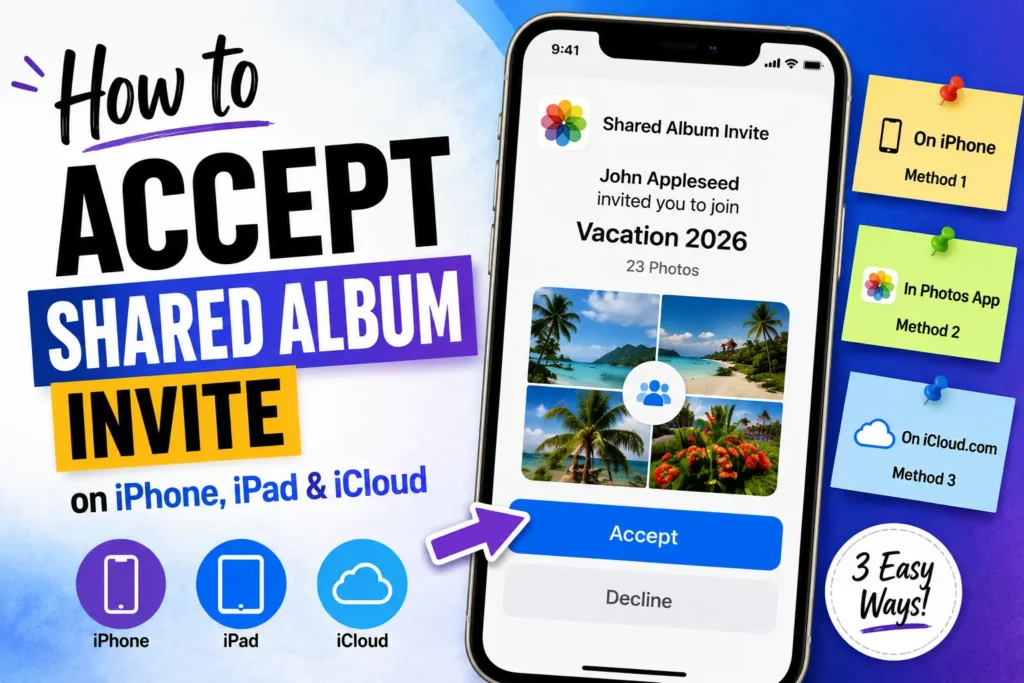
Shared Albums are one of the most-used iCloud Photos features, letting families, couples, and friend groups drop photos into one running collection without a group chat flooding everyone’s camera roll.

But the invite itself is fragile. It depends on three things lining up at once: Shared Albums being enabled on your account, iCloud Photos syncing correctly, and the sender using the right email or phone number.
When we tested this on our iPhone 17 Pro running iOS 26.6, we found the invite notification only appears for about 60 seconds before it drops into Notification Center permanently. Miss that window, and most people assume the invite never arrived. It did — it’s just sitting one tab away.
Getting this right matters beyond convenience, too.
Shared Albums are often used for things people can’t easily recreate: a grandparent’s final birthday party, a wedding a cousin couldn’t attend, a new baby’s first week home.
Missing the acceptance window doesn’t delete those photos, but it can delay access for days while everyone assumes something went wrong on the other end.
How to Accept a Shared Album Invite on iPhone
There are three reliable ways to do this. Try them in order.
Method 1: Accept From Notification Center
This works if you haven’t swiped the notification away yet.
- Swipe down from the top of your Lock Screen or Home Screen.
- Look for a “Shared Albums” alert with the sender’s name.
- Tap the notification to open it directly in Photos.
- Tap Accept to join the album immediately.
- Tap Decline instead if you don’t want to join.
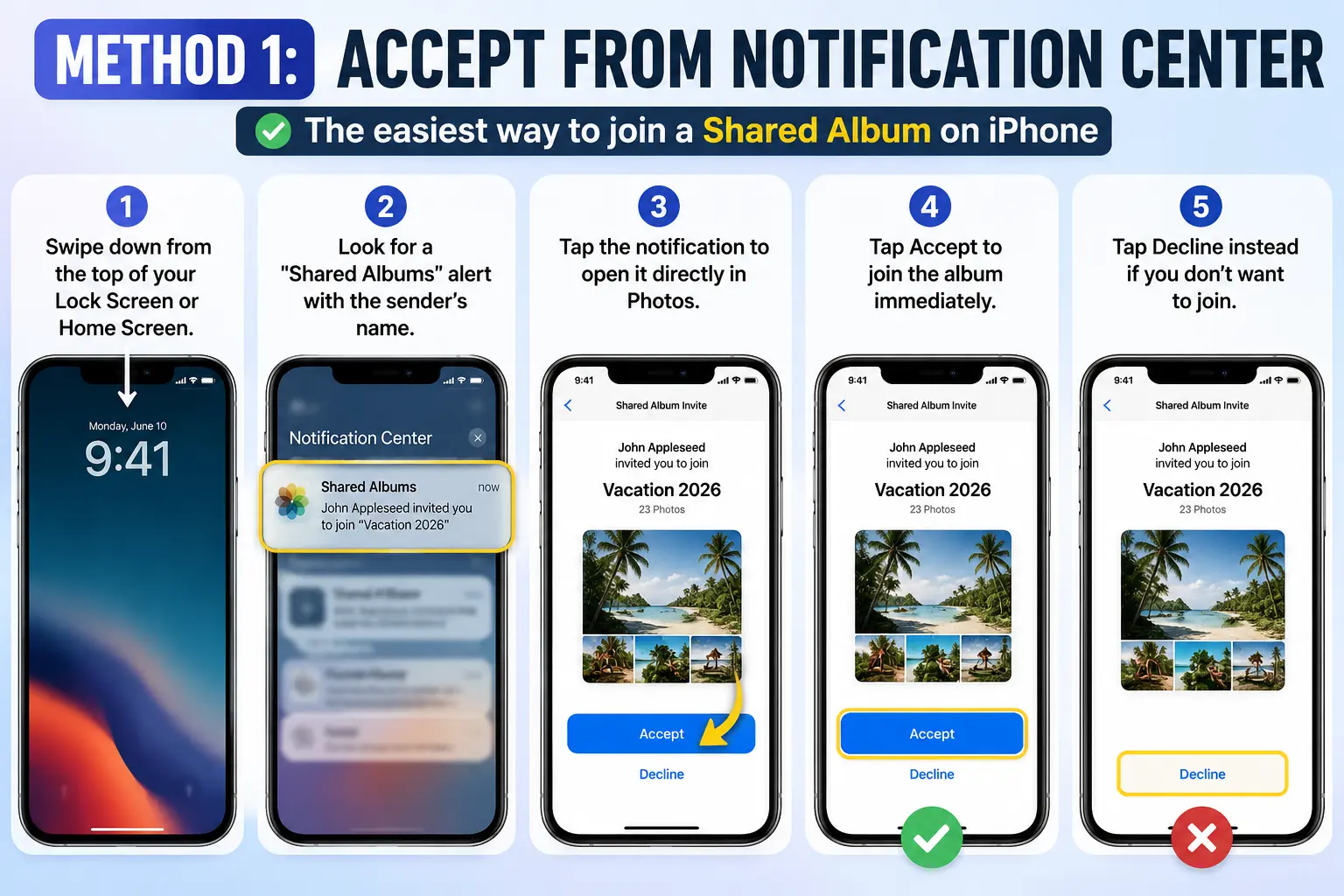
Notification Center only holds recent alerts. If it’s been a few days, skip to Method 2.
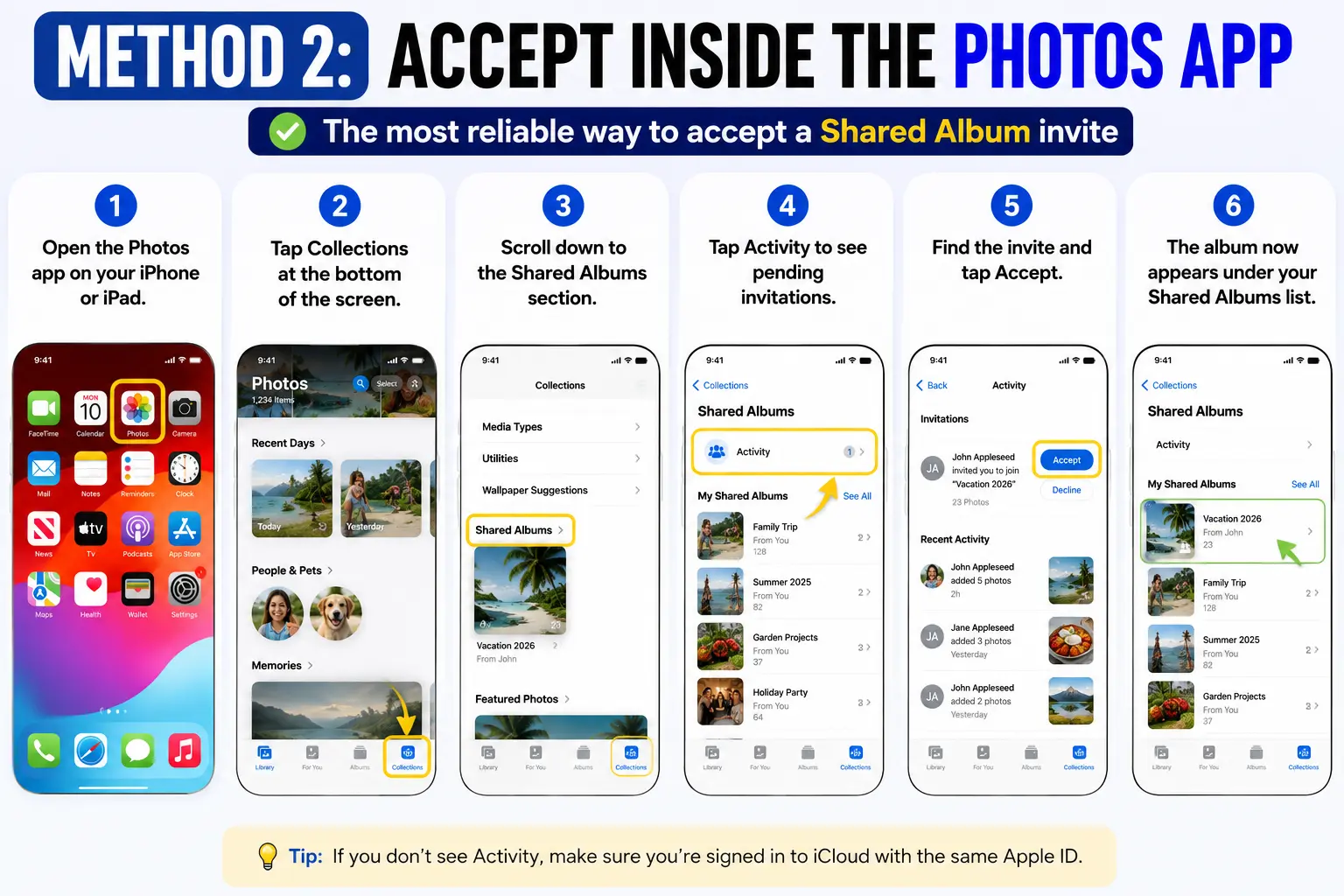
Method 2: Accept Inside the Photos App
This is the most reliable method, since it works no matter how old the invite is.
- Open the Photos app on your iPhone or iPad.
- Tap Collections at the bottom of the screen.
- Scroll down to the Shared Albums section.
- Tap Activity to see pending invitations.
- Find the invite and tap Accept.
- The album now appears under your Shared Albums list.
Pro Tip / Expert Insight: Before you go hunting for the invite, confirm the feature is even switched on. Go to Settings > [your name] > iCloud > Photos, and check that Shared Albums is toggled green. If it was off, no invitation could have reached you in the first place — you’ll need to ask the sender to resend it once you flip the toggle on. We’ve seen this single setting cause more “missing invite” support questions than anything else.
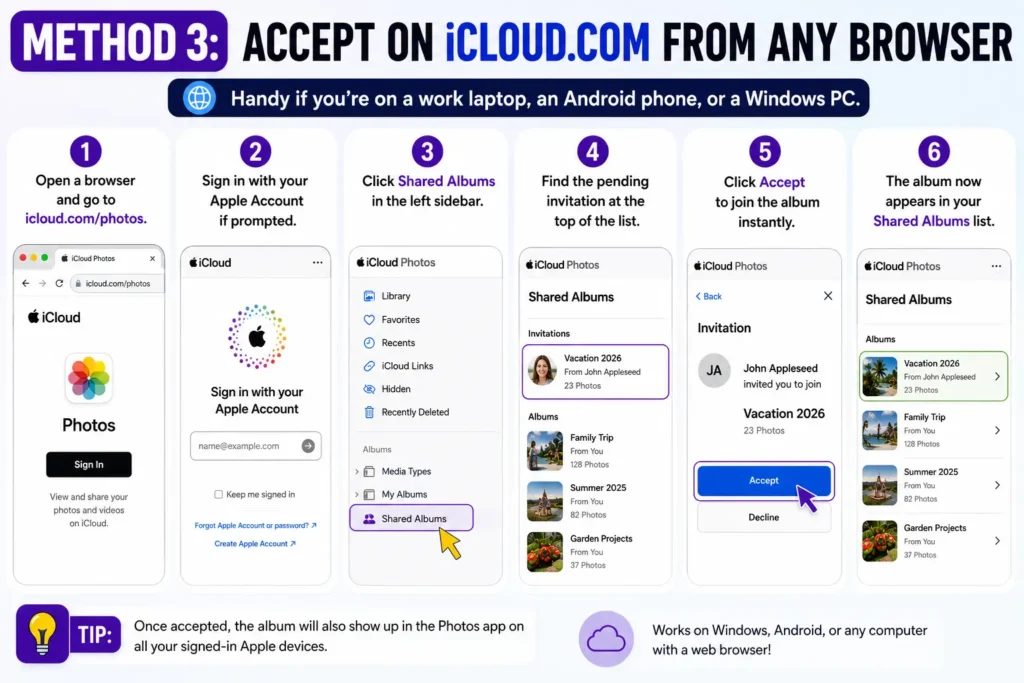
Method 3: Accept on iCloud.com From Any Browser
Handy if you’re on a work laptop, an Android phone, or a Windows PC.
- Open a browser and go to icloud.com/photos.
- Sign in with your Apple Account if prompted.
- Click Shared Albums in the left sidebar.
- Find the pending invitation at the top of the list.
- Click Accept to join the album instantly.
This method updates instantly across every device signed into the same Apple Account, including any Mac running the Photos app.
Does This Work the Same on Every iPhone and iOS Version?
Mostly yes, but the tab names have shifted over the years, which trips up plenty of longtime iPhone owners.
- iOS 26 and iOS 26.6 (current): The Photos tab bar shows Library, Collections, and Search. Shared Album invites live under Collections > Shared Albums > Activity.
- iOS 18 and earlier: The same feature was labeled “For You” instead of Collections, but the Activity tab worked identically.
- iPhone model support: Any iPhone that can run iOS 15 or later supports Shared Albums, including the iPhone SE (2nd generation) through the newest iPhone 17 lineup.
- iPad and Mac: iPadOS follows the same Collections layout as iOS 26. On a Mac, look for Activity under Sharing in the Photos app sidebar instead.
If your screenshots or a friend’s instructions mention “For You,” you’re looking at an older guide. The invite is in the same general area — just under a new label.
Think of It Like an Unopened Group Text
If none of this feels intuitive, picture a group text you never opened. The message is still sitting there, waiting, but it won’t show up in your main inbox forever — eventually it slides into a folder you have to go dig through manually.
A Shared Album invite behaves the same way. Apple sends one alert, and if you swipe it away or ignore it, the invite doesn’t disappear. It just moves from the “loud” notification layer into the “quiet” Activity tab, where you have to go looking for it on purpose.
What Happens When the Invite Gets Buried
A reader we’ll call Priya ran into this last month. Her sister sent a wedding photo album invite through Messages, but Priya was driving and didn’t see the alert.
Three days later, she assumed the invite had expired and asked her sister to resend it twice.
Both invites were actually sitting in Photos > Collections > Activity the entire time — Priya just hadn’t opened that tab since updating to iOS 26.6, when Apple renamed the old “For You” tab to “Collections.”
One tap on Activity surfaced both pending invitations at once, and she accepted the newer one in under ten seconds.
The lesson: an invite rarely vanishes. It’s almost always sitting exactly where Apple’s newest Photos layout put it — you just haven’t checked that specific tab yet.
What If This Doesn’t Work? Troubleshooting Shared Album Invites
The invite isn’t showing up anywhere
Check that Shared Albums is enabled in Settings > [your name] > iCloud > Photos. If it was off when the invite was sent, ask the sender to resend it now that it’s on.
You suspect the invitation was never delivered
Ask the sender which email address or phone number they used. Confirm it matches the one tied to your Apple Account under Settings > [your name].
You think you declined it by accident
Invitations you decline can’t be un-declined. Ask the album creator to send a fresh invite from their Shared Albums settings.
The link looks expired or won’t open
Shared Album links can time out after long delays. A resend from the sender’s device almost always fixes this instantly.
You’re signed into the wrong Apple Account
Shared Album invites only appear for the exact Apple Account the sender invited. Check Settings > [your name] to confirm you’re signed into the correct one. If you’re locked out of your account entirely, our Apple Account unlock guide covers every recovery method.
Nothing changes after trying everything above
Restart your iPhone, then confirm you’re running the latest iOS update under Settings > General > Software Update. Syncing bugs are rare but do get patched in point releases like iOS 26.6.
Key Takeaways
- The fastest method is tapping the original notification within the first minute it appears.
- If you missed it, Photos > Collections > Shared Albums > Activity always has it.
- icloud.com/photos works from any device, including Android and Windows.
- Shared Albums must be toggled on in iCloud settings before any invite can arrive.
- Declined invites can only be recovered by asking the sender to resend them.
Frequently Asked Questions
Shared Albums is likely toggled off in your iCloud Photos settings, or the sender used an email or number that isn’t linked to your Apple Account. Confirm both before assuming the invite was lost.
Open Photos, tap Collections, scroll to Shared Albums, and tap Activity. Every pending invite lives there regardless of how long ago it was sent.
Yes. Go to icloud.com/photos on any browser, sign in, and click Shared Albums in the sidebar to accept or decline directly.
The album appears under your Shared Albums section in Photos. Depending on the permissions the creator set, you may also be able to add your own photos and comments.
No. Photos and videos in a Shared Album you joined don’t count against your personal iCloud storage quota — only the original creator’s storage is affected. If your own iCloud storage is full for unrelated reasons, our iCloud storage cleanup guide walks through freeing up space in minutes.
Related Guides on Apple Headlines
- Lost Photos on iPhone? How to Find & Recover Deleted Pictures
- Your iCloud Is Full Again? 7 Fixes That Freed Up GB in Minutes
- Find My iPhone Fully Explained: Every Feature, Every Method, Every Fix
- How to Unlock Apple Account: The 6-Method Playbook for 2026
- iOS 27 Features: 14 Major Upgrades Apple Just Confirmed
Sources
- Apple Support: Create shared albums in Photos on iPhone
- Apple Support: How to accept a shared album invite
- Apple Support: If Shared Albums aren’t working
Disclaimer
This guide reflects Apple’s Shared Albums feature as tested on iOS 26.6 in July 2026. Menu names and steps may shift slightly with future iOS or iPadOS updates. AppleHeadlines.com is an independent publication and is not affiliated with, endorsed by, or sponsored by Apple Inc
Recently Published
- iPhone Photos Not Sending in Messages After Update? 9 Proven Fixes That Beat the iOS 27.2 Glitch (Tested)
- How to Turn Off Sleep Mode on iPhone: The Hidden 3-Switch Trap (and 7 Fixes That Stick in iOS 27)
- Buy More Storage on iPhone: The Hidden iCloud+ Trap (and 5 Smarter Moves)
- How to Unsend a Text on iPhone Before the 2-Minute in Wrong Chat (4 Backup Plans)
- How to Slow Down a Video on iPhone: The Hidden 30 fps Wall (and 3 Ways Past It)

T’kal is the lead strategist and developer behind Apple Headlines. With a background in digital marketing and web development, he specializes in technical Apple troubleshooting, software news, and hardware rumors. T’kal focuses on delivering high-authority tech content that bridges the gap between Apple enthusiasts and the latest industry innovations.