

Apple Pay simplifies payments with your iPhone or Apple Watch, using NFC technology for secure, contactless transactions.
This guide covers how to pay with Apple Pay, including how to pay someone with Apple Pay via peer-to-peer options.
What Is Apple Pay?
Apple Pay is Apple’s digital wallet service. It lets you store credit, debit, and transit cards on your device.
It works across iPhone, iPad, Mac, Apple Watch, and Vision Pro. No need to share card details—your info stays private.
Advanced users appreciate its tokenization: Each transaction gets a unique code, not your real card number.
How Apple Pay Works
Apple Pay uses Near Field Communication (NFC). Hold your device near a reader to pay.
Technical breakdown:
- Tokenization: Device generates a one-time token instead of exposing your card number.
- Authentication: Face ID, Touch ID, or passcode verifies you.
- Secure Element: A dedicated chip stores payment data, isolated from iOS.
Data never hits Apple servers in readable form. Banks handle verification.

Setting Up Apple Pay
Setup takes minutes. Open Wallet app on iPhone.
Steps:
- Tap the “+” icon.
- Scan card or enter details manually.
- Verify via bank text, app, or call.
- Set as default for speed.
For Apple Watch, use paired iPhone’s Watch app. Macs need Touch ID or nearby iPhone.
Pro tip for advanced users: Add multiple cards and reorder via Wallet for rewards optimization.
Paying In-Store with Apple Pay
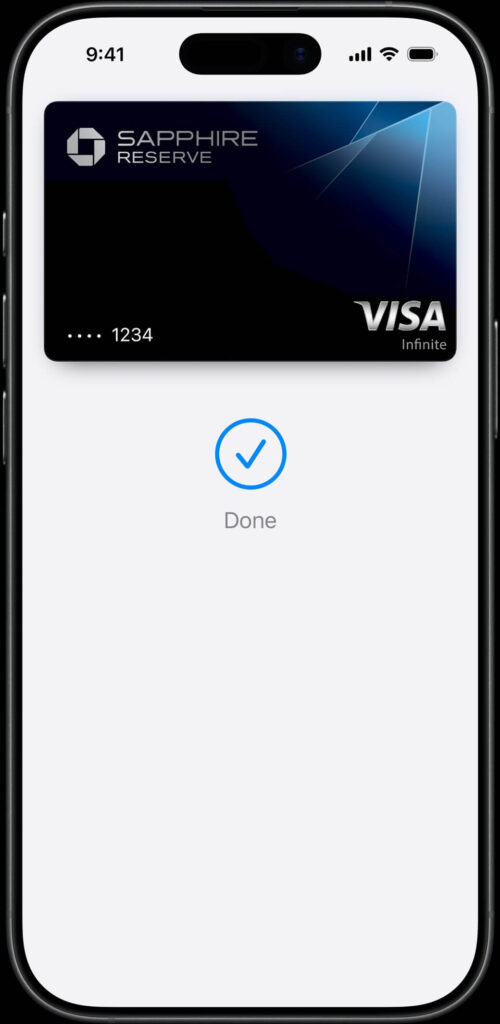
Double-click side button on iPhone (Face ID models). Authenticate, then hover over reader.
- Done checkmark confirms success.
- Works at millions of NFC terminals worldwide.
Example: At Starbucks, skip the line—tap watch and go. No wallet fumbling.
For older Touch ID iPhones, double-click Home button.
How to Pay Online and In Apps
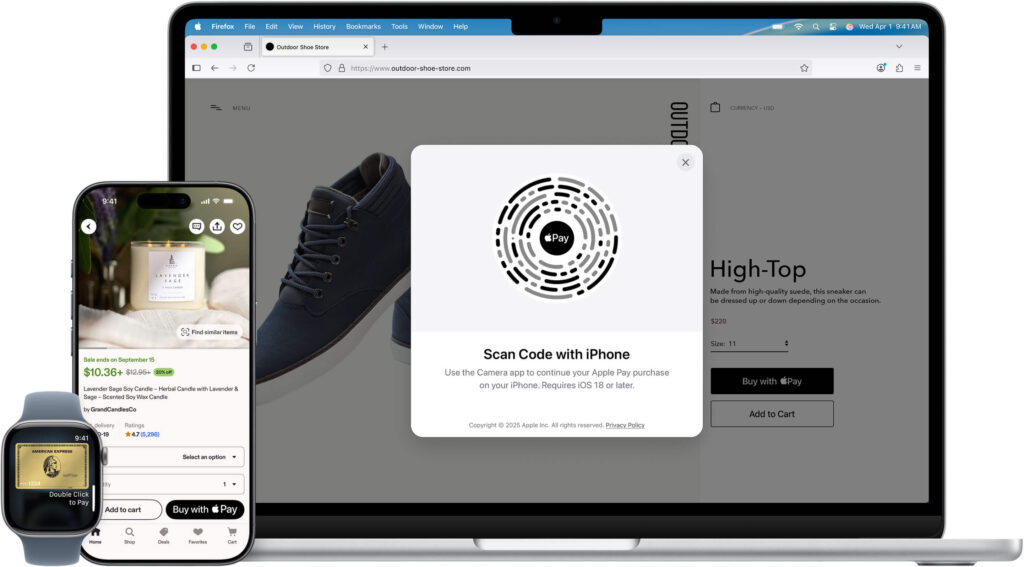
Select Apple Pay at checkout. No forms needed—autofills from Wallet.
- Safari on Mac/iPhone: One-click.
- Apps like Uber: Tap Apple Pay button.
- Scan QR codes on non-Apple browsers with iPhone camera.
Advanced hack: Use Pay Later for installments on eligible purchases.
How to Pay Someone with Apple Pay
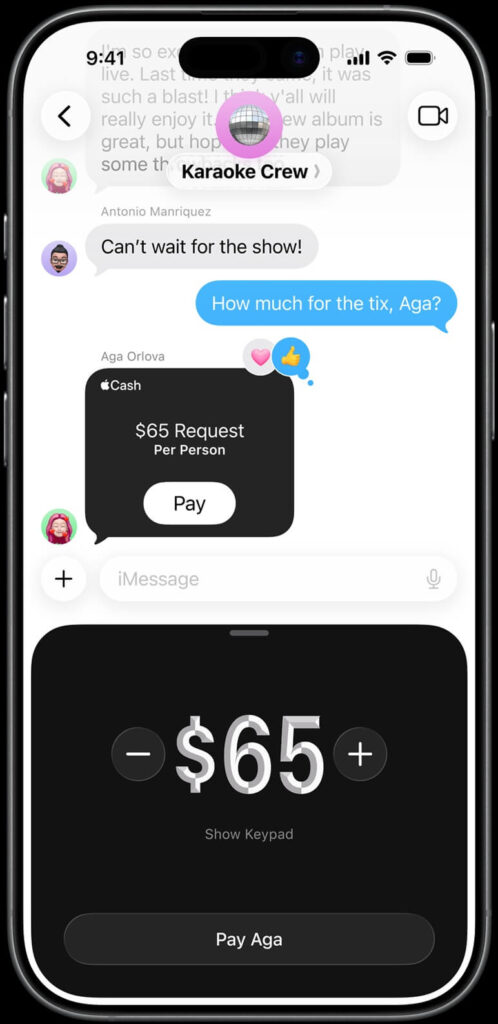
Send money peer-to-peer via Messages or Wallet app.
Steps:
- Open Messages, tap “+” > Apple Pay.
- Enter amount, add note.
- Send—recipient gets funds in their Wallet or bank.
Limits apply: $10,000 per transaction in US. Instant to other Apple users; 1-3 days to debit.
Use case: Split dinner bill. Alex sends $45 to Jordan instantly—no Venmo app needed.
Key Features
- Rewards Integration: Earn airline miles or cashback seamlessly.
- Transit Cards: Reload Express Transit for subways.
- Family Sharing: Kids under 13 can use parent-approved cards.
- Installments: Buy now, pay later with 0% interest options.
| Feature | Benefit | Best For |
|---|---|---|
| Express Mode | No unlock needed | Transit, vending |
| Device Check | Auto-verifies for fraud | Security pros |
| Lost Device | Remote disable via iCloud | Advanced users |
Pros and Cons
Pros:
- Ultra-secure: Tokenization beats physical cards.
- Frictionless: Faster than chip-and-PIN.
- Private: Merchants see no data.
Cons:
- iOS-only ecosystem.
- Not everywhere (needs NFC).
- Transaction fees for merchants (users pay nothing extra).
Advanced note: Battery drain minimal, but NFC taxes power slightly.
Apple Pay vs. Competitors
| Aspect | Apple Pay | Google Pay | Samsung Pay |
|---|---|---|---|
| Security | Token + Secure Element | Tokenization | MST + NFC |
| Device Support | Apple-only | Android+ Apple | Samsung |
| P2P Send | Messages/Wallet | App-based | Limited |
| Rewards | Native | Varies | Good |
Apple Pay edges in privacy; Google Pay wins on Android reach.
Where to use Apple Pay in Real World
- Travel: Tap for airport lounge or train tickets.
- Subscriptions: Auto-renew Apple Music ($10.99/month) without card entry.
- Business: Freelancers invoice via Apple Cash—funds deposit to bank.
Example: Tech pro at CES pays for gadgets hands-free, earning 3% cashback.
Troubleshooting Common Issues
- “Card Not Added”: Check issuer support (most US banks do).
- Payment Fails: Update iOS, restart device.
- No Reader Vibration: Ensure NFC enabled in settings.
External sources: Apple’s official guide (https://support.apple.com/en-us/102626); Apple Pay site (https://www.apple.com/apple-pay/).
FAQs
Can I use Apple Pay without a card?
No, but preload Apple Cash from debit for cardless use.
Is Apple Pay free?
Yes for users; merchants pay ~0.15% fee.
Does Apple Pay work internationally?
Yes, in 60+ countries—check Wallet for support.
How secure is Apple Pay for large purchases?
Very—biometrics + token beat swipe fraud.
Can I pay rent with Apple Pay?
Yes, via apps like Zelle integration or landlord portals.
Conclusion
Apple Pay streamlines how to pay with Apple Pay—from stores to sending cash securely. Its token tech and biometrics set the standard.
Looking ahead, expect deeper AR shopping and crypto wallet ties by 2027. Upgrade your iPhone and dive in today—add a card now for seamless payments.
Set up Apple Pay in Wallet and test at your next coffee run.
Share your experience in comments!

Virginia J. Alfonso is a seasoned technology writer with a passion for all things digital. With over a decade of experience covering the latest in tech innovation, gadgets, and software, Virginia brings a unique blend of technical expertise and accessible writing to her work. Her articles focus on making complex tech topics easy to understand for readers of all levels.