



By using this site, you agree to the Privacy Policy and Terms of Use.
Accept
Apple Headlines Logo Image Apple Headline's White Logo
  • 🔥 Trending:
  • iOS
  • iPadOS
  • Apple Tech
  • iPhone
  • iOS
  • Reader’s Space
  • Mac
  • Contact Us
Reading: How to Add Money to Apple Pay: Quick Guide
Apple HeadlinesApple Headlines
Font ResizerAa
  • iPhone
  • iOS
  • Reader’s Space
  • Mac
  • Contact Us
Search
  • iPhone
  • iOS
  • Reader’s Space
  • Mac
  • Contact Us

Must Read

iPhone 18 release date and features promotional banner image

Is the iPhone 18 Out Yet? – Release Date

iTunes iPhone recovery guide showing how to fix recovery mode on iPhone

iTunes iPhone Recovery: Fix Recovery Mode Now – Start Your Free Restore Today!

Guide showing how to restore an iPhone in iTunes with a laptop and support illustration

How to Restore iPhone in iTunes (Step-by-Step Guide + Fixes)

save safari history on iphone

Why Safari History Disappears on iPhone (iOS 26) + 5 Ways to Stop It Forever

Safari history not showing on iPhone with bold text and woman on black background explaining 7 quick fixes.

Safari History Not Showing on iOS 26? 7 Quick Fixes to Restore It Now

Follow US
© Apple Headlines. All Rights Reserved.
Home » How to Add Money to Apple Pay: Quick Guide
iPhone

How to Add Money to Apple Pay: Quick Guide

Virginia J. Alfonso By Virginia J. Alfonso February 2, 2026
4 Min Read
SHARE

Apple Pay has become one of the most convenient ways to make payments—whether you’re shopping online, paying in stores, or sending money to friends.

Main Topics
What Is Apple Pay and Why Add Money?Requirements Before You BeginHow to Add Money to Apple PayHow to Check Your Balance on Apple PayTroubleshooting TipsSafety and SecurityConclusionSolved Issues for Apple Pay

But to use Apple Pay effectively, you may need to add money to your Apple Cash card or Apple Account balance.

This guide walks you through everything you need to know, step by step.

What Is Apple Pay and Why Add Money?

Apple Pay is Apple’s secure digital wallet that lets you pay with your iPhone, Apple Watch, iPad, or Mac.

While you can link debit and credit cards directly, adding money to Apple Pay gives you extra flexibility:

  • Send money to friends and family using Apple Cash.
  • Shop online or in-store without exposing your card details.
  • Manage spending with a prepaid balance.
  • Pay for Apple services like iCloud, App Store purchases, and subscriptions.

Requirements Before You Begin

Before adding money, make sure you have:

  • An iPhone with the latest iOS version.
  • The Wallet app installed.
  • A linked debit or credit card.
  • Apple Cash card activated (for U.S. users).
  • Internet connection for verification

How to Add Money to Apple Pay

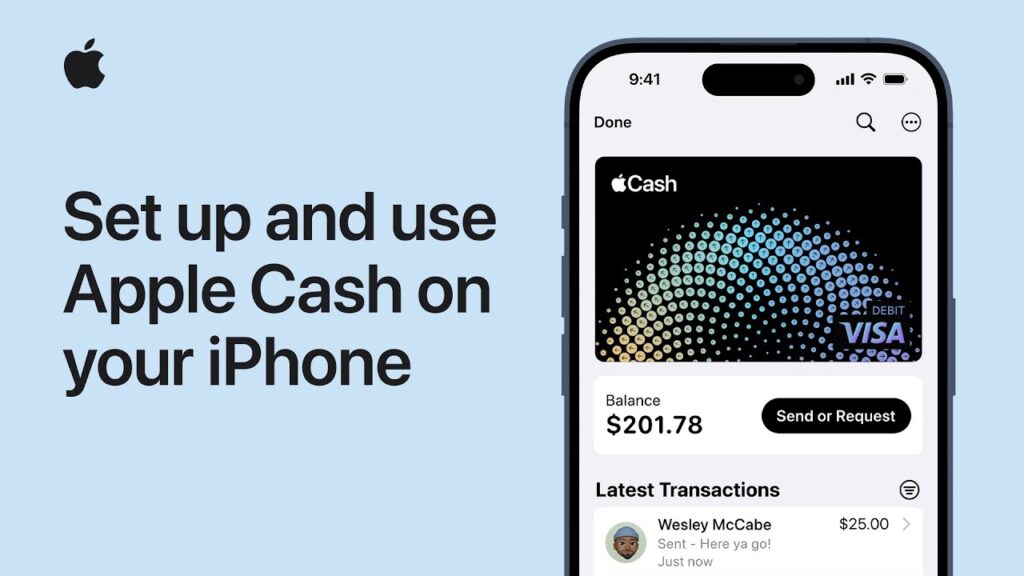
How to add money to Apple Pay using Apple Cash on iPhone
Learn how to add money to Apple Pay on your iPhone using Apple Cash in a few simple steps.

Method 1: Add Money to Apple Cash (U.S. only)

  • Open the Wallet app.
  • Tap your Apple Cash card.
  • Tap the More Options (…) button.
  • Select Add Money.
  • Enter the amount you want to add.
  • Choose your linked debit card or bank account.
  • Authenticate with Face ID or Touch ID.
  • Funds will appear instantly in your Apple Cash balance.

Method 2: Add Money to Apple Account Balance (Global)

  • Open the Wallet app.
  • Tap your Apple Account card.
  • Select Add Money.
  • Enter the amount.
  • Confirm payment using your linked card.
  • Authenticate and complete the transaction.
  • Your balance can now be used for App Store, iTunes, iCloud, and subscriptions.

How to Check Your Balance on Apple Pay

  • Open the Wallet app.
  • Tap your Apple Cash or Apple Account card.
  • Your balance will be displayed under “Add Money.”

Troubleshooting Tips

  • Transaction declined? Check if your card supports Apple Pay.
  • Can’t add money? Update iOS to the latest version.
  • Verification issues? Some banks require SMS or app confirmation.
  • Region restrictions: Apple Cash is U.S.-only; other regions use Apple Account balance.

Safety and Security

Apple Pay is designed with privacy in mind:

  • Transactions are protected with Face ID or Touch ID.
  • Apple doesn’t store your card numbers.
  • Funds can only be transferred to verified accounts.

Conclusion

Adding money to Apple Pay is simple and secure.

More Read

iPhone 18 release date and features promotional banner image
Is the iPhone 18 Out Yet? – Release Date
iTunes iPhone recovery guide showing how to fix recovery mode on iPhone
iTunes iPhone Recovery: Fix Recovery Mode Now – Start Your Free Restore Today!
Guide showing how to restore an iPhone in iTunes with a laptop and support illustration
How to Restore iPhone in iTunes (Step-by-Step Guide + Fixes)

Whether you’re topping up Apple Cash for peer-to-peer transfers or adding funds to your Apple Account for subscriptions, the process takes just a few taps. With Apple Pay, you get convenience, security, and flexibility—all in one wallet.

Solved Issues for Apple Pay

Q: Can I add money to Apple Pay without a debit card?
No, you need a linked debit card or bank account to add funds.

Q: Is Apple Cash available outside the U.S.?
Currently, Apple Cash is U.S.-only. Other regions can add money to their Apple Account balance.

Q: How long does it take for money to appear?
Funds usually appear instantly, but some banks may take a few minutes.

Virginia smiling face image
Virginia J. Alfonso

Virginia J. Alfonso is a seasoned technology writer with a passion for all things digital. With over a decade of experience covering the latest in tech innovation, gadgets, and software, Virginia brings a unique blend of technical expertise and accessible writing to her work. Her articles focus on making complex tech topics easy to understand for readers of all levels.


TAGGED:Apple Cash cardApple Pay
Share This Article
Facebook Twitter Pinterest Whatsapp Whatsapp
Previous Article iOS 18.7.4 update and the text iOS 18.7.4 Update: Features, Fixes & Should You Install It?
Next Article How to pay with Apple Pay securely and easily on iPhone How to Pay with Apple Pay – Secure & Simple

Follow Us On Social

FacebookLike
InstagramFollow
YoutubeSubscribe

Must Read

iPhone 18 release date and features promotional banner image

Is the iPhone 18 Out Yet? – Release Date

iTunes iPhone recovery guide showing how to fix recovery mode on iPhone

iTunes iPhone Recovery: Fix Recovery Mode Now – Start Your Free Restore Today!

Guide showing how to restore an iPhone in iTunes with a laptop and support illustration

How to Restore iPhone in iTunes (Step-by-Step Guide + Fixes)

save safari history on iphone

Why Safari History Disappears on iPhone (iOS 26) + 5 Ways to Stop It Forever

Safari history not showing on iPhone with bold text and woman on black background explaining 7 quick fixes.

Safari History Not Showing on iOS 26? 7 Quick Fixes to Restore It Now

Apple iOS 26.3 update screen showing version 26.3 with security and Android transfer improvements

iOS 26.3: Apple’s Latest iPhone Update Brings Security, Simpler Android Transfers, and More

Apple Headlines Logo Image

Apple Headlines delivers fresh, reliable Apple news, how-to guides, and tips for every Apple user.

Topics

  • Apple Headlines
  • iOS
  • iPhone
  • Mac

Quick Links

  • Home
  • About Us
  • Privacy Policy
  • Terms of Service
  • Contact Us
Apple Headlines Logo Image

Designed By Apple Headlines

appleheadlines.com