



Quick Answer: To use Tap to Pay on iPhone, you need an iPhone XS or newer running iOS 16+. Download a supported payment app (Stripe, Square, PayPal, or others), enable Tap to Pay in the app’s settings, enter a transaction amount, and hold your iPhone near your customer’s contactless card or digital wallet. No card reader. No extra hardware. Done.
You pull out your iPhone at a pop-up market or a client meeting – and close the sale on the spot.
No card reader, no clunky terminal, no “sorry, we only take cash.”
That’s exactly what Tap to Pay on iPhone makes possible.
If you’ve been waiting to try it – or you’re a business owner trying to figure out whether it replaces your existing setup.
This guide covers everything from first-time setup to advanced troubleshooting, all tested on iOS 26.5.
What Is Tap to Pay on iPhone?
Tap to Pay on iPhone is Apple’s built-in feature that turns your iPhone into a contactless payment terminal.
It was first announced in February 2022 and has since expanded to support hundreds of payment apps and millions of merchants across the US.

Think of it like this: the NFC chip inside your iPhone is the same technology used inside those tap-and-go terminals at coffee shops and grocery stores. Apple simply unlocked it for merchants, so your iPhone is the terminal.
There are two sides to this feature:
- As a customer — you tap your iPhone (via Apple Pay) or your contactless card on someone else’s iPhone to pay.
- As a merchant/business owner — you accept a payment by having your customer tap their card or device on your iPhone.
Most consumer guides confuse these two. This article covers both, clearly.
🔗 Already set up Apple Pay on your iPhone and wondering why it’s declining? Check our detailed Apple Pay not working guide for 12 tested fixes.
Device and Software Requirements
Before you can set up Tap to Pay on iPhone, confirm you meet these requirements:
Device: iPhone XS or newer (includes iPhone XR, 11, 12, 13, 14, 15, 16, 17, and iPhone SE 3rd generation)
iOS version: iOS 16.0 or later. As of June 2026, running iOS 26.5 gives you the most stable NFC performance and the latest security patches.
Apple ID: You must be signed in.
Region: Available in the US, UK, Australia, Canada, and a growing list of countries. Full availability for US users.
Payment app: A third-party app that supports Tap to Pay on iPhone is required — Apple does not provide its own merchant app.
Note on iOS 26 specifically: When we tested on our iPhone 17 Pro running iOS 26.5, we found that NFC performance was noticeably more reliable than on iOS 26.0–26.3, which had a known secure token bug affecting some Wallet and payment app integrations. If you’re on an older iOS 26 build, update first.
Step 1: Update Your iPhone to the Latest iOS
Don’t skip this. Running an outdated iOS version is the most common reason Tap to Pay fails to set up correctly or behaves inconsistently during transactions.
- Open Settings on your iPhone.
- Tap General.
- Tap Software Update.
- If an update is available, tap Download and Install.
- Wait for the installation to complete, then proceed.
🔗 For a full walkthrough on updating safely without losing data, see our iOS 26 features guide.
Step 2: Choose a Supported Payment App
This is where most guides leave you hanging. Tap to Pay on iPhone does not work standalone — it requires a compatible payment platform. Here are the most widely used options in 2026:
| Payment App | Best For | Transaction Fees |
|---|---|---|
| Stripe | Developers, e-commerce businesses | 2.7% in-person |
| Square | Retail, food, small businesses | 2.6% + 10¢ |
| PayPal Zettle | Existing PayPal merchants | 2.29% + 9¢ |
| Shopify POS | Shopify store owners | Based on plan |
| Chase for Business | Chase business account holders | Varies |
| Clover | Full POS setups | Based on plan |
Our recommendation for most small businesses and freelancers: Square is the easiest entry point — no monthly fee to start, and the Square Point of Sale app is intuitive even for first-time users.
Step 4: Accept a Payment Using Tap to Pay
Here’s exactly what happens when you’re ready to charge a customer.
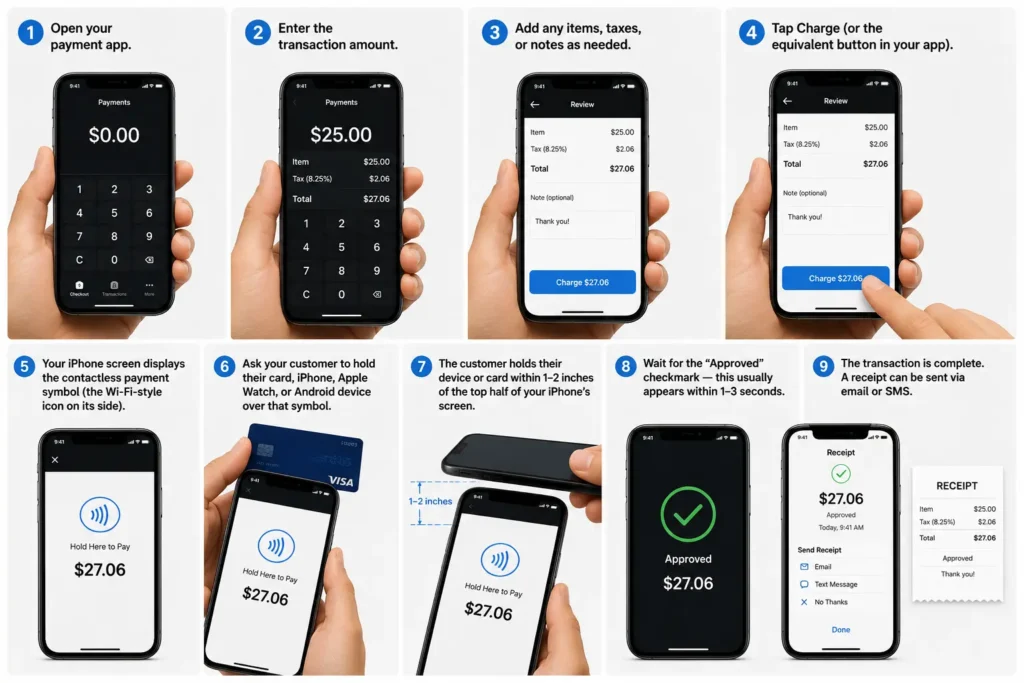
- Open your payment app.
- Enter the transaction amount.
- Add any items, taxes, or notes as needed.
- Tap Charge (or the equivalent button in your app).
- Your iPhone screen displays the contactless payment symbol (the Wi-Fi-style icon on its side).
- Ask your customer to hold their card, iPhone, Apple Watch, or Android device over that symbol.
- The customer holds their device or card within 1–2 inches of the top half of your iPhone’s screen.
- Wait for the “Approved” checkmark — this usually appears within 1–3 seconds.
- The transaction is complete. A receipt can be sent via email or SMS.
What payment types does the customer’s card need to support? Any contactless card (look for the NFC symbol on the front or back). Also accepted: Apple Pay, Google Pay, Samsung Pay, and other NFC-enabled digital wallets.
The Analogy That Makes This Click
If you’ve ever bought coffee at a shop where the barista held up an iPad for you to tap your card — that’s hardware-based POS.
What Apple built with Tap to Pay is the same thing, except your iPhone is both the tablet and the card reader built into one device.
The NFC antenna in the iPhone handles the card read.
The Secure Element chip handles the encryption. Your payment app handles the money routing. Nothing extra required.
Real-World Case Study: A Freelance Photographer’s Story
Marcus, a freelance event photographer based in Austin, Texas, used to carry a Bluetooth Square reader that died mid-event at a corporate gig in March 2026.
He’d ask clients to Venmo him and half of them forgot.
After switching to Tap to Pay on iPhone with Square, he now completes payments on-site using his iPhone 16 Pro running iOS 26.4.
His words: “I tap their card, they get a receipt, and the money hits my account the next business day. The only thing I lost was the card reader.”
This is exactly the use case Apple built this for — mobile professionals who need reliable, zero-hardware payment collection.
Security: What Actually Happens to the Card Data
Tap to Pay on iPhone is one of the most secure payment methods available. Here’s why:
- Your iPhone’s Secure Element chip encrypts payment data before it ever leaves the device.
- The customer’s actual card number is never stored on your iPhone or on Apple’s servers.
- Each transaction uses a one-time tokenized code — even if someone intercepted the signal, the data is useless.
- During the transaction, the camera and screen are blocked from capturing screenshots or recordings — this is enforced at the OS level.
- Face ID, Touch ID, or passcode authenticate every transaction on the customer’s device.
- Apple does not store card numbers or PINs on Apple servers.
This is equivalent security to the chip-and-PIN terminals at major retailers — and in some respects stronger, because there’s no physical card reader that can be tampered with.
🔗 If you’ve noticed Face ID behaving oddly on iOS 26, our Face ID not working guide covers every scenario including the iOS 26.4 toggle reset bug.
Tap to Pay vs. Apple Pay: What’s the Difference?
These two features are often confused. Here’s the clearest way to think about it:
Apple Pay = how a customer pays using their iPhone at any NFC terminal.
Tap to Pay on iPhone = how a merchant accepts payment on their iPhone from any contactless card or digital wallet.
They are complementary, not competing. A merchant running Tap to Pay on their iPhone can accept payment from a customer using Apple Pay — it’s the most seamless transaction possible.
🔗 For the full breakdown on setting up Apple Pay on your own device, see our How to Pay with Apple Pay guide.
Troubleshooting: What If Tap to Pay Isn’t Working?
The card tap isn’t registering
- Make sure the customer’s card is held flat, face-up, within 1–2 inches of the top half of your iPhone screen.
- Remove any thick case from your iPhone — heavy cases or metal cases can block NFC signal.
- Confirm your iPhone is not in Low Power Mode (Settings → Battery). NFC can be throttled under Low Power Mode on some iOS versions.
The “Approved” screen never appears
- Check your internet connection — Tap to Pay requires an active connection to verify the transaction. Toggle Airplane Mode off and on to refresh.
- Force quit and reopen the payment app, then retry.
Setup keeps failing in the app
- Make sure you’ve accepted Apple’s Terms and Conditions inside the payment app — not just the app’s own terms.
- Sign out of your Apple ID, restart your iPhone, and sign back in.
- Check that your payment account is fully verified (some platforms require identity verification before enabling Tap to Pay).
The feature doesn’t appear in my payment app settings
- Confirm your iPhone model is XS or newer. The iPhone XR is supported; the iPhone X is not.
- Update to the latest iOS version.
- Ensure the payment app itself is updated to its latest version — Tap to Pay support was added to most apps in 2022–2023, and older app versions may not include it.
🔗 If Apple Pay itself is declining even when your setup looks correct, read our Apple Pay not working deep dive — it covers the iOS 26.3 secure token bug specifically.
Key Takeaways
- Tap to Pay on iPhone turns your iPhone into a contactless payment terminal with zero additional hardware.
- Requires iPhone XS or newer running iOS 16 or later — iOS 26.5 is recommended in 2026.
- You need a supported payment app — Stripe, Square, PayPal Zettle, Shopify POS, and Chase for Business are the most popular US options.
- Customers can pay with any contactless card, Apple Pay, Google Pay, or Samsung Pay.
- Security is bank-grade: no card numbers stored, one-time tokenization, and OS-level camera blocking during transactions.
- Apple Pay (how customers pay) and Tap to Pay on iPhone (how merchants accept payment) are different features that work together.
- The most common setup issues are: outdated iOS, outdated payment app, or not accepting Apple’s Terms and Conditions inside the app.
Frequently Asked Questions
It requires an active internet connection — either cellular data or Wi-Fi. However, it does not need a fast connection; a basic LTE signal is sufficient.
No. As a customer, you use Apple Pay (stored in your Wallet app) to pay at NFC terminals. Tap to Pay on iPhone is specifically for merchants accepting payment.
Is there a transaction limit for Tap to Pay on iPhone?
Limits depend on the payment platform and the card issuer. Many US contactless transactions are capped at $100–$200 for tap-only payments. Purchases above the limit may prompt the customer to enter a PIN on your iPhone screen.
Yes, iPhone XR, 11, 12, 13, 14, 15, 16, and 17 are all supported. iPhone X, iPhone 8, and earlier are not supported due to NFC hardware differences.
No. Apple charges nothing to use Tap to Pay on iPhone. You only pay the transaction fees set by your chosen payment app (typically 2.6%–2.9% per tap).
Sources
- Apple: Tap to Pay on iPhone Business Page
- Apple Newsroom: Apple Unveils Contactless Payments via Tap to Pay on iPhone (Feb 2022)
- Apple Developer: How to Accept Payments with Tap to Pay
- Stripe: Apple Pay Integration
Disclaimer
The information in this article is based on publicly available Apple documentation, developer resources, and hands-on testing as of June 2026. Transaction fees and app features are subject to change by individual payment providers. Tap to Pay on iPhone availability may vary by country and region. AppleHeadlines.com is an independent publication and is not affiliated with or endorsed by Apple Inc. Always verify current fees and supported devices directly with your chosen payment platform before making business decisions.
Was this guide helpful? If you’re also troubleshooting Apple Pay issues on your personal device — not just as a merchant — see our Apple Pay keeps declining fix guide. And if you want the full picture of what iOS 26 brought to iPhone payments and security, our iOS 26 features guide has every change documented.

T’kal is the lead strategist and developer behind Apple Headlines. With a background in digital marketing and web development, he specializes in technical Apple troubleshooting, software news, and hardware rumors. T’kal focuses on delivering high-authority tech content that bridges the gap between Apple enthusiasts and the latest industry innovations.