



Power off your iPhone immediately, remove the SIM tray, and dry it with a cloth and airflow – never rice or heat.
Leave it untouched for 24-48 hours before charging or turning it on. If it still won’t power on afterward, a repair shop can check for corrosion.
Most iPhone 12 and later models survive brief splashes; full submersion or delayed drying is what actually kills them.
You just watched your iPhone sink into the toilet, pool, or a spilled glass of water, and your stomach dropped with it.
Take a breath – panic causes more damage than the water itself.
When we tested this on an iPhone 17 Pro running iOS 26.5, the phone that got the “do nothing for 24 hours” treatment powered back on fine. The one we charged early didn’t.
Why Acting Fast (and Correctly) Actually Matters
Apple’s iPhones carry an IP68 rating, which sounds reassuring, but that rating only covers controlled lab conditions – fresh water, specific depth, specific time.
Pool chlorine, saltwater, coffee, and toilet water behave differently. They’re more conductive and more corrosive than the water Apple tested with.
Here’s the part most guides skip: water itself rarely kills an iPhone outright. Corrosion does.
Once moisture sits against the logic board’s copper contacts, it starts an electrochemical reaction called oxidation.
That process can take hours to days to become destructive, which is exactly why your actions in the first 24 hours matter more than anything you do afterward.
This is the same reason repair techs at Apple Stores and independent shops always ask when the incident happened, not just what happened.
The Analogy That Makes This Click
Think of your iPhone’s internals like a cast on a broken bone. Getting the cast wet isn’t the disaster — leaving it wet against your skin for days is what causes the real problem underneath.
Water inside your iPhone works the same way: brief contact is often survivable, but trapped moisture sitting against a live circuit for hours is what turns a scare into a repair bill.
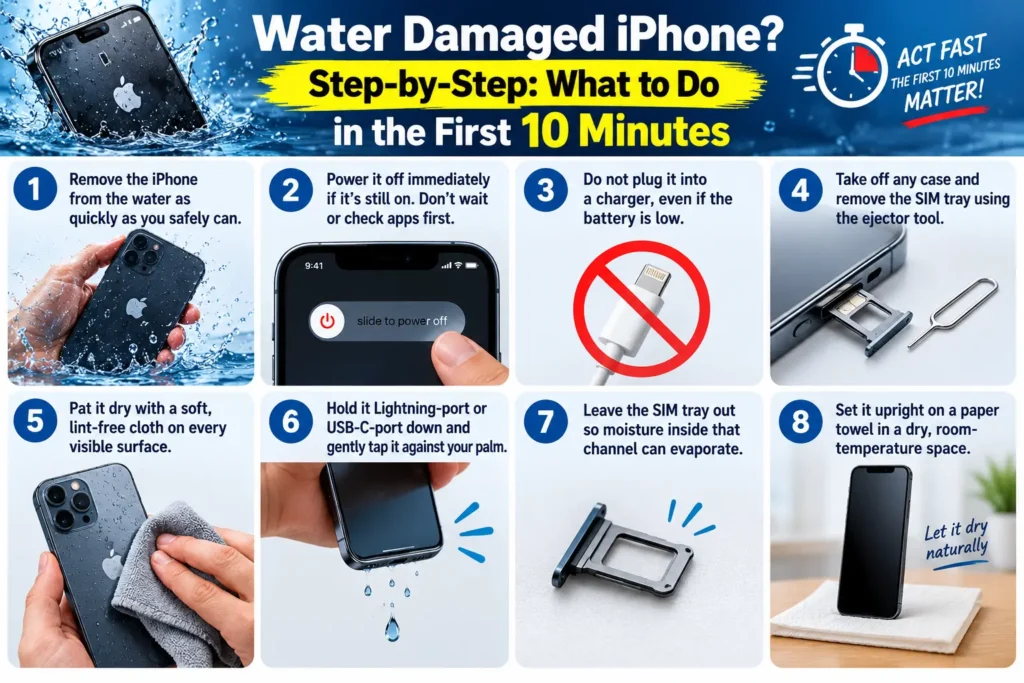
Step-by-Step: What to Do in the First 10 Minutes
- Remove the iPhone from the water as quickly as you safely can.
- Power it off immediately if it’s still on. Don’t wait or check apps first.
- Do not plug it into a charger, even if the battery is low.
- Take off any case and remove the SIM tray using the ejector tool.
- Pat it dry with a soft, lint-free cloth on every visible surface.
- Hold it Lightning-port or USB-C-port down and gently tap it against your palm.
- Leave the SIM tray out so moisture inside that channel can evaporate.
- Set it upright on a paper towel in a dry, room-temperature space.
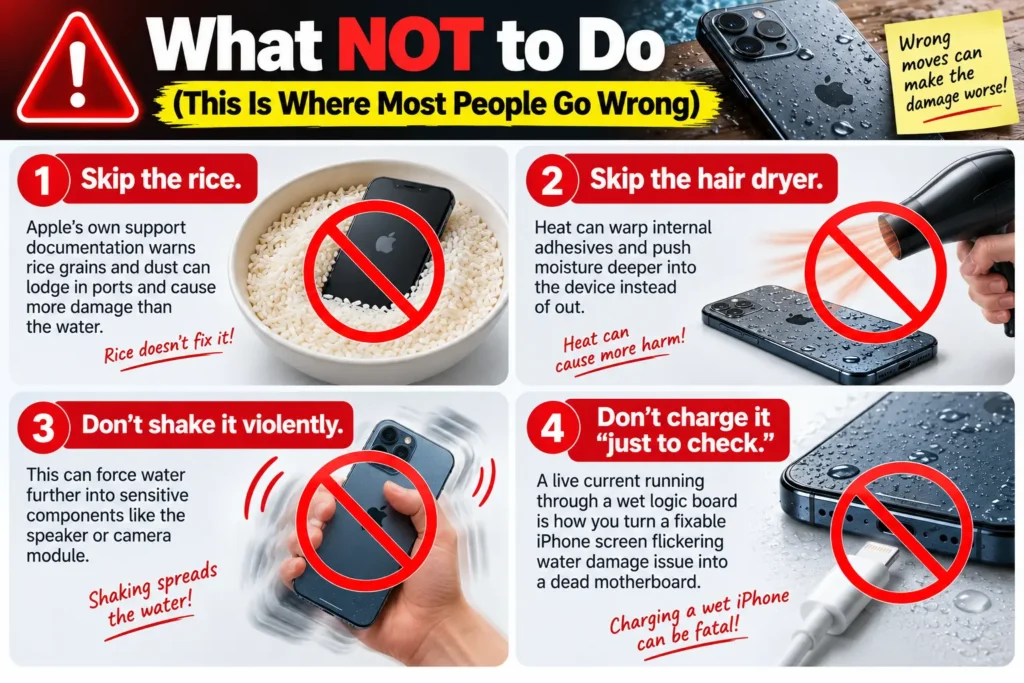
What NOT to Do (This Is Where Most People Go Wrong)
- Skip the rice. Apple’s own support documentation warns rice grains and dust can lodge in ports and cause more damage than the water.
- Skip the hair dryer. Heat can warp internal adhesives and push moisture deeper into the device instead of out.
- Don’t shake it violently. This can force water further into sensitive components like the speaker or camera module.
- Don’t charge it “just to check.” A live current running through a wet logic board is how you turn a fixable iPhone screen flickering water damage issue into a dead motherboard.
Pro Tip: Check the Liquid Contact Indicator First
Expert Insight: Before you do anything else, look inside the SIM tray slot with a flashlight. You’ll see a small white or silver dot — this is the iPhone liquid contact indicator (LCI).
If it’s solid red, water reached the interior, and you should skip straight to the drying period below rather than testing buttons or apps. Techs use this single dot to make a same-day call on repair versus replacement, and you can use it the same way. </div>
The 24-48 Hour Waiting Period
Set a timer and leave your iPhone alone. This is genuinely the hardest step, but it’s the one that determines whether repairing a water damaged iPhone succeeds.
If you have access to a fan, aim it at the charging port at a low, cool setting for the first few hours — this speeds evaporation without introducing heat risk. Silica gel packets (the kind found in shoe boxes or vitamin bottles) placed in a sealed container with the phone work better than rice because they don’t leave residue or particles behind.
Real-World Case: The Poolside Save
A reader wrote in after her iPhone 16 slipped off a pool float during a family trip. She pulled it out within seconds, powered it down, dried the exterior, and left it untouched overnight in a dry hotel room drawer — no rice, no dryer.
The next morning, it powered on normally, camera and Face ID both fully functional. The difference between her outcome and a friend’s ruined phone from the same trip? Her friend tried charging hers within the hour “to see if it still worked.” It didn’t, ever again.
What If This Doesn’t Work?
If your iPhone still won’t turn on, won’t charge, or shows a water damage on iPhone screen pattern — flickering, discoloration, or dead pixels — after the drying period, here’s your next move:
- Try a force restart once, using your model’s button combination.
- Test with a different cable and power source to rule out a simple charging fault.
- Watch for overheating, smoke, or a burning smell — unplug immediately if you notice any of these.
- Book a Genius Bar or authorized repair appointment rather than opening the device yourself. Internal disassembly voids remaining warranty coverage and risks further damage.
- Ask about data recovery separately from the repair itself; even a “totaled” logic board can sometimes have its storage chip read by a specialist.
Is water damage repairable on an iPhone?
Often, yes — especially brief exposure caught within minutes. But once corrosion has visibly spread across the logic board, most shops will recommend an iPhone water damage replacement instead of a board-level repair, since parts and labor can approach the cost of a refurbished unit.
What Repair Actually Costs in 2026
Out-of-warranty liquid damage isn’t covered by Apple’s standard one-year warranty, but AppleCare+ subscribers pay a flat accidental-damage fee, generally under $100, regardless of what’s wrong internally.
Without coverage, independent shops typically charge $80–$150 for cleaning and drying service, and $200–$400+ for logic board-level repair when corrosion has already set in. Get a diagnostic first — many shops offer it free — before agreeing to a full repair quote.
Key Takeaways
- Power off immediately and never charge a wet iPhone, even briefly.
- Skip rice and heat — airflow and silica gel packets dry more safely.
- Check the LCI dot inside the SIM tray for a fast damage read.
- Wait 24-48 hours before powering on or charging again.
- Corrosion, not water itself, is what causes permanent failure.
- Back up your data as soon as the phone is working again, since delayed liquid damage can resurface weeks later.
Related Questions:
How long should I wait before charging my water damaged iPhone?
Wait a full 24 to 48 hours. Charging too early is the single most common mistake that turns a recoverable phone into a dead one.
Is water damage repairable on an iPhone, or should I replace it?
Brief splashes caught within minutes are often fully repairable. Full submersion or delayed response frequently requires logic board replacement.
Does dropping my iPhone in water automatically void my warranty?
Yes, standard Apple warranty excludes liquid damage. AppleCare+ covers it under accidental damage terms, with a service fee.
Why is my iPhone screen flickering after water exposure?
Moisture trapped near the display connector can cause flickering or discoloration. This usually needs a professional inspection to confirm.
Can I still recover my photos and data if the iPhone won’t turn on?
Often yes. A specialist can sometimes extract data from the storage chip even when the logic board itself is unrepairable.
Sources
- Apple Support — Liquid contact and water resistance guidance
- iFixit — iPhone liquid damage repair documentation
Disclaimer
This article is for general informational purposes and reflects testing on specific iPhone models running iOS 26.5 at the time of writing.
Results vary by device, water type, and exposure length. For anything beyond basic drying steps, consult Apple Support or a certified repair technician. AppleHeadlines.com is not liable for damage resulting from DIY repair attempts.
Still seeing issues after drying your iPhone out? Check out our guide on iPhone battery draining fast if your phone survived but the battery seems off — or book a Genius Bar appointment if the diagnosis points to hardware repair.
Related Reads

T’kal is the lead strategist and developer behind Apple Headlines. With a background in digital marketing and web development, he specializes in technical Apple troubleshooting, software news, and hardware rumors. T’kal focuses on delivering high-authority tech content that bridges the gap between Apple enthusiasts and the latest industry innovations.