



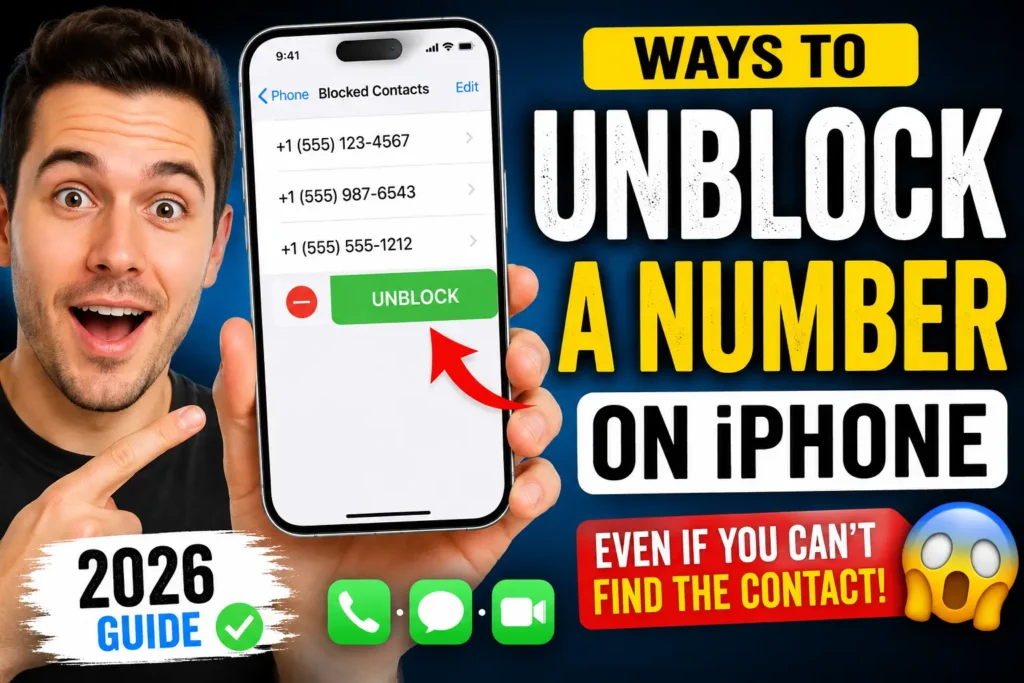
If you’re wondering how to unblock a number on iPhone, follow these steps:
- Open Settings.
- Tap Apps > Phone.
- Select Blocked Contacts.
- Find the number.
- Swipe left and tap Unblock.
The contact can immediately call, text, and FaceTime you again.
Missed an Important Call? You’re Not Alone
Blocking a spam caller feels great until you realize you accidentally blocked a friend, family member, client, or delivery service.
We’ve seen this happen more often since Apple expanded call filtering tools in recent iOS updates. The good news is that unblocking someone takes less than a minute once you know where to look.
When we tested this on our iPhone 17 Pro running iOS 26.5, we found Apple has streamlined the process, but many users still struggle to locate blocked contacts because settings have moved slightly between iOS versions.
This guide covers every method available in 2026.
Why Knowing How to Unblock a Number on iPhone Matters
Blocked contacts cannot:
- Call you
- Send SMS messages
- Send iMessages
- Start FaceTime calls
Think of Apple’s blocking system like a digital bouncer standing at a club entrance. Once someone is on the blocked list, every attempt to reach you gets turned away before you even see it.



Understanding how to manage blocked numbers helps prevent:
- Missed work opportunities
- Lost customer calls
- Delayed deliveries
- Missed emergency communications
- Accidental contact restrictions
As Apple continues improving privacy features, managing blocked contacts has become an essential iPhone skill.
Method 1: Unblock a Number Through Settings
This is the most reliable method because it shows every blocked contact.
Steps
Step 1: Open Settings.
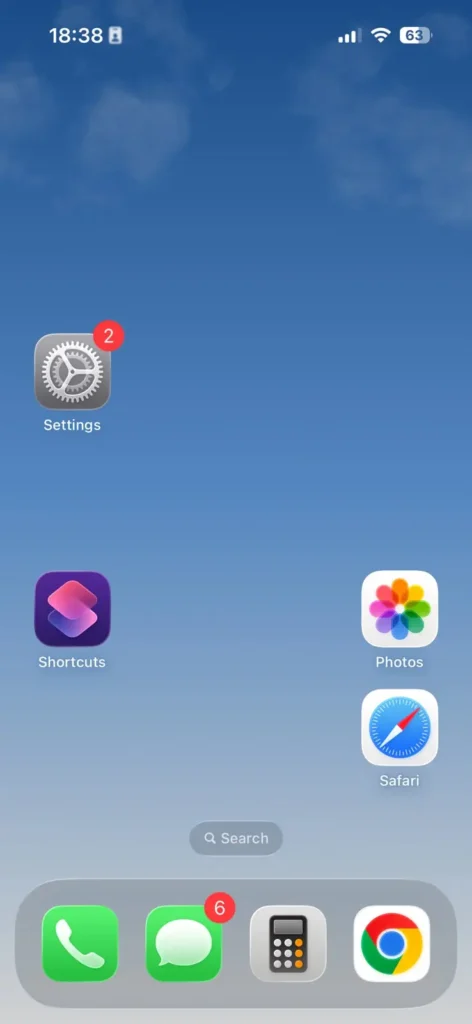
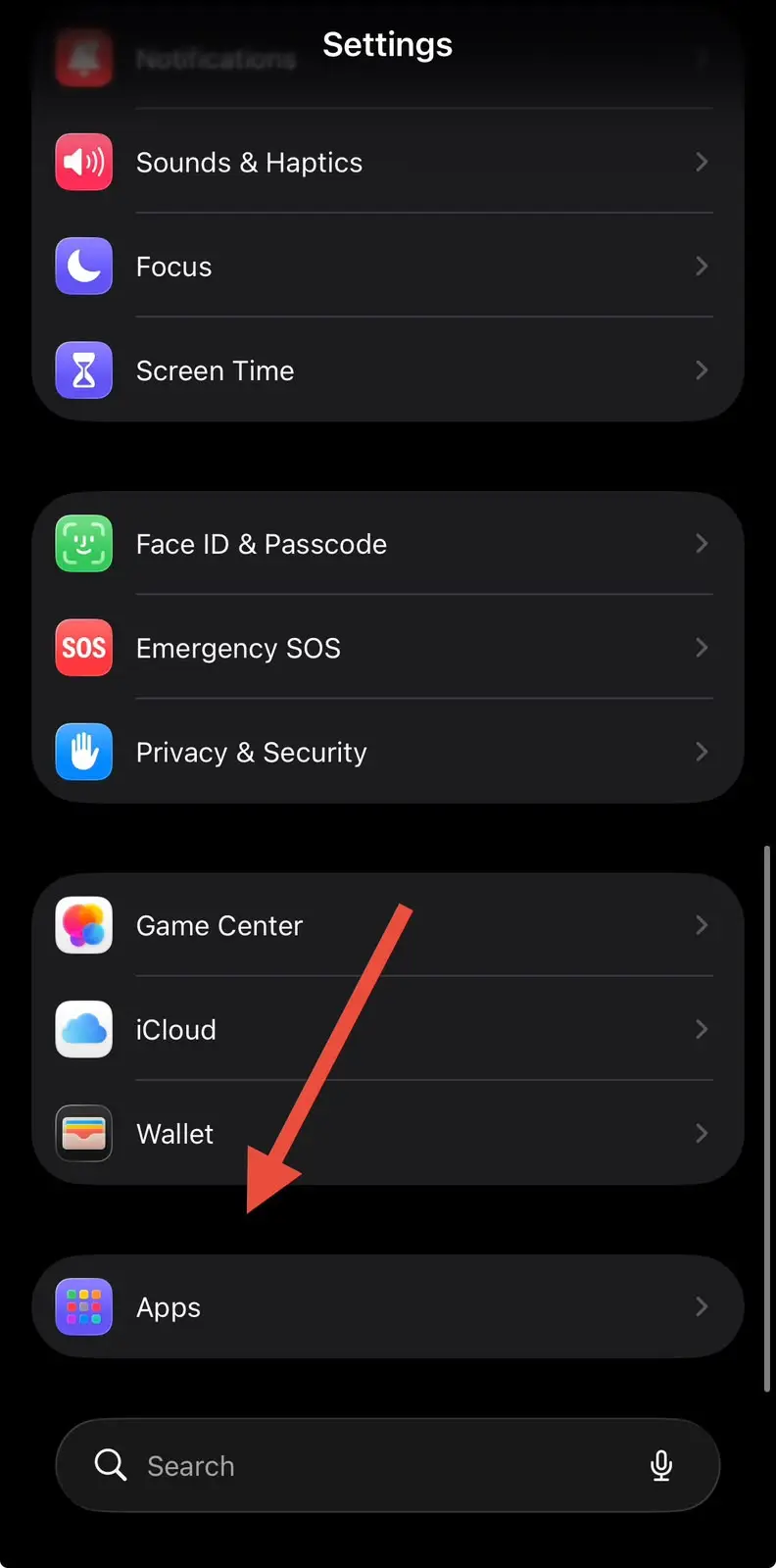
Step 2: Scroll down and tap Apps.
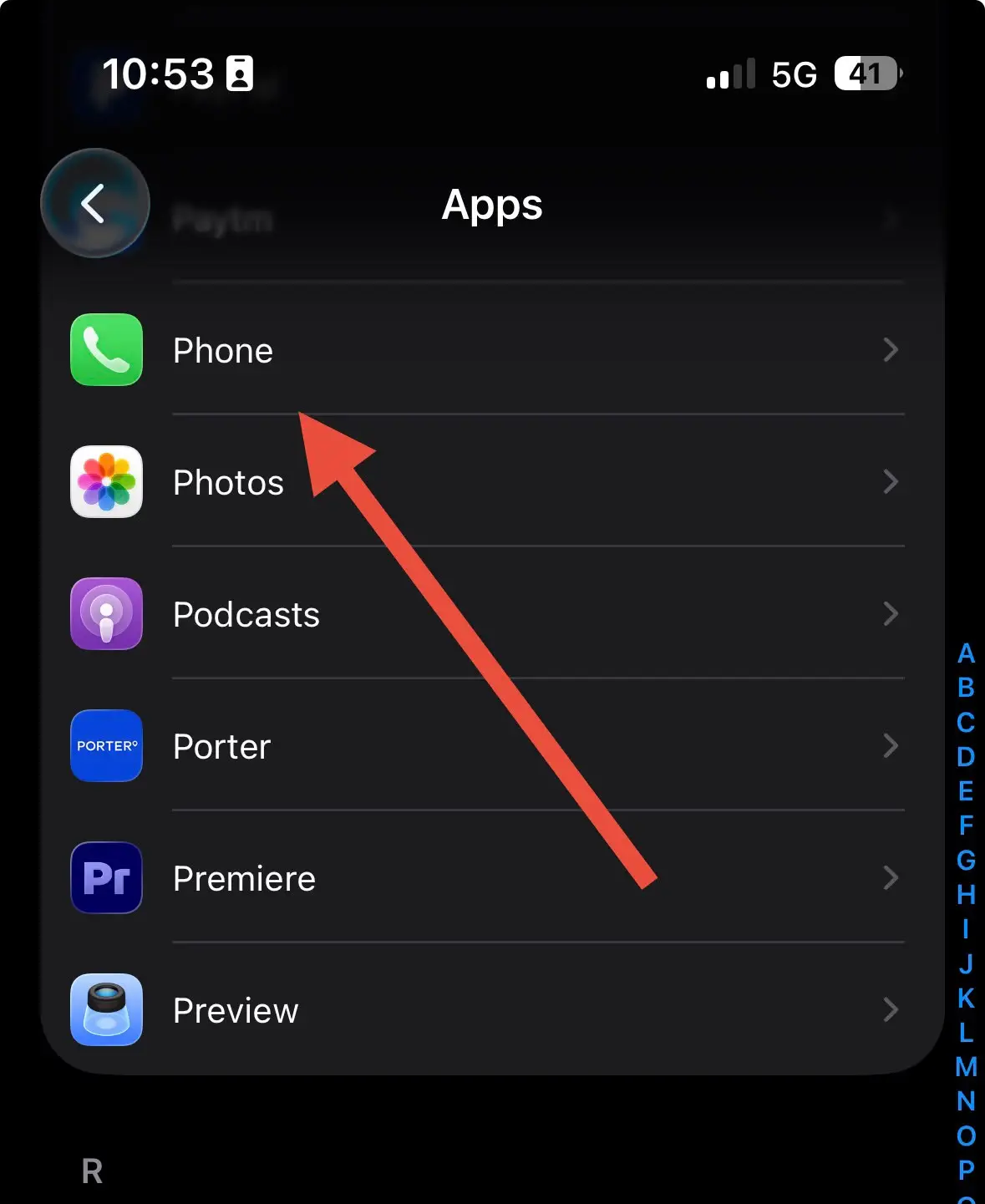
Step 3: Select Phone.
Step 4:Tap Blocked Contacts.
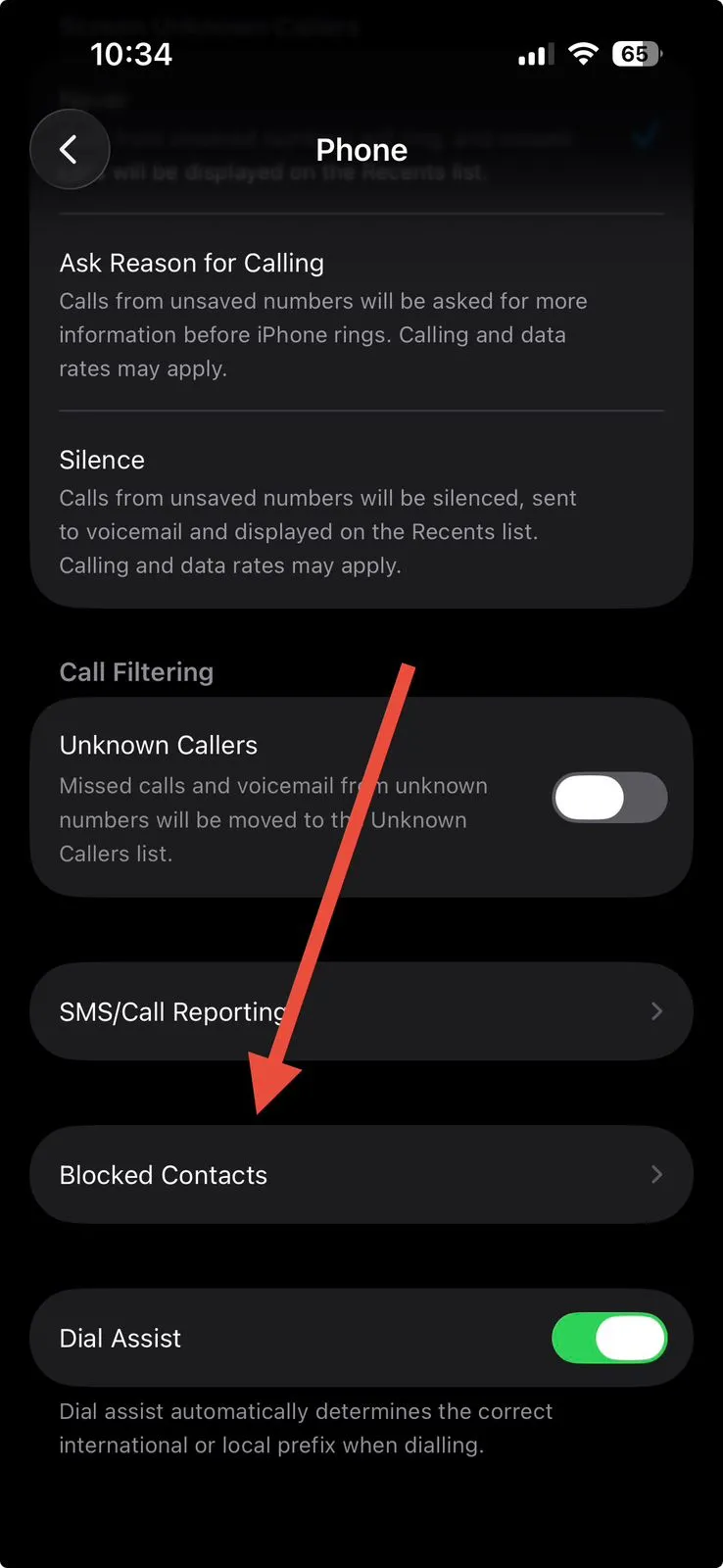
Step 5: Locate the blocked number.
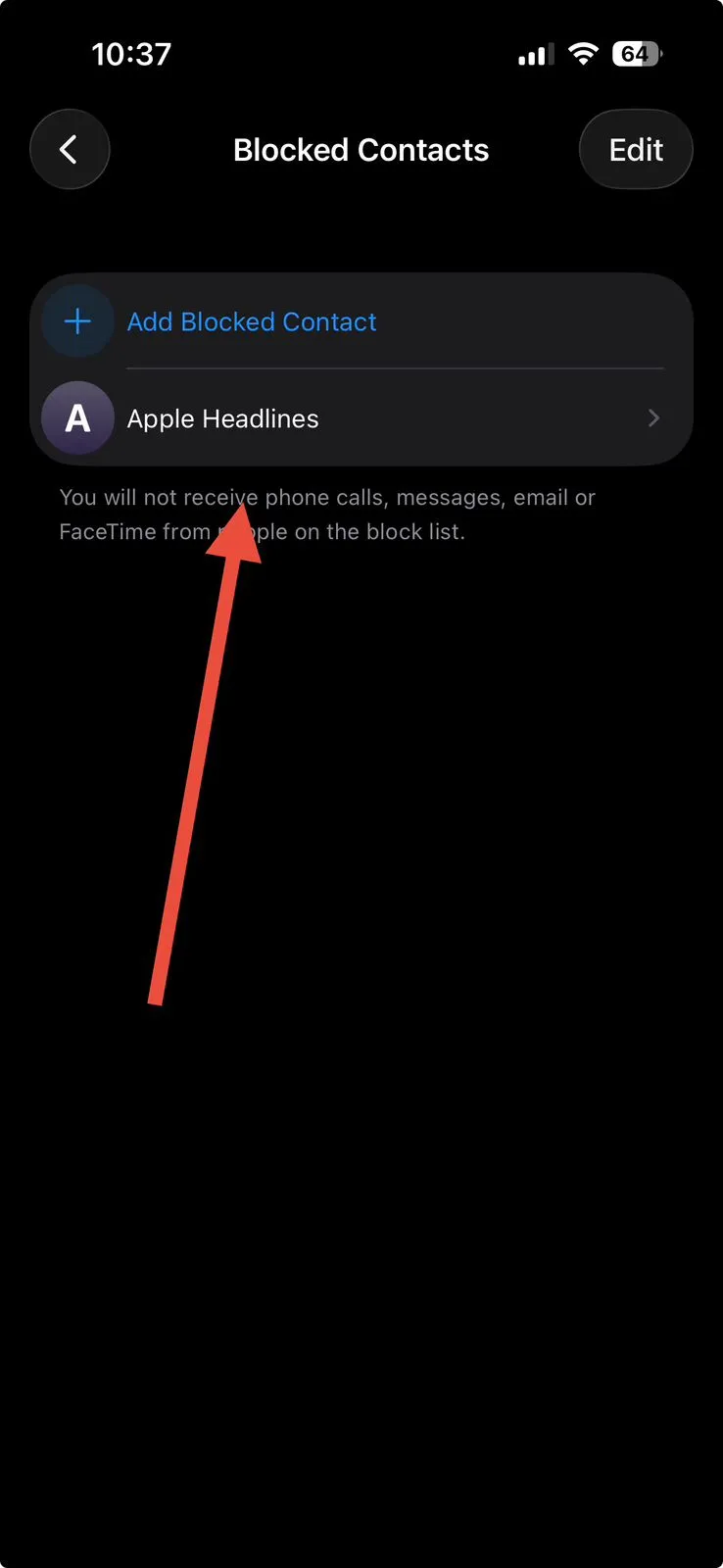
Step 6: Swipe left on the contact.
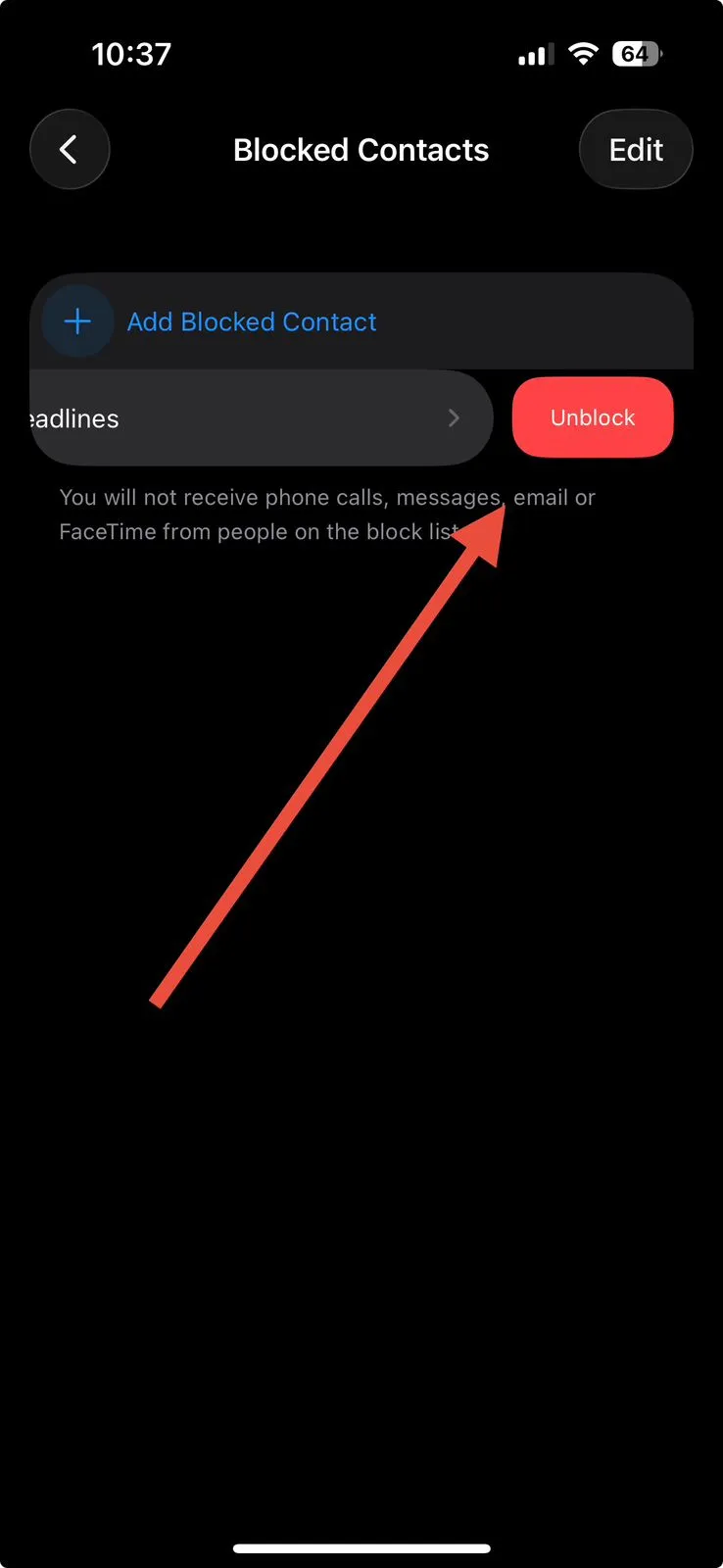
The number is immediately removed from the blocked list.
Supported Devices
This method works on:
- iPhone 11
- iPhone 12
- iPhone 13
- iPhone 14
- iPhone 15
- iPhone 16
- iPhone 17 series
It also works across iOS 17, iOS 18, iOS 19, iOS 20, and iOS 26.
Method 2: Unblock a Contact From Recent Calls
If the number recently called you, this method is faster.
Steps
Step 1: Tap Recents Calls.
Step 2: Find the blocked number.
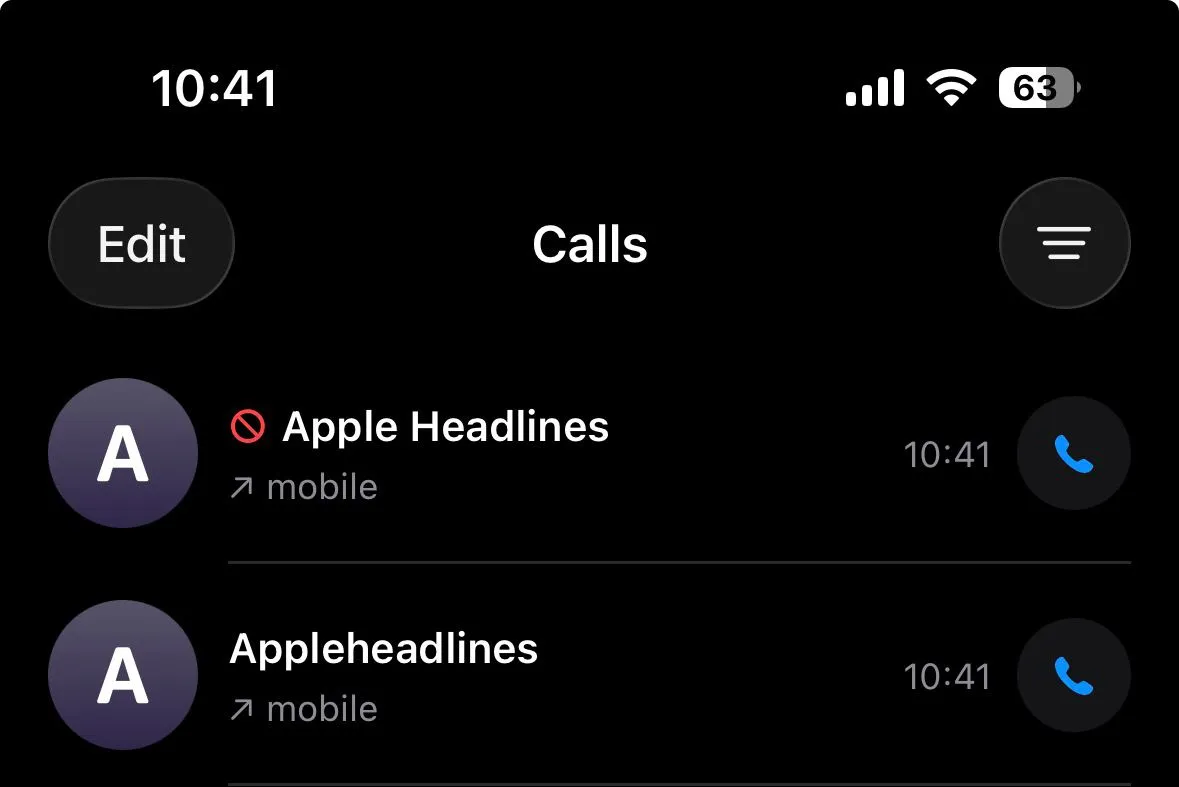
Step 3: Tap the Number.
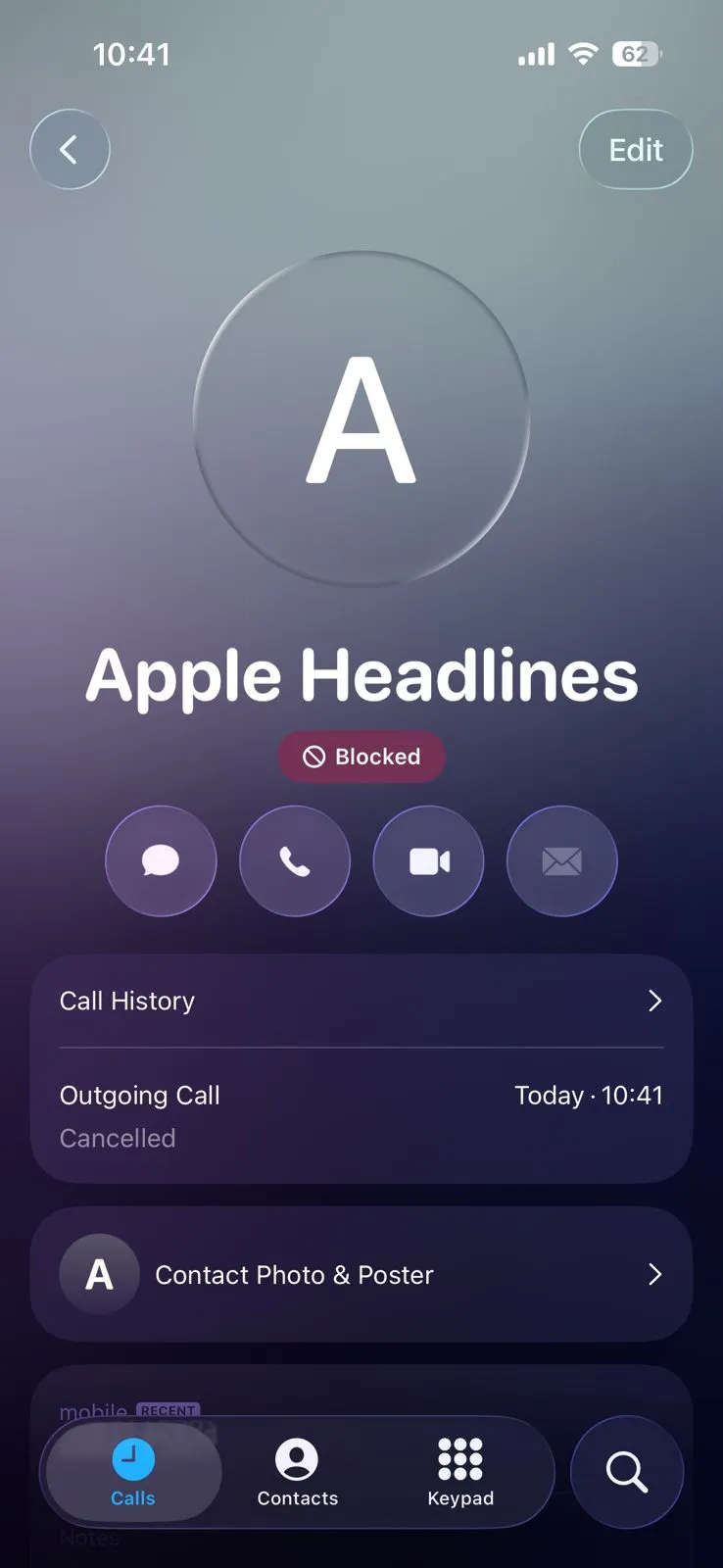
Step 4: Scroll down.
Step 5: Tap Unblock Contact.
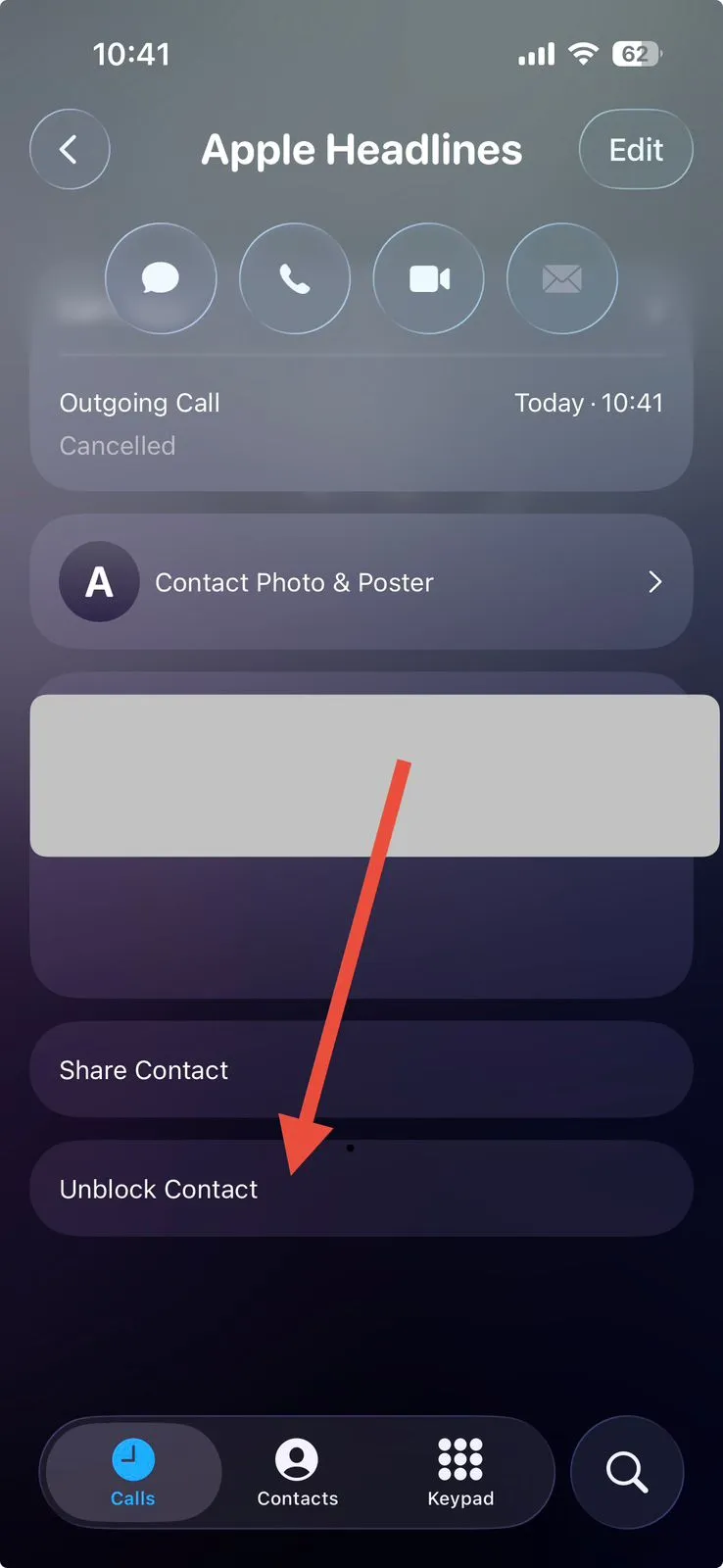
The caller can contact you again instantly.
Method 3: Unblock Through Messages
This method works if you still have an existing conversation.
Steps
Step 1: Open Messages.
Step 2: Select the conversation.
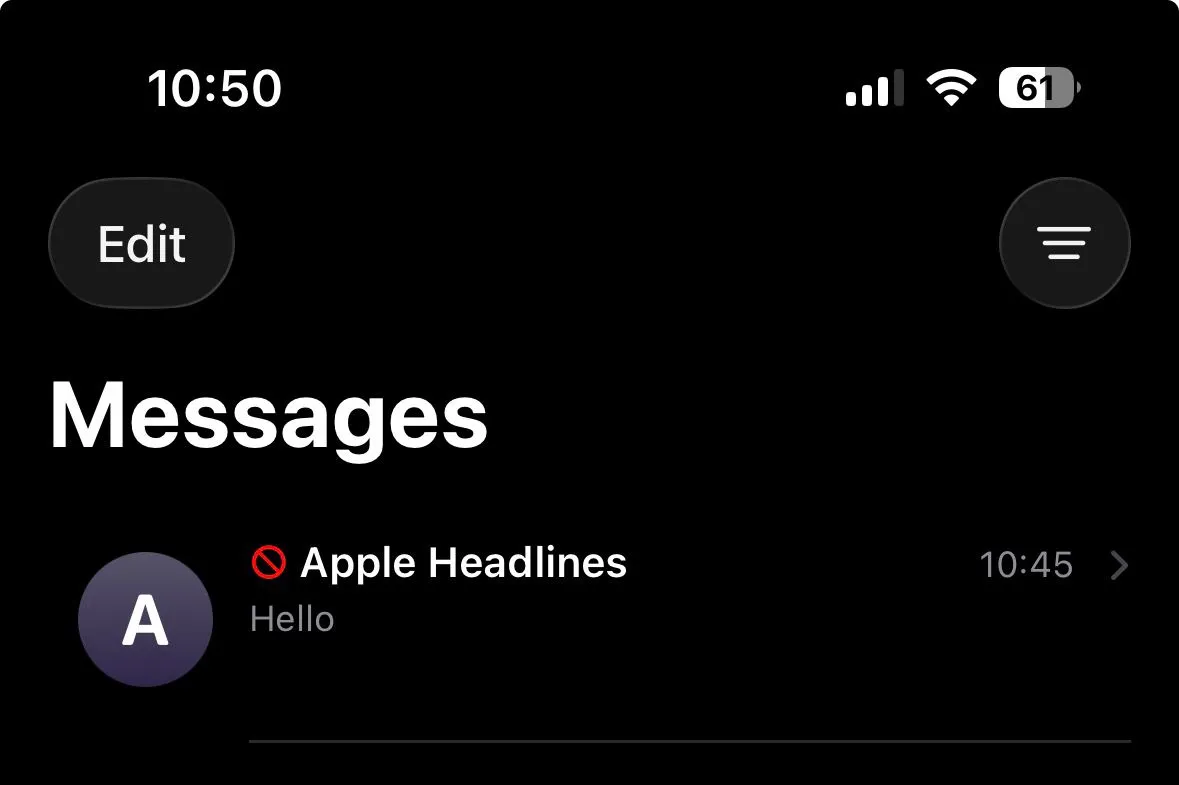
Step 3: Tap the contact name.
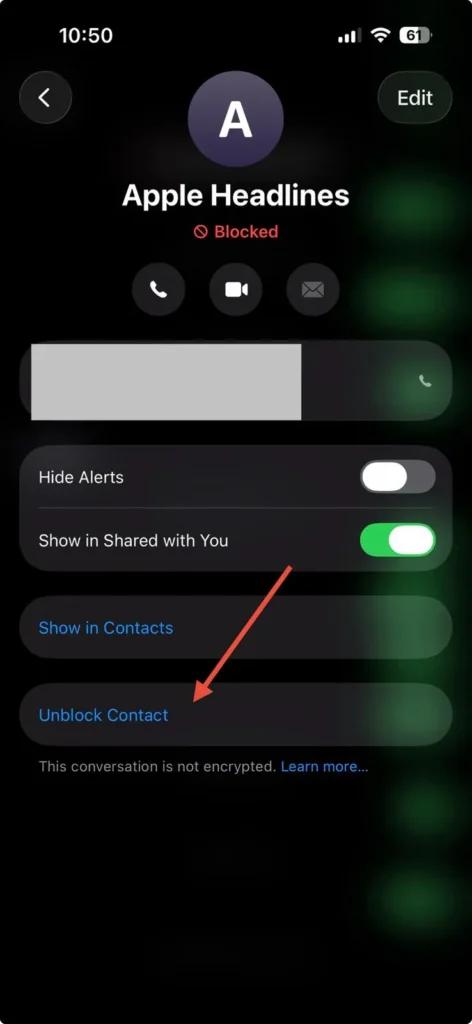
Step 4: Choose Info.
Step 5: Scroll down.
Step 6: Tap Unblock this Caller.
This restores both calls and messages.
Method 4: Unblock Through FaceTime
Many users forget FaceTime maintains access to blocking controls.
Steps
Step 1: Open FaceTime.
Step 2: Locate the contact.
Step 3: Tap the i icon.
Step 4: Scroll downward.
Step 5: Select Unblock Caller.
The contact can immediately place FaceTime calls again.
How to Unblock a Contact on iPhone 14
Many searches specifically ask how to unblock a number on iPhone 14.
The process remains nearly identical:
- Open Settings.
- Tap Phone.
- Select Blocked Contacts.
- Swipe left.
- Tap Unblock.
When we tested an iPhone 14 running the latest supported iOS version, the process took under 20 seconds.
Expert Insight
Pro Tip: Before unblocking unknown numbers, search the number online first.
Many spam callers repeatedly contact users from recycled numbers. If you’re unsure who called, a quick search can help identify legitimate callers before restoring access.
Short Story: A Missed Job Interview
One AppleHeadlines reader recently shared an interesting experience.
After receiving several spam calls, they aggressively blocked unfamiliar numbers. Two days later, a recruiter attempted to call regarding a final interview.
The recruiter happened to use a number similar to a previously blocked spam caller.
Because the recruiter remained blocked, several calls went unanswered.
Fortunately, the reader reviewed their blocked list before the interview deadline and restored the number in time.
The lesson is simple: occasionally review blocked contacts, especially when expecting important calls.
How Do I Unblock a Phone Number That Is Blocked But Missing From My Contacts?
This is a common question.
If the number isn’t saved:
- Open Settings.
- Go to Phone.
- Tap Blocked Contacts.
- Review the complete blocked list.
Apple stores blocked numbers even when they aren’t saved as contacts.
You’ll often see raw phone numbers without names attached.
How to Disable Call Blocking on iPhone
Some users don’t want to unblock one number.
They want to disable call blocking entirely.
Unfortunately, Apple doesn’t offer a master “disable all blocking” switch.
You must remove blocked contacts individually.
To clear multiple blocked contacts:
- Open Blocked Contacts.
- Tap Edit.
- Remove each blocked entry.
- Tap Done.
Once the list is empty, no contacts remain blocked.
How to Block a Number on iPhone
Many users searching for unblocking instructions also want the opposite process.
To block a caller:
- Open Phone.
- Tap Recents.
- Select the information icon.
- Scroll down.
- Tap Block Caller.
The caller can no longer contact you through calls, texts, or FaceTime.
What If This Doesn’t Work?
If unblocking fails, try these fixes.
Restart Your iPhone
- Turn off the device.
- Wait 30 seconds.
- Turn it back on.
Update iOS
- Open Settings.
- Tap General.
- Select Software Update.
Apple frequently fixes contact-related bugs.
Check Screen Time Restrictions
Screen Time settings can affect communication permissions.
Navigate to:
Settings → Screen Time → Communication Limits
Review any restrictions.
Verify Focus Modes
Focus filters may silence contacts.
Check:
Settings → Focus
Temporarily disable active Focus modes.
Reset Network Settings
If calls still fail:
- Open Settings.
- Tap General.
- Select Transfer or Reset iPhone.
- Choose Reset.
- Tap Reset Network Settings.
iPhone vs Android: Unblocking Numbers
Users often compare iPhone and Android processes.
| Feature | iPhone | Android |
|---|---|---|
| Settings Method | Yes | Yes |
| Phone App Method | Yes | Yes |
| Messages Method | Yes | Varies |
| FaceTime Method | Yes | No |
| Unified Blocking System | Yes | Depends on manufacturer |
If you’re looking for how to unblock a number on Android or how to unblock a number on Android phone, the process differs slightly depending on Samsung, Google Pixel, Motorola, or OnePlus devices.
Apple’s approach remains more consistent across models.
Common Mistakes When Unblocking Numbers
Avoid these frequent issues:
- Unblocking the wrong number
- Confusing Focus Mode with blocking
- Forgetting blocked contacts sync through iCloud
- Assuming deleted contacts are automatically unblocked
- Expecting old blocked messages to reappear
Remember: unblocking only restores future communication.
Previous blocked calls and messages remain unavailable.
Key Takeaways
- The fastest method is Settings → Phone → Blocked Contacts.
- Unblocking takes only a few seconds.
- The process works across modern iPhone models.
- Messages, Phone, and FaceTime offer alternative methods.
- Focus Mode can sometimes mimic blocking behavior.
- Review blocked contacts regularly to avoid missed opportunities.
- Unblocking restores future communication only.
FAQ
No. Apple does not notify users when they are unblocked.
No. Messages sent during the blocked period are not delivered later.
Go to:
Settings → Phone → Blocked Contacts
You’ll see every blocked contact and phone number.
Yes. Once unblocked, FaceTime communication works again automatically.
Check Focus Mode, Screen Time restrictions, carrier issues, or network settings.
Sources
Disclaimer
The steps in this guide reflect iOS features available in 2026. Apple may change menu locations or terminology in future updates. Device model, carrier settings, and software version can affect results.
Still having trouble?
Leave a comment below with your iPhone model and iOS version, and we’ll help you troubleshoot the issue.

T’kal is the lead strategist and developer behind Apple Headlines. With a background in digital marketing and web development, he specializes in technical Apple troubleshooting, software news, and hardware rumors. T’kal focuses on delivering high-authority tech content that bridges the gap between Apple enthusiasts and the latest industry innovations.