

Apple does not offer a native iMessage app for Windows.
You can use iMessage on your Windows PC in 2026 through Microsoft’s Phone Link app (the easiest, official method), Chrome Remote Desktop to a Mac, or third-party relay tools like BlueBubbles and AirMessage for a full-featured experience.
Each method has real tradeoffs — this guide breaks them all down.
You bought an iPhone, your whole family texts in blue bubbles, and your Windows PC just sits there, cut off. Sound familiar?
Millions of Windows users hit this exact wall every day. Apple does not make a native iMessage for Windows app — and as of 2026, there are no signs that’s changing.
But there are real, working workarounds. We tested all of them.
Here’s the complete picture, without the fluff.
Quick Info
Why Apple Won’t Release iMessage for Windows (And Why That Matters)
Before diving into the how, it’s worth understanding the why – because it directly shapes every solution on this list.
iMessage is Apple’s secret weapon. It’s one of the biggest reasons people stay in the iPhone ecosystem.
A green bubble on Android?
Social pressure.
Blue bubbles on iPhone?
Belonging.
Apple knows this, and they’ve been deliberate about keeping iMessage locked inside their platform.
As of 2026, Apple has made no public plans to release iMessage for Windows 11 or any other PC platform.
Think of it like a VIP members club.
The velvet rope isn’t because the party is physically impossible to replicate — it’s a deliberate choice to keep members coming back.
Every workaround below is essentially a side door into that club.
The methods in this guide work around Apple’s system, not through it. That means they can break when Apple updates iOS, and none carry Apple’s official support.
What You Actually Need Before You Start
Requirements vary by method, but here’s what applies broadly:
No iPhone? Skip to Method 3 or 4 — though those come with more complexity.
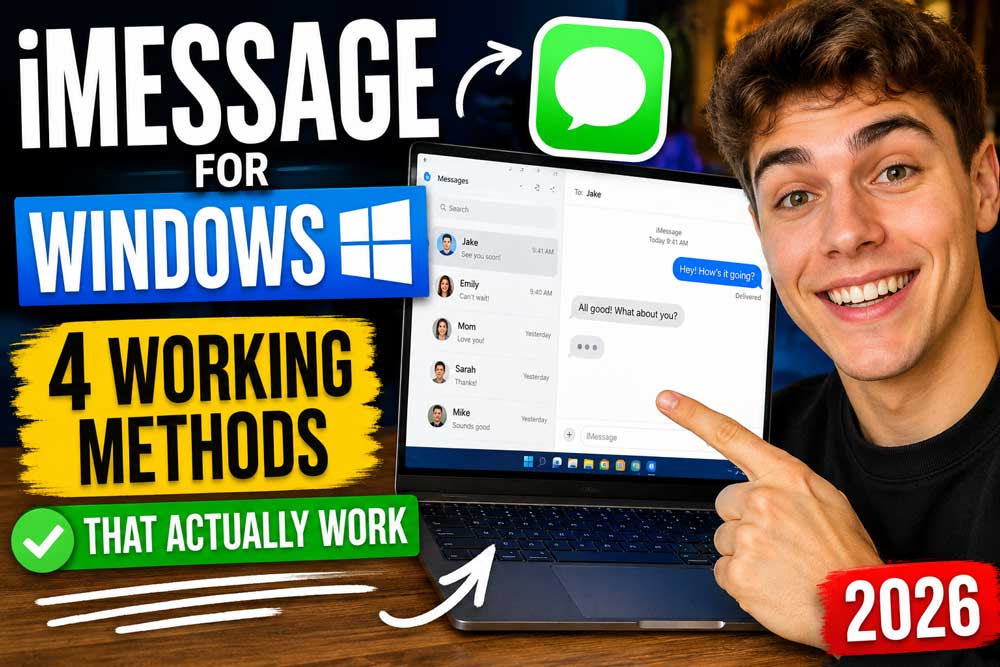
Method 1: Microsoft Phone Link — The Official, Easiest Option
Best for: Anyone who wants a quick, free, no-extra-hardware solution.
Limitations: Text-only, no photo sending, no group replies, messages only sync while Bluetooth is active.
When we tested this on a Windows 11 PC paired with an iPhone 16 running iOS 26, Phone Link connected in under five minutes. It’s genuinely the fastest path to getting iMessage on Windows 10 and 11.
What Phone Link Can (and Can’t) Do
Phone Link lets you send and receive iMessages directly from your Windows desktop. It’s built on a Bluetooth Low Energy connection — meaning your iPhone and PC need to stay reasonably close together (same room is fine).
It does not give you your full message history, you can’t send photos, and group chats have limited functionality.
Outgoing messages sent from your iPhone also don’t reliably sync back to the Phone Link window on your PC — that’s an Apple platform limitation, not a Microsoft bug.
One more thing: Phone Link does not show the blue/green bubble distinction. All messages appear in a unified style on Windows.
Step-by-Step: Setting Up Phone Link for iMessage
Requirements: iPhone with iOS 16 or later. PC running Windows 10 (May 2019 Update) or Windows 11 with Bluetooth LE support. Not available on Windows 11 Pro Education or Education editions.
🔧 Pro Tip: Phone Link Keeps Disconnecting?
This is one of the most common complaints in 2026. If notifications stop appearing, try this: on your iPhone, go to Settings > Bluetooth, tap your PC name, and toggle Show Notifications off and then back on. Then open Phone Link on your PC and go to Settings > Features — make sure message and notification toggles are both enabled. Also check Windows Settings > System > Notifications > Phone Link and confirm banners are allowed. If that still doesn’t fix it, fully unpair the devices and re-pair from scratch.
Method 2: Chrome Remote Desktop — Full iMessage Access via Mac
Best for: Users who already own a Mac and want full iMessage features on Windows.
Limitations: Requires a Mac that stays powered on and connected to Wi-Fi at all times.
This method turns your Mac into a remote control panel. You’re not running iMessage on Windows — you’re viewing and operating your Mac’s Messages app through a Windows browser window.
But the end result feels the same: full message history, photos, reactions, group chats, everything.
Think of it like a remote security camera. You’re not physically in the building, but you can see and control everything happening inside.
Step-by-Step: Remote iMessage via Chrome Remote Desktop
Cost: Free.
Method 3: BlueBubbles — Best Full-Featured Option (Requires Mac)
Best for: Power users who want the closest thing to a native iMessage on Windows experience.
Limitations: Requires a Mac running 24/7 as a server. Setup takes 1–3 hours. Some features may not work correctly on macOS Tahoe (26) due to ongoing compatibility updates.
BlueBubbles is an open-source project that installs a server on your Mac. That server reads iMessages and relays them to a client app on your Windows PC — in real time.
It supports photos, videos, tapbacks, read receipts, message effects, and even group chats (on macOS 11+).
It’s the most powerful option on this list for anyone serious about using Apple Messages on PC long-term.
The BlueBubbles Setup in Brief
Note on macOS Tahoe (26): Some BlueBubbles features including message editing and group icon updates had compatibility issues following the macOS 26 update. Check the BlueBubbles Discord (linked from their site) for the latest patches before setup.
Method 4: AirMessage – Simpler Mac Relay with a Clean Interface
Best for: Users who want BlueBubbles-style functionality but prefer a simpler setup.
Limitations: Also requires a Mac as a server. Fewer advanced features than BlueBubbles. Less active development cadence.
AirMessage works on the same principle as BlueBubbles — Mac server, Windows client — but is generally considered easier to configure. It has a web interface, so you can even access iMessages in a browser window on Windows without installing anything extra.
AirMessage Quick Setup
📖 Real-World Case Study: Marcus’s Setup
Marcus is a software developer in Austin, TX. He uses a Windows desktop at work and an iPhone 16 Pro personally. He tried Phone Link first — it worked, but kept dropping the Bluetooth connection when he moved the phone to charge in another room. He then set up BlueBubbles on an old Mac Mini he had sitting in a closet. Two hours of setup later, he now has a permanent Windows desktop client that shows every iMessage, photo, and reaction in real time. His Mac Mini stays on 24/7, costs about $4/month in electricity, and he hasn’t touched his phone for messages at work in three months.
Comparison: Which Method Should You Use?
| Method | Needs Mac? | Full Features? | Setup Difficulty | Cost |
|---|---|---|---|---|
| Phone Link | No | Limited (text only) | Easy (5 min) | Free |
| Chrome Remote Desktop | Yes | Full | Moderate (30 min) | Free |
| BlueBubbles | Yes | Full + advanced | Hard (1–3 hrs) | Free |
| AirMessage | Yes | Most features | Moderate (1 hr) | Free |
Can You Use iMessage for Windows Without an iPhone?
Short answer: not really, not in 2026.
Every method above either requires an iPhone (Phone Link) or a Mac with an active Apple ID signed into iMessage (BlueBubbles, AirMessage, Chrome Remote Desktop).
The reason: iMessage is tied to Apple IDs, which in turn are tied to Apple hardware verification. There is no legitimate way to use iMessage without an iPhone or Mac on Windows.
Some older tools like Beeper tried to bridge this gap — and Apple shut them down. Services that claim to offer iMessage on Windows without Apple hardware in 2026 are either scams, violate Apple’s terms of service, or both. Avoid them.
Troubleshooting: What If Nothing Works?
Phone Link won’t connect to iPhone
Make sure both devices are on the same Wi-Fi network and Bluetooth is active. Check that you’re running the latest version of Phone Link — go to the Microsoft Store, click the Downloads icon, and hit Get Updates. Also verify your iPhone is running iOS 16 or later.
Phone Link connects but shows no messages
Go to your iPhone’s Bluetooth settings, tap your PC’s name, and confirm Show Notifications is toggled on. Then in Phone Link on Windows, go to Settings > Features and re-enable messages. If messages still don’t appear, unpair and re-pair both devices completely.
BlueBubbles won’t activate iMessage
This usually happens if iMessage isn’t already signed in on the Mac, or if Full Disk Access wasn’t properly granted. Go to System Settings > Privacy & Security > Full Disk Access on your Mac and make sure BlueBubbles Server has a checkmark. Then quit and reopen the server app.
Chrome Remote Desktop is laggy
Ensure your Mac has a wired ethernet connection if possible. On the Windows side, close other browser tabs. If the issue persists, try reducing the resolution in Remote Desktop’s display settings.
“iMessage for Windows Download” links you found online look sketchy
They are. There is no official iMessage download for Windows. Any .exe claiming to install iMessage is not from Apple. Do not install it. Microsoft’s Phone Link is the only officially supported path.
Our Reader’s Questions
Is there an official iMessage app for Windows? No. As of 2026, Apple has not released iMessage for Windows and has publicly stated no plans to do so. The closest official option is Microsoft’s Phone Link app.
Does iMessage for Windows 11 work differently than Windows 10? Phone Link works on both Windows 10 (May 2019 Update or later) and Windows 11. The setup process is nearly identical. Windows 11 has slightly more refined Bluetooth settings navigation.
Can I use iMessage online through a browser? Not through Apple’s official services. However, AirMessage offers a web client at web.airmessage.org if you have an AirMessage server set up on a Mac. BlueBubbles also has a web interface for browser-based access.
Why does Phone Link show my messages but not send photos? Phone Link’s iPhone integration uses Bluetooth notification mirroring, not a full messaging API. Apple doesn’t expose the same level of access to third-party apps on iOS that it does on Android. Photo sending and group replies are not currently supported.
Is BlueBubbles safe to use? BlueBubbles is open-source and self-hosted — your messages go through your own Mac, not a third-party server. It’s considered one of the more secure iMessage relay options available. That said, you should still use strong passwords and keep your Mac updated. Always download BlueBubbles directly from bluebubbles.app, not from third-party sites.
Related : Do Messages Deliver When Phone Is Dead
Disclaimer
The methods described in this article are workarounds and are not officially supported by Apple. Third-party applications like BlueBubbles and AirMessage operate independently of Apple and may break following iOS or macOS updates. Use of macOS virtual machines to run iMessage relay software may violate Apple’s Software License Agreement. Always download applications directly from their official sources. AppleHeadlines.com is not affiliated with Apple Inc., Microsoft, BlueBubbles, or AirMessage. This guide is for informational purposes only and reflects testing and research conducted as of May 2026.
Was this guide helpful? Drop a comment below or share it with a Windows user who’s tired of missing blue bubbles.

T’kal is the lead strategist and developer behind Apple Headlines. With a background in digital marketing and web development, he specializes in technical Apple troubleshooting, software news, and hardware rumors. T’kal focuses on delivering high-authority tech content that bridges the gap between Apple enthusiasts and the latest industry innovations.