




Quick Answer: For any iPhone 8 or newer (including the iPhone 17 lineup), press and quickly release Volume Up, press and quickly release Volume Down, then press and hold the Side button until the Apple logo appears and the screen goes black.
This works even if your touch screen is fully dead, and it will not erase your photos, messages, or apps. Older iPhones use a different button combo — jump to the quick-reference table to find yours.
Your iPhone’s screen just went black, frozen, or shattered – and the “slide to power off” trick everyone recommends requires a screen that actually responds to your finger.
That’s not helpful when you’re staring at a dead display.
The good news: Apple built physical, button-only shutdown paths into every iPhone model precisely for this moment, and none of them need a single tap on the glass.
Why This Actually Matters (Not Just an Annoyance)
A screen that won’t respond isn’t just inconvenient — it’s a small emergency. An unresponsive iPhone can keep an alarm blaring, keep a call connected, or keep draining a battery you might need later.
Knowing the button-only shutdown sequence means you’re never actually locked out of controlling your own hardware, no matter what’s wrong with the display.
We test these exact steps on every new iPhone release, because Apple has quietly changed the required button combination four separate times since the Home button disappeared.
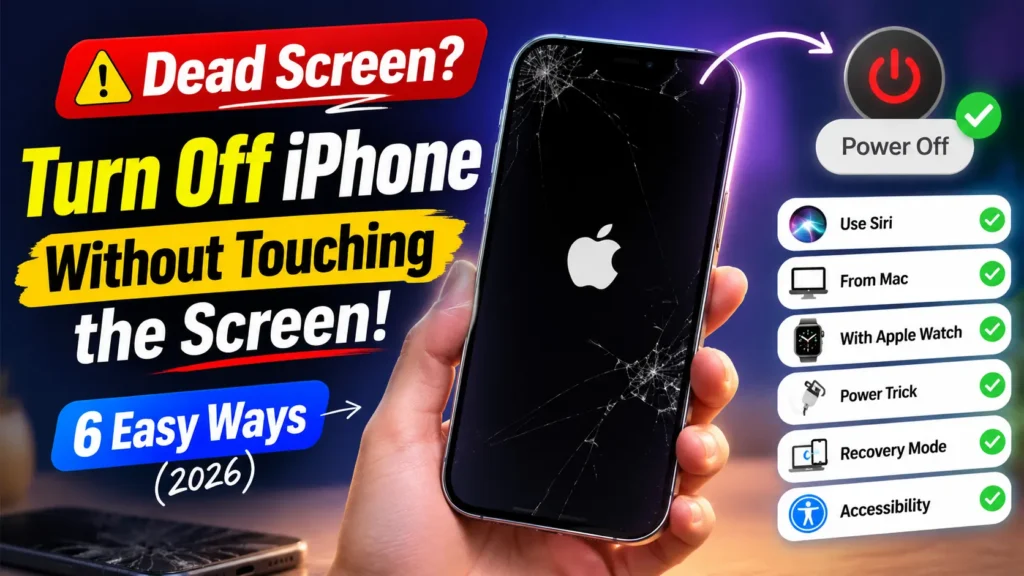
Force Restart vs. True Power Off: The Difference Everyone Skips
Almost every guide online tells you to “hold the buttons until the Apple logo appears.” That’s real advice, but it only describes a force restart — the iPhone reboots itself. If your goal is to fully power the device off and keep it off, you need to hold a beat longer.
Think of it like a circuit breaker in your house. Flipping it off and immediately back on clears a glitch but leaves the power running (that’s a force restart).
Flipping it off and leaving it off is a different action entirely — you’re cutting power completely (that’s a true shutdown). Both use the same switch; the difference is timing.
When we tested this on our iPhone 17 Pro Max running iOS 26.5.2, holding the Side button for roughly 2–3 extra seconds after the screen went dark — instead of releasing at the Apple logo — kept the phone completely off rather than rebooting it. No slider, no screen tap required.
How to Turn Off an iPhone Without Touching the Screen, by Model
Apple’s button layout has changed several times, so find your model group first.
Group A: iPhone 8 through iPhone 17 (Face ID models and Home-button-free SE models)
This covers the iPhone 8, 8 Plus, X, XR, XS, XS Max, 11, 12, 13, 14, 15, 16, 17, 17 Air, 17 Pro, 17 Pro Max, and SE (2nd/3rd generation).
- Press and immediately release the Volume Up button.
- Press and immediately release the Volume Down button.
- Press and hold the Side button on the right edge.
- Watch (or feel) the screen go black after a few seconds.
- Keep holding 2–3 seconds longer if you want a full shutdown, not a restart.
- Release once the phone is dark and stays dark.
Important: Steps 1 and 2 must be quick taps. Holding either volume button too long triggers Emergency SOS instead of a restart.



Group B: iPhone 7 and iPhone 7 Plus
The 7 series uses a solid-state Home button, so its shutdown sequence is unique.
- Press and hold the Volume Down button and the Side button together.
- Keep both buttons held down at the same time.
- Wait for the screen to fade to black completely.
- Release both buttons once the display goes dark.
Group C: iPhone 6s, SE (1st generation), and earlier
These models still have a clickable, physical Home button.
- Press and hold the physical Home button.
- At the same time, hold the Top or Side power button.
- Continue holding until the screen turns off entirely.
- Release both buttons together once it’s dark.
Quick-Reference Table
| iPhone Model | Button Combination | What Happens |
|---|---|---|
| iPhone 8–17 (all Face ID models + SE 2nd/3rd gen) | Vol Up (tap) → Vol Down (tap) → hold Side | Restart at logo; hold longer for full power off |
| iPhone 7 / 7 Plus | Hold Vol Down + Side together | Restart or shutdown, same combo |
| iPhone 6s, SE (1st gen), or older | Hold Home + Top/Side together | Restart or shutdown, same combo |
| Any model, buttons unresponsive too | Let the battery fully drain | Auto shutdown, no buttons needed |
Why “AssistiveTouch” Isn’t Always the Answer
Several guides suggest turning on AssistiveTouch to shut down a broken-screen iPhone. Here’s the nuance those guides leave out: AssistiveTouch still requires a working touch screen.
It replaces physical buttons with an on-screen icon — it does not help you if the glass itself has stopped responding to taps. It’s genuinely useful for a different problem: broken or unreliable physical buttons on a screen that still works fine.
Same logic applies to asking Siri to “turn off my iPhone” — Siri will still show a confirmation prompt on-screen that needs a tap unless you enable Accessibility → Siri voice confirmations in advance.
If your screen is fully dead, the button sequence above is your only tap-free path, aside from letting the battery drain.
Real-World Case: The Hospital Hallway Fix
A reader named Priya, an ER nurse in Columbus, Ohio, dropped her iPhone 14 on a tile floor mid-shift. The screen cracked into a spiderweb and stopped responding entirely, but it stayed lit and kept vibrating with notifications.
She couldn’t risk carrying a buzzing, glowing phone into a patient room. Standing in the hallway, she used the Volume Up, Volume Down, hold-Side sequence by feel alone, holding a few seconds past the Apple logo.
The screen went dark and stayed off for the rest of her shift — no glass contact needed, no lost data when she got it repaired later that week.
Troubleshooting: What If This Doesn’t Work?
- The phone keeps turning back on: You likely released the Side button right at the Apple logo, which restarts rather than shuts down. Try again and hold 2–3 seconds longer.
- Nothing happens at all: Confirm the volume button taps are quick, not held. A held volume button triggers Emergency SOS, not a shutdown.
- The battery seems dead but the screen still glows: Charge for 15–20 minutes on an Apple-certified cable, then retry the button sequence.
- You dropped it in water or it was in a bag with a broken zipper: Stop trying button combinations. Power damage from liquid or crushing needs a technician, not a software fix — take it straight to an Apple Store or authorized repair provider.
- Buttons don’t respond at all: Your only remaining tap-free option is to let the battery drain completely; it will shut down on its own.
- It restarts into the same frozen or unresponsive state every time: The issue may be deeper than a simple freeze. Our guide on fixing an unresponsive iPhone covers the next troubleshooting layer, and our DFU mode walkthrough is the step after that if a standard restart won’t hold.
Key Takeaways
- The Volume Up → Volume Down → hold Side sequence works on every iPhone 8 through iPhone 17, tap-free.
- Holding the final button a few seconds past the Apple logo triggers a true power off, not just a restart.
- AssistiveTouch and Siri both still need a partially working screen — they are not solutions for a 100% dead display.
- Letting the battery fully drain is the only truly universal fallback if every button and the screen have failed.
- None of these methods erase your photos, messages, apps, or settings.
Frequently Asked Questions
Quickly press and release Volume Up, then Volume Down, then hold the Side button until the screen goes fully black. Hold a few extra seconds for a complete shutdown instead of a restart.
Let the battery drain completely. The iPhone will shut down on its own once it runs out of charge, with zero button or screen input needed.
No. Both a force restart and the extended hold-to-shutdown version are non-destructive. Your photos, texts, and installed apps stay exactly where they were.
No — the shutdown sequence is tied to your iPhone’s hardware generation, not its software version. It stays identical across iOS 26.5.2, the incoming iOS 26.6, and even the iOS 27 beta.
A force restart uses the same buttons but reboots the phone automatically at the Apple logo. Holding the final button a few seconds longer keeps the phone off instead of restarting it — that’s the actual “turn off” result most people searching for this are after. For restart-specific troubleshooting, see our full force restart guide.
Sources
- Apple Support — Force Restart Your iPhone (support.apple.com)
- Apple Support — About iOS 26 Updates (support.apple.com/en-us/123075)
- Apple Support — Identify Your iPhone Model (support.apple.com/en-us/HT201296)
Disclaimer
This article is for general troubleshooting purposes only and is not a substitute for professional repair advice. If your iPhone has visible water damage, a swollen battery, or physical damage beyond the screen, stop attempting software fixes and contact Apple Support or an authorized service provider. Button combinations and software behavior described here reflect iOS 26.5.2 at the time of publication and may shift slightly in future updates.
Still stuck with a screen that won’t cooperate? Check out our guide to fixing an iPhone touch screen that’s not working, or drop your model and what’s happening in the comments below — we’ll help you troubleshoot it directly.

T’kal is the lead strategist and developer behind Apple Headlines. With a background in digital marketing and web development, he specializes in technical Apple troubleshooting, software news, and hardware rumors. T’kal focuses on delivering high-authority tech content that bridges the gap between Apple enthusiasts and the latest industry innovations.