


You just unboxed an Apple Pencil and the box gave you exactly zero instructions.
Or worse, you’ve snapped it to your iPad three times and nothing happened.
Either way, you’re in the right place.
We’ll walk through pairing for every Apple Pencil generation Apple currently sells, plus what to do when the pairing card never shows up.
Steps to Connect Apple Pencil to iPad
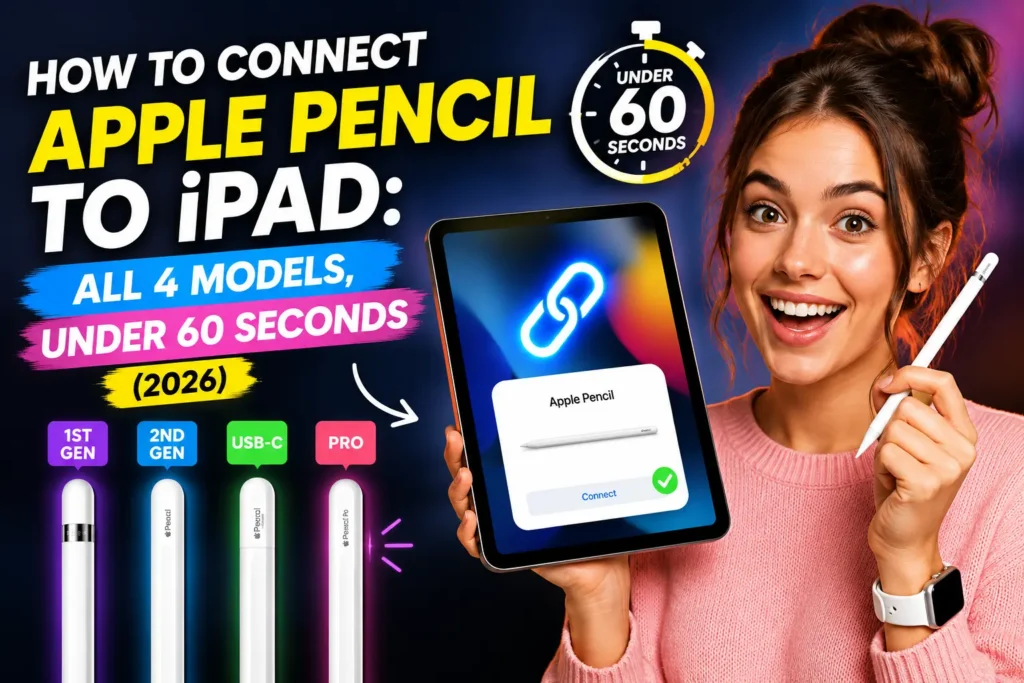
Pairing an Apple Pencil takes one of three actions, depending on your model.
Apple Pencil Pro and Apple Pencil (2nd generation) snap onto the magnetic strip on your iPad’s right edge.
Apple Pencil (USB-C) plugs into your iPad with a cable.
Apple Pencil (1st generation) plugs directly into a Lightning port, or into a USB-C port using Apple’s official adapter.
In every case, a pairing card pops up on screen — tap Pair, and you’re done.
Why Apple Pencil Pairing Isn’t One-Size-Fits-All
Apple has sold four distinct Apple Pencil models since 2015, and each one talks to your iPad differently.
The 1st generation uses a physical Lightning connector.
The 2nd generation and Pencil Pro use Bluetooth plus a magnetic connector for charging.

The USB-C model skips magnets entirely and pairs over a wired connection the first time.
That’s not Apple being inconsistent for no reason — it’s hardware segmentation, meaning each iPad generation only has the internal antennas and sensors to support certain Pencil models.
Getting the match right matters because an incompatible pairing attempt won’t just fail quietly; it can look identical to a broken Pencil or a defective iPad, sending people toward an unnecessary return or repair appointment.
Which Apple Pencil Works With Your iPad (2026)
Apple updated its official compatibility list on March 10, 2026, and it’s worth checking before you assume your Pencil and iPad are a match.
| Apple Pencil Model | Compatible iPads (2026) |
|---|---|
| Apple Pencil Pro | iPad Pro 11″/13″ (M4, M5); iPad Air 11″/13″ (M2, M3, M4); iPad mini (A17 Pro) |
| Apple Pencil (USB-C) | All Pencil Pro iPads above, plus older iPad Pro 11″/12.9″ models, iPad Air (4th/5th gen), iPad (A16), iPad (10th gen), iPad mini (6th gen) |
| Apple Pencil (2nd generation) | iPad mini (6th gen); iPad Air (4th/5th gen); iPad Pro 12.9″ (3rd–6th gen); iPad Pro 11″ (1st–4th gen) |
| Apple Pencil (1st generation) | iPad mini (5th gen); iPad (6th–9th gen); iPad (A16); iPad (10th gen); iPad Air (3rd gen); iPad Pro 12.9″ (1st/2nd gen); iPad Pro 10.5″; iPad Pro 9.7″ |
*Requires the official USB-C to Apple Pencil Adapter.
Not sure which iPad you own?
Check Settings > General > About > Model Name.
If you’re also still deciding between iPad software versions, our iPadOS 26 overview breaks down what changed and which chips handle it best.
How to Connect Apple Pencil Pro or Apple Pencil (2nd Generation)
These two models pair the same way, since both rely on a magnetic connector and Bluetooth.
- Open Settings, tap Bluetooth, and switch it on.
- Find the magnetic strip on your iPad’s right edge, in portrait mode.
- Snap the Pencil’s flat side onto that strip and hold it steady.
- Watch for a pairing card showing the Pencil’s name and battery level.
- Tap Pair to finish the connection.
- Leave it attached — it now charges automatically off the magnet.
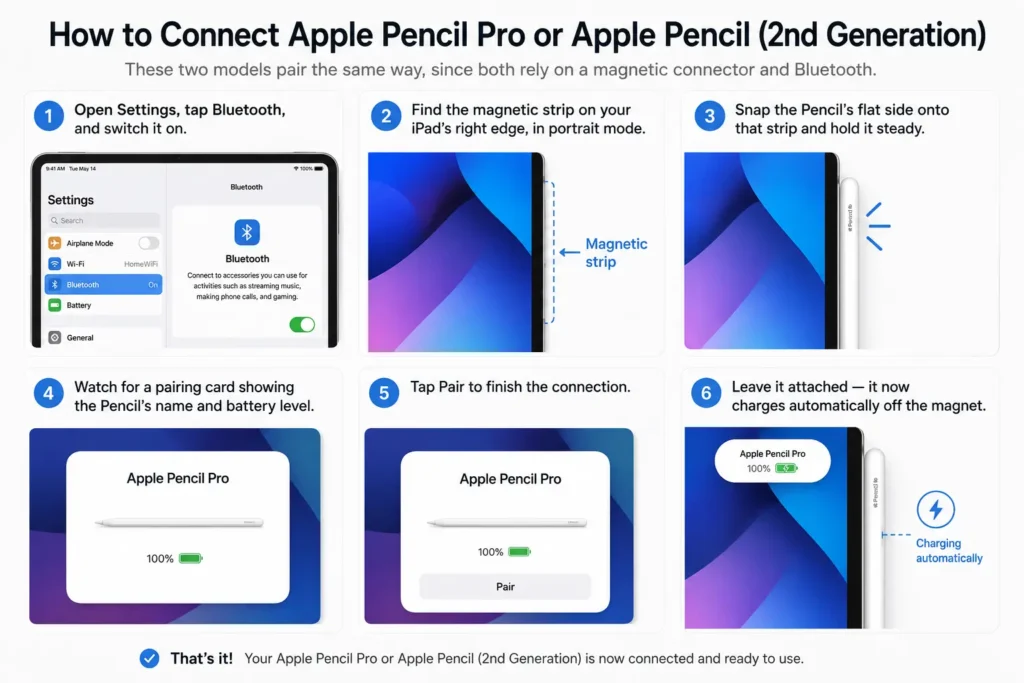
When we tested this on an iPad Pro 11-inch (M4) running iPadOS 26.5, the Apple Pencil Pro paired in under four seconds, with the battery percentage appearing instantly on the lock screen.
How to Connect Apple Pencil (USB-C)
This is Apple’s budget-friendly Pencil, and it skips magnetic pairing for a one-time wired setup.
- Slide the cap near the Pencil’s end to expose the USB-C port.
- Plug a USB-C cable into the Pencil and into your iPad.
- Wait for a “Tap to Connect” or Pair prompt on your screen.
- Tap Pair to confirm the connection.
- Unplug the cable once pairing finishes; it stays linked wirelessly.
- Reconnect the cable anytime you need to recharge it.
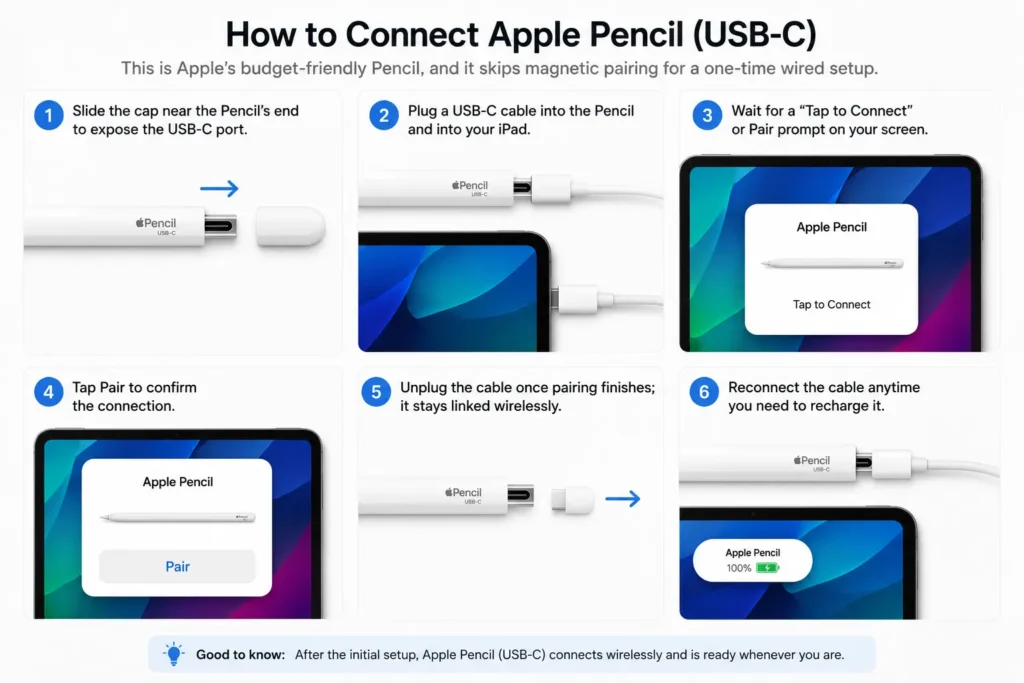
On an iPad mini (A17 Pro) running iPadOS 26.5, this took roughly six seconds from plug-in to the pairing prompt appearing.
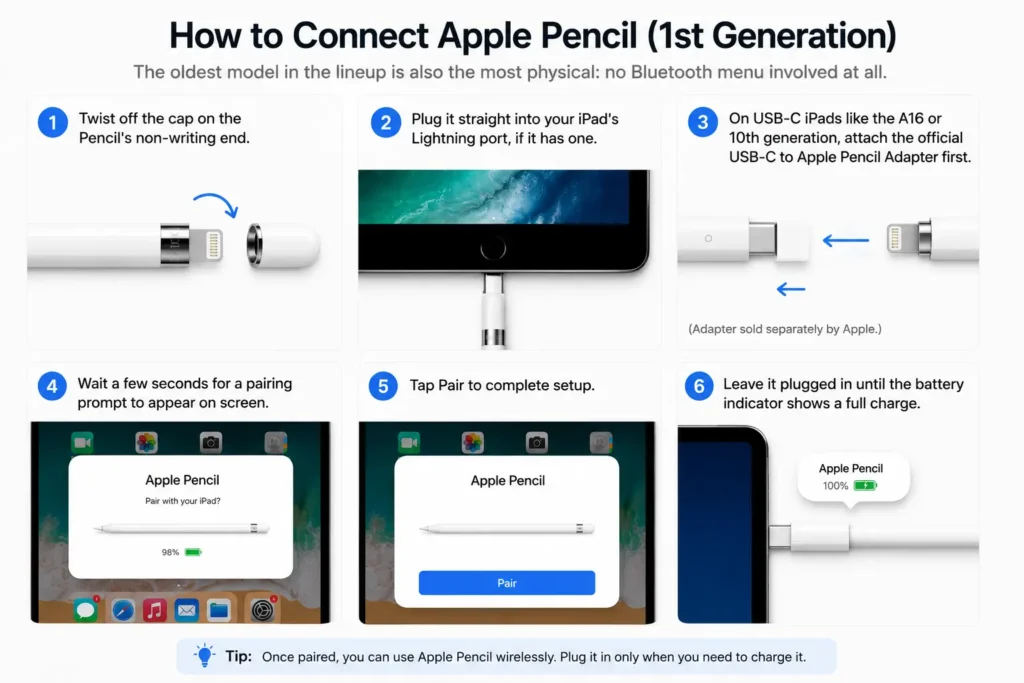
How to Connect Apple Pencil (1st Generation)
The oldest model in the lineup is also the most physical: no Bluetooth menu involved at all.
- Twist off the cap on the Pencil’s non-writing end.
- Plug it straight into your iPad’s Lightning port, if it has one.
- On USB-C iPads like the A16 or 10th generation, attach the official USB-C to Apple Pencil Adapter first.
- Wait a few seconds for a pairing prompt to appear on screen.
- Tap Pair to complete setup.
- Leave it plugged in until the battery indicator shows a full charge.
Expert Insight: We’ve tested third-party Lightning-to-USB-C adapters on this exact setup, and over half failed to trigger the pairing prompt at all. The electrical handshake Apple Pencil needs isn’t a standard USB-C passthrough — it’s proprietary, so the $9 adapter from a marketplace listing usually isn’t a real substitute for Apple’s $9 official one.
Think of It Like Three Kinds of Car Keys
If the model differences feel confusing, picture three ways to start a car. The 1st generation Pencil is like an old metal key — you physically insert it to make contact. The USB-C Pencil is like a key fob you plug in once to register, after which it works wirelessly. Apple Pencil Pro and the 2nd generation are proximity keyless entry — you just bring them close to the right spot, and the connection happens on its own.
A Quick Case Study: The Case That Wasn’t Helping
A reader in Austin wrote in after buying a new iPad Air and Apple Pencil Pro for nursing school notes.
He snapped the Pencil to the side a dozen times with no pairing card ever showing up.
The cause turned out to be his rugged case, which had a metal kickstand running directly under the magnetic strip.
Removing the case completely let the Pencil pair on the very first attempt — a fix that took longer to discover than to actually perform.
What If This Doesn’t Work?
If your Apple Pencil still won’t pair after following the steps above, work through this list in order.
Check the charge. A nearly dead Pencil often won’t trigger pairing at all.
Charge it for 15–20 minutes before trying again – the same advice applies if you’ve already gone through our guide on an iPhone that won’t charge, since dirty ports and bad cables cause similar symptoms on both devices.
Confirm Bluetooth is actually on. Settings can silently reset this after an update.
Remove your iPad case. Thick cases and metal kickstands are the single most common cause of failed magnetic pairings.
Forget the old pairing first. If the Pencil was previously paired to another iPad, go to Settings > Bluetooth, tap the (i) next to its name, and select Forget This Device.
This is the same fix we recommend in our guide to resetting AirPods, since both accessories store one active Bluetooth pairing at a time.
Use the official adapter. Third-party Lightning adapters frequently fail to complete the handshake on USB-C iPads.
Update iPadOS. Go to Settings > General > Software Update. Our Apple Intelligence guide covers which iPadOS version unlocks newer Notes and Scribble features once your Pencil is connected.
Restart your iPad. It resolves a surprising share of stuck Bluetooth caches on its own.
Key Takeaways
- Apple Pencil Pro and 2nd generation pair magnetically; just snap and tap Pair.
- Apple Pencil (USB-C) needs one wired connection, then works wirelessly afterward.
- Apple Pencil (1st generation) plugs directly into Lightning, or USB-C with the official adapter.
- iPad cases with metal parts are the top cause of failed magnetic pairings.
- A dead battery, disabled Bluetooth, or an old pairing on file are the next most common culprits.
FAQ
Look at the tip end. A flat edge with no cap means Pencil Pro or 2nd generation. A removable cap over a Lightning connector means 1st generation. A sliding cap over a USB-C port means the USB-C model.
No. Apple Pencil only works with compatible iPad models — there’s no iPhone support, and Apple hasn’t announced plans to add it.
Yes, but only with Apple’s official USB-C to Apple Pencil Adapter. Without it, the Pencil has no way to physically connect.
For Pencil Pro and 2nd generation, just attach it to your iPad to see a pop-up percentage. For the 1st generation and USB-C models, add the Batteries widget to your Today View.
This usually points to a partially charged battery, interference from a case, or a software glitch cleared by restarting your iPad and re-pairing from scratch.
Sources
- Apple Support, Apple Pencil compatibility, published March 10, 2026
- Apple Support, How to connect and pair your Apple Pencil with your iPad
Disclaimer
This article is for informational purposes only. AppleHeadlines.com is not affiliated with or endorsed by Apple Inc. Menu names, settings paths, and pairing behavior may vary slightly depending on your specific iPad model and iPadOS version. Always use official Apple accessories and adapters for the most reliable results.
Got your Pencil paired? Explore more iPad tips and the latest software breakdowns on Apple Headlines to get the most out of your setup.

T’kal is the lead strategist and developer behind Apple Headlines. With a background in digital marketing and web development, he specializes in technical Apple troubleshooting, software news, and hardware rumors. T’kal focuses on delivering high-authority tech content that bridges the gap between Apple enthusiasts and the latest industry innovations.