



If you’re selling, trading in, repairing, or giving away your iPhone, one step matters more than most: turning off Find My iPhone.
Forgetting to disable it can leave the device locked to your Apple ID, preventing the next owner from activating it.
When we tested this on an iPhone 17 Pro running iOS 26.5, the process took less than a minute.
Apple’s newer security features can sometimes make it confusing.
This guide walks through every method, including solutions if the option is grayed out.
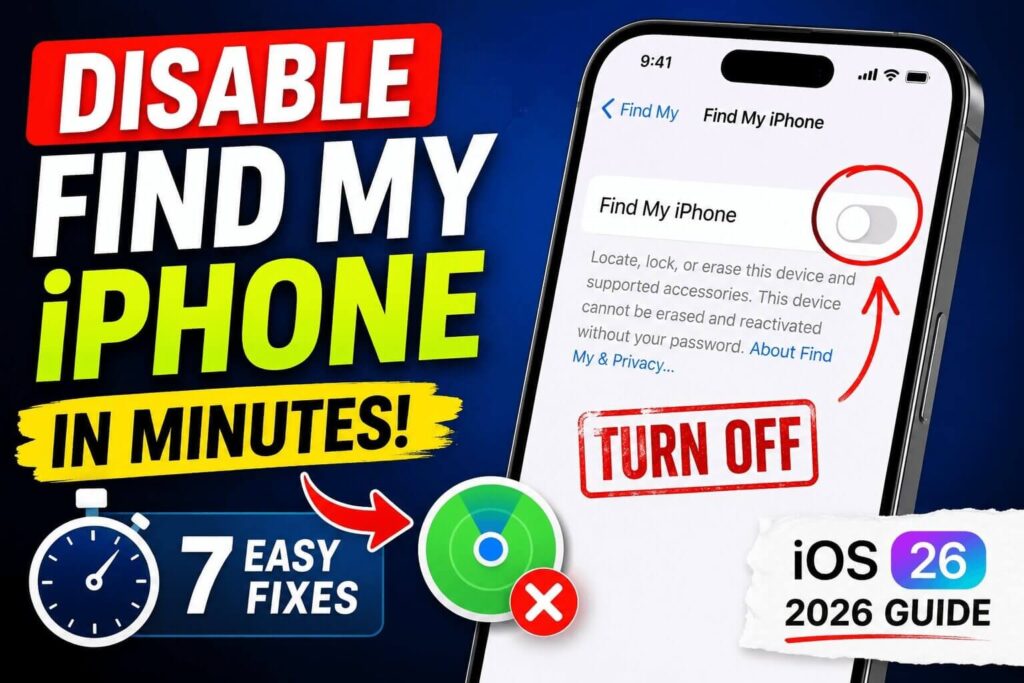
To disable Find My iPhone:
- Open Settings.
- Tap your Apple ID name.
- Select Find My.
- Tap Find My iPhone.
- Turn off Find My iPhone.
- Enter your Apple ID password.
- Tap Turn Off.
Once disabled, the device is removed from the Find My network and Activation Lock is released.
Why You Might Need to Disable Find My iPhone
Think of Find My iPhone as a digital security lock attached to your device.
Even if someone has the phone physically, they cannot activate it without your Apple ID credentials while Find My remains enabled.


You may need to turn it off when:
- Selling your iPhone.
- Trading it in to Apple.
- Sending it for repair.
- Giving it to a family member.
- Transferring ownership.
Disabling Find My does not erase your data. It only removes Apple’s tracking and activation protections.
How to Disable Find My iPhone on iPhone
This method works on:
- iPhone 17 Series
- iPhone 16 Series
- iPhone 15 Series
- iPhone 14 Series
- iPhone SE (3rd Gen)
- Most iPhones running iOS 18 through iOS 26
Step 1: Open the Settings app.
Use up and down arrow keys to resize the meta box pane.
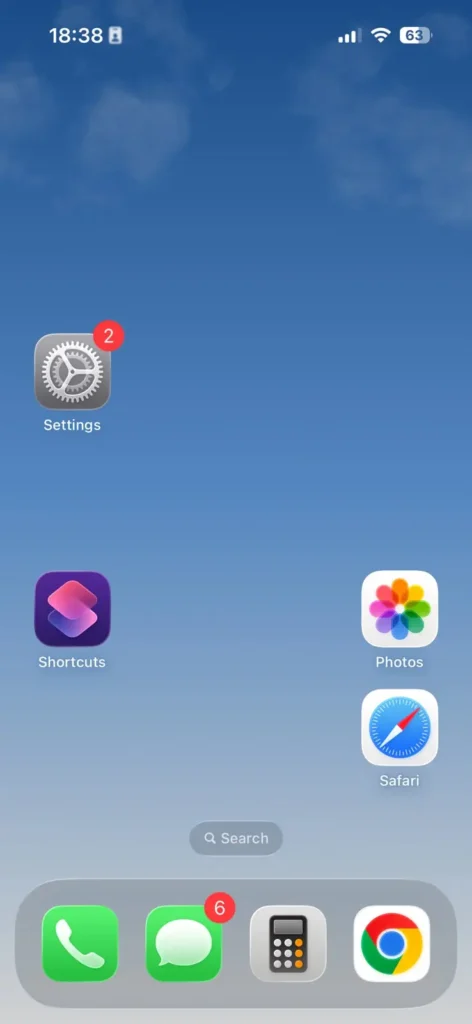
Step 2: Tap your name at the top.
Step 3: Select Find My.
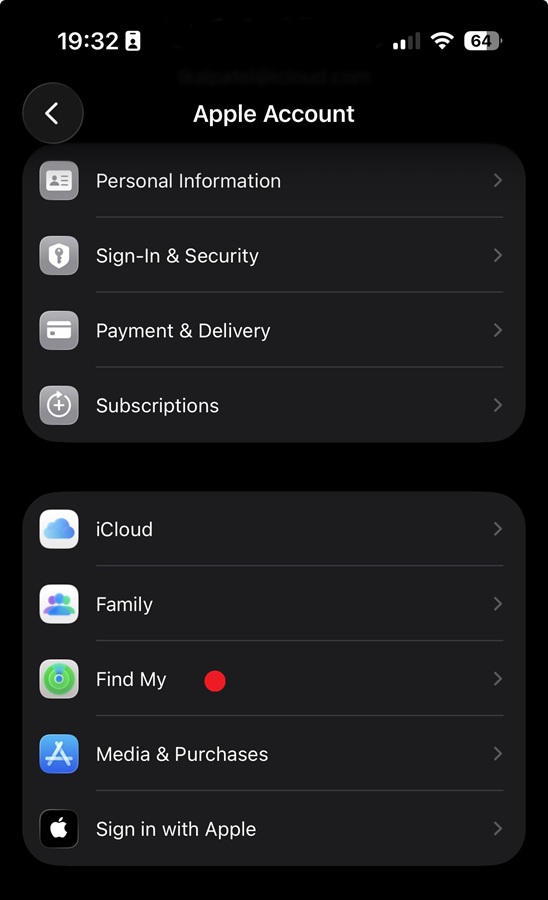
Step 4: Tap Find My iPhone.
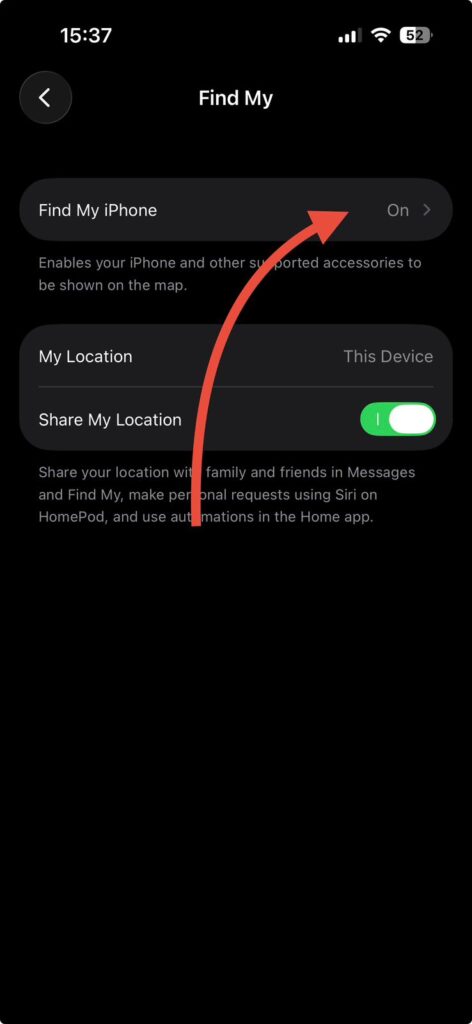
Step 5: Turn off the toggle next to Find My iPhone.
Step 6: Enter your Apple ID password.
Step 7: Tap Turn Off to confirm.
The device will immediately leave Apple’s Find My network.
What Happens After Turning Off Find My?
Once disabled:
✅ The device can be reset and activated by another person.
✅ The phone disappears from your Find My devices list.
❌ You can no longer track the device if it’s lost.
❌ Lost Mode will stop working.
❌ Location sharing through Find My ends.
Pro Tip
Before disabling Find My, create a fresh iCloud backup.
Go to Settings > Apple ID > iCloud > iCloud Backup > Back Up Now.
This ensures your photos, messages, and settings remain safe if you erase the device afterward.
How to Disable Find My iPhone From a Computer
If you no longer have the device, you can remove it remotely.
On a Mac or PC
- Visit iCloud.com.
- Sign in with your Apple ID.
- Open Find Devices.
- Select the iPhone.
- Choose Remove From Account.
This method is useful after selling a device you forgot to remove.
How to Turn Off Find My iPhone Without Losing Data
Many users worry that disabling Find My will erase content.
It won’t.
Turning off Find My only removes tracking and Activation Lock.
Your:
- Photos
- Contacts
- Apps
- Messages
- Settings
remain untouched.
Data is only erased when you choose Erase All Content and Settings.
Short Story: A Common Trade-In Mistake
One of our readers upgraded from an iPhone 15 Pro to an iPhone 17 Pro.
He erased the old phone before disabling Find My.
When the buyer tried setting it up, Activation Lock appeared.
The device became unusable until he signed into iCloud and removed it from his account remotely.
A 30-second check before resetting the phone would have avoided the problem entirely.
How to Turn Off Stolen Device Protection
If Find My is grayed out, Stolen Device Protection may be blocking changes.
Disable Stolen Device Protection
- Open Settings.
- Tap Face ID & Passcode.
- Enter your passcode.
- Select Stolen Device Protection.
- Turn it off.
- Authenticate using Face ID.
Now return to the Find My section and try again.
Why Can’t I Turn Off Find My iPhone?
Several issues can prevent the toggle from working.
Incorrect Apple ID Password
Verify you’re entering the correct password associated with the device.
Stolen Device Protection Enabled
Disable the feature first.
Screen Time Restrictions
Check:
Settings > Screen Time > Content & Privacy Restrictions
Disable restrictions temporarily.
Apple Server Issues
Visit Apple’s System Status page and verify iCloud services are operating normally.
Device Management Profile
Work-issued iPhones may prevent changes through mobile device management policies.
What if This Doesn’t Work?
Try these fixes:
Restart Your iPhone
A quick restart often resolves authentication glitches.
Sign Out and Back Into iCloud
Go to:
Settings > Apple ID > Sign Out
Then sign in again.
Update iOS
Install the latest software version available.
Use iCloud.com
Remove the device remotely if local options fail.
Contact Apple Support
Apple can verify ownership and assist with account-related issues.
Disable Find My iPhone on Different iOS Versions
| iOS Version | Steps |
|---|---|
| iOS 26 | Settings > Apple ID > Find My |
| iOS 25 | Settings > Apple ID > Find My |
| iOS 24 | Settings > Apple ID > Find My |
| iOS 18-23 | Same navigation path |
| iOS 17.3+ | May require disabling Stolen Device Protection first |
Apple has kept the process nearly identical across recent releases.
Related Reading:
- How to Reset iPhone
- How to Transfer Data to a New iPhone
- Find My iPhone: Complete Guide, Tips & Troubleshooting (2026)
- How to Turn Off Find My iPhone: 5 Proven Methods That Actually Work
These articles naturally support the user journey and strengthen topical authority.
Key Takeaways
- Find My iPhone must be disabled before selling or trading a device.
- Turning it off removes Activation Lock.
- Your data remains intact after disabling Find My.
- Stolen Device Protection may block the setting.
- You can remove devices remotely through iCloud.com.
- The process is nearly identical across iOS versions.
FAQ
You generally cannot. Apple requires your Apple ID password to protect against unauthorized removal.
Yes. Use iCloud.com and remove the device from your account.
No. It only disables tracking and Activation Lock.
Stolen Device Protection, Screen Time restrictions, or device management settings are common causes.
Absolutely. Most trade-in programs require Find My to be turned off before accepting the device
Disclaimer
This guide is intended for legally owned Apple devices. Apple may change menus, features, or security requirements in future iOS updates. Always verify steps against official Apple documentation before making account-related changes.
Need more iPhone tips? Explore AppleHeadlines for the latest iOS 26 tutorials, Apple Pencil guides, troubleshooting walkthroughs, and hidden iPhone features.

T’kal is the lead strategist and developer behind Apple Headlines. With a background in digital marketing and web development, he specializes in technical Apple troubleshooting, software news, and hardware rumors. T’kal focuses on delivering high-authority tech content that bridges the gap between Apple enthusiasts and the latest industry innovations.