

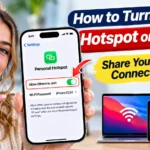

How to Turn On Hotspot on iPhone
How to Turn On Hotspot on iPhone
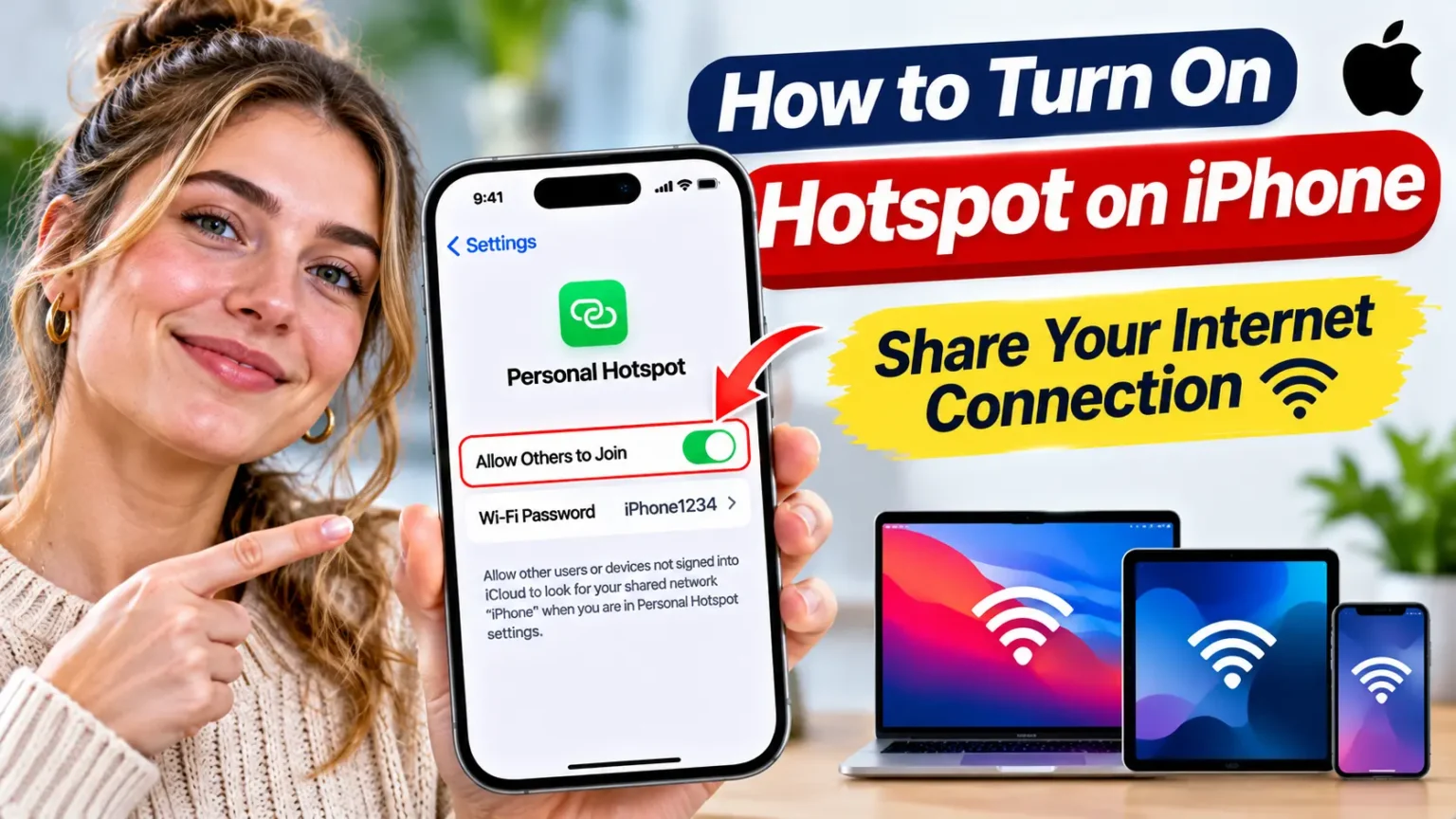
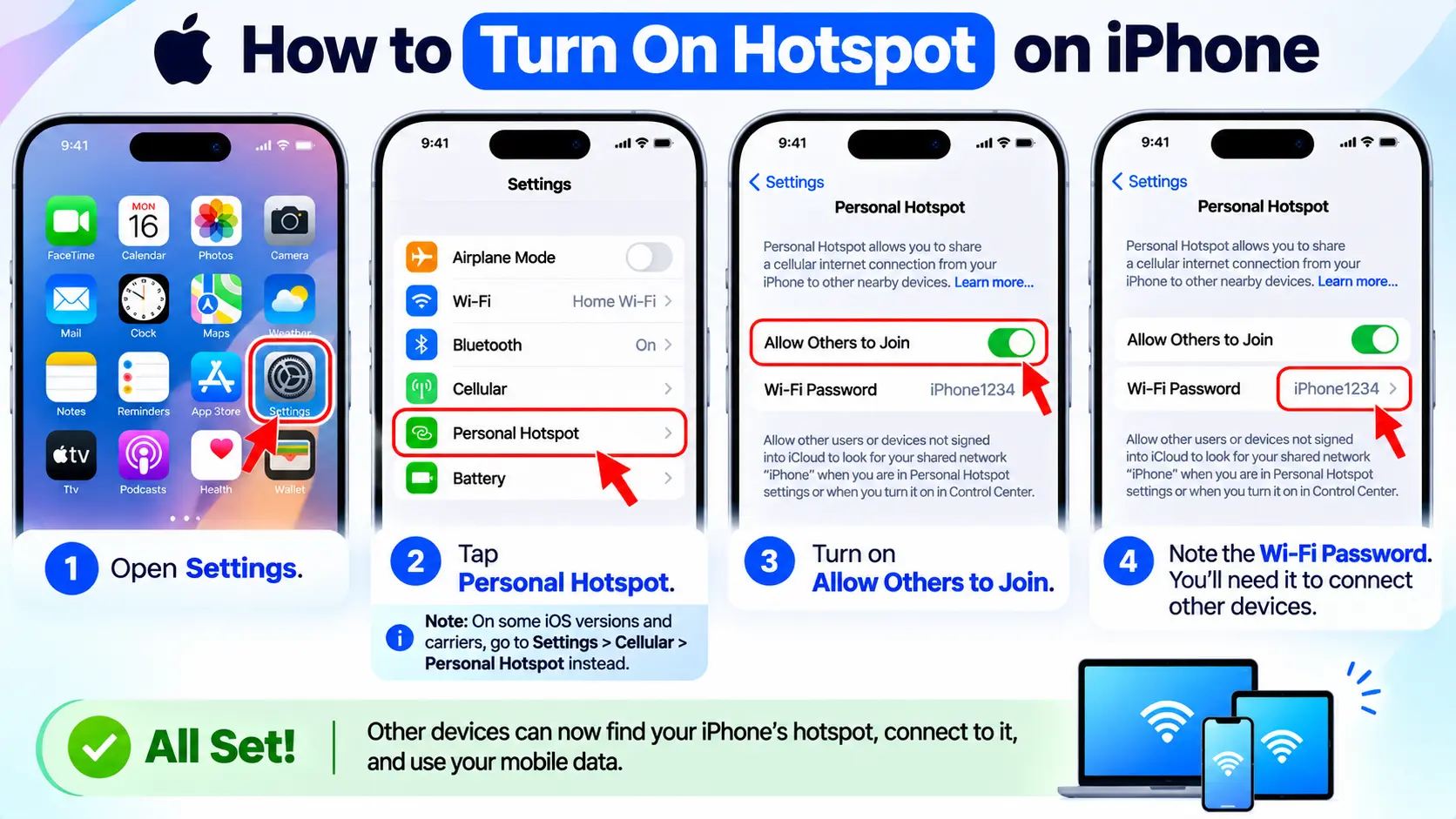
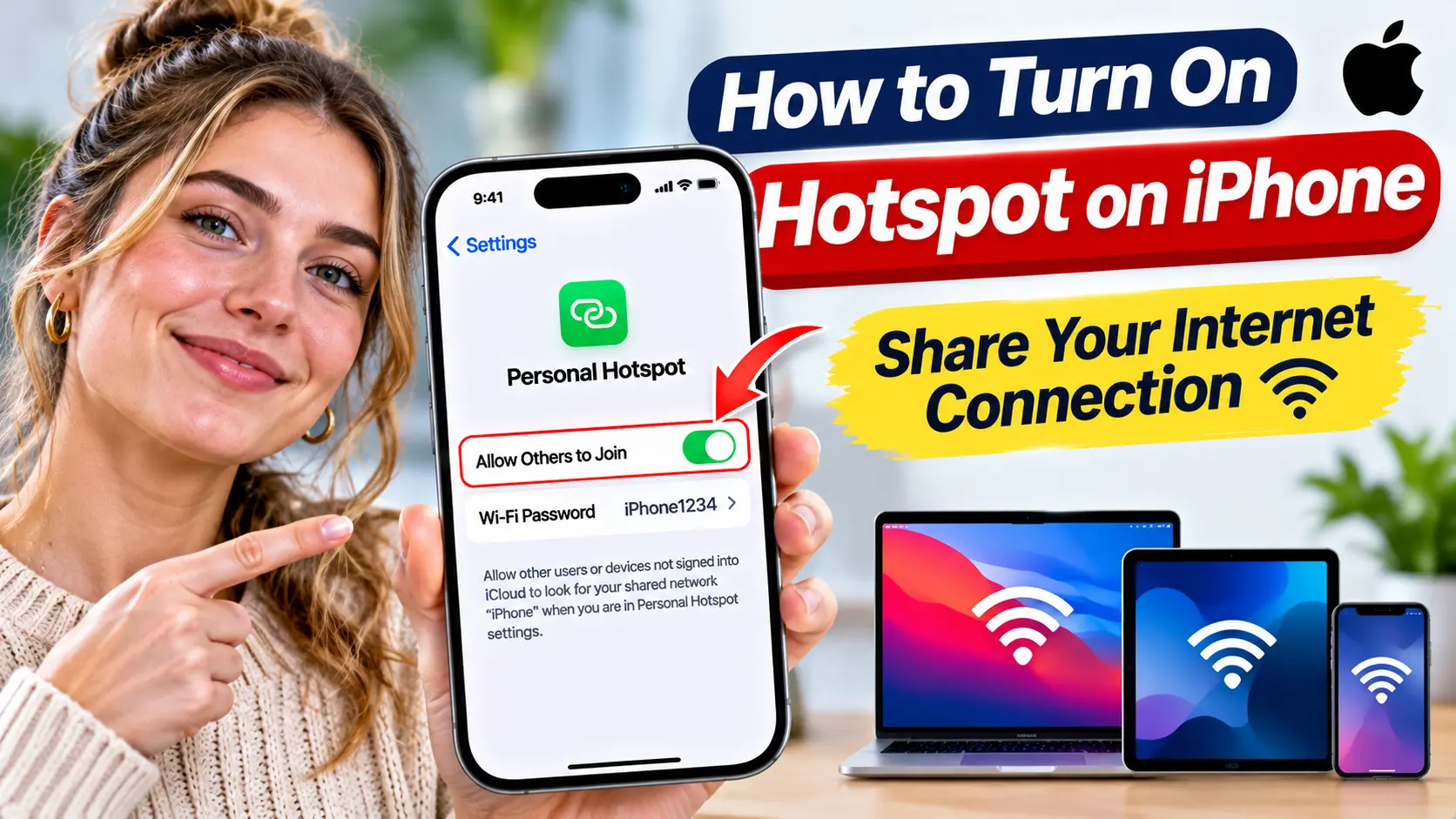
Follow these four simple steps to share your iPhone’s internet connection.
Open Settings
Unlock your iPhone and tap the Settings app on your Home Screen.
Tap Personal Hotspot
Find and open Personal Hotspot.
Turn On Allow Others to Join
Switch on Allow Others to Join to let nearby devices connect to your iPhone’s hotspot.
Note Your Wi-Fi Password
Check the Wi-Fi Password displayed on the same screen. You’ll need it when connecting another device.
Connect your Mac, iPad, laptop, or another device using your iPhone’s Wi-Fi password.
After you turn this on, a blue status bar appears at the top of your screen, and the Personal Hotspot icon appears in your Control Center.
Your iPhone is now broadcasting a Wi-Fi network named after your device.
What to expect
Other devices should show your iPhone’s name in their Wi-Fi list within a few seconds.
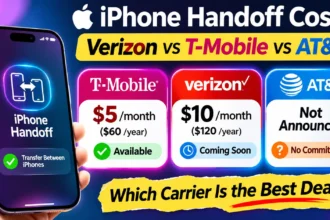
If you don’t see Personal Hotspot in Settings at all, your carrier may not support it on your plan.
Contact your carrier to check.
About Allow Others to Join
This switch controls whether other devices can connect.
Keep it on while you’re sharing.
Turning it off disconnects any devices currently using your hotspot.
How to Turn On Hotspot From iPhone Control Center
Control Center gives you a quick shortcut to Personal Hotspot once it’s set up.
Step 1: Swipe down from the top-right corner of the screen. On iPhones with a Home button, swipe up from the bottom.
Step 2: Press and hold the group of connectivity buttons in the top-left box (Airplane Mode, cellular, Wi-Fi, and Bluetooth). This expands the group.
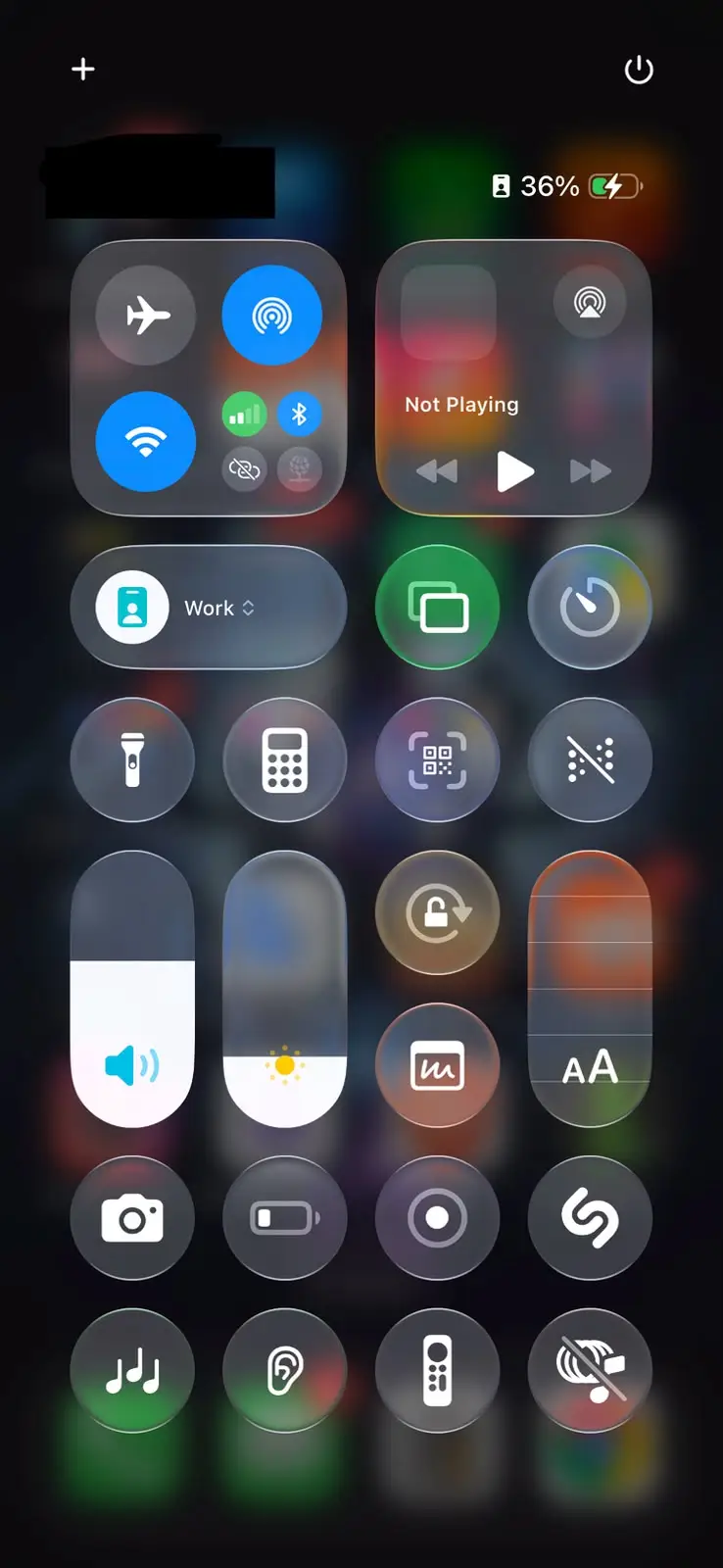
Step 3: Tap the Personal Hotspot button (the icon that looks like two overlapping circles).
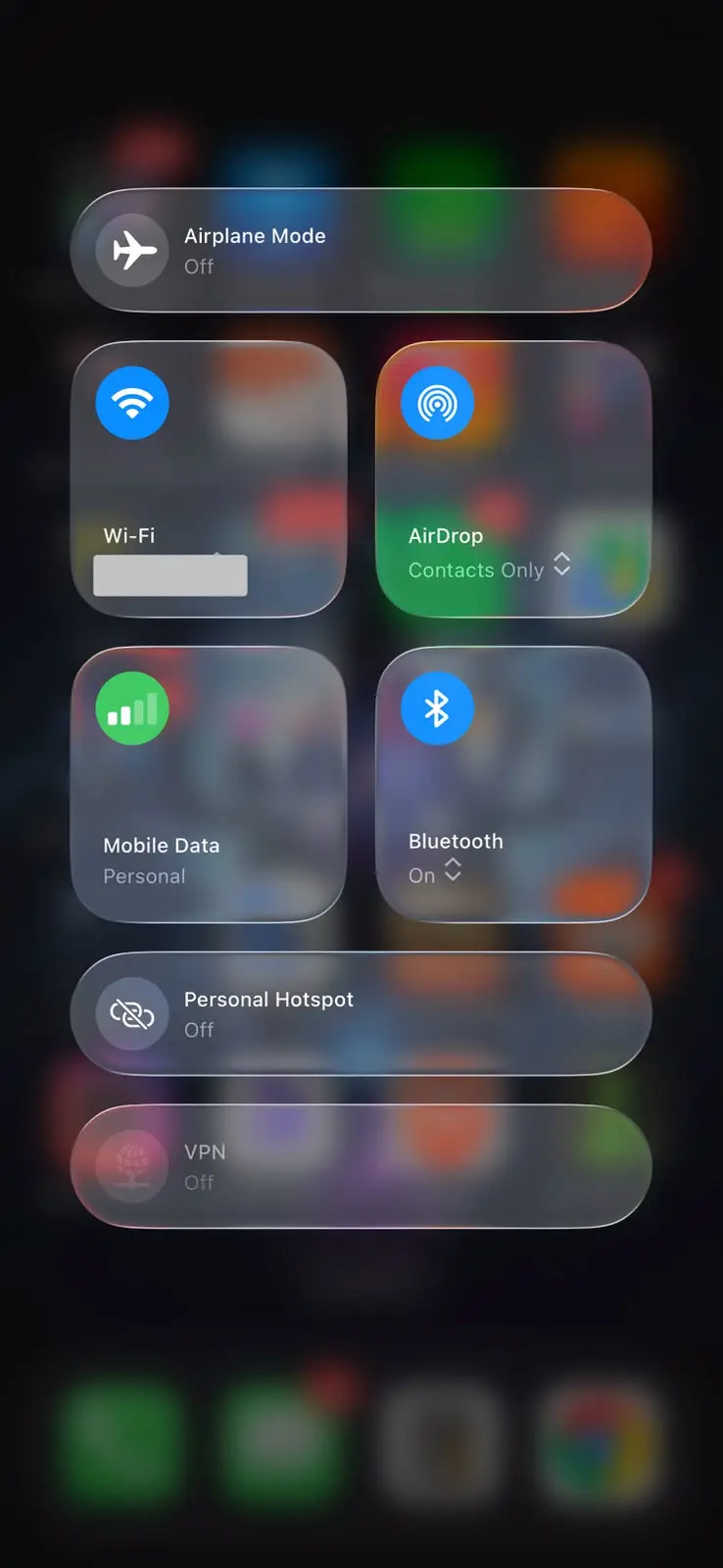
What you can do from Control Center: turn Personal Hotspot on or off.
What you can’t do from Control Center: change the Wi-Fi password, turn on Maximize Compatibility, or see the password. Use the Settings app for those.
How to Find or Change Your iPhone Hotspot Password
Find the password
Open Settings > Personal Hotspot. The password appears next to Wi-Fi Password. Your iPhone generates one by default.
Change the password
- Open Settings > Personal Hotspot.
- Tap Wi-Fi Password.
- Enter a new password and save it.
Changing the password disconnects devices that are already connected. You will need to re-enter the new password on each one.
Password requirements
- Use at least eight characters.
- Use standard English letters, numbers, and common symbols. Apple advises against non-ASCII characters, such as accented letters or emoji, because some devices may fail to connect.
How to Connect Another Device to Your iPhone Hotspot
Any device can join your hotspot with the Wi-Fi password, but Apple devices signed in to the same Apple Account can also use Instant Hotspot, which is covered later in this guide.
Connect a Windows PC
- Make sure Personal Hotspot is on and Allow Others to Join is enabled on your iPhone.
- On the PC, select the network icon in the taskbar.
- Select your iPhone’s name from the list of Wi-Fi networks, then select Connect.
- Enter the Wi-Fi password from your iPhone and confirm.
Once connected, the PC shows the network as connected. Internet use will count toward your iPhone’s cellular data.
Connect a Mac
- Make sure Personal Hotspot is on and Allow Others to Join is enabled.
- Click the Wi-Fi icon in the menu bar.
- Choose your iPhone’s name from the list.
- Enter the Wi-Fi password and click Join.
If your Mac is signed in with the same Apple Account as your iPhone, your Mac may connect without asking for a password. See the Instant Hotspot section for requirements.
Connect an Android Phone
- Make sure Personal Hotspot is on and Allow Others to Join is enabled.
- On the Android phone, open Settings and go to Network & internet or Connections, depending on your phone’s maker. Then open Wi-Fi.
- Tap your iPhone’s name in the list.
- Enter the Wi-Fi password and tap Connect.
Menu names vary by Android manufacturer and version. If you can’t find Wi-Fi settings, search for “Wi-Fi” in the Settings app.
What Is Instant Hotspot on iPhone?
Instant Hotspot lets an Apple device connect to your iPhone’s hotspot without you entering the Wi-Fi password.
Personal Hotspot is the feature that shares the connection.
Instant Hotspot is the shortcut that skips the password step.
Apple Account requirements
Your iPhone and the other Apple device must be signed in to the same Apple Account. Family Sharing members may also be able to use it, according to Apple’s guidance.
Wi-Fi and Bluetooth requirements
- Turn on Wi-Fi and Bluetooth on both devices.
- Keep the devices reasonably close to each other.
- Your iPhone must have a cellular plan that includes Personal Hotspot.
How Instant Hotspot differs from regular Personal Hotspot
Regular Personal Hotspot works with any device, using the Wi-Fi password.
Instant Hotspot works only with Apple devices and needs no password, but it requires the Apple Account and Bluetooth setup described above.
If a device doesn’t appear in the Instant Hotspot list, you can still connect with the Wi-Fi password.
iPhone Hotspot Not Showing or Not Working? Try These Fixes
Work through these steps in order. The first few are the most common causes.
1. Turn on Cellular Data
Go to Settings > Cellular and make sure Cellular Data is on. Personal Hotspot can’t share an internet connection you don’t have.
2. Check your carrier and plan
If Personal Hotspot is missing or greyed out, your carrier may not include it on your plan. Contact your carrier to confirm.
Plan names and features vary by country and provider.
3. Restart both devices
Turn off your iPhone and turn it back on. Then restart the device that won’t connect.
This clears temporary connection problems.
4. Turn on Maximize Compatibility
Go to Settings > Personal Hotspot and turn on Maximize Compatibility.
This tells your iPhone to use the 2.4 GHz band instead of 5 GHz.
Some older devices can connect only on 2.4 GHz, so this setting helps them join.
Apple notes that turning on Maximize Compatibility can reduce internet performance and Wi-Fi security for connected devices.
5. Update iOS
Go to Settings > General > Software Update and install any available update. Hotspot problems are sometimes fixed in software updates.
6. Reset Network Settings (last resort)
Go to Settings > General > Transfer or Reset iPhone > Reset > Reset Network Settings. – How to Reset Network Setting iPhone
Warning: This removes saved Wi-Fi networks and passwords, cellular settings, and VPN and network configurations.
You will need to reconnect to every Wi-Fi network afterward. Try the other steps first.
Does Using an iPhone Hotspot Consume Mobile Data?
Yes. Any internet traffic from connected devices uses your iPhone’s cellular data.
A video stream on a laptop uses the same data allowance as a video stream on your iPhone.
Practical examples
- Email and web browsing: Use relatively little data.
- Music streaming: Uses more data than browsing, depending on quality settings.
- Video streaming and large downloads: Can use a large share of a monthly plan quickly.
- Software updates on a laptop: Can be very large. Connect to Wi-Fi when possible.
Carrier limits
Some plans limit hotspot use, cap speeds after a certain amount of data, or charge extra for hotspot data. Check your carrier’s plan details. Carrier rules vary, so this guide can’t describe every plan.
Check how much data you’ve used
Go to Settings > Cellular and review the usage figures. You can use Low Data Mode to reduce background data use.
How to Turn Off Hotspot on iPhone
- Open Settings > Personal Hotspot.
- Turn off Allow Others to Join.
You can also turn off Personal Hotspot from Control Center, using the same steps in the Control Center section above. Connected devices will lose their connection when you turn it off.
Frequently Asked Questions
Why don’t I see Personal Hotspot in Settings?
The option may be hidden if your carrier doesn’t include hotspot service on your plan, or if your iPhone model or carrier settings don’t support it. Check with your carrier before troubleshooting further.
Can I use my iPhone hotspot without cellular data?
Personal Hotspot shares your cellular connection, so you need an active cellular plan with data. Wi-Fi-only iPhone models don’t support Personal Hotspot.
Why won’t my Android phone connect to my iPhone hotspot?
Make sure Allow Others to Join is on and you are entering the correct password. If it still fails, turn on Maximize Compatibility and restart both devices.
Recenlty Published Posts:
Sources used for verification
- Apple Support, “Connect to the Personal Hotspot of an iPhone or iPad”
- Apple Support, “How to set up a Personal Hotspot“:
- Apple Support, “If Personal Hotspot is not working on your iPhone or iPad (Wi-Fi + Cellular)”:
- Apple Support, “Use Instant Hotspot to connect to your Personal Hotspot”:
- Apple iPhone User Guide (Personal Hotspot section, iOS 13 edition):

T’kal is the lead strategist and developer behind Apple Headlines. With a background in digital marketing and web development, he specializes in technical Apple troubleshooting, software news, and hardware rumors. T’kal focuses on delivering high-authority tech content that bridges the gap between Apple enthusiasts and the latest industry innovations.