






Close All Safari Tabs at Once
Open Safari and tap the Tabs button. Press and hold Done, then tap Close All [number] Tabs.
This clears every tab in your current Tab Group only. Private tabs and other Tab Groups need their own pass.
You opened one recipe.
Then a shipping tracker, three news stories, and a deep dive on espresso machines.
Now Safari holds 143 tabs, and scrolling through them feels like digging through a junk drawer.
Good news: you don’t need to swipe them away one by one.
One press-and-hold clears the pile.
But there’s a catch most guides skip.
Safari keeps tabs in separate pools, and “Close All” only empties one at a time.
Here’s the fast way, the hidden pools, and how to stop the pile from coming back.



Why Closing All Your Safari Tabs Is Worth Doing
Let’s clear up a popular myth first.
Many people think a mountain of tabs drains the battery and slows the phone.
Tech experts quoted by Reader’s Digest say that isn’t really true on modern iPhones.
Safari parks inactive pages in a “suspended” state, so they barely use power.
So why bother? Three real reasons.
- Focus. A 2023 human-computer interaction study, summed up by Reader’s Digest, linked browser clutter to higher stress. Fewer tabs means less mental noise.
- Privacy. An old tab can hold a bank page, a medical search, or a half-finished checkout. Anyone who grabs your phone can see it.
- Findability. If you can’t find the tab you need, you’ll waste more time than the cleanup takes.
At AppleHeadlines, we treat tab cleanup as a habit, not a rescue mission.
Apple’s own iPhone User Guide documents the same long-press shortcut, so you’re using an official feature, not a hack.
If your phone feels slow for real, tabs are rarely the cause.
Our guide on how to clear the cache on iPhone covers the more likely culprits.
Method 1: Close All Safari Tabs From the Tab View (Apple’s Official Way)
This is the method Apple lists in its iPhone User Guide. It works the same way on iOS 26 and iOS 27. Here is what you’ll see on a current iPhone, such as the iPhone 18 Pro or iPhone 17 Pro.
- Open Safari on your iPhone.
- Tap the Tabs button. It looks like two overlapping squares.
- Find the Done button in the lower-right corner.
- Press and hold Done until a small menu pops up.
- Tap Close All [number] Tabs. The number shows how many tabs will close.
- Confirm if Safari asks you to.
Safari then opens a fresh, blank tab. That’s it. Your history stays put.
Can’t find the Tabs button? Newer Safari layouts can tuck it away. Tap the three-dot menu next to the address bar and choose All Tabs. Then follow steps 3 to 6.
Method 2: The Fastest Shortcut (Long-Press the Tabs Button)
This one skips a screen. It’s the trick How-To Geek and Computer Hope both point to as the quickest route.
- Open Safari on any page.
- Press and hold the Tabs button in the lower-right corner.
- Tap Close All [number] Tabs in the pop-up menu.
- Tap Close All [number] Tabs again to confirm.
Two taps and a pause. If you only remember one method, make it this one.

A Simple Way to Think About “Close All“
Picture Safari as an office building. Each Tab Group is a separate desk. Private Browsing is a locked room down the hall. Your Mac and iPad are other floors.
“Close All” tidies the desk you’re sitting at. It doesn’t touch the locked room, the other desks, or the other floors. That’s why people close “all” their tabs and still see dozens the next morning. They only cleaned one desk.
Where “Close All” Stops: The Hidden Tab Pools
Here’s the part most top-ranking guides leave out. Use this table to find the leftovers.
| Tab Group | Does “Close All” Clear It? | How to Handle It |
|---|---|---|
| Current Tab Group | ✓ Yes | Use Method 1 or 2 |
| Other Tab Groups | ✕ No | Switch groups, then repeat |
| Private Browsing | ✕ No | Switch to Private, then repeat |
| Other Safari profiles | ✕ No | Switch profiles, then repeat |
| Tabs on your Mac or iPad | ✕ No | Close them on that device |
Apple’s guide confirms the key point.
The long-press shortcut closes all tabs in “this Tab Group” at the same time.
Synced Tab Groups also update across your Apple devices.
So clearing a synced group on your iPhone can clear it on your other devices, too.
To switch groups, tap the Tabs button.
Then tap the group name at the bottom of the screen and pick another group.
Pro Tip: Check All Three Spots Before You Call It Done
Run a quick three-spot sweep to find any remaining open Safari tabs:
Start by closing all tabs in your current main Tab Group.
Tap the group name and look for other groups that still have open tabs.
Switch to Private and check whether any tabs are still open there.
Why this matters: This quick check helps you find tabs that remain open outside your current Tab Group.
Private tabs deserve extra attention. Apple notes that on iOS 17 and later, Private Browsing locks when you leave Safari.
You unlock it with Face ID, Touch ID, or your passcode.
But the tabs inside stay open until you close them. Locked does not mean closed.
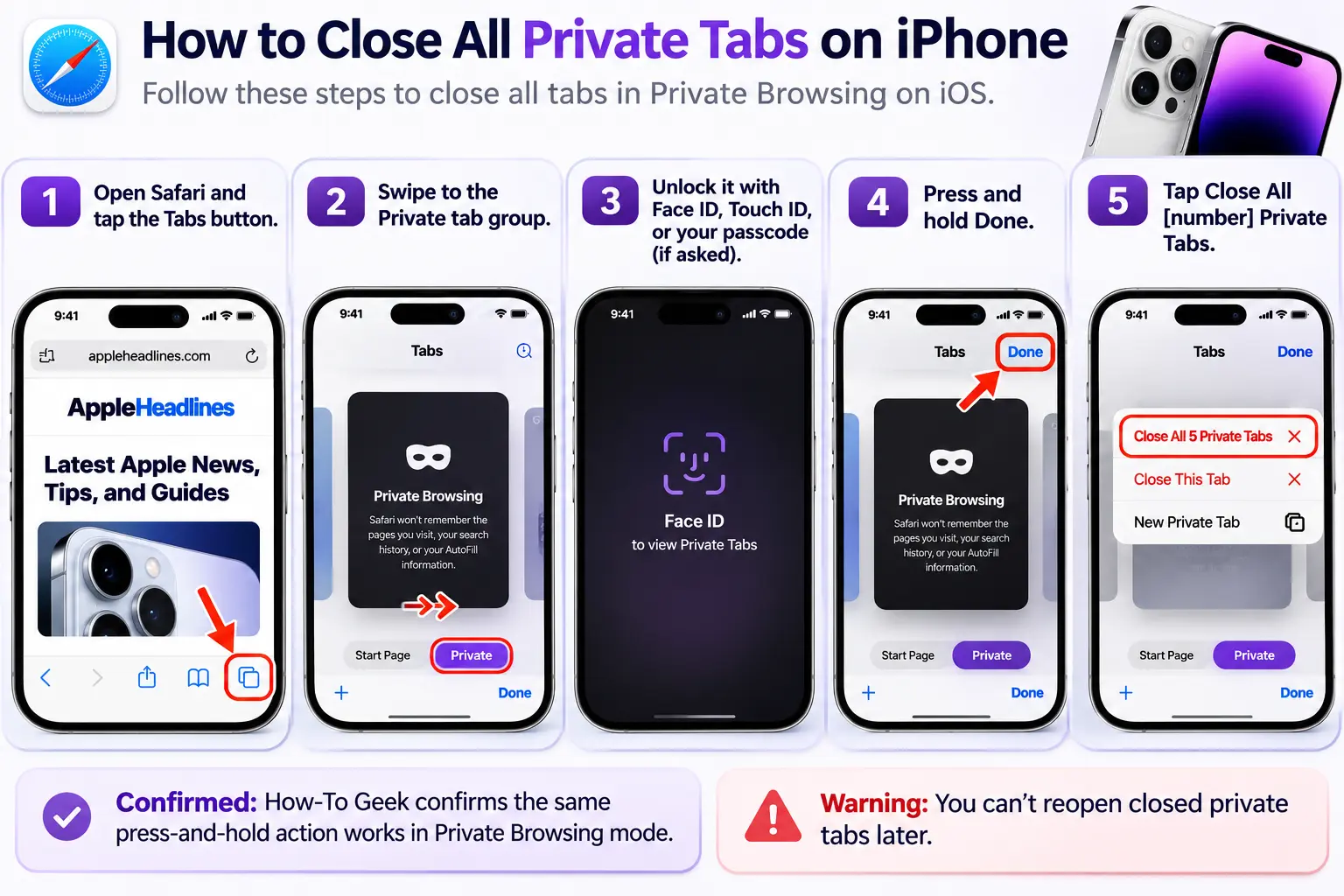
How to Close All Private Tabs on iPhone
Private tabs follow the same steps. They just live in their own space.
- Open Safari and tap the Tabs button.
- Swipe to the Private tab group.
- Unlock it with Face ID, Touch ID, or your passcode if asked.
- Press and hold Done.
- Tap Close All [number] Private Tabs.
How-To Geek confirms the same press-and-hold action works in Private Browsing mode. One warning: you can’t reopen closed private tabs later.
The recently closed list doesn’t work there.
How to Close All Tabs on iPad
The steps match the iPhone. The buttons just sit in different places.
- Open Safari on your iPad.
- Tap the Tabs button in the upper-right corner.
- Press and hold Done, also in the upper-right corner.
- Tap Close All [number] Tabs.
- Confirm if asked.
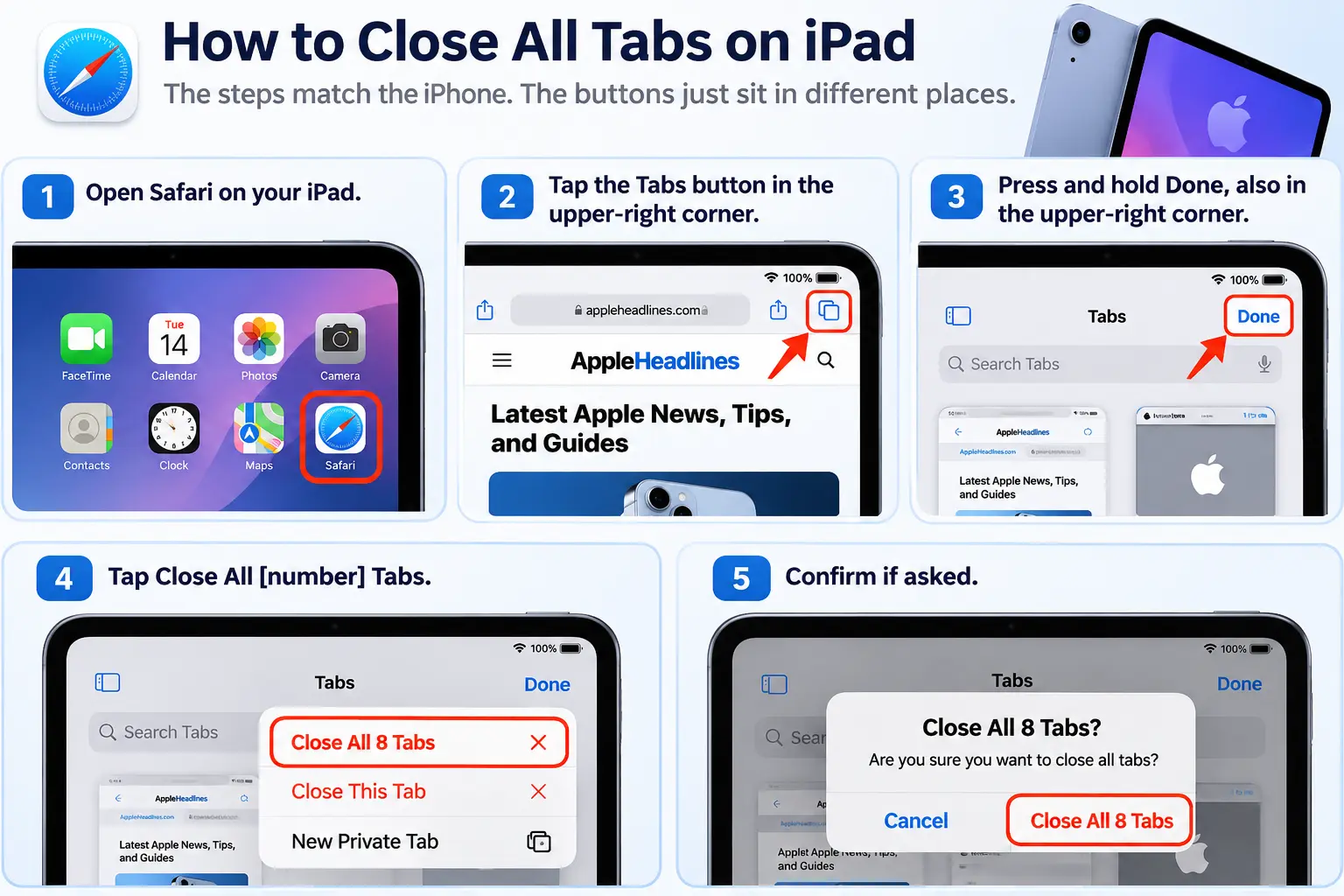
On iPad, you can also press and hold the Tabs button directly.
If you use the tab bar at the top, press and hold any tab.
Then choose Close Other Tabs to keep just the one you need.
Stop the Pile From Coming Back: Auto-Close Old Tabs
Closing tabs by hand works. Letting Safari do it for you works better.
- Open the Settings app.
- Tap Apps, then tap Safari.
- Tap Close Tabs.
- Choose After One Day, After One Week, or After One Month.
Safari then closes tabs you haven’t looked at in that time.
The default is Manually, which means tabs stay forever.
If you often forget about old tabs, “After One Week” is a safe middle ground.
Closed the Wrong Tabs? How to Get Them Back
Mistakes happen.
You can reopen recent tabs one at a time, as long as you weren’t in Private Browsing.
- Open Safari and tap the Tabs button.
- Press and hold the + button.
- Pick a page from the Recently Closed Tabs list.
Apple’s guide describes this exact path. Do it soon after the mistake.
The list doesn’t keep everything forever.
Close Tabs and Clear Browser History on iPhone at the Same Time
Closing tabs does not delete your history. Mac Observer says so plainly, and Apple’s docs agree. If you want a full reset, you need one more step.
- Open Settings, tap Apps, then tap Safari.
- Tap Clear History and Website Data.
- Choose a time range, such as All History.
- Confirm.
You can also clear history from inside Safari. Open the Bookmarks menu, tap the History tab, then tap Clear. Engadget notes this screen includes a Close All Tabs switch. Turn it on and you do both jobs in one move.
Be careful with this one. Clearing website data signs you out of sites. And 9to5Mac points out the deletion can sync to your other Apple devices that share the same iCloud Safari data. Do it when you mean it.
What About Closing All Apps on iPhone?
People often mix these two questions up. They’re different.
iPhone has no “Close All Apps” button. You have to swipe each app away one at a time.
- Swipe up from the bottom edge and pause in the middle of the screen.
- Swipe left or right to find an app card.
- Flick the card upward to close it.
Apple’s guide calls this “quit and reopen an app.” You only need it for a frozen app. iOS already manages background apps well. If your phone drains fast, check our guide on iPhone battery draining fast first.
Closing Tabs on Your Mac (the “Close Tabs on This Computer” Question)
If you searched for “close tabs on this computer,” you may mean Safari on a Mac. The idea is similar.
- Open Safari on your Mac.
- Control-click the tab you want to keep.
- Choose Close Other Tabs.
Your iPhone and Mac can show each other’s open tabs through iCloud. Scroll to the bottom of the tab view on your iPhone to see them. Just remember that each device has its own tabs to clean up. If you ever need to shut down a stuck Mac app instead, see how to force quit on Mac.
Case Study: The “Ghost Tabs” That Kept Coming Back
(Illustrative scenario based on a common reader question.)
Dana, a reader from Ohio, wrote in last month. She had cleared “all” her Safari tabs on Sunday night. By Monday morning, Safari showed 41 open tabs again.
Her phone wasn’t broken. She had cleaned the main Tab Group only. A “Shopping” group held 28 tabs. A Private session held 13 more from a gift search. Both were untouched.
Dana ran the three-spot sweep. She closed each group, then switched to Private and closed those tabs. She also turned on auto-close after one week. Her tab count has stayed in single digits since.
The lesson: when tabs “come back,” they usually never left. They were sitting in another pool.
What If This Doesn’t Work?
Most problems come down to a few simple causes. Try these in order.
You don’t see “Close All.” The menu needs a long press, not a tap. Hold Done (or the Tabs button) for a full second. If you only have one tab open, the option may not appear.
The tabs came back after closing. Check for other Tab Groups and Private tabs. Then check whether iCloud syncing is bringing tabs back from another device. Close them there, too.
Safari freezes when you try. Swipe up to open the app switcher. Flick Safari away. Reopen it and try again. If it still hangs, restart your iPhone.
Nothing responds at all. Update iOS. Go to Settings > General > Software Update. Apple regularly patches Safari bugs, and our iOS 27.2 features guide shows what the latest update changed. If touches still lag, read our fix for iOS 27 touchscreen problems.
You closed tabs by accident. Use the + long-press trick above. It only works outside Private Browsing.
Safari still feels slow. Try Clear History and Website Data. As a last resort, see our Reset All Settings guide. Still stuck? Book help through our Apple Genius Bar appointment guide.
What’s Coming Next: Safari Tabs in iOS 27.3
Apple is already working on better tab tools. According to TechRadar, the iOS 27.3 developer beta, announced in early November 2026, adds vertical tabs. For iPhone, though, the feature is listed for the new iPhone Duo, not every model.
The more interesting change is Siri. TechRadar reports that Siri AI can see entire web pages and hidden tabs. Gizmodo’s hands-on demo showed Siri responding to “Close all my Reddit tabs” and sorting Kyoto-trip tabs into a group. That could one day replace the long-press trick.
A few cautions. These tools are in developer beta only. There’s no public release date. Siri’s browser tools need hardware that supports Apple Intelligence. TechRadar also warns against installing developer betas on your everyday device. Until the final release, the long-press method is your best bet. Want to know when Siri AI arrives on your phone? Start with our guide on how to get Siri AI.
Key Takeaways
- Fastest method: Press and hold the Tabs button, then tap Close All [number] Tabs.
- Alternate method: Open Tab view, press and hold Done, then choose Close All.
- “Close All” only clears the current Tab Group. Check other groups and Private tabs separately.
- Closing tabs doesn’t delete your history. Use Clear History and Website Data for that.
- Tabs rarely slow your iPhone. The real wins are focus and privacy.
- Set Settings > Apps > Safari > Close Tabs to auto-clean old tabs.
- You can reopen recent tabs by long-pressing +, but not in Private Browsing.
- iOS 27.3 beta hints at Siri-powered tab cleanup, but it’s not public yet.
Frequently Asked Questions
Does closing all Safari tabs delete my browsing history?
No. Closing tabs and clearing history are two separate actions. Your history stays until you clear it in Settings or from Safari’s History screen.
Can I get my tabs back after closing them all?
Yes, in many cases. Tap the Tabs button, press and hold the + button, and pick from the Recently Closed Tabs list. This doesn’t work for Private Browsing tabs.
Does closing Safari tabs save battery or speed up my iPhone?
Probably not by much. Reader’s Digest reports that modern iPhones suspend background pages, so open tabs use very little power. Tab cleanup helps you stay organized and protects your privacy more than it helps speed.
How do I close all Safari tabs on my iPad?
Open Safari, tap the Tabs button in the upper-right corner, then press and hold Done. Tap Close All [number] Tabs and confirm if asked.
Why do my Safari tabs keep coming back?
They’re usually in another Tab Group, another Safari profile, or a Private session. Synced tabs from another Apple device can also appear. Check each pool and close the tabs there.
Sources
- Apple Support, “Open and close tabs in Safari on iPhone” (iPhone User Guide, iOS 27 version)
- Apple Support, “Turn Private Browsing on or off on your iPhone”
- Apple Support, “Delete your Safari history, cache, and cookies on iPhone”
- How-To Geek, “How to Close All Safari Tabs at Once on iPhone and iPad”
- The Mac Observer, “How to Close All Tabs on iPhone”
- Reader’s Digest, “How to Close All the Tabs on Your iPhone” (updated Oct. 3, 2024)
- Computer Hope, “How to close all browser tabs on an iPhone or iPad” (updated Sept. 7, 2025)
- TechRadar, “Safari finally gets vertical tabs” (Nov. 3, 2026)
- Gizmodo, “Safari Is Finally Getting Power-User Features on Mac, iPad, and iPhone Duo” (Nov. 3, 2026)
- Engadget, “How to clear the cache on your iPhone”
- 9to5Mac, “iPhone & iPad: How to clear cache, history, and cookies”
Disclaimer
This guide is for general information. Menu names and layouts can differ by iOS version, Safari layout, and device model. Features described for iOS 27.3 are in developer beta and may change or never ship. Don’t install beta software on a device you rely on daily. AppleHeadlines.com is an independent publication and is not affiliated with Apple Inc. Always back up your data before making major changes to your device.
Try It Now (Then Tell Us How Many Tabs You Cleared)
Grab your iPhone, press and hold that Tabs button, and watch the clutter vanish. Then run the three-spot sweep so nothing hides in a side group. Want more quick Apple fixes like this one? Browse more iPhone how-to guides on AppleHeadlines and bookmark this page for the next time Safari gets out of hand.
Related Posts:

T’kal is the lead strategist and developer behind Apple Headlines. With a background in digital marketing and web development, he specializes in technical Apple troubleshooting, software news, and hardware rumors. T’kal focuses on delivering high-authority tech content that bridges the gap between Apple enthusiasts and the latest industry innovations.