




By the AppleHeadlines Team · Updated November 12, 2026 · 12 min read
Does iPhone Have Built-In GIFs?
Yes! Your iPhone has GIFs built in. You can search and send animated GIFs directly from the Messages app without downloading another app.
Open Messages and select the conversation where you want to send a GIF.
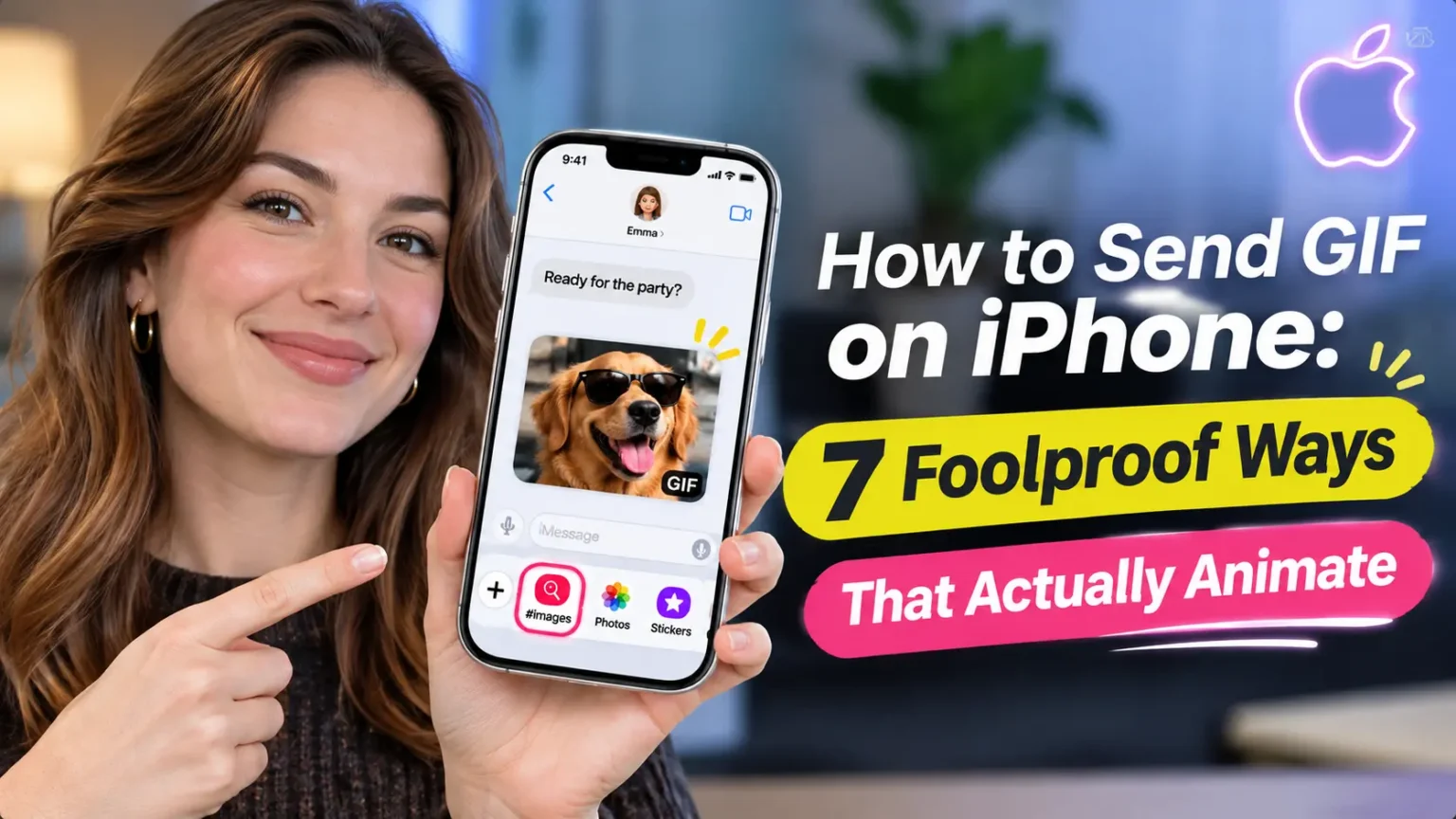
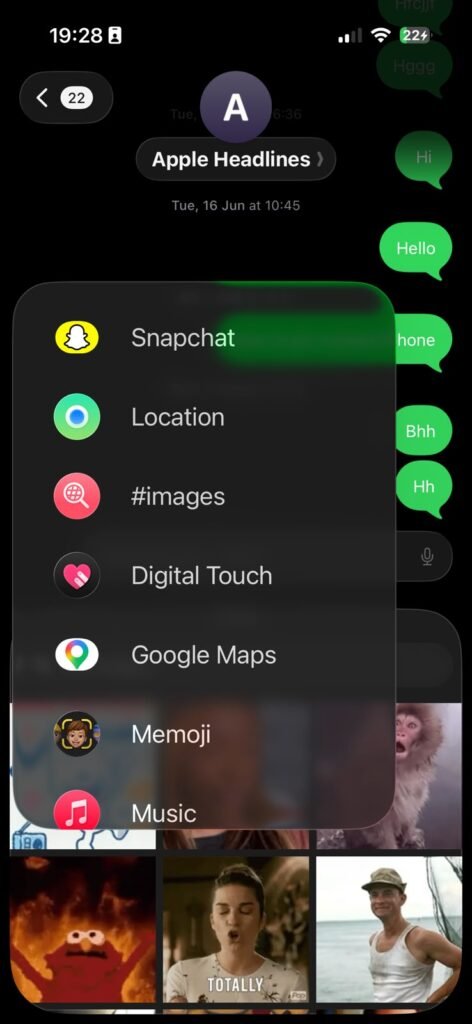
Tap the + button beside the message field and choose #images.
Search for a keyword, select your favorite GIF, and tap Send.
Go to Settings > General > Language & Region and check your region. Apple’s #images feature is available only in supported countries and regions, including the United States.
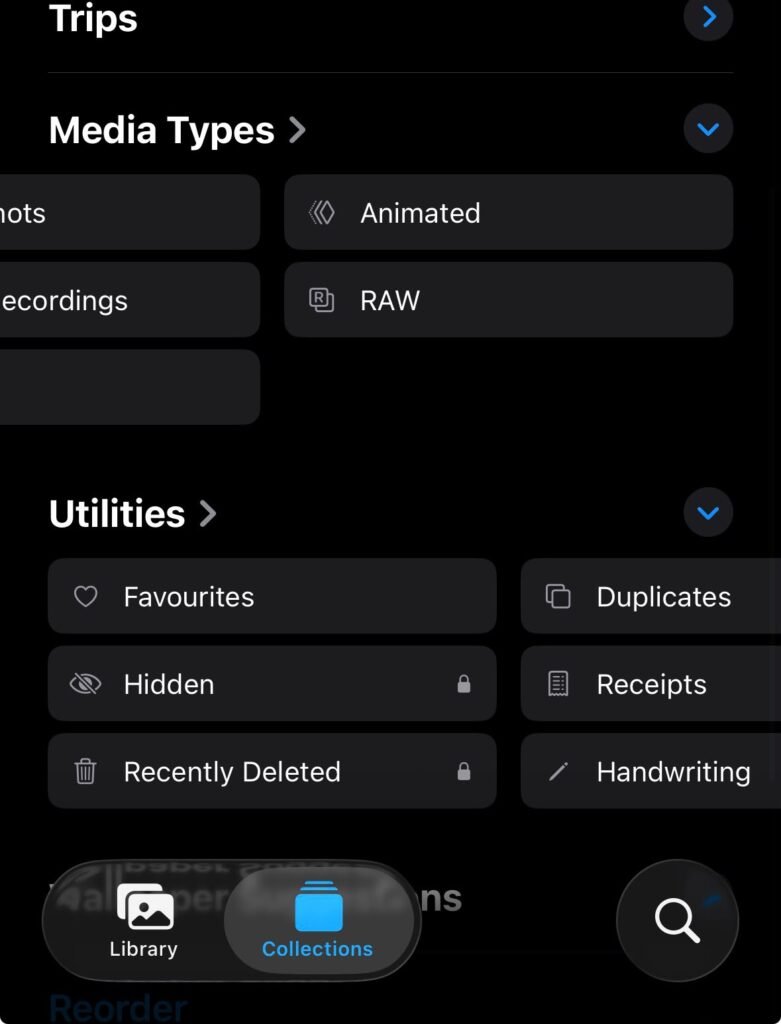
Open Photos > Albums > Animated to find your saved animated GIFs.
You found the perfect reaction GIF.
Now you can’t find the button.
Or the GIF arrives frozen, and the joke dies on the spot.
Learning how to send GIF on iPhone should take ten seconds, not ten minutes.
The good news: your iPhone has GIFs built in, and you have more ways to send them than most people realize.
This guide walks through seven, from the fastest tap path to a trick that turns your own video into an animated sticker.
Does iPhone Have GIFs? Yes, and Here’s How It Works
Short answer: YES.
Apple built a GIF search into Messages years ago.
It is called #images, and it lives inside the + menu next to the text box.
Your Photos app also stores GIFs, and it keeps them in their own Animated album.
Why does this matter?
A GIF carries tone.
A plain “ok” can sound cold. The same “ok” with a thumbs-up GIF sounds friendly.
Most people also want speed, so the fewer taps, the better.
Here is what has changed in 2026.
Apple shipped iOS 27 in September, and the current build is iOS 27.2.1. Messages got a big refresh.
MacRumors counted 13 improvements in its iOS 27 Messages guide, including drawing, smarter photo suggestions, and automatic retries for failed sends.
Neither MacRumors nor iDownloadBlog says #images moved or changed.
So the GIF steps below should feel familiar.
For the full picture, see our iOS 27 features rundown.
How we built this guide:
We cross-checked Apple’s own GIF support page against iOS 27 coverage and Apple’s Live Stickers guides.
We also read forum reports on GIFs that refuse to move.
Then we sorted every method by speed and by how often it works.
The Flipbook Analogy
Think of a GIF as a flipbook.
It is a small stack of still pictures that flip fast and loop forever.
It is not a video.
That is why a GIF sends like a photo.
It also explains the freezing problem.
Your iPhone has a setting that decides whether to flip the pages on its own.
If that setting is off, you see page one and nothing else.
We will fix that in the troubleshooting section.
GIF vs. Live Photo vs. Live Sticker
You can send animated images on iPhone in three flavors, and people mix them up. Here is the quick version.
GIF vs. Live Photo vs. Live Sticker
These three formats can look similar, but they work differently. Here’s what each one does and when to use it.
GIF
A looping animated image file that plays repeatedly without requiring the viewer to press a play button.
Live Photo
A still photo that also captures movement and sound around the moment, including about three seconds of motion.
Live Sticker
An animated cutout created from a Live Photo subject that you can add to conversations and Messages.
Which iOS Versions and iPhones Can Send GIFs?
Good news: no special iPhone model is required for the built-in GIF search. What matters is your iOS version, your region, and the feature you want.
GIF and Sticker Support by iOS Version
See where to find GIFs and how Live Stickers work across different iOS versions.
| iOS Version | What You Get | Notes |
|---|---|---|
| iOS 27 CURRENT (27.2.1) | #images in the + menu, Live Stickers, and the new Messages tools. | Coverage of the iOS 27 Messages changes does not mention #images moving. |
| iOS 26 | #images in the + menu. | Apple’s GIF support page names no specific iOS version but lists the steps. |
| iOS 18 | #images through the Apps or + button. | Labels and menu placement can vary slightly by version. |
| iOS 17 | Live Stickers arrive in Messages. | Saving a sticker someone sent you requires iOS 17.2 or later. |
| iOS 10–16 | #images in the Messages app drawer. | The steps to open the GIF search feature are slightly different. |
Where #images works: Apple lists the United States, United Kingdom, Canada, Australia, New Zealand, Ireland, France, Germany, Italy, India, Singapore, the Philippines, and Japan.
If you travel or switch your phone’s region, the button can vanish.
That list comes from Apple’s support page, published September 15, 2025.
Which Method Should You Use?
Skip to the one that fits your moment.
What’s the Best Way to Send a GIF?
Choose what you want to do and jump straight to the right method.
How to Send GIF on iPhone: 7 Foolproof Ways
Start with Method 1. It works for most people. The others cover the odd cases.
Method 1: Adding a GIF to an iPhone Text With #images
This is the cleanest way to send GIF text message replies on iPhone. It needs no extra apps.
- Open Messages and tap into a conversation.
- Tap the + button next to the text field.
- Tap #images. If you don’t see it, tap More.
- Tap Find images and type a keyword, like “birthday.”
- Tap the GIF you want. It lands in your message box.
- Add text if you like, then tap the Send arrow.
When we ran through this on an iPhone 17 Pro running iOS 27.2.1, #images sat right in the + menu. The GIF we tapped dropped into the text field, ready to send.
Not sure you picked the right one? Touch and hold a GIF in the results to see a bigger preview first. Sent the wrong one anyway? Our guide to unsending a text on iPhone has your backup plan.
Method 2: Send Images on iPhone (Including Saved GIFs) From Photos
GIFs are images, so you can send them the same way you send photos. Your iPhone keeps them in a special album.
- Open the Photos app and tap Albums.
- Scroll down to Media Types and tap Animated.
- Tap the GIF you want.
- Tap the Share button.
- Choose Messages and pick your contact.
- Tap the Send arrow.
You can also stay inside Messages. Tap +, tap Photos, and pick the GIF from the picker. Both routes send the same file.
Method 3: Copy and Paste a GIF From a Website
Found a funny GIF in Safari? You can paste it straight into a text.
- Open the page with the GIF in Safari.
- Touch and hold the GIF.
- Tap Copy. Tap Add to Photos if you want to keep it.
- Open Messages and tap the text field.
- Tap the field again, then tap Paste.
- Tap the Send arrow.
One catch: some sites show a short video that only looks like a GIF. If Copy grabs a link instead, use Method 5.
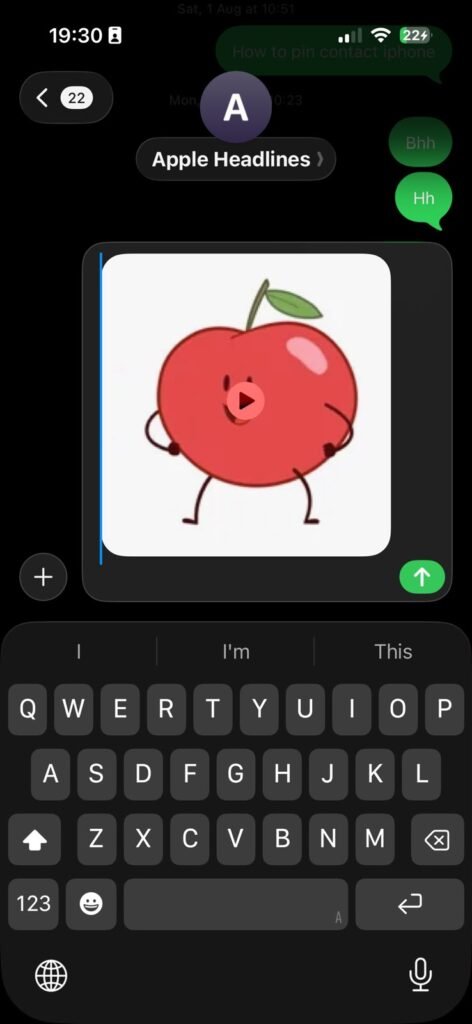
Method 4: How to Add GIFs to iPhone by Saving the Ones You Receive
Someone sends you a great GIF. Save it, and it joins your own library. Apple says saved GIFs land in the Photos app.
- Open the conversation with the GIF.
- Touch and hold the GIF.
- Tap Save.
- Open Photos > Albums > Animated to find it.
On our iPhone 17 Pro, the Save option showed up in the menu after the long-press. Once saved, resend it with Method 2.
💡 Pro Tip: Build a “Reaction GIFs” Album
Don’t leave your best GIFs buried in the Animated album. Open Photos > Albums, tap the + at the top, and create an album called “Reaction GIFs.” Add your favorites there. Why bother? Searching #images needs a good connection and sometimes returns odd results. A saved GIF is always one tap away. It also dodges region limits, since your own library travels with you.
Method 5: Use GIPHY or Another GIF App
Want a bigger library? GIF apps like GIPHY offer huge collections. They are free in the App Store.
- Install a GIF app such as GIPHY from the App Store.
- Open the app and search for a GIF.
- Tap the share icon on the one you like.
- Choose Messages, or tap Copy GIF.
- If you copied it, open Messages and paste it.
- Tap the Send arrow.
Some GIF apps also add a keyboard. If you turn one on, you may see an Allow Full Access prompt. Only say yes if you trust the app. A keyboard with full access can read what you type.
Method 6: Send Animation From iPhone With Live Stickers
Want to send your own motion? Turn a Live Photo into a Live Sticker. Your dog mid-zoom makes a great one. This needs iOS 17 or later. Our guide to adding a sticker to a photo covers the still-image version.
- Open Messages and tap into a conversation.
- Tap +, then tap Stickers.
- Tap the Live Stickers button.
- Pick a Live Photo from your library.
- Tap Add Sticker once your subject is outlined.
- Tap the new sticker to place it, then tap Send.
Apple’s tip is simple: use a Live Photo if you want the sticker to move. A regular photo makes a still sticker. Your stickers also sync through iCloud, so they show up on your other Apple devices.
Two limits to know. A Live Sticker is not a true GIF file. And one source says Live Stickers may not move in apps like WhatsApp or Instagram. For those, send a real GIF. Photos’ Loop and Bounce effects have the same limit, since they make a looping Live Photo rather than a GIF.
Bonus: send a moving message effect. Type your message, then follow these steps.
- Touch and hold the blue Send arrow.
- Tap Screen.
- Swipe to pick an effect, like confetti.
- Tap the Send arrow.
Method 7: Send a GIF in WhatsApp
WhatsApp has its own GIF search, so you don’t need Messages.
- Open WhatsApp and tap into a chat.
- Tap the emoji or sticker icon next to the text field.
- Tap GIF.
- Search for a keyword, or browse the list.
- Tap the GIF, then tap Send.
WhatsApp moves its buttons around between updates. If you don’t see the GIF tab, update the app.
Sending a GIF to an Android Phone: Will It Still Animate?
Yes, it usually will. But quality depends on how the message travels.
On iPhone, a blue bubble means iMessage. A green bubble means your text went out through SMS, MMS, or RCS. With RCS, rich media like GIFs tends to arrive in better shape. Our explainer on what RCS means breaks it down. Apple also added end-to-end encryption for iPhone-to-Android RCS chats in iOS 26.5, according to MacRumors, when carriers and the Android app support it.
If your text falls back to MMS, GIFs can arrive blurry. In 2024, Android users reported distorted GIFs from iPhones, mostly through Google Messages. Try these fixes.
- Open the Messages settings. Go to Settings > Apps > Messages.
- Check that RCS Messaging is on, if your carrier offers it.
- Turn off Low-Quality Image Mode if you see it.
- Resend the GIF.
Case Study: The Birthday GIF That Arrived as a Link
Here is a common scenario, told as a short story. It is illustrative, not a real person’s report.
Jordan finds a perfect birthday GIF in Safari. He taps Share, picks Messages, and hits Send. His mom gets a link. She taps it, waits for a page to load, and sees a plain web page. The magic is gone.
The fix took thirty seconds. Jordan went back to Safari and touched and held the GIF. He tapped Add to Photos. Then he sent it from the Photos app using Method 2. His mom saw the GIF dance right inside the chat.
The lesson: sharing a page is not the same as sending the GIF file. When the joke matters, send the file.
What If This Doesn’t Work?
Don’t worry. Most GIF problems have a quick fix. Work through these in order.
- #images is missing. Open Settings > General > Language & Region. Make sure your region and keyboard language are on Apple’s supported list.
- Still no #images. Tap More in the + menu. Update to the latest iOS in Settings > General > Software Update.
- The GIF looks frozen. Open Settings > Accessibility > Motion. Turn on Auto-Play Animated Images.
- Still frozen. Turn off Reduce Motion in the same menu. Then restart Messages.
- The GIF won’t send. Check your signal. Then try saving the GIF to Photos and sending it from there.
- The GIF arrives blurry on Android. Revisit the RCS and Low-Quality Image Mode steps above.
- Photos won’t send at all. Read our fix list for photos not sending in Messages.
- Messages show “Waiting for Activation.” Follow our iMessage activation fix.
Forum users have reported GIFs that froze after an iOS update because the Auto-Play setting switched off. One Apple Community reply also suggests saving the GIF to Photos first, then adding it from there. Both tricks are worth a try before you restart your phone.
A Quick Safety Note About GIF Sources
Not every GIF library is equal. Apple lets you report a concern about an image in #images. Touch and hold the image, take a screenshot, and email it to Apple using the address on its support page. Third-party apps follow their own rules. If a child uses your iPhone, check the app’s content settings first.
Key Takeaways
- iPhone has GIFs built in. Use #images from the + menu in Messages.
- No #images button? Check Language & Region. The feature works only in supported countries.
- Saved GIFs live in Photos. Find them in the Animated album.
- Send the file, not the link. Save or copy the GIF before you send.
- Frozen GIF? Turn on Auto-Play Animated Images in Accessibility.
- Live Stickers are not GIFs. They need a Live Photo and may not animate outside Apple apps.
- iOS 27.2.1 is current, and coverage of its Messages changes does not show #images moving.
FAQs
Does iPhone have GIFs built in?
Yes. Open Messages, tap +, and choose #images. You can search thousands of GIFs without installing anything. Your Photos app also stores GIFs in the Animated album.
How do I add a GIF to an iPhone text?
Tap + in Messages, choose #images, search, and tap a GIF. It appears in your message box. You can type a note next to it, then tap Send. For a saved GIF, tap +, then Photos.
Why can’t I find #images on my iPhone?
Usually it is a region or language issue. Apple lists a set of supported countries. Check Settings > General > Language & Region. If those look right, tap More in the + menu and update iOS.
Can I make my own GIF on iPhone?
Not as a true GIF file with built-in tools. Photos’ Loop and Bounce effects make animated Live Photos instead. For motion in Messages, turn a Live Photo into a Live Sticker. For a real GIF file, use a third-party GIF-maker app.
Will my GIF animate on an Android phone?
Usually, yes. Delivery over RCS tends to keep GIFs sharp. If your text falls back to MMS, the GIF may look blurry. Check that RCS is on and try a saved GIF from Photos.
Keep Reading
- 7 Massive iPhone Texting Changes in iOS 26
- What Does “Text Message RCS” Mean?
- iMessage Pictures Not Loading: Quick Fix
- How to Schedule a Text on iPhone
- Apple iOS 27.2 New Features
Sources
- Apple Support, Send and save GIFs on your iPhone or iPad (published September 15, 2025)
- Apple Support, Make stickers from your photos on iPhone
- Apple Support, Send stickers in Messages on iPhone
- MacRumors, iOS 27: 13 Ways the Messages App is Smarter and Less Annoying (August 26, 2026)
- iDownloadBlog, Top new features added to iPhone Messages app in iOS 27 (updated September 29, 2026)
- MacRumors, iOS 26.5 Brings End-to-End Encryption to iPhone-Android RCS Messages (May 4, 2026)
- 9to5Google, Some Android users are receiving distorted GIFs from iPhone owners (May 27, 2024)
- Apple Support Community, Animated GIFs stopped working (user-generated; forum reports)
Disclaimer
This guide is for general information. Menu names and steps can change by iOS version, region, and device, so check Apple’s support pages if something looks different. Forum and third-party reports reflect individual experiences and may not apply to you. Third-party apps, keyboards, and GIF libraries have their own terms, content rules, and privacy practices, so review them before granting access. Respect copyright when you share GIFs. AppleHeadlines is an independent publication and is not affiliated with Apple Inc., GIPHY, or WhatsApp. Apple, iPhone, iOS, iMessage, and Siri are trademarks of Apple Inc.
Ready to send your first GIF? Pick a method above and try it on the next text you send. Tell us in the comments which one became your favorite, and share this guide with the friend who still sends links instead of GIFs. For more plain-English iPhone help, browse our How to Fix guides and iOS coverage.

T’kal is the lead strategist and developer behind Apple Headlines. With a background in digital marketing and web development, he specializes in technical Apple troubleshooting, software news, and hardware rumors. T’kal focuses on delivering high-authority tech content that bridges the gap between Apple enthusiasts and the latest industry innovations.