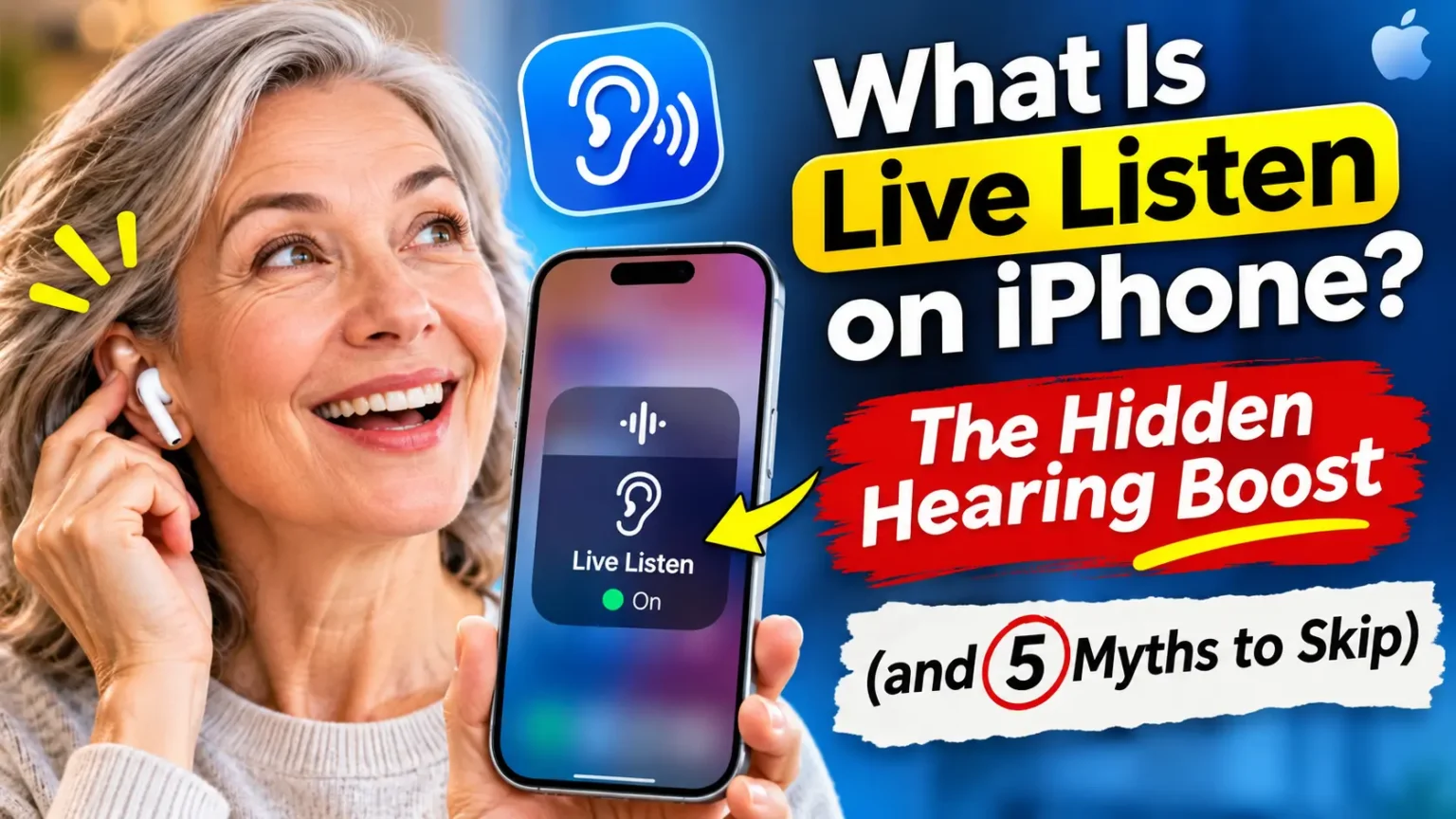

Want to hear conversations more clearly in a noisy room? Your iPhone has a hidden accessibility feature called Live Listen that can help. It turns your iPhone into a remote microphone and streams sound directly to compatible AirPods, Beats headphones, or Made for iPhone (MFi) hearing aids.
How to use it: Place your iPhone near the person speaking, open Control Center, and tap Live Listen. Their voice will stream to your connected audio device.
You’re at a loud restaurant.
Your friend is mid-story, and all you catch is clattering plates.
Or maybe you saw a headline claiming your iPhone can “spy” through AirPods, and now you’re curious.
Both roads lead to the same feature: Live Listen. It’s free, it’s already on your phone, and most people never switch it on.
This guide explains what it is, who it helps, how to turn it on in iOS 27, and what it can’t do.
What Is Live Listen on iPhone?
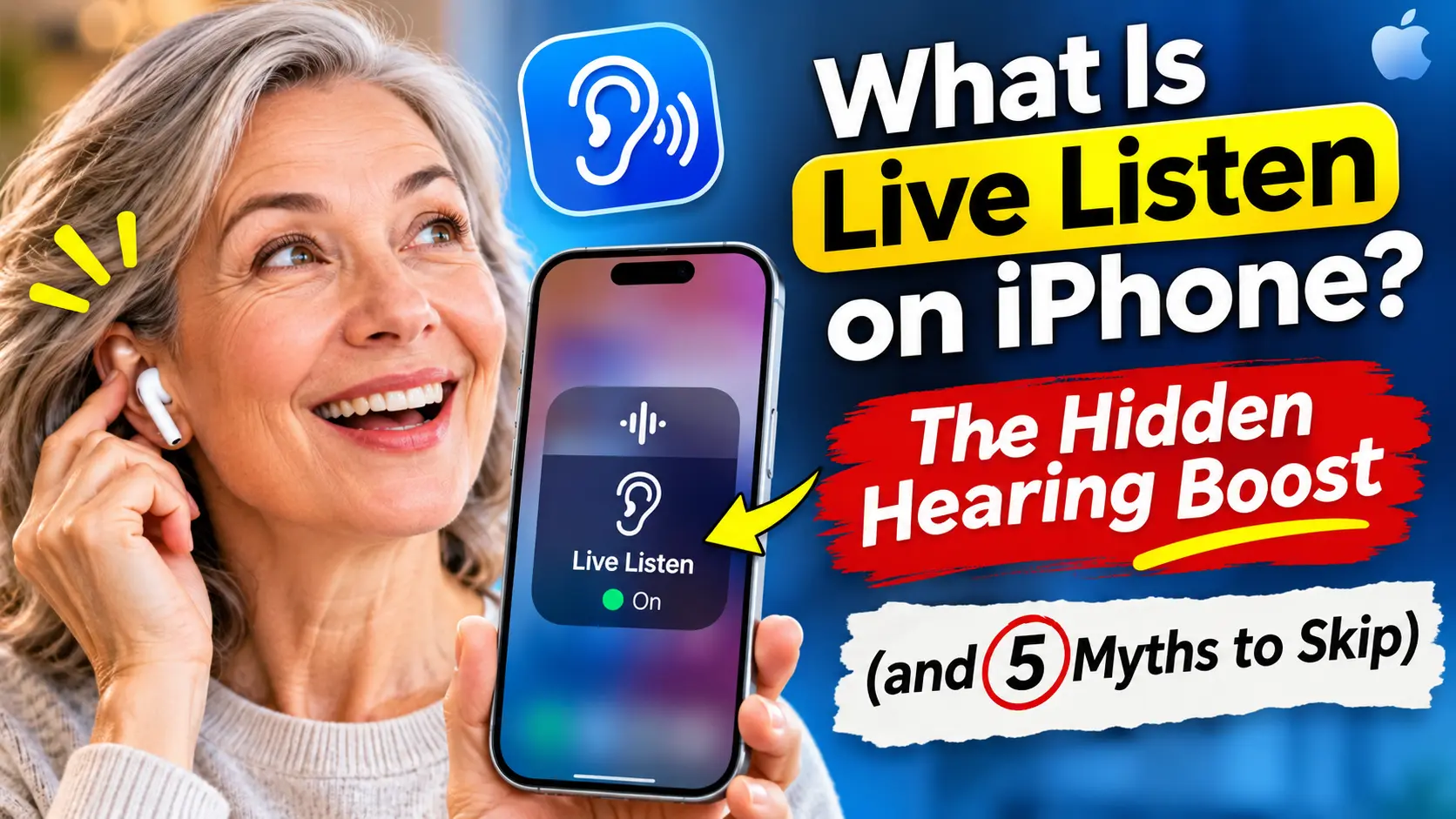
Live Listen is an iPhone accessibility feature that makes your phone act like a wireless microphone.
Your iPhone picks up nearby sound. It then sends that sound to your headphones in real time.
Apple built it for people who struggle to follow speech in noise.
Apple’s support page says it can help you hear a conversation in a noisy area, or hear someone speaking across the room.
The feature has a longer history than most people think. It first launched in 2014 for Made for iPhone hearing aids.
AirPods support arrived with iOS 12 in 2018.
Today, Apple’s page lists AirPods, AirPods Pro, AirPods Max, and several Beats models. They need iOS or iPadOS 14.3 or later.
One detail trips people up. Live Listen uses the iPhone’s microphone, not the microphones in your AirPods.
That’s the whole point.
You can park the phone closer to the speaker than your own ears could ever get.
A simple analogy
Picture a tiny wireless lapel mic.
Normally you’d clip it to the speaker’s shirt.
Live Listen lets you “clip” your iPhone to the middle of the table instead.
Your AirPods become the speaker for that mic.
Your own ears are like a seat in the back row.
Live Listen moves your hearing to the front row.
Why Live Listen Matters
Noisy rooms are hard for almost everyone.
They’re harder if you have mild hearing trouble.
A restaurant, a classroom, or a family dinner can turn into guesswork.
Live Listen matters for three reasons:
- It costs nothing. If you own compatible headphones, the feature is already installed.
- It’s built into Control Center. In iOS 27, you add one button and use it with a tap.
- It works with hearing aids too. MFi hearing aid users get the same remote-mic trick through Settings.
How we built this guide: We checked every step against Apple’s current support pages.
The Apple page for AirPods and Beats carries an October 7, 2026 publish date.
The MFi hearing aid page was published May 19, 2026.
We also compared five ranking articles to find what they miss. Several still describe older iOS versions.
Which Devices Work With Live Listen?
Here’s the quick compatibility check, based on Apple’s support pages:
| Device | Compatibility | What You Need to Know |
|---|---|---|
| AirPods, AirPods Pro & AirPods Max | ✓ Compatible | Requires iOS or iPadOS 14.3 or later. |
| Powerbeats Pro, Beats Fit Pro, Powerbeats Fit & Beats 360 | ✓ Compatible | Check compatibility with your specific Beats model and software version. |
| Made for iPhone (MFi) hearing aids | ✓ Compatible | Enable Live Listen through Control Center or check Accessibility settings under Hearing Devices. |
| Other Bluetooth headphones | Not officially supported | Apple does not list ordinary Bluetooth headphones as supported Live Listen devices. |
| Android phones | ✕ Not supported | Live Listen is an Apple feature for compatible Apple devices and audio accessories. |
Tip: Compatibility can vary by accessory model and software version. Check Apple’s support documentation for your specific device.
Apple lists AirPods by product line, not by generation.
That means current models like AirPods Pro 3 and AirPods 5 fall under the same names.
If you’re unsure, your headphones should show Live Listen as an option once connected.
How to Turn On Live Listen on iPhone (Step by Step)
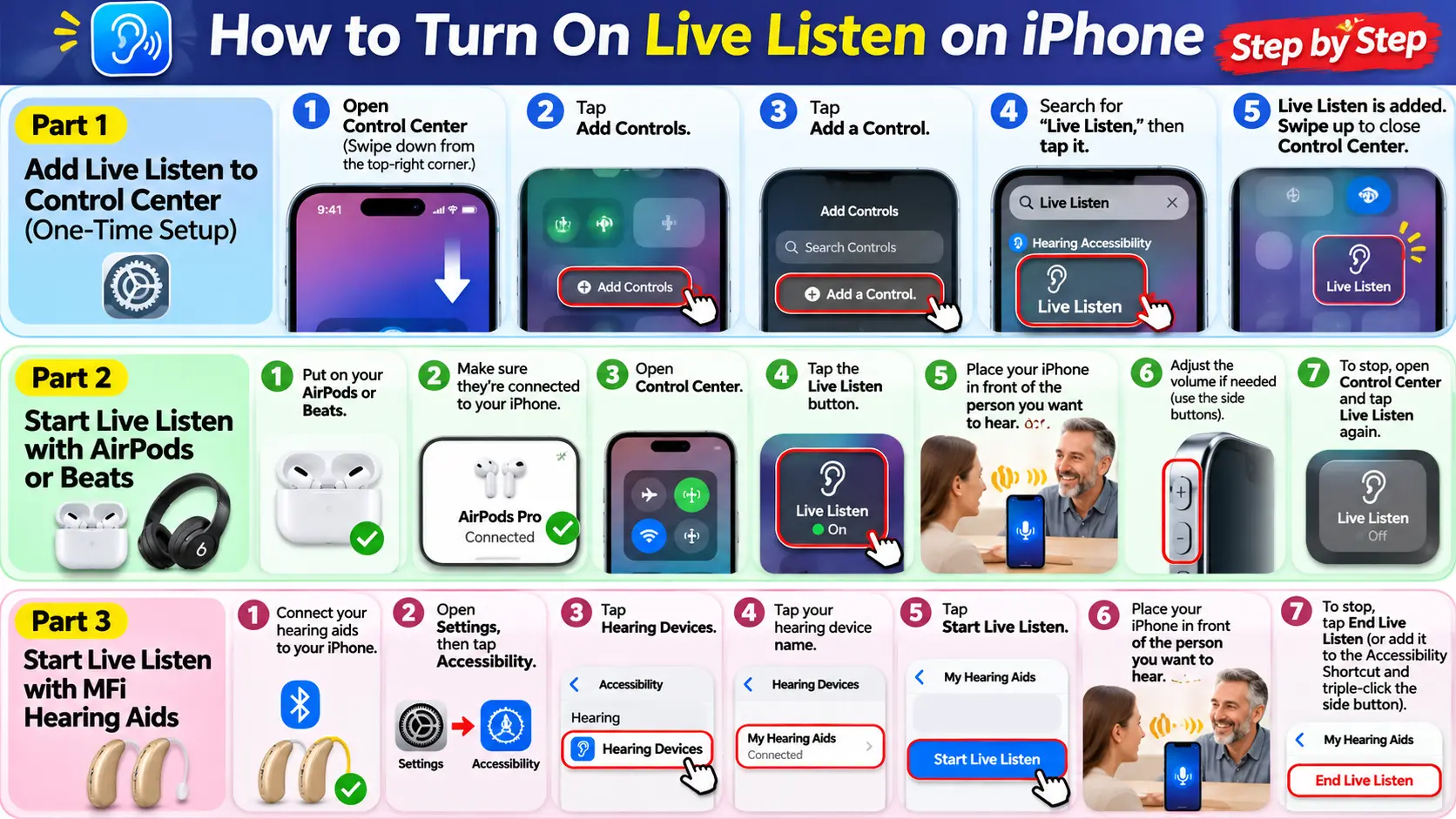
Setup takes about a minute. You only do the first part once.
Part 1: Add Live Listen to Control Center
- Swipe down from the top-right corner to open Control Center.
- Tap the Add Controls button, then tap Add a Control.
- Type Live Listen into the search field.
- Tap Live Listen under Hearing Accessibility to add it.
- Swipe up from the bottom center to close Control Center.
Part 2: Start Live Listen with AirPods or Beats
- Put your AirPods or Beats in your ears.
- Make sure they’re connected to your iPhone.
- Open Control Center.
- Tap the Live Listen button.
- Place your iPhone in front of the person you want to hear.
- Raise the iPhone’s volume if the voice sounds too quiet.
To stop, open Control Center and tap the Live Listen button again.
Part 3: Start Live Listen with MFi hearing aids
This is how to activate Live Listen if you wear Made for iPhone hearing aids:
- Connect your hearing aids to your iPhone.
- Open Settings, then tap Accessibility.
- Tap Hearing Devices.
- Tap the name of your hearing device.
- Tap Start Live Listen.
- Place your iPhone in front of the person you want to hear.
To stop, tap End Live Listen on the same screen. You can also add Live Listen to the Accessibility Shortcut. Then triple-click the side button to start or end it fast.
Two bonus tricks from Apple’s guide
- Check your volume in real time. Apple says you can see headphone audio levels while you listen. Glance at them so you don’t turn things up too loud.
- Use a wired microphone. You can plug an external wired mic into the iPhone’s USB-C or Lightning port.
If Live Listen isn’t working well, the problem may be where you place your iPhone—not the volume. Try these simple adjustments to hear conversations more clearly:
- 📱 Move closer: Place your iPhone nearer to the person speaking, ideally between you and them.
- 🎙️ Keep the microphone clear: Don’t cover the microphone openings with your hand, a napkin, or a case flap.
- 👜 Avoid pockets and bags: Keep your iPhone uncovered on a table or another stable surface.
- 🗣️ Try a simple trick: If the person is sitting across the table, slide your iPhone closer to them—or ask them to hold it while speaking.
How Does Live Listen Work Behind the Scenes?
The flow is simple:
- Your iPhone’s microphone hears the room.
- iOS sends that audio over Bluetooth to your headphones.
- You hear it with only a small delay.
Because it runs on Bluetooth, distance and obstacles matter. Apple doesn’t publish a range number. Third-party guides disagree wildly. One news report says about 50 feet. Another source says about 30 feet in open space. A third says about 15 feet.
Our advice: treat 30 feet in open air as a ceiling. Walls, furniture, and crowded Wi-Fi can cut that down fast. If the sound gets choppy, move the phone closer to you.
Real-World Case Study: The Loud Family Dinner
This is an illustrative scenario based on common reader reports, not a named individual.
Dana, 58, loves her monthly dinner at a noisy grill with her adult kids.
She keeps missing jokes from the far end of the table.
She feels left out, but she doesn’t want to keep asking, “What did you say?”
She adds Live Listen to Control Center before the next dinner.
At the table, she puts in her AirPods and taps the button. Then she slides her iPhone toward the middle of the group, screen up and mic uncovered.
The change isn’t magic. Voices still sound a bit thin. But the clatter fades behind the speech, and she follows nearly every story. After 90 minutes, she checks her headphone volume and her battery. Both are fine.
The lesson: Live Listen works best when you treat the iPhone like a table microphone. Place it on purpose, and don’t expect it to fix a whole room.
Live Listen vs. Conversation Boost vs. the Hearing Aid Feature
These three features sound alike. They solve different problems.
Compare the features to find the right option for your situation.
| Feature | What It Uses | Best For | What You Need |
|---|---|---|---|
| Live Listen Remote listening | Your iPhone’s microphone | Hearing someone across a table or room | Compatible AirPods, Beats, or MFi hearing aids |
| Conversation Boost Focused voices | The microphones in your AirPods Pro | Focusing on someone speaking directly in front of you | Compatible AirPods Pro in Transparency mode |
| Hearing Aid feature Hearing support | The microphones and hearing processing in compatible AirPods Pro | Eligible users with perceived mild to moderate hearing loss | AirPods Pro 2 or AirPods Pro 3, with supported software and eligibility requirements |
Quick tip: Choose Live Listen when you need to move your iPhone closer to a speaker. Use Conversation Boost to focus on someone nearby. The Hearing Aid feature is intended for eligible users who need hearing assistance.
Apple says the Hearing Aid feature is a clinical-grade feature for adults with perceived mild to moderate hearing loss.
It’s set up after a hearing test or by adding an audiogram.
Live Listen is different. It isn’t tuned to your hearing.
It just moves a microphone closer to the sound.
If you have the AirPods Pro hearing features, you can use both.
Our AirPods Pro 3 review covers the hardware side.
Bottom line: Live Listen helps with distance. The Hearing Aid feature helps with how loud and clear sound is for your ears.
A prescription hearing aid from an audiologist does far more than either.
5 Live Listen Myths to Skip
Myth 1: “Someone can use Live Listen to listen to me remotely.”
This is the fear behind searches like can someone listen through iPhone and live listen private conversation iPhone. Here’s the reality.
Live Listen only runs when you turn it on, on your iPhone. It sends sound to headphones paired with that same phone. It isn’t a remote tapping tool.
There’s a separate legal point.
Secretly listening to a private conversation you aren’t part of can break wiretapping or eavesdropping laws.
Those rules vary by state.
Treat Live Listen as a tool for conversations you’re part of.
What about “can iPhone hear your conversations” in general?
Apps can only use the microphone if you allow it.
Check Settings > Privacy & Security > Microphone. Switch off anything that doesn’t need it.
Myth 2: “Live Listen turns AirPods into hearing aids.”
It doesn’t. Apple’s page describes it as a remote microphone feature. If you need all-day amplification, see an audiologist. If you have AirPods Pro 2 or 3, look at Apple’s separate Hearing Aid feature.
Myth 3: “It uses my AirPods’ microphones.”
It uses the iPhone’s microphone. That’s why placement of the phone matters so much.
Myth 4: “It works from 50 feet away, always.”
Maybe in a perfect, open space. In a real house or restaurant, you’ll get less. Apple gives no promised distance.
Myth 5: “You need the newest iPhone and AirPods.”
You don’t. Apple’s requirement for AirPods and Beats is iOS or iPadOS 14.3 or later. Some online guides invent extra requirements, such as special chips or “ultra-low latency” modes. Apple’s support pages don’t list any of those.
Is There a Live Listening App for iPhone?
You’ll find third-party “live listening” and sound-amplifier apps in the App Store. Be careful. They need microphone access, and Apple doesn’t vouch for them.
Start with the built-in feature first. It’s free, and it’s already tied into Control Center. If you also want text, Apple’s Live Captions can show spoken audio on screen. You can find it in the Hearing section of Accessibility.
What If This Doesn’t Work? Troubleshooting Live Listen
Don’t panic if the button is missing or does nothing. Work through these fixes in order.
1. Live Listen is missing from Control Center.
Repeat the Add a Control steps above. Search for “Live Listen” again.
2. The button is gray or says it’s unavailable.
Check that Bluetooth is on and your headphones are charged. Apple lists these as the first checks. Then confirm your headphones are actually connected.
3. It still won’t start.
Put at least one AirPod in your ear. A community guide from AppleToolBox says the feature won’t run while AirPods sit in the case. Also try turning off Low Power Mode. Treat that as a worth-a-try tip, not an Apple rule.
4. Hearing aid users can’t find it.
Open Control Center. Look at the audio output area. If another accessory shows there, tap it. Then choose your hearing device from the list.
5. The sound cuts out.
Move the iPhone closer to you. Remove obstacles. Try a different spot, away from Wi-Fi routers and microwaves.
6. You hear your own voice.
There’s no setting to stop this. Move the iPhone farther from your mouth and closer to the other speaker.
7. Nothing works.
Restart your iPhone. Update iOS. Then forget your AirPods in Bluetooth settings and pair them again. Our guide on how to reset AirPods shows every model. If one earbud stays silent, try our fix for only one AirPod working. If the connection keeps dropping, read why AirPods keep disconnecting.
Still stuck? Book a repair visit through our Apple Genius Bar appointment guide.
Quick battery check: Low charge on either device can block the connection. Learn how to check AirPods battery on iPhone before you start troubleshooting.
Key Takeaways
- Live Listen turns your iPhone into a remote microphone for compatible headphones.
- It works with AirPods, AirPods Pro, AirPods Max, several Beats models, and MFi hearing aids.
- AirPods and Beats need iOS or iPadOS 14.3 or later.
- Add the control through Control Center, then tap it to start.
- Placement matters most. Put the iPhone near the speaker, with the mic uncovered.
- It is not a hearing aid, and it doesn’t use your AirPods’ microphones.
- Range varies. Don’t count on 50 feet.
- Use it only for conversations you’re part of.
Frequently Asked Questions
It helps you hear speech in noisy places or across a room. Your iPhone’s mic picks up the sound and streams it to your headphones or hearing aids.
Add Live Listen to Control Center. Connect your AirPods or Beats, open Control Center, and tap the Live Listen button. Hearing aid users can start it under Accessibility > Hearing Devices.
Yes, with Made for iPhone hearing aids. Open Settings > Accessibility > Hearing Devices, tap your device, then tap Start Live Listen.
Not remotely. Live Listen only runs on your own iPhone when you start it, and it streams to headphones paired with that phone. Review your microphone permissions to control which apps can listen.
No. Conversation Boost uses microphones built into AirPods Pro. Live Listen uses your iPhone’s microphone, so you can place it closer to the speaker.
Sources
- Apple Support: Use Live Listen with AirPods or Beats (published October 7, 2026)
- Apple Support: Use Live Listen with Made for iPhone hearing devices (published May 19, 2026)
- Apple Support: Use Made for iPhone hearing devices (published September 14, 2026)
- Apple iPhone User Guide: Use iPhone as a remote microphone with Live Listen
- Apple AirPods User Guide: Use hearing health features with AirPods Pro 2 or AirPods Pro 3
- Laptop Mag: How to use Live Listen on iPhone (August 2023)
- 9to5Mac: AirPods to add support for Live Listen with iOS 12 (June 2018)
Disclaimer
This article is for general information only. It is not medical, legal, or audiology advice. Live Listen is not a medical device and does not diagnose or treat hearing loss. If you have trouble hearing, see a licensed hearing professional. Laws about recording or listening to conversations vary by state and country. Check your local rules, and get permission when needed. Features and menu names can change with iOS updates. Apple Headlines is not affiliated with Apple Inc.
Ready to Hear Better at Your Next Dinner?
Add Live Listen to Control Center today, and test it in a quiet room first. Then explore more AirPods guides on Apple Headlines, and subscribe to our newsletter for new iOS 27 tips every week.
Related Posts:

T’kal is the lead strategist and developer behind Apple Headlines. With a background in digital marketing and web development, he specializes in technical Apple troubleshooting, software news, and hardware rumors. T’kal focuses on delivering high-authority tech content that bridges the gap between Apple enthusiasts and the latest industry innovations.