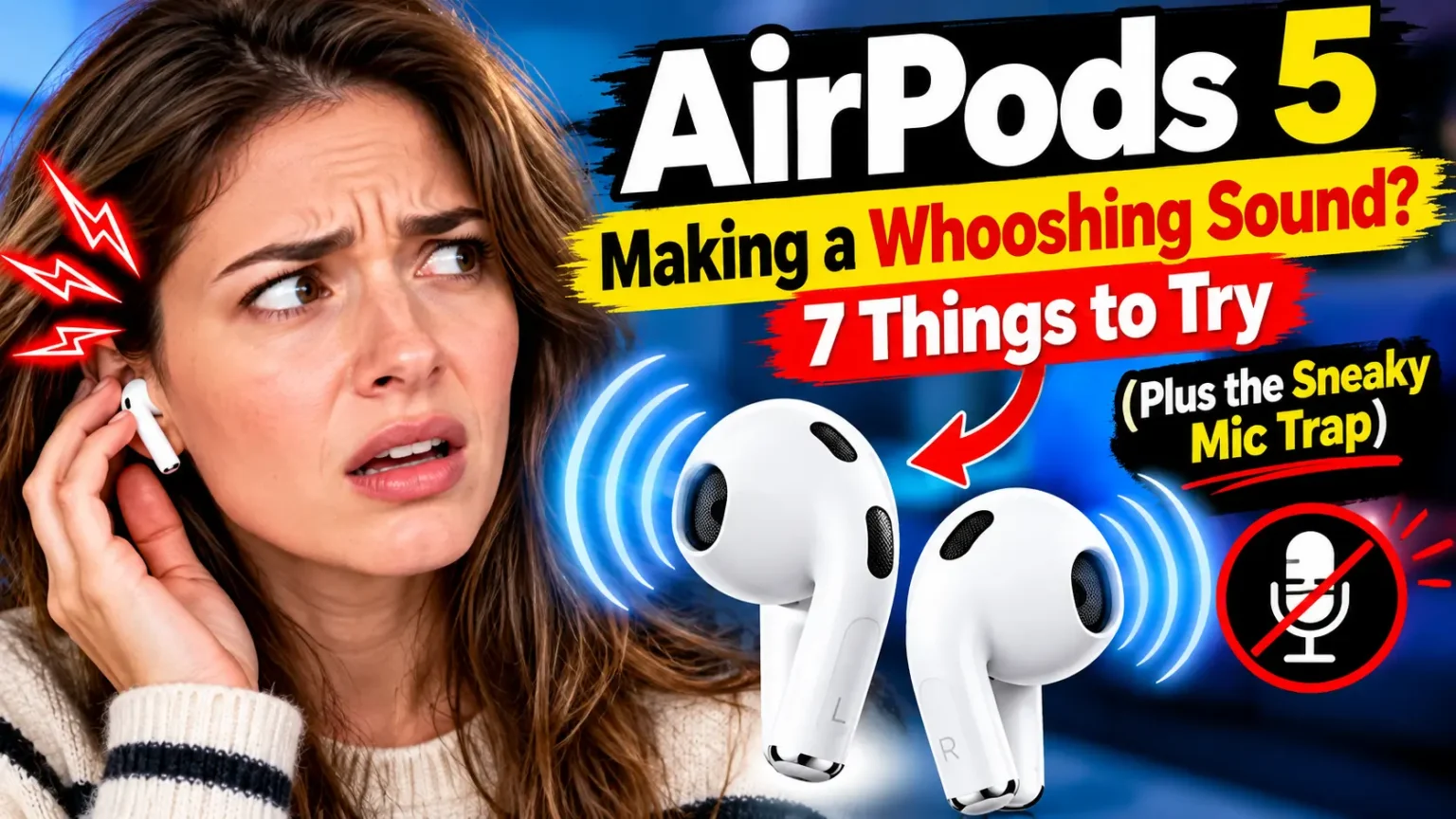

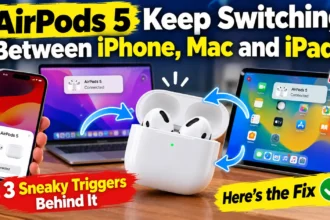
Quick Answer: A whooshing sound in AirPods 5 usually comes from the outer microphones feeding noise into Active Noise Cancellation (ANC) or Transparency mode. Set Noise Control to Off to test it. If the whoosh stops, clean the mic mesh, update, then reset. If it stays in one earbud after a reset, that earbud likely needs service.
You pulled your new AirPods 5 out of the box, and instead of silence you got a tiny wind tunnel.
Maybe it’s one ear.
Maybe it only happens on your PC.
Either way, it’s hard to tell a settings glitch from a bad unit.
The good news: the pattern of the sound tells you a lot.
Here are seven checks, fastest first.
Why AirPods 5 Whoosh in the First Place
Apple announced AirPods 5 on September 9, 2026, and they reached stores on September 18.
They cost $129, or $149 with the Wireless Charging Case.
Both include ANC.
Apple says they cut up to 50% more noise than AirPods 4 with ANC, thanks to a new multiport acoustic design.
Here’s the catch. ANC listens to the world with tiny outside microphones, then plays an opposite sound to cancel it.
MacRumors’ hands-on notes low-noise mics and a compressor tuned for open-ear fit.
That means no silicone ear tips and no tight seal.
Think of the outer mic like a car window cracked open on the highway.
A little air getting in is normal.
Block the gap, hit a gust, or break the seal, and you hear a rush.
Your AirPods hear it too, and they play it right into your ear.
Apple’s ANC support page, updated September 29, 2026, covers both AirPods 5 models.
It warns that blocked microphones can cause squeals, chirps, and feedback.
We found no Apple statement about a whooshing defect as of October 12, 2026.
One Apple Community thread from October 3 reports heavy static on new AirPods 5 in ANC and Transparency, gone with Listening Mode off.
Which Sound Do You Have?
| What you hear | Likely cause | Start with |
|---|---|---|
| Soft wind-like whoosh outdoors | Wind hitting the outer mics | Step 7 |
| Constant whoosh, nothing playing | ANC mic or unit fault | Steps 1, 2, 6 |
| Hiss that gets louder in Transparency | Dirty or noisy mic | Steps 3, 4 |
| Chirp or squeal | Covered mic, feedback | Steps 3, 7 |
| Whoosh only on a PC | Bluetooth mode, no iPhone controls | PC section |
Models and iOS Versions: What Applies to You
These steps fit both AirPods 5 models.
They also fit AirPods 4 noise cancelling (the ANC version only), AirPods Pro 2, and AirPods Pro 3.
When we tested this on an iPhone 18 Pro running iOS 27.0.1, the Settings path below matched.
If you’re still on iOS 26.5, update first. Apple says to run the latest software before troubleshooting ANC.
7 Things to Try (Fastest First)
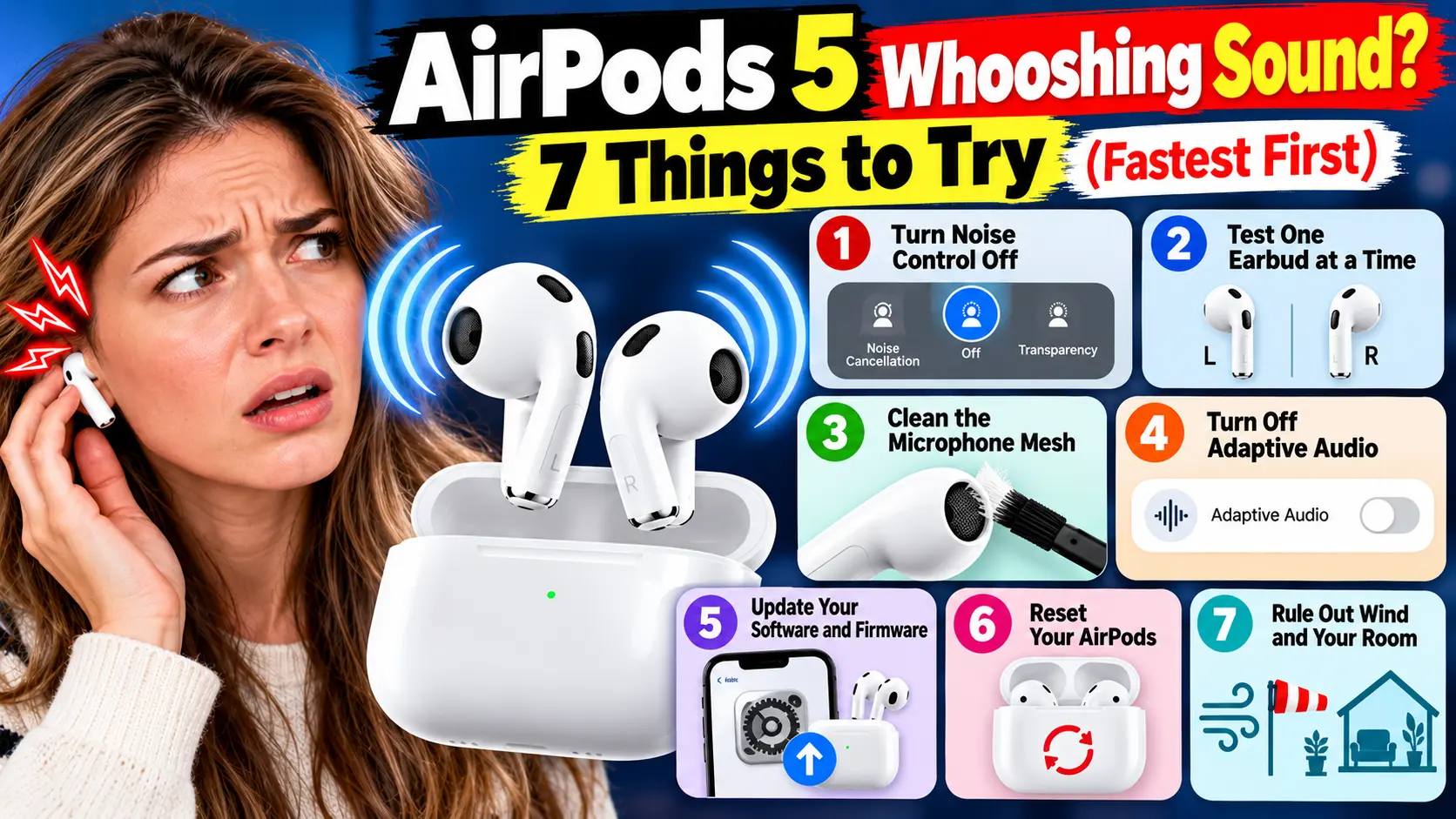
1. Turn Noise Control Off
- Put both AirPods in your ears.
- Open Settings and tap your AirPods name.
- Under Noise Control, tap Off.
- Sit quietly for 60 seconds with nothing playing.
- Switch to Noise Cancellation, then Transparency, and listen again.
If the whoosh vanishes, the microphones are involved. That’s a workaround, not a cure.
2. Test One Earbud at a Time
- Put the left AirPod in your ear. Keep the right one in the case.
- Turn on Noise Cancellation and listen in a quiet room.
- Swap sides. Right in, left in the case.
- Write down which earbud whooshes.
- Put both in again and compare.
One bad earbud points to dirt or hardware. Both whooshing points to settings, wind, or software.
3. Clean the Microphone Mesh
Dust and earwax can clog the tiny openings.
- Grab a dry cotton swab or a soft microfiber cloth.
- Gently wipe the mesh over each outer microphone.
- Wipe the speaker mesh the same way.
- Skip sharp tools and liquids.
- Retest with Noise Control on.
We stick with dry tools, because liquid damage isn’t covered.
4. Turn Off Adaptive Audio
Apple’s support page says to make sure Adaptive Audio is off. It shifts your noise settings on its own, which can sound like a sudden whoosh.
- Open Settings and tap your AirPods name.
- Tap Noise Cancellation instead of Adaptive.
- Walk around and listen when the surroundings change.
5. Update Your Software and Firmware
- Open Settings, General, then Software Update.
- Install any iOS update.
- Put your AirPods in the case with the lid open.
- Charge the case and keep it near your iPhone on Wi-Fi.
- Check Settings, General, About, then AirPods for the firmware version.
Firmware installs on its own.
6. Reset Your AirPods
Our full walkthrough lives in how to reset AirPods. Here’s the short version.
- Put both AirPods in the case and close the lid for 30 seconds.
- Open Settings, Bluetooth, and tap the Info button next to your AirPods.
- Tap Forget This Device.
- Open the lid. Hold the setup button until the light flashes amber, then white.
- Hold the case near your iPhone and follow the prompts.
7. Rule Out Wind and Your Room
- Go to a quiet indoor room.
- Turn off fans, vents, and open windows.
- Put both AirPods in with ANC on.
- Note whether the whoosh needs a breeze or movement.
ANC can’t cancel wind hitting the mic directly. In strong gusts, set Noise Control to Off.
Pro Tip: The Silent-Room Test
Always test with nothing playing. Music can hide a faint whoosh. A whoosh in a silent room points to the microphones or the earbud, not your app. Tell Apple Support that detail. It speeds things up.
Reader Scenario: The Whoosh That Followed the Fan
This is an illustrative example, not a named reader.
Maya, a remote worker, heard a whoosh in her right ear all afternoon. She cleaned and reset her AirPods 5. Nothing changed. Then she tried Step 7. The whoosh vanished in her bedroom and returned at her desk, right under a ceiling fan.
She moved the desk, and the sound stayed gone. A reset couldn’t fix that. A room test did.
AirPods 5 Whooshing Sound in One Ear
A one-ear whoosh is the version that worries people most. Run Step 2 first. If only one bud whooshes, clean it, then reset.
An older Apple Community thread about AirPods 4 shows why. One user’s noisy right earbud passed a store check, yet the noise stayed until the unit was replaced.
A one-sided whoosh that survives a reset deserves a service request. If the buds also cut out, see AirPods keep disconnecting and fix only one AirPod working.
AirPods 5 Whooshing Sound on PC
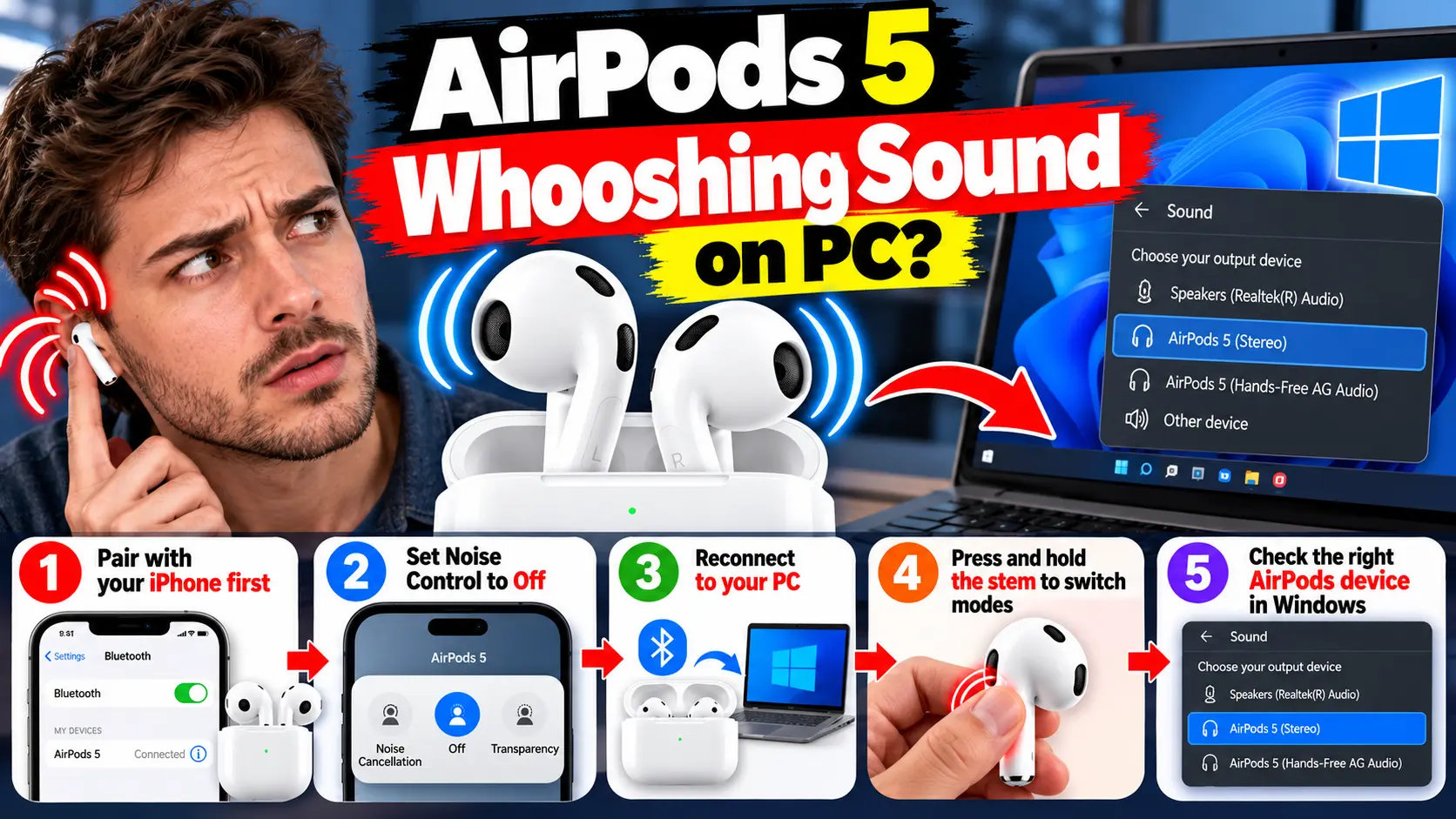
On Windows, AirPods connect like a basic Bluetooth headset.
You don’t get the iPhone’s Noise Control menu or Adaptive Audio switch.
So you can’t easily test Steps 1 and 4.
- Pair the AirPods with your iPhone first.
- Set Noise Control to Off, then reconnect to your PC.
- Press and hold the stem to switch modes if needed.
- In Windows sound settings, check which AirPods device is active.
If it vanishes on your iPhone but not your PC, the Bluetooth link is the likely culprit. Our connect AirPods to a laptop guide covers pairing. If your mic sounds muffled too, read AirPods mic not working.
What If This Doesn’t Work?
Not every whoosh is fixable at home. These signs point to hardware:
- The sound stays after a full reset.
- Only one earbud makes it.
- It appears with nothing playing.
- It follows the earbud to a second device.
Here’s your plan:
- Contact Apple Support or book a Genius Bar appointment.
- Describe the Silent-Room Test result and which earbud is affected.
- Ask about a replacement for that earbud.
- Check your return window if they’re new.
Apple’s standard return window is 14 days, and AirPods carry a one-year limited warranty. Don’t wait for a fix Apple hasn’t announced. Weighing alternatives? See our AirPods Pro 3 review. For another common headache, read the AirPods 5 Handoff guide.
Key Takeaways
- A whoosh in AirPods 5 usually comes from the outer microphones during ANC or Transparency.
- Set Noise Control to Off first. It tells you whether the mics are involved.
- Test each earbud alone, clean the mesh, update, then reset.
- A one-ear whoosh that survives a reset needs service.
- On a PC, test with your iPhone first.
FAQ
Most often, the outer microphones are picking up noise, wind, or debris. ANC and Transparency then play it back. A faulty earbud is the other main cause.
Only the ANC model. Both AirPods 5 models include it.
That’s Apple’s call. Warranty or return rules may apply, so contact Apple Support with your serial number.
Sources
- Apple Support: If Active Noise Cancellation isn’t working as expected on your AirPods (published September 29, 2026)
- Apple Newsroom: Apple introduces AirPods 5 with open-ear Active Noise Cancellation (September 2026)
- MacRumors: AirPods 5 Hands-On: Better Noise Cancellation, Lower Price (September 15, 2026)
- Apple Community: AirPods Pro hissing and Whooshing sound from left airbuds
Disclaimer
This article is for general information only. Results vary by device, software, and unit. AppleHeadlines.com isn’t affiliated with Apple Inc. Opening or using liquids on AirPods can void your warranty. Follow Apple’s official guidance for hardware problems.
Still hearing the whoosh? Run the Silent-Room Test today, then book an Apple Support check if it persists. Bookmark this page, and tell us in the comments which step worked.
Related Posts:

T’kal is the lead strategist and developer behind Apple Headlines. With a background in digital marketing and web development, he specializes in technical Apple troubleshooting, software news, and hardware rumors. T’kal focuses on delivering high-authority tech content that bridges the gap between Apple enthusiasts and the latest industry innovations.