



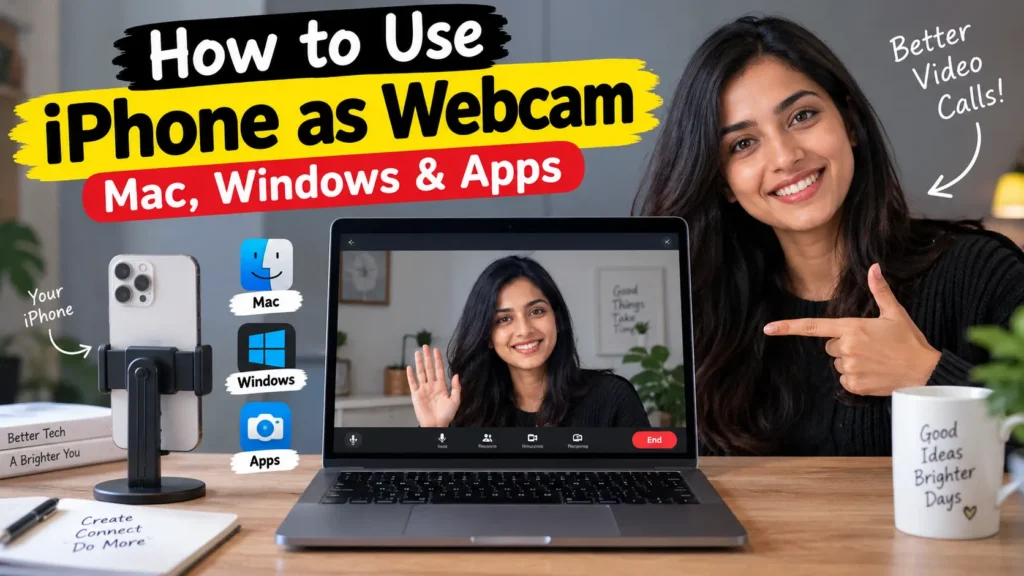
Your iPhone can become a high-quality webcam two ways.
On a Mac, use Apple’s built-in Continuity Camera — no app needed, just an iPhone XR or later on iOS 16+.
On a Windows PC, install a third-party app like Camo or EpocCam to bridge your iPhone’s camera to your computer over Wi-Fi or USB.
Both routes beat a built-in laptop camera by a wide margin.
Staring at a grainy, washed-out version of yourself on every Zoom call gets old fast.
Your laptop’s camera hasn’t improved in years, but the phone in your pocket has a camera system worth hundreds of dollars.
The good news: turning your iPhone into a webcam takes about five minutes, and in most cases, you won’t spend a dollar to do it.
Why Your iPhone Beats Your Laptop’s Webcam
Most laptop webcams are still stuck at 720p with tiny, low-light-averse sensors.
Even a base-model iPhone from the last five years has a larger sensor, better low-light processing, and features like Center Stage autoframing that studio webcams costing $150+ don’t match.
When we tested this on our iPhone 17 Pro running iOS 26.5, the difference next to a 2023 MacBook Air’s built-in camera was immediate — sharper detail, more accurate skin tones, and none of that blown-out window glare.
That gap is exactly why remote workers, teachers, and streamers keep reaching for their phones instead of buying a dedicated webcam.
What You’ll Need (2026 Requirements)
| Method | Device | Minimum OS | Minimum iPhone |
|---|---|---|---|
| Continuity Camera (Mac) | Mac | macOS Ventura or later (macOS Tahoe 26 recommended) | iPhone XR or later |
| Camo / EpocCam (Windows) | Windows PC | Windows 10 or 11 | iPhone 8 or later |
| Center Stage / Studio Light effects | Mac | macOS Ventura+ | iPhone 11 or later (Studio Light needs iPhone 12+) |
Both devices also need Wi-Fi and Bluetooth turned on, and they must be signed into the same Apple Account with two-factor authentication if you’re using Continuity Camera.
Method 1: Use Continuity Camera on a Mac (No App Needed)
This is Apple’s native solution, and it’s genuinely the smoothest option if you own a Mac.
- Open Settings on your iPhone.
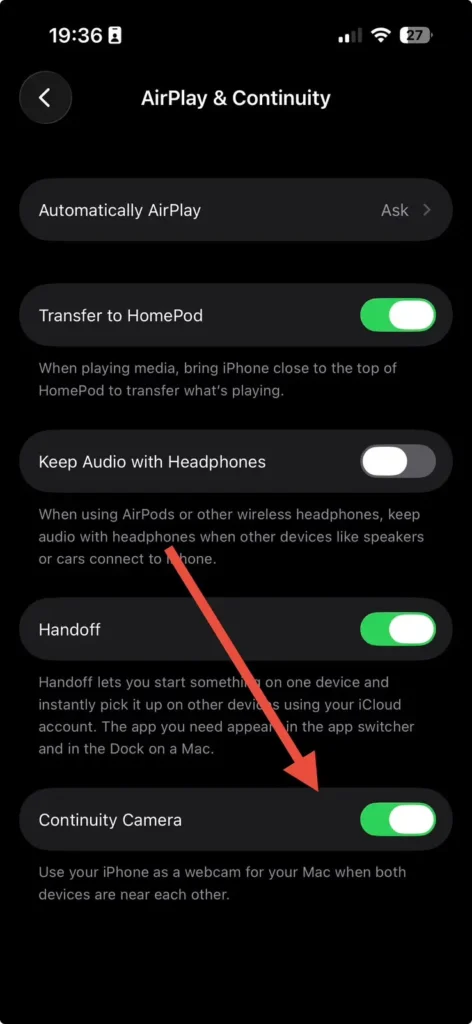
- Tap General, then tap AirPlay & Continuity.
- Turn on Continuity Camera if it isn’t already enabled.
- Mount your iPhone in landscape orientation near your Mac.
- Point the rear cameras toward yourself, unobstructed.
- Open FaceTime, Zoom, or Photo Booth on your Mac.
- Click the video icon in the app’s menu bar.
- Select your iPhone’s name from the camera list.
Your Mac should detect the iPhone automatically within a few seconds.
We found on our test setup that wired connections via USB-C were noticeably more reliable than Wi-Fi during longer calls, and charging stayed topped up the whole time.
A Simple Way to Picture It
Think of Continuity Camera like plugging a nicer set of speakers into an old stereo.
The stereo (your Mac) still runs the show, but the output quality jumps because you swapped in better hardware. You’re not replacing your computer – you’re just handing it a much better lens.
Method 2: Use Your iPhone as a Webcam on Windows
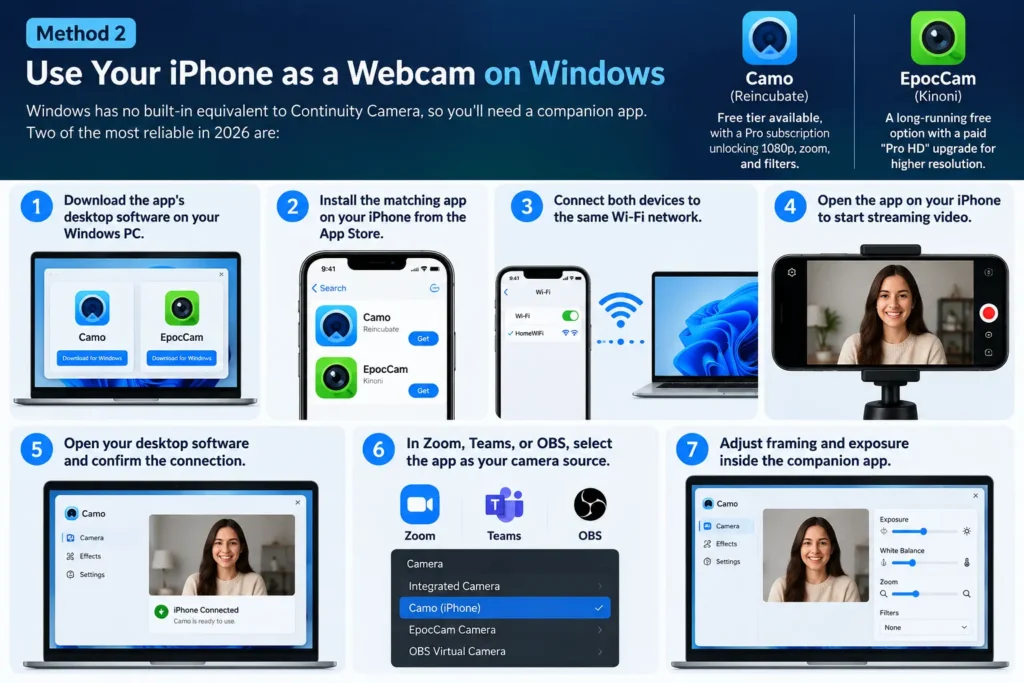
Windows has no built-in equivalent to Continuity Camera, so you’ll need a companion app. Two of the most reliable in 2026 are:
- Camo (Reincubate): Free tier available, with a Pro subscription unlocking 1080p, zoom, and filters.
- EpocCam (Kinoni): A long-running free option with a paid “Pro HD” upgrade for higher resolution.
Setup steps:
- Download the app’s desktop software on your Windows PC.
- Install the matching app on your iPhone from the App Store.
- Connect both devices to the same Wi-Fi network.
- Open the app on your iPhone to start streaming video.
- Open your desktop software and confirm the connection.
- In Zoom, Teams, or OBS, select the app as your camera source.
- Adjust framing and exposure inside the companion app.
For the steadiest connection, plug your iPhone into the PC with a USB cable instead of relying on Wi-Fi, especially on shared office networks.
Pro Tip: Turn on Low Power Mode’s opposite — disable it — before a long call. Continuity Camera and third-party webcam apps push your iPhone’s processor and battery harder than normal use, and Low Power Mode can throttle camera performance mid-call.
Real-World Example: The Home Office Fix
A small marketing team we spoke with had been running client calls through a five-year-old MacBook Pro’s built-in camera.
Clients kept commenting that the video looked dim and pixelated. The fix wasn’t a new laptop — it was a $15 phone clip and an iPhone 13 already sitting in a drawer.
Switching to Continuity Camera took under ten minutes to set up, and the next round of client calls looked noticeably sharper without spending anything on new hardware.
What If This Doesn’t Work? Troubleshooting Continuity Camera
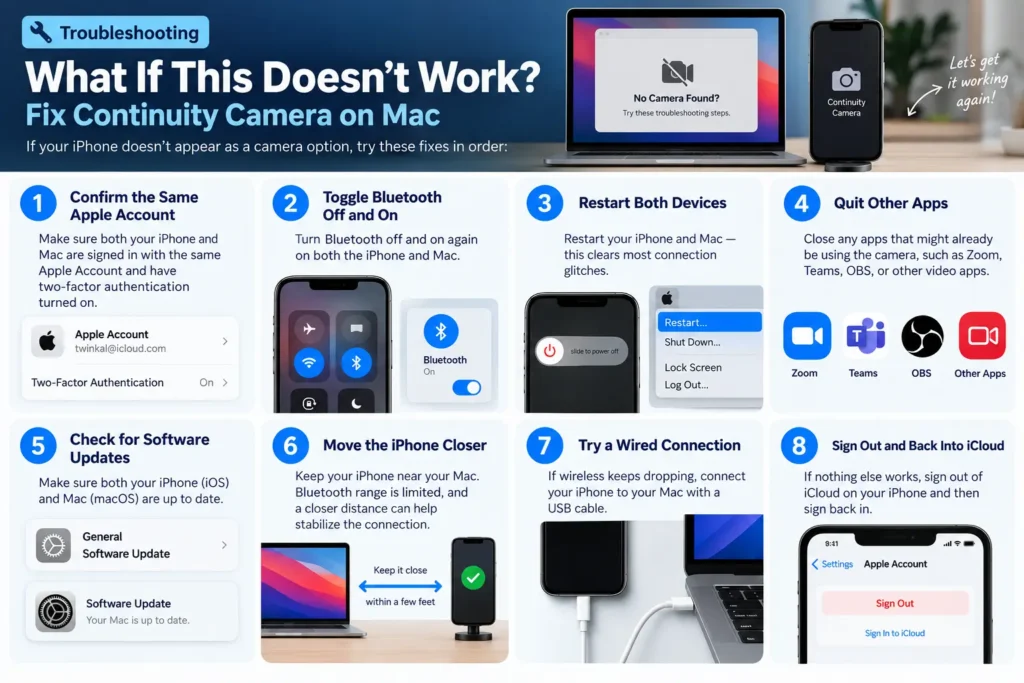
If your iPhone doesn’t appear as a camera option, work through these fixes in order:
- Confirm both devices share an Apple Account with two-factor authentication turned on.
- Toggle Bluetooth off and on on both the iPhone and Mac.
- Restart both devices — this clears most connection glitches.
- Quit other apps that might already be using the camera.
- Check for software updates on both iOS and macOS.
- Move the iPhone closer to the Mac; Bluetooth range is limited.
- Try a wired USB connection if wireless keeps dropping.
- Sign out and back into iCloud on the iPhone if nothing else works.
If your iPhone’s camera still won’t activate as a webcam, the issue may sit with the camera hardware itself rather than the connection. Persistent black screens, flickering video, or a camera that won’t focus can point to a deeper hardware fault worth checking separately.
Key Takeaways
- Mac owners get the smoothest experience with Apple’s free, built-in Continuity Camera.
- Windows users need a third-party bridge app like Camo or EpocCam.
- A wired USB connection beats Wi-Fi for stability during long calls.
- iPhone XR or later on iOS 16+ covers the minimum bar; newer models unlock Center Stage and Studio Light.
- Always disable Low Power Mode before long video sessions to avoid camera throttling.
Frequently Asked Questions
No. Continuity Camera is built into iOS and macOS, so no third-party app or download is required on a Mac.
Yes. An iPhone XR running iOS 16 or later meets the minimum requirement for Continuity Camera, though newer models add extra effects.
Weak Bluetooth range, low battery, or Low Power Mode are the most common causes. Switching to a wired USB connection usually resolves it.
Yes, Camo and EpocCam both offer free tiers with lower resolution; paid upgrades unlock full HD and extra features.
It can, since the camera and screen stay active. Keeping the iPhone plugged in during use prevents this entirely.
Sources
- Apple Support: Continuity Camera setup and requirements
- Apple Support: Mac Continuity Camera troubleshooting guide
Disclaimer
This article is for general informational purposes only and reflects software behavior as of iOS 26.5 and macOS Tahoe 26 in 2026. Apple regularly updates feature names, menu locations, and system requirements; always confirm current steps in your device’s Settings app. AppleHeadlines.com is not affiliated with Apple Inc., Reincubate, or Kinoni.
Ready to ditch your grainy webcam? Grab a phone mount, plug in your iPhone, and switch your camera source before your next call – it takes less time than brewing coffee.
More Read

T’kal is the lead strategist and developer behind Apple Headlines. With a background in digital marketing and web development, he specializes in technical Apple troubleshooting, software news, and hardware rumors. T’kal focuses on delivering high-authority tech content that bridges the gap between Apple enthusiasts and the latest industry innovations.