
You turn on your brand-new iPhone, insert a new SIM card, or install the latest iOS update, only to find your text messages broken.
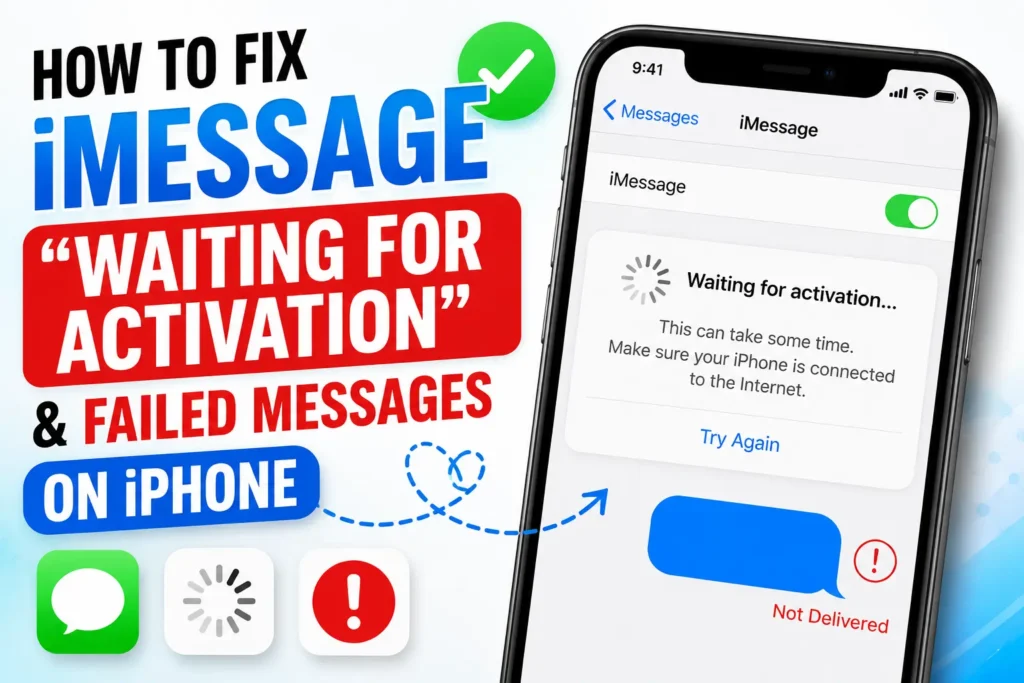
Instead of seamless blue bubbles, your messages either fail to send, drop back to green SMS bubbles, or display an infuriating status in settings: “An error occurred during activation,” “Waiting for activation,” or “Activation unsuccessful.”
Because iMessage is deeply integrated into the iOS ecosystem – handling end-to-end encrypted chats, high-resolution media sharing, and read receipts – an activation block halts your ability to communicate effectively.
The good news?
An iMessage activation freeze is rarely a permanent hardware problem.
It is almost always a temporary sync breakdown between your iPhone, your cellular carrier, and Apple’s authentication servers.
Below is a complete, 2026-tested troubleshooting guide to clear activation errors and get iMessage working properly again.
Quick Answer: The fastest way to fix an iMessage activation error is to toggle both iMessage and FaceTime OFF in Settings, reset your network settings (Settings > General > Transfer or Reset iPhone > Reset > Reset Network Settings), restart your device, and toggle them back ON while connected to cellular data.
What Triggers “iMessage Waiting for Activation“?
When you activate iMessage, your iPhone silently sends an invisible SMS text message in the background to Apple’s authentication servers to verify your phone number and Apple ID.
If anything interrupts this silent handshake, activation stalls.
Common culprits include:
- No SMS Credit / International Text Blocking: Your cellular plan lacks the capability or prepaid balance to send a background international SMS verification ping.
- Incorrect Date & Time Settings: An offset system clock causes security certificate validation failures between your phone and Apple.
- Temporary Apple Server Outages: Maintenance on Apple’s iMessage or Device Activation infrastructure.
- Corrupted Network Profiles: Stale cellular configuration tokens stored on your device following an iOS update or carrier switch.
Step 1: Verify Essential Requirements First
Before tweaking complex settings, run through this quick pre-check list. Apple’s activation protocol requires specific conditions:
- Active SMS Plan: Ensure your mobile account can send standard SMS text messages. Prepaid plans must have active credit because the background verification message may incur a nominal SMS charge.
- Cellular Data Connection: iMessage activation requires an active cellular data connection (5G/LTE), not just Wi-Fi.
- Correct Date & Time Zone: Go to Settings > General > Date & Time and ensure Set Automatically is turned ON. If your time is off by even a few minutes, security handshakes will fail.
Settings ➔ General ➔ Date & Time ➔ Set Automatically (Toggle ON)
Step 2: Check Apple System Status
Occasionally, the problem isn’t your phone or carrier – it’s Apple.
If Apple’s activation servers are undergoing maintenance, your device will remain stuck in a “Waiting for Activation” loop no matter what you do.
- Open Safari on your iPhone.
- Visit Apple’s official System Status Page.
- Look for iMessage, FaceTime, and iCloud Account & Sign-In.
- If a green dot appears next to all three, servers are running normally. If a yellow or red indicator appears, wait a few hours for Apple to resolve the outage before trying again.
Step 3: Toggle iMessage & FaceTime Off and On
Toggling iMessage and FaceTime off simultaneously clears stalled verification requests and forces your iPhone to generate a fresh authentication request token.
Steps to Soft-Reset Activation:
- Open Settings on your iPhone.
- Scroll down and tap Apps, then select Messages (or tap Messages directly on older iOS versions).
- Toggle iMessage OFF.
- Go back to Settings, tap FaceTime, and toggle FaceTime OFF.
- Restart your iPhone (Power Off, wait 30 seconds, turn back On).
- Return to Settings > Messages and toggle iMessage back ON.
- Turn FaceTime back ON.
Settings ➔ Messages ➔ Toggle iMessage OFF ➔ Restart Phone ➔ Toggle iMessage ON
Note: After toggling iMessage back on, it can take anywhere from a few seconds to up to 24 hours for Apple and your carrier to complete full activation.
Step 4: Sign Out and Back In to Your Apple Account
If your phone number is verified but your Apple ID email address is experiencing a sync loop, re-authenticating your Apple account refreshes server-side encryption keys.
- Open Settings and tap your Apple ID Profile Card at the very top.
- Scroll to the bottom and tap Sign Out.
- Enter your password to turn off Find My iPhone if prompted.
- Once signed out, perform a quick Force Restart on your iPhone (press Volume Up, press Volume Down, then hold the Side Power button until the Apple logo appears).
- Open Settings and sign back in with your Apple account credentials.
- Re-open Settings > Messages and select Use your Apple ID for iMessage.
Step 5: Reset Network Settings (Flushes Stale Carrier Routes)
A corrupted APN (Access Point Name) or invalid DNS configuration profile stored on your cellular modem can prevent background verification texts from reaching Apple. Resetting network settings rebuilds all wireless protocol stacks.
Steps to Reset Network Settings:
- Open Settings and navigate to General.
- Scroll to the bottom and select Transfer or Reset iPhone.
- Tap Reset at the bottom of the screen.
- Choose Reset Network Settings.
- Enter your passcode and confirm the prompt.
Settings ➔ General ➔ Transfer or Reset iPhone ➔ Reset ➔ Reset Network Settings
Important: This process clears saved Wi-Fi passwords and custom VPN profiles, but leaves your photos, apps, contacts, and personal data untouched.
Step 6: Contact Your Mobile Carrier
If you have tried all the steps above and iMessage remains stuck after 24 hours, the issue lies with your mobile network provider.
Call your carrier’s customer service line and ask them to verify three things:
- SMS / Premium Text Blocking: Ask if there is an active SMS block or “Premium SMS Filter” on your line preventing background international verification texts to Apple’s UK/US activation servers.
- eSIM / SIM Registration: Ensure your phone number is correctly provisioned for both SMS and cellular data on their network.
- Carrier Settings Update: Go to Settings > General > About. If a carrier update is available, a prompt will appear automatically to update your network settings.
Summary Troubleshooting Matrix
| Error Message / Symptom | Primary Cause | Recommended Fix |
| “Waiting for Activation” | Background SMS verification blocked | Verify cellular SMS plan & reset Network Settings |
| “An Error Occurred During Activation” | Server-side security key desync | Toggle iMessage & FaceTime OFF, restart, toggle ON |
| “Activation Unsuccessful” | Date/Time offset or carrier block | Turn on “Set Automatically” under Date & Time |
| iMessage sent as Green Bubbles | Data connection drop or number unlinked | Check Send & Receive options under Settings > Messages |
Final Thoughts
An “iMessage Waiting for Activation” error is almost always resolved by verifying that your mobile line can send standard SMS messages, toggling iMessage and FaceTime off and on, and performing a Reset Network Settings.
If you recently ported your number to a new carrier or switched to an eSIM, allow up to 24 hours for full number routing to propagate across international SMS networks before requesting a replacement SIM card from your carrier.

T’kal is the lead strategist and developer behind Apple Headlines. With a background in digital marketing and web development, he specializes in technical Apple troubleshooting, software news, and hardware rumors. T’kal focuses on delivering high-authority tech content that bridges the gap between Apple enthusiasts and the latest industry innovations.