


Quick Answer
- Turn off for everyone: Settings → Apps → Messages → toggle off Send Read Receipts
- Turn off for one person: Open the conversation → tap their name at the top → toggle off Send Read Receipts
- Works on: iPhone 12 and newer running iOS 16, iOS 17, iOS 18, and iOS 26
Quick Info
Note
Tired of that instant pressure to reply the moment you read a message?
Millions of iPhone users quietly disable read receipts every day – and Apple makes it easier than ever in 2026.
Whether you want to hide it from everyone or just one annoying contact, this guide has you covered in under two minutes.
How to Turn Off Read Receipts on iPhone for All Contacts
This is the global kill switch. Once you flip it, nobody using iMessage will see when you’ve read their messages.
Step 1: Open the Settings app on your iPhone.
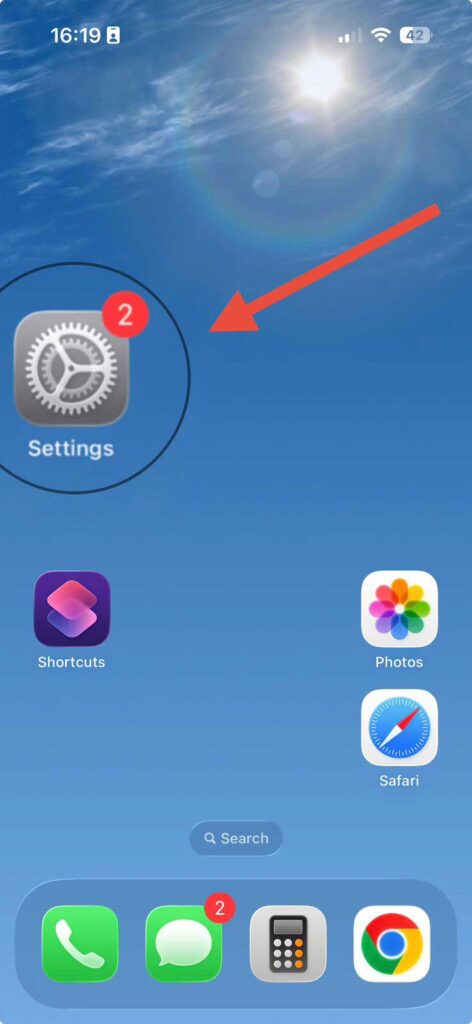
Step 2: Scroll down and tap Apps (iOS 18 and iOS 26 only — on iOS 17 or earlier, skip this step).
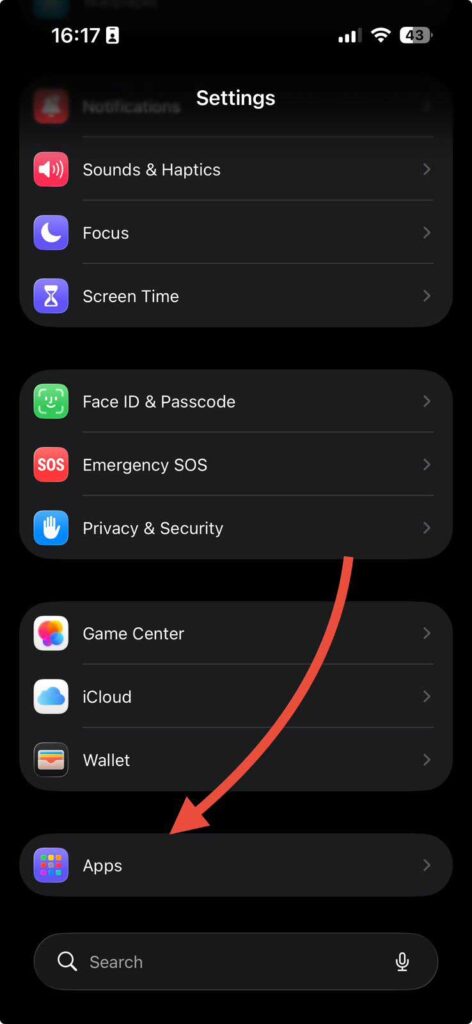
Step 3: Tap Messages.
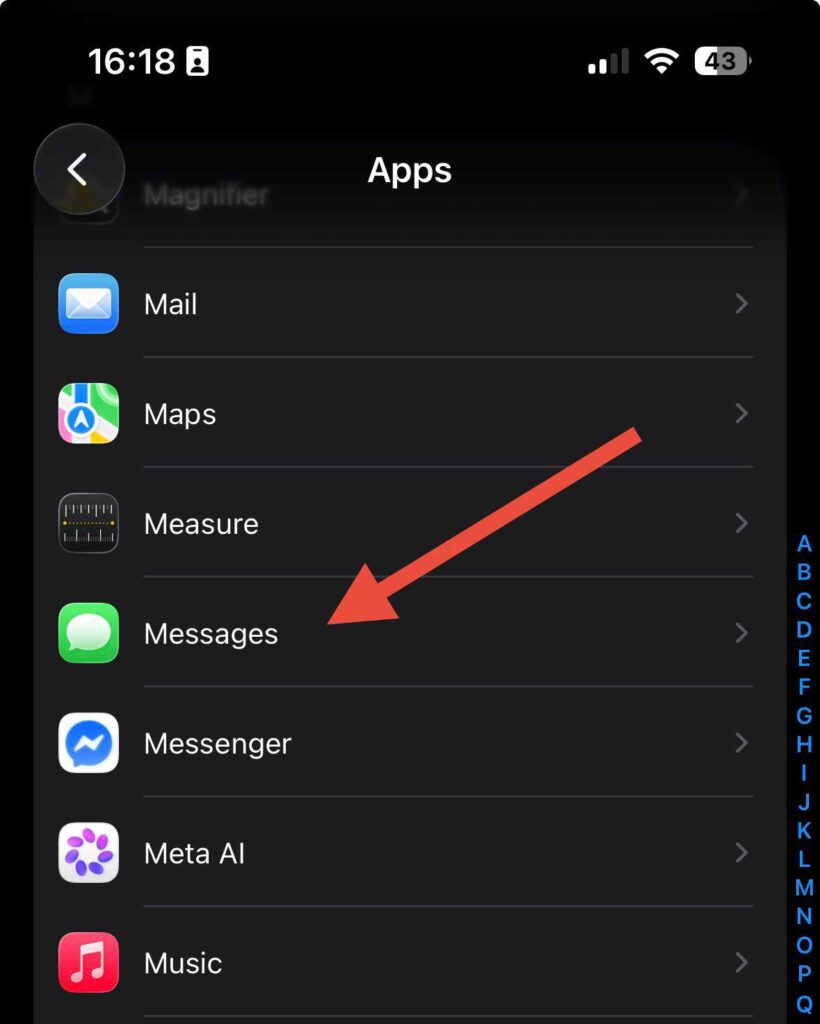
Step 4: Scroll down and toggle off Send Read Receipts.

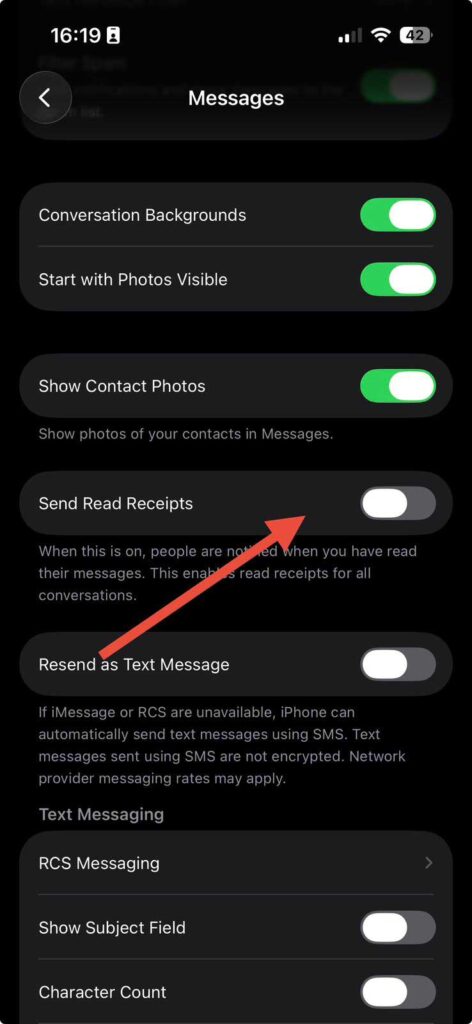
That’s it. The toggle goes gray and read receipts stop sending immediately — no restart needed.
📍 iOS Version Note:
- iOS 17 and earlier: Go to Settings → Messages → Send Read Receipts
- iOS 18 / iOS 26: Go to Settings → Apps → Messages → Send Read Receipts Apple moved the Messages settings into the “Apps” submenu starting with iOS 18.
How to Turn Off iMessage Read Receipts for Just One Contact
This is the feature most guides skip over — and it’s genuinely powerful. You can keep read receipts on for your mom, off for your boss.
Step 1: Open the Messages app
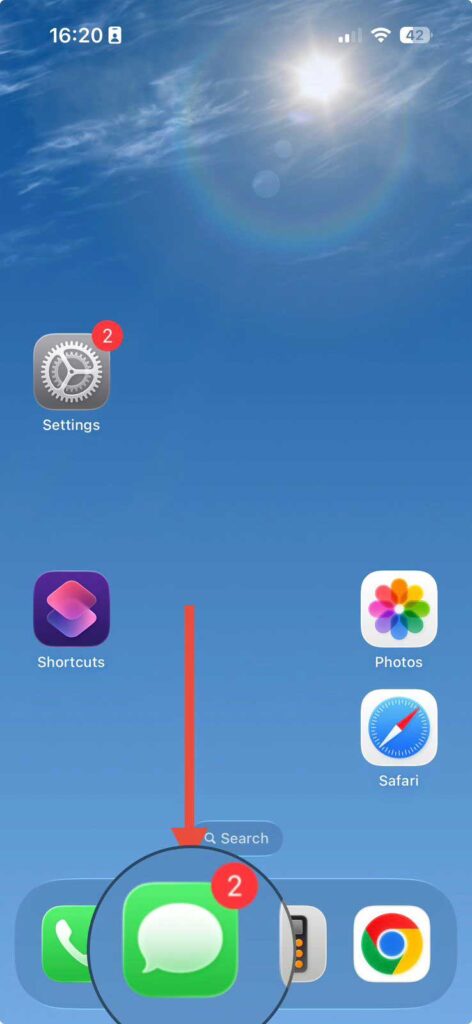
Step 2: Tap into the conversation with the person you want to adjust.
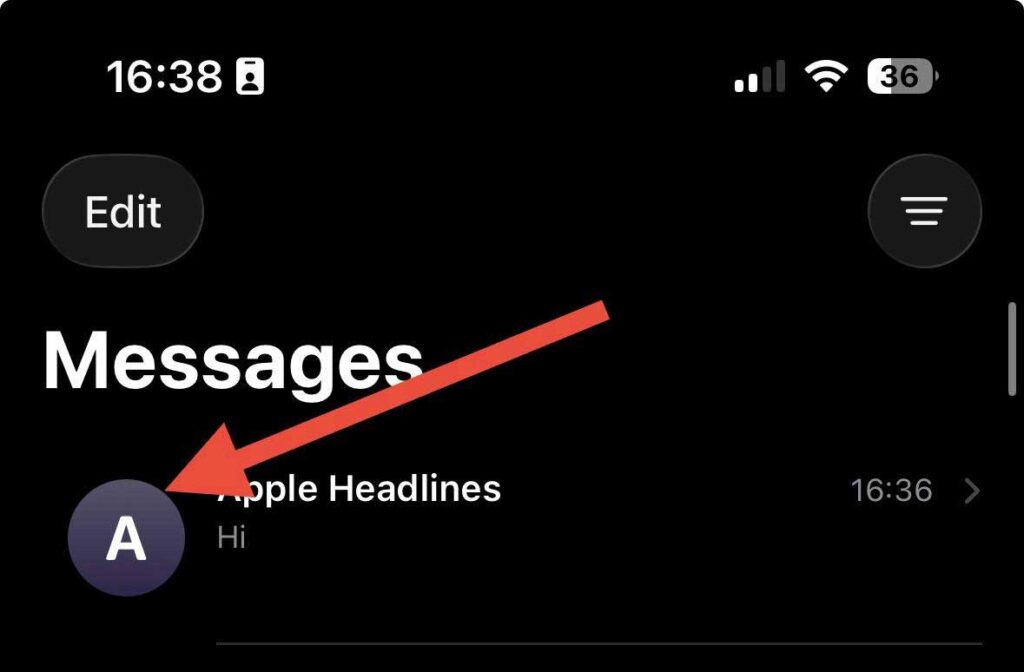
Step 3: Tap their name or profile photo at the top center of the screen.
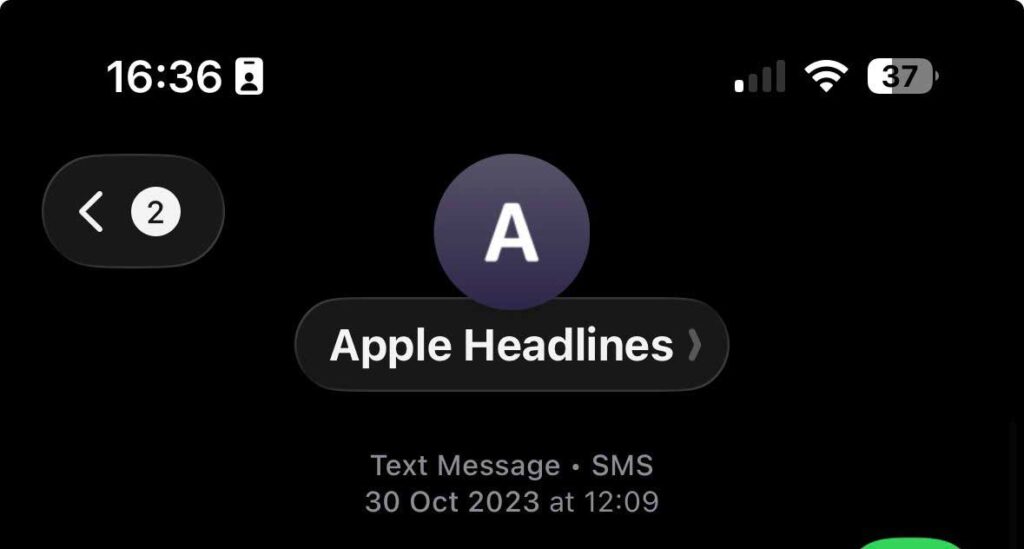
Step 4:Toggle off Send Read Receipts.
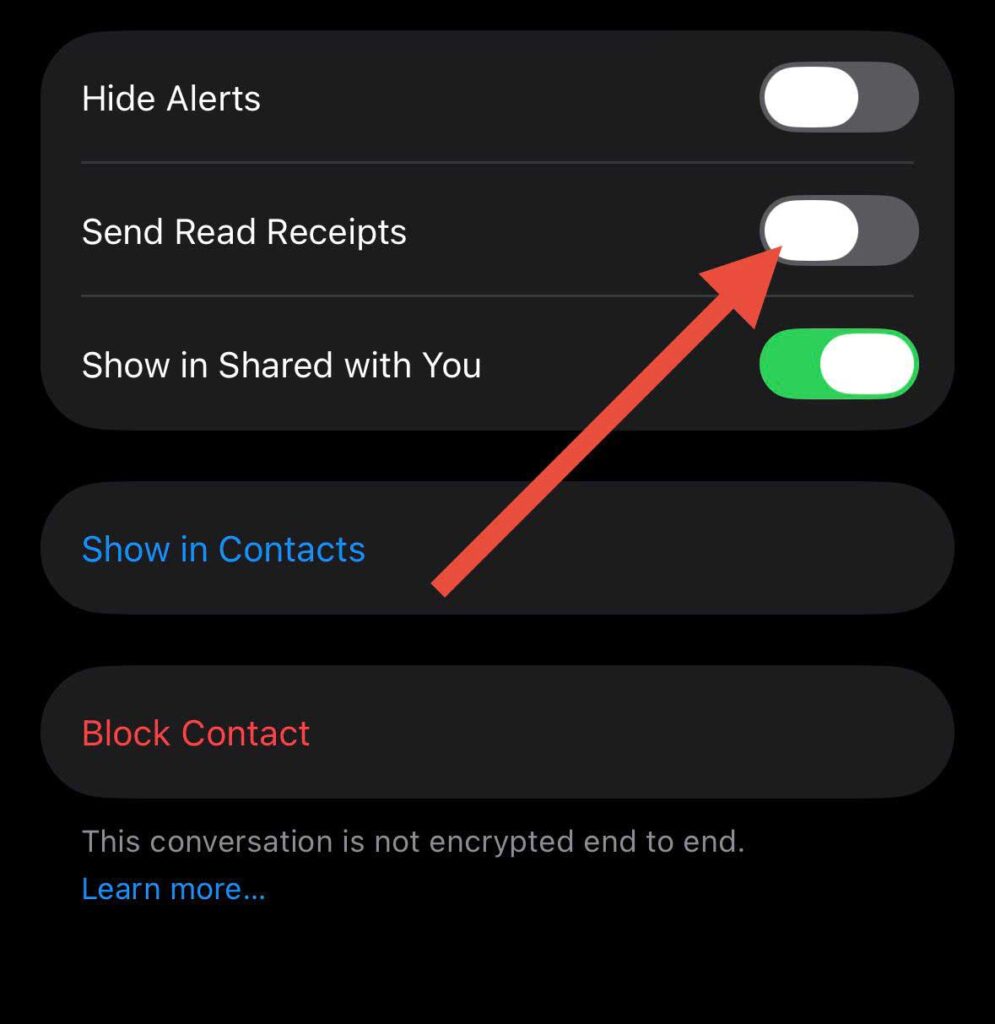
Done. They won’t see “Read” under their messages anymore — but your other contacts still will if you’ve kept the global setting on.
⚠️ Important: This per-contact setting only works for iMessage (blue bubble) conversations. It does not apply to standard SMS/green bubble texts or to RCS messages with Android users.
💡 Pro Tip: Use Focus Mode as a Smarter Alternative
Turning off read receipts permanently can sometimes feel awkward — especially if the other person knows you use read receipts and suddenly they disappear.
A smarter workaround: enable Focus Mode (Do Not Disturb or a custom Focus). While Focus is active, incoming messages won’t register as “read” in real time because notifications are silenced. It’s a socially neutral way to get breathing room without making it personal.
Go to Settings → Focus → Do Not Disturb and customize it to fit your schedule.
Why Read Receipts Feel Like a Privacy Invasion
Think of a read receipt like a delivery confirmation with a timestamp — it tells the sender exactly when you opened their message.
It’s like getting a “package delivered” notification, but for your private life.
That’s useful for some people.
For others, it creates social pressure that feels exhausting.
When we tested this on our iPhone 16 Pro running iOS 26, we noticed something interesting: even with Apple’s new iOS 26 messaging overhaul — which added encrypted RCS, Send Later, and real-time translation — the read receipt setting still lives in the same familiar place.
Apple hasn’t buried it. But surprisingly, many users still don’t know they can turn it off per contact, not just globally.
Common reasons people disable read receipts:
What If the Read Receipt Toggle Is Missing or Grayed Out?
This happens more often than you’d think. Here’s what to check:
1. You’re in an SMS conversation, not iMessage.
Read receipts are an iMessage-only feature. If the chat bubble is green, you’re texting over SMS — no read receipts exist there at all. Check out our guide to iMessage for Windows if you’re trying to get iMessage working across devices.
2. iMessage is turned off on your device.
Go to Settings → Apps → Messages and make sure the iMessage toggle is green. If it’s off, read receipts won’t be available. See our full iMessage troubleshooting guide if activation fails.
3. Your iOS is outdated.
The per-contact toggle requires iOS 10 or later. If you’re running something older (unlikely in 2026, but possible on older devices), update via Settings → General → Software Update.
4. Screen Time or MDM restrictions.
If your iPhone is managed by a school or employer, some settings may be locked. Contact your IT administrator.
Does Turning Off Read Receipts Affect Both Sides?
A question we see constantly: “If I turn off read receipts, can I still see when others read my messages?”
Yes — but only if they have their read receipts turned on. Your setting only controls what you send, not what you receive. Think of it as a one-way mirror: you can disable outgoing receipts while still seeing incoming ones from contacts who have them enabled.
Disclaimer: Steps in this article are based on iOS 26 and iOS 18. Apple may update the location of settings in future software versions. Screenshots and menu paths may vary slightly depending on your iPhone model and iOS version. This article is for informational purposes only. Apple Headlines is not affiliated with Apple Inc.
Published by Apple Headlines | Updated: May 2026 | Category: iPhone | iOS
Related Posts:
Official Documents
– Apple

T’kal is the lead strategist and developer behind Apple Headlines. With a background in digital marketing and web development, he specializes in technical Apple troubleshooting, software news, and hardware rumors. T’kal focuses on delivering high-authority tech content that bridges the gap between Apple enthusiasts and the latest industry innovations.