

You pop your AirPods into your ears, start playing your favorite podcast or song, and… silence in one ear.
Whether it’s the left or right AirPod, having audio play out of only one earbud is one of the most common – and infuriating ssues facing wireless earbud users today.
Sometimes the missing AirPod won’t connect at all.
Other times, your iPhone shows both earbuds are in the case, but one refuses to register a battery charge or drops its Bluetooth pairing mid-call.
Before assuming your AirPod is dead and scheduling a costly Genius Bar repair trip, take a breath.
In over 90% of cases, single-AirPod failure is caused by a dirty charging contact, an unequal audio balance setting, or a temporary Bluetooth handoff glitch.
Below is a step-by-step, 2026-tested troubleshooting guide to get both your AirPods working together again in minutes.
Quick Answer: Place both AirPods into the charging case and check the battery status pop-up on your iPhone.
If one AirPod is at 0%, clean the silver metal contacts at the bottom of the stem and inside the charging case well with a dry cotton swab.
If both are charged, perform a full reset by holding the setup button until the light flashes amber, then white.
Why Is Only One AirPod Working?
When wireless earbuds operate, they don’t just communicate with your iPhone – they must also continuously sync audio timing with each other via a primary-secondary Bluetooth relay.
Common reasons this process breaks down include:
- Corrupted Charging Contacts: Earwax, pocket lint, or oils coating the silver contacts at the bottom of the AirPod stem prevent electrical contact, leaving one earbud completely drained.
- Bluetooth Sync Desynchronization: The left and right AirPods occasionally lose their mutual pairing token during automatic switching between Apple devices.
- Mono Audio & Accessibility Balance Shifts: Accidental tweaks to iOS accessibility sliders can send 100% of the audio channel to a single side.
- Outdated Firmware & Out-of-Sync Updates: If one AirPod was recently replaced or spent days out of the case, its internal firmware may conflict with the other earbud.
Step 1: Check the Battery & Clean the Charging Contacts
The most frequent culprit behind a silent AirPod is simple: it ran out of battery because it failed to charge inside the case.
Even a tiny spec of pocket lint at the bottom of the charging well can prevent the metal contacts from connecting.
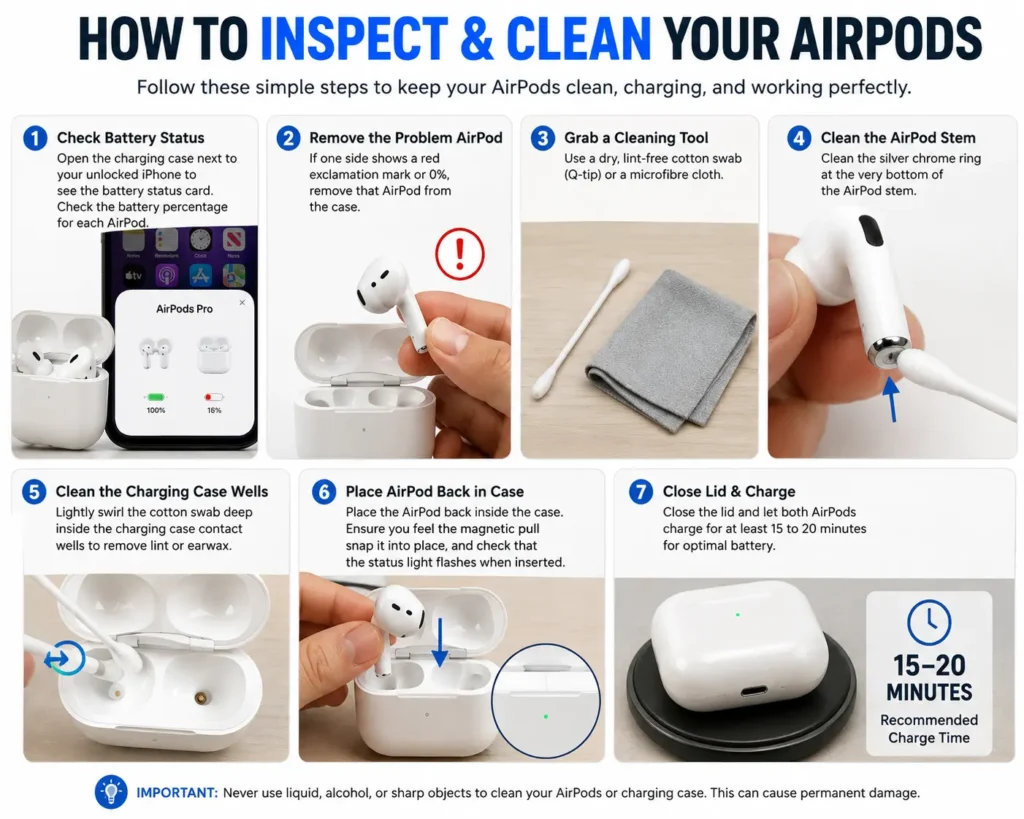
How to Inspect and Clean Your AirPods:
- Open the charging case lid next to your unlocked iPhone to trigger the battery status card. Look closely at the battery percentage for each individual AirPod.
- If one side shows a red exclamation mark or 0%, remove that AirPod from the case.
- Grab a dry, lint-free cotton swab (Q-tip) or microfibre cloth.
- Clean the silver chrome ring at the very bottom of the AirPod stem.
- Lightly swirl the cotton swab deep inside the bottom of the charging case contact wells to remove lint or earwax.
- Place the AirPod back inside the case. Ensure you feel the magnetic pull snap it into place, and check that the status light flashes when inserted.
- Close the lid and let both AirPods charge for at least 15 to 20 minutes.
Warning: Never use liquid alcohol, water, or sharp metal pins inside the charging case wells, as this can permanently damage the gold charging pins.
Read Related: How Long Do AirPods Take to Charge? Every Model’s Real Charging Time
Step 2: Check Your iPhone’s Audio Balance Settings
Sometimes both AirPods are fully charged and connected, but your iPhone is accidentally instructed to output sound to only one channel.
iOS includes an accessibility feature meant for hearing balance adjustment that can occasionally shift by mistake.
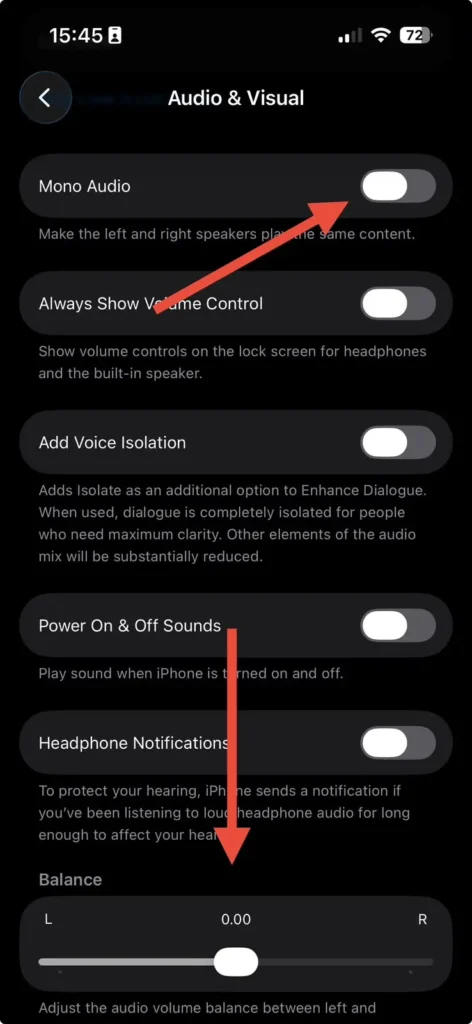
How to Re-Center Audio Balance on iOS:
- Open the Settings app on your iPhone.
- Scroll down and tap Accessibility.
- Under the Hearing section, tap Audio/Visual.
- Scroll down to the Balance slider.
- Ensure the slider handle is positioned precisely in the center (0.00). If it is dragged all the way to the Left or Right, drag it back to the middle.
- Verify that Mono Audio is toggled OFF unless specifically needed.
Settings ➔ Accessibility ➔ Audio/Visual ➔ Balance Slider (Set to Center)
Step 3: Forget & Unpair Your AirPods from Bluetooth
If hardware and balance are fine, the issue is almost certainly a corrupted Bluetooth connection profile stored on your iOS device.
Unpairing forces your iPhone to discard broken connection tokens.
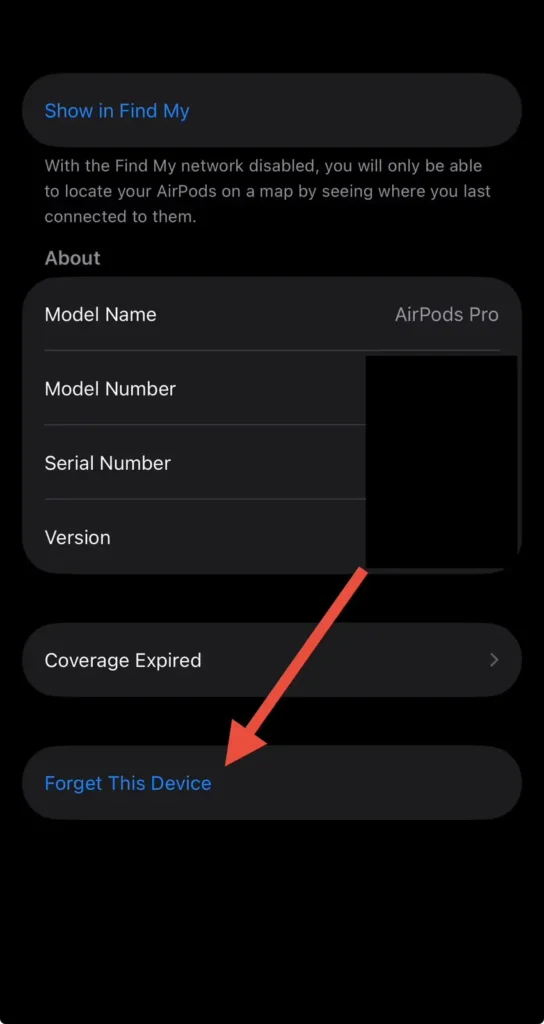
- Put both AirPods inside the case and close the lid for 15 seconds.
- Open Settings on your iPhone and select Bluetooth.
- Tap the (i) Info icon next to your AirPods’ name.
- Scroll down and tap Forget This Device, then confirm your choice.
- Toggle Bluetooth OFF on your iPhone, wait 5 seconds, and toggle it back ON.
Step 4: Perform a Hard Factory Reset on Your AirPods
A hard reset wipes the internal memory on the AirPods chip (H1/H2 or Apple Wireless Chips), restoring them to original factory settings and forcing the left and right earbuds to re-establish a fresh handshake with each other.
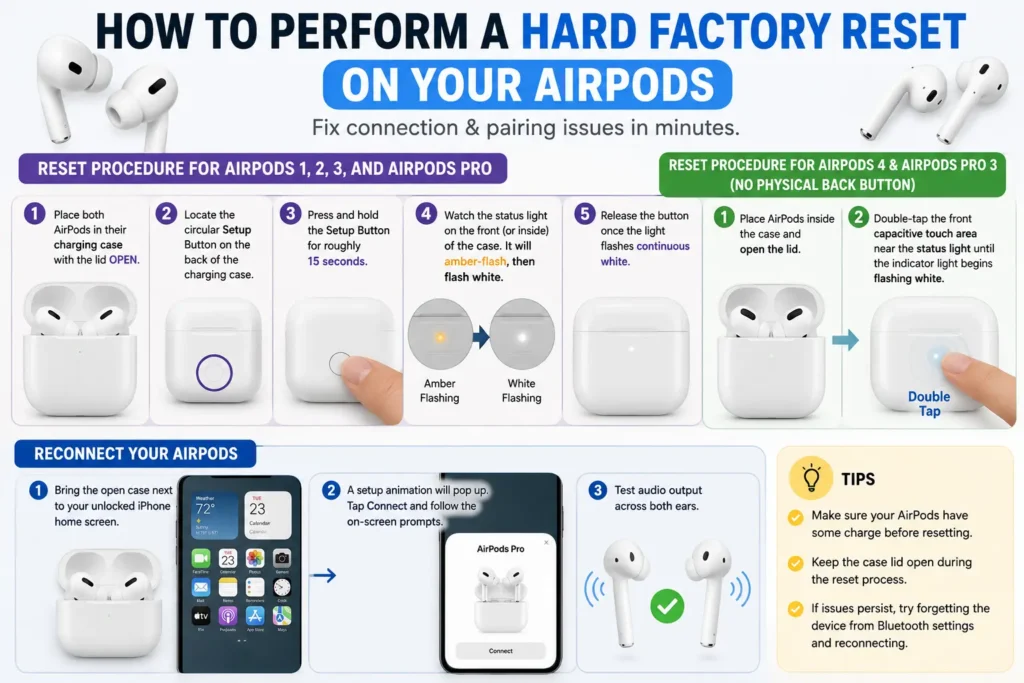
Reset Procedure for AirPods 1, 2, 3, and AirPods Pro:
- Place both AirPods in their charging case with the lid OPEN.
- Locate the circular Setup Button on the back of the charging case.
- Press and hold the Setup Button for roughly 15 seconds.
- Watch the status light on the front (or inside) of the case. It will amber-flash, then flash white.
- Release the button once the light flashes continuous white.
Reset Procedure for AirPods 4 & AirPods Pro 3 (No Physical Back Button):
- Place AirPods inside the case and open the lid.
- Double-tap the front capacitive touch area on the case near the status light until the indicator light begins flashing white.
Reconnect Your AirPods:
- Bring the open case next to your unlocked iPhone home screen.
- A setup animation will pop up. Tap Connect and follow the on-screen prompts.
- Test audio output across both ears.
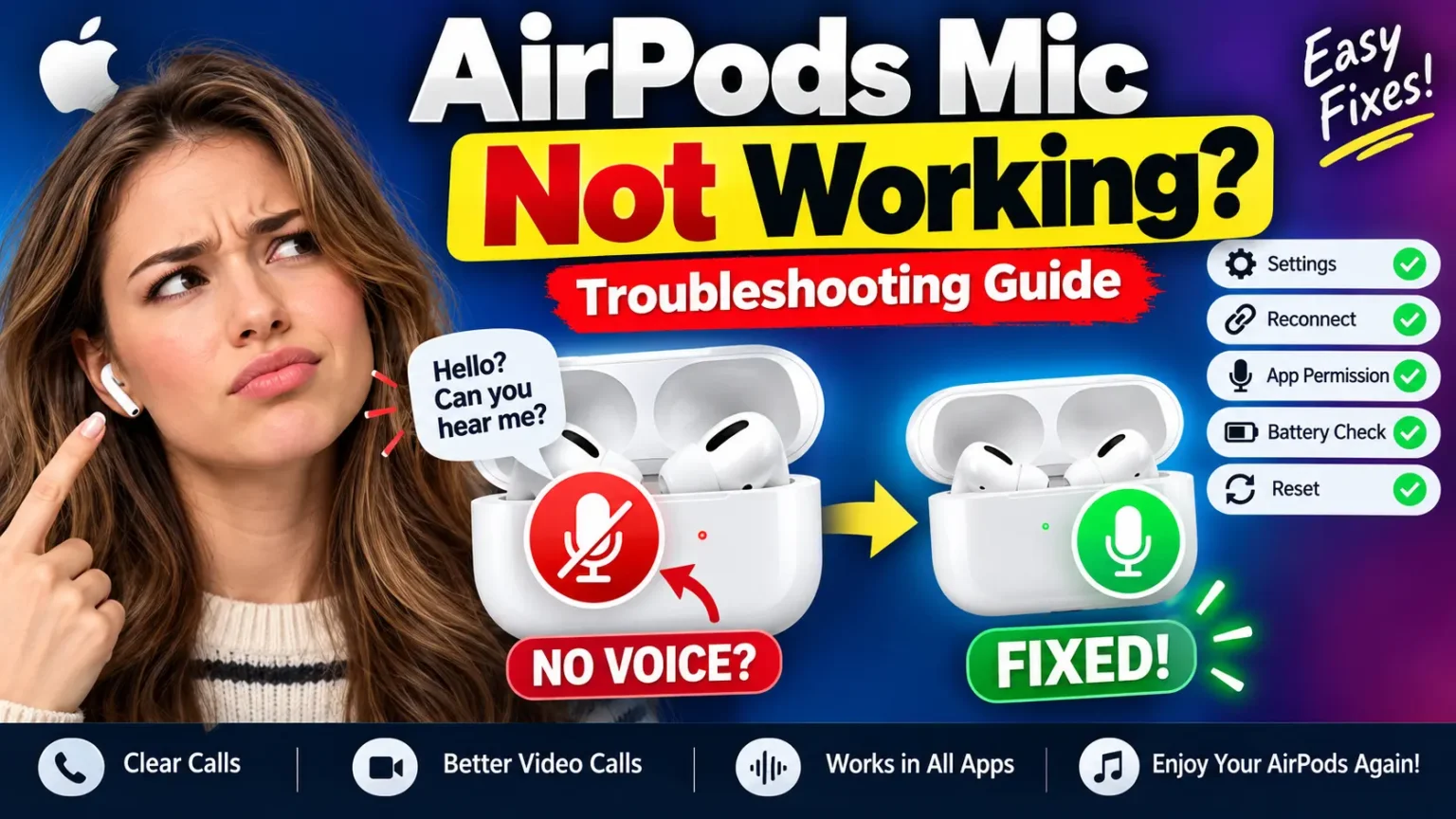
AirPods Acting Up? Reset Them in 60 Seconds (Every Model, Every Fix)
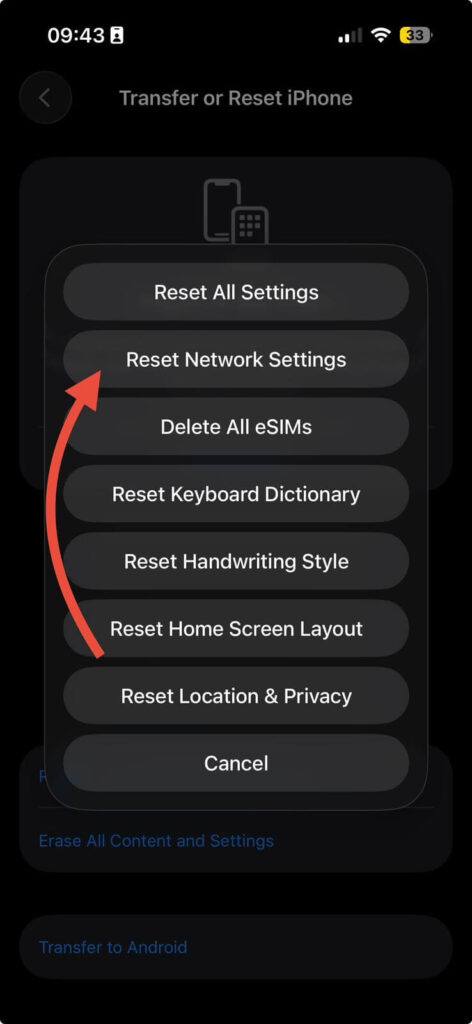
Step 5: Reset Network Settings on Your iPhone
If resetting the AirPods themselves fails to solve single-ear playback, your iPhone’s system-level Bluetooth protocol cache may be corrupt. Resetting network settings rebuilds all wireless driver stacks without touching your personal photos or app data.
- Open Settings > General.
- Scroll down and tap Transfer or Reset iPhone.
- Tap Reset at the bottom of the display.
- Select Reset Network Settings.
- Enter your passcode and confirm. (Note: This will require you to re-enter saved Wi-Fi passwords afterward).
Troubleshooting Summary Matrix
| Problem Indicator | Likely Cause | Primary Fix |
| 0% battery icon on 1 AirPod | Dirty case contacts / Lint build-up | Clean stem contacts with a dry cotton swab & charge 20 mins |
| Both show 100% charge, 1 silent | Audio balance shifted / Handoff error | Adjust Accessibility Balance to center / Toggle Bluetooth |
| Amber light flashes continuously | Unsynchronized earbud firmware | Perform 15-second Hard Reset via Setup Button |
| Audio cuts out mid-call on 1 side | Bluetooth memory leak on host device | Forget Device in Settings & Reset Network Settings |
When to Contact Apple Support
If you have cleaned the contacts, checked audio balance, and performed a full 15-second amber-to-white hard reset, but one AirPod remains completely unresponsive or fails to emit a status light when placed alone in the case, you may be dealing with a failed lithium-ion battery cell or a damaged internal driver.
In this case:
- Check your coverage status under Settings > Bluetooth > [Your AirPods] > Coverage.
- If covered under AppleCare+, Apple will replace an individual defective AirPod earbud for a small service fee.
- Out-of-warranty single AirPod replacements can be ordered directly through official Apple Support without needing to buy a whole new set.
Final Thoughts
The single-working AirPod bug is almost always a minor software hitch or a dirty charging port rather than permanent hardware failure.
By running through this checklist – cleaning the stem contacts, re-centering your accessibility audio balance, and executing a full factory reset – you can restore full stereo audio in under 10 minutes.
Official Sources:
Related Reads




T’kal is the lead strategist and developer behind Apple Headlines. With a background in digital marketing and web development, he specializes in technical Apple troubleshooting, software news, and hardware rumors. T’kal focuses on delivering high-authority tech content that bridges the gap between Apple enthusiasts and the latest industry innovations.