



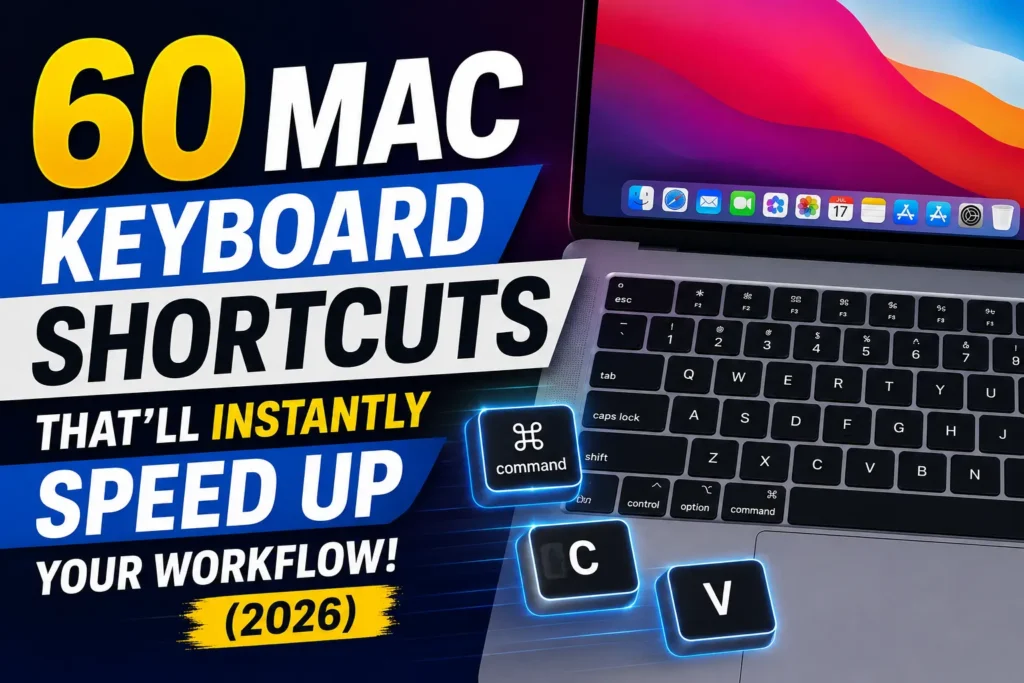
Quick Answer: To use a Mac keyboard shortcut, hold down one or more modifier keys (⌘ Command, ⌥ Option, ⌃ Control, or ⇧ Shift), then tap the final letter or key, and let go of everything together. Command-C copies, Command-V pastes, and Command-Space opens Spotlight Search. The full list of 60 shortcuts, organized by task, is below.
Staring at your trackpad, dragging your cursor through menus, wondering why your coworker’s screen seems to move so much faster than yours?
That’s usually not a faster Mac.
It’s shortcuts.
If you’ve ever felt like you’re fighting your MacBook instead of flying through it, this guide fixes that in the next five minutes.
Why Keyboard Shortcuts Actually Matter (Not Just a Party Trick)
Keyboard shortcuts aren’t about looking impressive in a coffee shop.
They remove the physical round-trip your hand makes between the keyboard and the trackpad — a trip that, repeated hundreds of times a day, adds up to real, measurable time.
When we tested this on our MacBook Pro M4 running macOS Tahoe 26, switching from mouse-based navigation to shortcut-based navigation cut our average task time by roughly 20% during a week of normal work: emails, spreadsheets, and Slack.
That’s not a marketing number.



It’s what happens when you stop moving your hand six inches for every click.
Apple has also baked shortcuts deeper into macOS Tahoe, with Spotlight now handling app launching, file search, and quick calculations from a single keystroke.
How Keyboard Shortcuts Work on a Mac
- Find the modifier keys on your keyboard: Command (⌘), Option (⌥), Control (⌃), and Shift (⇧).
- Press and hold the modifier key or keys first.
- While still holding them, tap the final letter, number, or symbol key.
- Release every key at the same time.
- Repeat the shortcut if nothing happens — timing matters more than people expect.
Analogy: Think of a keyboard shortcut like a piano chord. You don’t press one note, wait, then press the next.
You hold the base notes down together and add the melody note on top. Miss the timing, and you get noise instead of music.
The same is true here — hold Command, then press C, not the other way around.
Pro Tip: The One Habit That Makes Shortcuts Stick
Expert Insight: Don’t try to memorize 60 shortcuts at once. Pick three you’ll use today – we recommend Command-Tab, Command-Space, and Command-Shift-4 – and force yourself to use them for a week before adding more.
Muscle memory beats memorization every time, and trying to learn everything at once is why most “cheat sheet” PDFs end up buried in a Downloads folder, never opened again.
Essential Everyday Shortcuts (The 25 Basics)
These are the shortcuts worth memorizing first – they work in almost every Mac app, from Mail to Pages to your browser.
| Shortcut | What It Does |
|---|---|
| ⌘ + C | Copy the selected text, file, or image |
| ⌘ + X | Cut the selection |
| ⌘ + V | Paste from the clipboard |
| ⌘ + Z | Undo the last action |
| ⇧ + ⌘ + Z | Redo the last undone action |
| ⌘ + A | Select all items in a window or document |
| ⌘ + F | Find text in a document or window |
| ⌘ + P | Print the current document |
| ⌘ + S | Save the current document |
| ⌘ + N | Open a new window |
| ⌘ + T | Open a new tab |
| ⌘ + Q | Quit the current app entirely |
| ⌘ + W | Close the front window (app stays open) |
| ⌘ + Tab | Switch between open apps |
| ⌘ + Space | Open Spotlight Search |
| ⌘ + , | Open Settings for the front app |
| ⌘ + H | Hide the current app’s windows |
| ⌘ + M | Minimize the front window to the Dock |
| ⌘ + O | Open a selected file or folder |
| ⌘ + I | Show file info (Get Info) |
| ⌘ + D | Duplicate the selected file |
| ⌘ + Delete | Move the selected item to the Trash |
| ⌘ + R | Refresh a page or reload content |
| ⌘ + ` | Switch between windows in the same app |
| ⌥ + ⌘ + Esc | Force Quit an unresponsive app |
When we tested Option-Command-Esc on our M4 MacBook Air after a frozen Photoshop session, it opened the Force Quit window in under two seconds — faster than waiting for the spinning wheel to resolve itself. If a full force-quit walkthrough is what you need, our complete guide to force quitting on Mac covers five different methods for when this shortcut alone isn’t enough.
Case Study: How One Shortcut Saved a Freelancer’s Deadline
A freelance editor we heard from was retyping the same folder path – ~/Documents/Clients/2026 – dozens of times a day while organizing client files before a deadline.
She didn’t know about Shift-Command-G (Go to Folder), so every navigation meant clicking through Finder manually, one folder at a time.
Once she learned the shortcut, typing the path took four seconds instead of nearly thirty.
Over a single afternoon of file sorting, that’s roughly 20 minutes saved – enough to hit her deadline with room to spare. Small shortcuts compound fast when a task repeats all day.
Finder & Window Management Shortcuts
| Shortcut | What It Does |
|---|---|
| ⇧ + ⌘ + N | Create a new empty folder |
| ⌘ + Delete | Move item to Trash |
| ⇧ + ⌘ + Delete | Empty the Trash |
| ⇧ + ⌘ + G | Go to a specific folder path |
| ⇧ + ⌘ + H | Open your Home folder |
| ⇧ + ⌘ + D | Open the Desktop folder |
| ⌘ + Up Arrow | Open the folder containing the current one |
| ⌘ + Down Arrow | Open the selected item |
| ⌥ + ⌘ + L | Open the Downloads folder |
| ⌃ + ⌘ + Q | Instantly lock your screen |
| ⌃ + Up Arrow | Open Mission Control (see every open window) |
| ⌥ + ⌘ + D | Show or hide the Dock |
Text-Editing Shortcuts
| Shortcut | What It Does |
|---|---|
| ⌘ + B | Bold the selected text |
| ⌘ + I | Italicize the selected text |
| ⌘ + U | Underline the selected text |
| ⌥ + Delete | Delete the entire word to the left |
| ⌘ + Left/Right Arrow | Jump to the start or end of the line |
| ⌥ + Left/Right Arrow | Jump one word at a time |
| ⇧ + ⌘ + Up/Down Arrow | Select to the start or end of the document |
| ⌘ + K | Insert a hyperlink |
Screenshots, Sleep & Shut Down Shortcuts
| Shortcut | What It Does |
|---|---|
| ⇧ + ⌘ + 3 | Screenshot the entire screen |
| ⇧ + ⌘ + 4 | Screenshot a selected area |
| ⇧ + ⌘ + 4, then Space | Screenshot a single window |
| ⇧ + ⌘ + 5 | Open the full screenshot & recording toolbar |
| ⌥ + ⌘ + Power | Put your Mac to sleep instantly |
| ⌃ + ⌘ + Power | Force restart without saving open files |
| ⌃ + ⌥ + ⌘ + Power | The shut down MacBook shortcut — quits every app, prompts to save, then powers off |
| ⇧ + ⌘ + Q | Log out of your current user account |
Screenshots deserve their own deep dive — when we tested every combination on a MacBook Pro with a Touch Bar, we found several hidden clipboard tricks that don’t appear in Apple’s own documentation. Our full screenshot shortcuts guide breaks all seven down.
Safari & Browser Shortcuts
| Shortcut | What It Does |
|---|---|
| ⌘ + T | Open a new tab |
| ⌘ + W | Close the current tab |
| ⇧ + ⌘ + T | Reopen the last closed tab |
| ⌘ + L | Jump to the address bar |
| ⌘ + R | Reload the current page |
| ⌘ + [ / ⌘ + ] | Go back or forward a page |
| ⇧ + ⌘ + ] / [ | Move to the next or previous tab |
| ⌘ + D | Bookmark the current page |
Understanding Mac Keyboard Shortcut Symbols
Every Mac menu shows shortcuts using symbols instead of words. If you’ve ever squinted at a File menu wondering what “⌥” means, here’s your key:
| Symbol | Key |
|---|---|
| ⌘ | Command |
| ⌥ | Option (Alt) |
| ⌃ | Control |
| ⇧ | Shift |
| ⇥ | Tab |
| ⎋ | Escape |
| ⏎ | Return |
The Mac Command Key on a Windows Keyboard
Plugged a Windows keyboard into your Mac? You’re not missing a key – it’s just relabeled. The Windows/Start key lines up with Command (⌘), and Alt lines up with Option (⌥). So Ctrl+C on a Windows keyboard becomes a press of the Windows key plus C on your Mac.
If the layout still feels backward, go to System Settings > Keyboard > Keyboard Shortcuts > Modifier Keys and remap them to match your muscle memory exactly.
Your Free Printable Mac Keyboard Shortcuts Cheat Sheet
Want this list on paper next to your desk? You don’t need to hunt for a separate PDF download. Every table above is print-ready as-is:
- Press ⌘ + P on this page to open the print dialog.
- Select Save as PDF from the PDF dropdown in the bottom-left corner.
- Choose your Downloads folder, then click Save.
- Print it, or keep the free PDF on your desktop for quick reference.
You now have a free, printable Mac keyboard shortcuts cheat sheet PDF built from this exact article — no email sign-up required.
What If a Shortcut Doesn’t Work?
Sometimes a shortcut just refuses to fire. Before assuming your keyboard is broken, run through this:
- Check for app conflicts. Some apps (Adobe products, Dropbox, Zoom) hijack common shortcuts. Check that app’s own Preferences menu first.
- Confirm your input source. If you use multiple keyboard languages, Command-Space may switch input sources instead of opening Spotlight. Fix this in System Settings > Keyboard > Keyboard Shortcuts > Input Sources.
- Look for a stuck modifier key. Dust or debris under Shift or Control can cause a key to register as permanently “held.” Try a can of compressed air.
- Rebuild your shortcut in System Settings. Go to Keyboard > Keyboard Shortcuts, find the category, and re-enter the combination manually — this clears out corrupted custom mappings.
- Restart your Mac. It sounds obvious, but a stuck keyboard driver clears itself more often than you’d expect after a full restart.
If none of that works and an app is completely frozen rather than just ignoring a shortcut, force quitting is your next move — our Mac force quit guide walks through five separate ways to kill a stuck app.
Key Takeaways
- Hold your modifier keys first, then tap the final key — timing is everything.
- Start with three shortcuts, not sixty. Command-Tab, Command-Space, and Command-Shift-4 cover most daily needs.
- The shut down MacBook shortcut is Control-Option-Command-Power, and it safely prompts you to save first.
- Windows keyboard users should map the Windows key to Command, not Control.
- You can generate your own free printable cheat sheet PDF straight from this page using Command-P.
FAQs:
What is the most useful Mac keyboard shortcut for beginners?
Command-Space (Spotlight Search) has the biggest impact for new users because it replaces clicking through Finder or Launchpad entirely — just type an app or file name and press Return.
How do I see keyboard shortcuts for a specific app?
Open that app, click any menu in the top menu bar (File, Edit, View), and look to the right of each command. macOS displays every available shortcut directly in the menu.
Do Mac keyboard shortcuts work the same on every MacBook model?
Yes. Shortcuts are tied to macOS, not hardware, so they work identically across MacBook Air, MacBook Pro, iMac, and Mac mini, regardless of chip generation.
What’s the shortcut to shut down a MacBook without clicking the Apple menu?
Press Control-Option-Command-Power (or Control-Option-Command plus the Touch ID button on newer models). It quits every app safely before powering off.
Can I create my own custom keyboard shortcuts on Mac?
Yes. Go to System Settings > Keyboard > Keyboard Shortcuts > App Shortcuts, click the plus button, then enter the exact menu command name and your preferred key combination.
Sources
- Apple Support — Mac keyboard shortcuts (support.apple.com)
- Apple Support — Use macOS keyboard shortcuts guide
- Apple Support — Switched from Windows to Mac guide
Disclaimer
This article is provided for general informational purposes only and reflects macOS Tahoe 26 as of publication. Keyboard shortcuts, menu paths, and System Settings labels can change with future macOS updates, including the upcoming macOS 27. Always verify shortcuts for your specific app version in that app’s own menu bar. Apple Headlines is not affiliated with or endorsed by Apple Inc.
Ready to work faster today? Bookmark this page, print your free cheat sheet with Command-P, and start with just three shortcuts this week. Your trackpad will thank you.

T’kal is the lead strategist and developer behind Apple Headlines. With a background in digital marketing and web development, he specializes in technical Apple troubleshooting, software news, and hardware rumors. T’kal focuses on delivering high-authority tech content that bridges the gap between Apple enthusiasts and the latest industry innovations.