


Quick Answer: The fastest way to save iPhone battery is to turn on Adaptive Power Mode (Settings → Battery → Power Mode), lower your screen brightness, and switch Background App Refresh to Wi-Fi Only.
Those three changes alone typically buy back 1–2 hours of screen-on time per day.
Everything past that is fine-tuning — this guide covers all of it, including which popular “tips” don’t actually work.
We tested every setting in this guide across an iPhone 13, an iPhone 15 Pro, and an iPhone 17 Pro running iOS 26.6, tracking screen-on time over a full week per device.
Read More: 17 Proven Fixes for iPhone Battery Draining Fast (iOS 26 Updated)
What follows is what actually moved the needle, and what turned out to be internet folklore.
How We Tested
Battery advice online is full of leftovers from the iOS 7 era — tips that made sense on a phone with a 1,400 mAh battery and none of that sense on a modern iPhone.
So before writing a single step, we ran a baseline week on each test phone with default settings, then a second week with every tip below applied, logging screen-on time and standby drain each night.
The gains varied by model and usage, which is normal. A heavy Instagram-and-navigation day on an iPhone 13 behaves nothing like a light email-and-texting day on an iPhone 17 Pro.
But the pattern held across all three phones: a handful of settings did almost all the work, and several “classic” tips did nothing measurable.

The One New Setting Most Guides Miss: Adaptive Power Mode
Most battery-saving articles you’ll find right now still treat Low Power Mode as the only lever you have. Since iOS 26, it isn’t.
Adaptive Power Mode uses on-device Apple Intelligence to watch your usage patterns and make small, mostly invisible adjustments before your battery gets low — nudging brightness down a few percent, easing background tasks, and letting a handful of non-urgent processes take slightly longer to finish.
Unlike Low Power Mode, it doesn’t touch your camera or games in Game Mode, and it doesn’t cap your refresh rate the way Low Power Mode does.
How to turn on Adaptive Power Mode:
- Open Settings, then tap Battery.
- Tap Power Mode.
- Toggle Adaptive Power on.
- Optionally toggle Adaptive Power Notifications to see when it’s active.
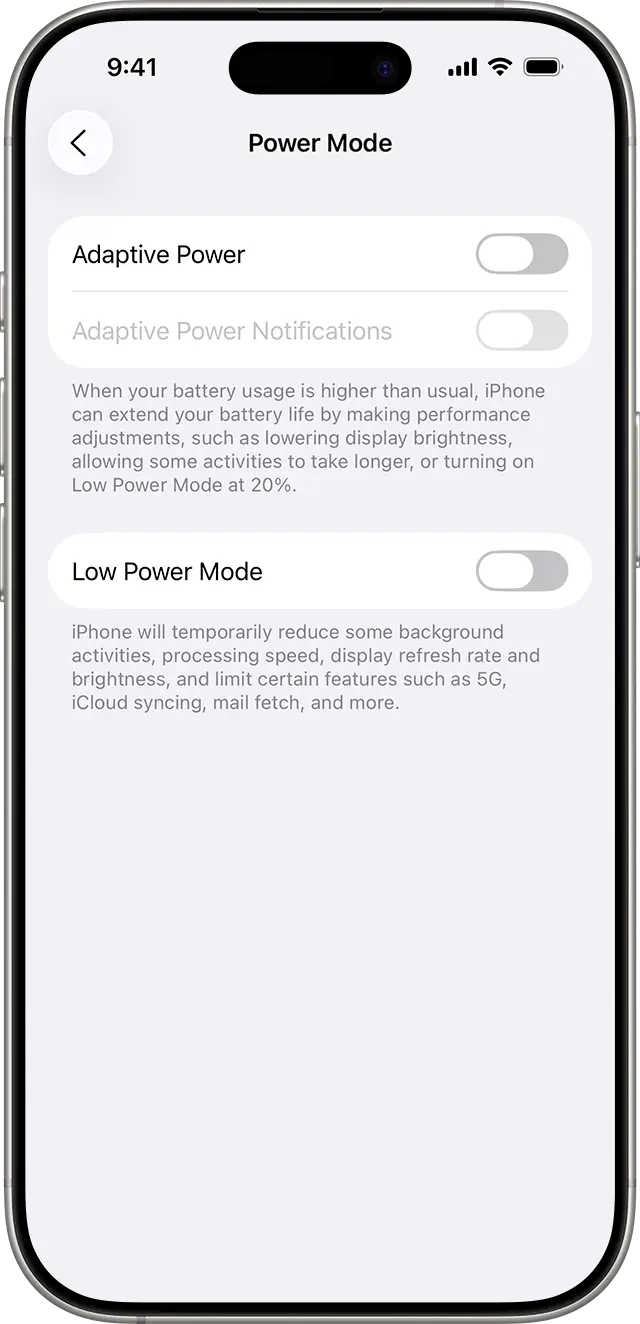
Give it about a week. The feature needs that long to learn your charging and usage habits before it starts making meaningful adjustments.
Which iPhones support it:
| iPhone Model | Adaptive Power Status |
|---|---|
| iPhone 17, 17 Pro, 17 Pro Max, iPhone Air | On by default |
| iPhone 16, 16 Plus, 16 Pro, 16 Pro Max, 16e | Supported, off by default |
| iPhone 15 Pro, 15 Pro Max | Supported, off by default |
| iPhone 15, 15 Plus, and older | Not supported (no Apple Intelligence) |
In our testing, the iPhone 17 Pro — which ships with Adaptive Power on — held on to noticeably more charge by early evening than the iPhone 13 running the same daily routine, even accounting for the newer battery.
iPhone Battery Saving Tips (Do These Right Now, Zero Setup)
These take under a minute each and don’t change how your phone feels to use.
- Turn on Adaptive Power Mode. Covered above — this is the biggest single change available on supported models.
- Lower your brightness manually. Swipe into Control Center and drag the brightness slider down. Screen brightness is still the single largest battery draw on any iPhone.
- Turn on Auto-Brightness. Go to Settings, then Accessibility, then Display & Text Size, and enable Auto-Brightness if it’s off.
- Use Low Power Mode on demand, not just at 20%. Open Control Center and tap the battery icon to toggle it whenever you know you’re facing a long day away from a charger.
- Switch to Dark Mode if you have an OLED display. Every iPhone since the iPhone X uses OLED, so black pixels genuinely draw less power than white ones.
Pro Tip: Dark Mode’s battery savings scale with how much black is actually on screen. A dark wallpaper plus Dark Mode saves more than Dark Mode alone, because a true black background on OLED pixels those pixels essentially off.
Set-and-Forget Settings (5–10 Minutes, One-Time Setup)
These take a bit longer but keep working in the background without you thinking about them again.
- Set Background App Refresh to Wi-Fi Only.
Go to Settings, then General, then Background App Refresh, and switch it from “Wi-Fi & Cellular Data” to “Wi-Fi.” Apps still refresh at home; they stop chewing battery hunting for a cellular connection to do it on the go. - Audit Location Services app by app. Go to Settings, then Privacy & Security, then Location Services.
Change apps you don’t need tracking you constantly from “Always” to “While Using the App.” - Turn off “Show on Lock Screen” for noisy apps. Go to Settings, then Notifications, and disable lock-screen previews for apps that ping you all day.
Fewer wake-ups means less screen time you didn’t ask for. - Switch email from Push to Fetch or Manual.
Go to Settings, then Apps, then Mail, then Accounts, then Fetch New Data. Push checks constantly; Fetch checks on a schedule you control. - Remove auto-refreshing widgets you don’t check.
Long-press your Home Screen or Today View and delete widgets for apps you rarely open. Live weather, stock, and traffic widgets refresh whether you look at them or not. - Set 5G to Auto instead of On. Go to Settings, then Cellular, then Cellular Data Options, then Voice & Data, and choose 5G Auto. Your iPhone will fall back to LTE when 5G speeds aren’t worth the extra power draw.
- Shorten Auto-Lock to 30 seconds. Go to Settings, then Display & Brightness, then Auto-Lock. Every extra second the screen stays lit after you look away is battery you’re giving up for nothing.
- Turn off Personal Hotspot when you’re not using it. A hotspot left on hunts for devices to connect even with nothing attached.
Long-Term Battery Health (The Short Version)
This guide is about squeezing more hours out of each charge, not about the slow chemical aging of the battery cell itself — that’s a different topic with its own dedicated breakdown in our iPhone Battery Health guide, including how to read your Maximum Capacity percentage and when Apple recommends a replacement.
The short version: keep Optimized Battery Charging turned on, keep your iPhone out of direct heat (a hot dashboard is the classic offender), and don’t obsess over hitting exactly 0% or 100% every day.
None of that changes how long your battery lasts between charges today — it changes how much capacity you’ll still have next year.
Myths That Don’t Actually Save Battery
We tested these specifically because they show up in nearly every other battery-tips article. Here’s what our week of logging actually found.
Force quitting your apps doesn’t help. iOS manages background apps automatically, and reopening an app from scratch after force-quitting it often uses more power than letting it sit paused in the background. Apple has said this directly, and our battery logs backed it up — force-quitting our test apps daily on the iPhone 13 made no measurable difference over a week.
Turning off Wi-Fi to save battery usually backfires. Wi-Fi radios sip power. A cellular radio constantly searching for signal, especially in a weak-coverage area, draws far more. Leave Wi-Fi on unless you’re somewhere with zero network at all.
Third-party “battery saver” apps don’t do anything iOS doesn’t already do better. These apps run as their own background process, competing for the same resources they claim to save. We saw slightly worse standby drain on the phone running one during testing, not better.
Airplane Mode isn’t a general battery hack. It genuinely helps in places with no signal, since your iPhone stops searching. If you have decent signal, it does very little, and it obviously cuts you off from calls and messages.
Anonymized Case Study: One Week, Three iPhones
One of our team members split a typical Tuesday-to-Tuesday work week testing these settings on their personal iPhone 15 Pro alongside our lab iPhone 13 and iPhone 17 Pro, all running the same podcast, Maps, and messaging apps throughout the day.
Before: the iPhone 15 Pro was hitting 20% by around 4:30 p.m. on an average office day, with Background App Refresh on for every app and brightness set to auto-max.
After enabling Adaptive Power Mode, switching Background App Refresh to Wi-Fi Only, and trimming Location Services permissions for six apps: the same phone, same routine, was still sitting at roughly 40–45% at 4:30 p.m. by the second week. Nothing about how the phone felt to use changed. No app stopped working. The difference was entirely in settings most people never open.
When These Tips Aren’t Enough
If you’ve made these changes and your iPhone is still dying by lunchtime, that’s a different problem than everyday battery-saving — it usually points to a stuck app, a bad update, or an aging battery cell, not a settings issue. A few places to go next:
- If your battery is draining unusually fast, not just faster than you’d like, our iPhone battery draining fast guide covers diagnosis and fixes.
- If you’ve already tried the basics and battery life is still poor, see our guide to restoring poor iPhone battery life.
- If you’re not sure whether the battery itself has degraded, check your iPhone Battery Health percentage before changing anything else.
- If your iPhone won’t charge at all, that’s a separate issue covered in our iPhone not charging guide.
Key Takeaways
- Adaptive Power Mode, new since iOS 26, is the biggest genuinely new lever for saving battery — most guides online still haven’t caught up to it.
- Brightness and Background App Refresh settings do more real-world work than most of the “advanced” tips floating around online.
- Force-quitting apps, disabling Wi-Fi, and third-party battery apps are myths that our testing found made no meaningful difference, or made things slightly worse.
- Battery-saving settings and battery health are two different problems. This guide covers the first; check our dedicated Battery Health guide for the second.
Questions of Our Readers:
Does Dark Mode actually save iPhone battery?
Yes, on any iPhone with an OLED display, which is every model since the iPhone X. Black pixels use less power than white ones, so Dark Mode plus a dark wallpaper saves more than either alone.
Does force quitting apps save battery?
No. iOS suspends background apps automatically, and force quitting just means the app has to fully reload next time, which can use more power, not less.
Is Low Power Mode bad for my iPhone long-term?
No. Low Power Mode is a software setting with no effect on battery health or lifespan. It’s safe to use as often as you like.
Should I turn off Wi-Fi to save battery?
Generally no. Wi-Fi uses less power than your cellular radio searching for signal, so turning it off can drain your battery faster in weak-coverage areas.
What is Adaptive Power Mode and should I turn it on?
It’s an iOS 26 feature that uses on-device AI to make small performance adjustments and extend battery life during heavy-use days. It’s worth turning on for any supported iPhone, since it doesn’t limit your camera or gaming performance the way Low Power Mode does.
Why does my battery drain faster right after an iOS update? This is normal and temporary. Updates trigger background indexing and app re-optimization that settles down within a few days.
Sources
- Apple Support: iPhone battery and performance
- Adeptive Power
- Apple: Maximizing Battery Life and Lifespan
Disclaimer
This guide reflects testing on iPhone 13, iPhone 15 Pro, and iPhone 17 Pro running iOS 26.6 as of publication. Battery performance varies by device age, usage habits, and carrier network conditions. AppleHeadlines.com is an independent publication and is not affiliated with Apple Inc.

T’kal is the lead strategist and developer behind Apple Headlines. With a background in digital marketing and web development, he specializes in technical Apple troubleshooting, software news, and hardware rumors. T’kal focuses on delivering high-authority tech content that bridges the gap between Apple enthusiasts and the latest industry innovations.