Quick Answer: RCS stands for Rich Communication Services — a modern messaging standard that replaces old SMS with features like read receipts, typing indicators, high-resolution photos, and (as of iOS 26.5) end-to-end encryption. On your iPhone, RCS messages appear as green bubbles labeled “Text Message – RCS.” You need iOS 18 or later and a carrier that supports RCS to use it.
You noticed it on your iPhone: a green bubble that says “Text Message – RCS” instead of the usual “Text Message.” Or maybe a friend mentioned RCS and you weren’t sure what they meant. Either way, your gut reaction was probably what does that even mean, and should I care?
You absolutely should. RCS is the biggest upgrade to everyday texting since the iPhone launched — and most people have no idea it’s already running on their device.
What Is RCS? The Non-Technical Version
RCS stands for Rich Communication Services. Think of it as the texting upgrade the entire mobile industry agreed on — a replacement for the decades-old SMS standard that still limits you to 160-character plain text with blurry, compressed photos.
Here’s an analogy that makes it click: SMS is a fax machine. RCS is email with attachments. Both send a message, but one does it with almost no features. The other delivers sharp photos, knows when the message was read, and shows you when the other person is typing.
RCS works over Wi-Fi or mobile data rather than the older carrier text network. That’s why it can do so much more.
Why “Text Message RCS” Appears on Your iPhone
Apple added RCS support to iPhone with iOS 18, released in September 2024. Before that, the only way iPhone users got any of these richer features was through iMessage — which only works between Apple devices.
Now, when you text someone on Android (or even another iPhone that has Text Message Forwarding enabled), the Messages app will use RCS automatically if:
- Your carrier supports RCS
- The recipient’s carrier supports RCS
- Both devices are running compatible software
When that happens, the conversation header shows “Text Message – RCS” and the bubble stays green. That label is Apple telling you: this isn’t iMessage, but it’s not basic SMS either.
💡 Pro Tip: Not sure if your carrier supports RCS? Go to Settings → Apps → Messages → RCS Messaging. If the toggle is there and turns on cleanly, you’re good. If the setting doesn’t appear at all, your carrier hasn’t enabled it yet.
RCS vs. SMS vs. iMessage: What’s Actually Different
Here’s how the three messaging types your iPhone uses compare in practical, everyday terms:
| Feature | SMS/MMS | RCS | iMessage |
|---|---|---|---|
| Works with Android | ✅ | ✅ | ❌ |
| High-res photos/video | ❌ | ✅ | ✅ |
| Read receipts | ❌ | ✅ | ✅ |
| Typing indicators | ❌ | ✅ | ✅ |
| Wi-Fi messaging | ❌ | ✅ | ✅ |
| End-to-end encrypted | ❌ | ✅ (iOS 26.5+) | ✅ |
| Bubble color | 🟢 Green | 🟢 Green | 🔵 Blue |
The key takeaway: iMessage is still the gold standard for Apple-to-Apple texting, but RCS finally closes most of the gap when you’re texting Android users. Your green-bubble conversations just got a serious upgrade.
The Big Change in iOS 26.5: Encrypted RCS
This is where things got genuinely exciting in 2026.
Before iOS 26.5, RCS messages to Android users were richer than SMS — but not private. Your carrier could technically read every message in transit. When we tested this on our iPhone 17 Pro running iOS 26.5, we found that encrypted RCS activated automatically with no setup required. Apple turned it on by default using the MLS (Messaging Layer Security) protocol, developed in partnership with the GSMA.
When encryption is active, a lock icon appears next to “RCS” in the chat header. That lock means: only you and your recipient can read those messages — not your carrier, not anyone intercepting network traffic.
To check or toggle RCS encryption on iOS 26.5:
- Open Settings
- Tap Apps
- Tap Messages
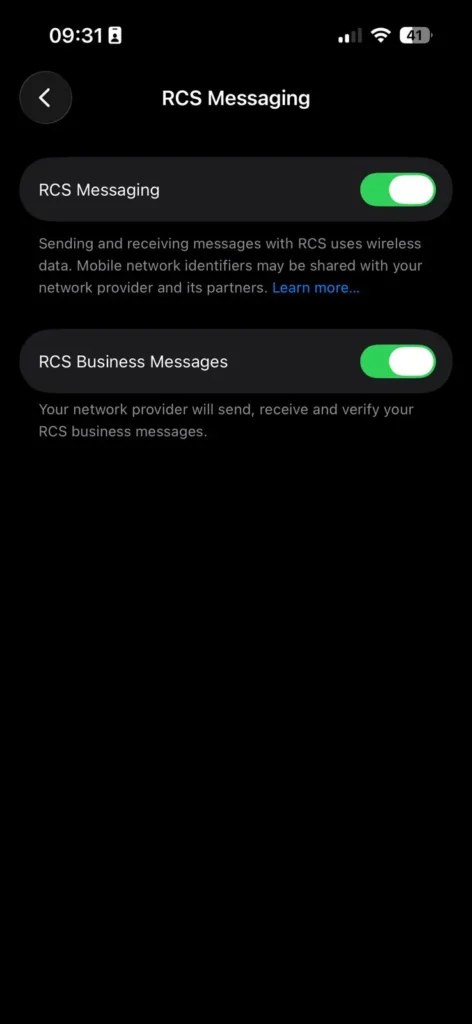
- Tap RCS Messaging
- Look for End-to-End Encryption (Beta) — confirm it’s toggled on
⚠️ Important: Both you and your contact need carriers that support encrypted RCS. If you don’t see the lock icon, your carrier or your contact’s carrier hasn’t rolled out encryption support yet.
How to Enable RCS Messaging on iPhone
RCS should turn on automatically if your carrier supports it, but here’s how to confirm and enable it manually:
- Open the Settings app on your iPhone
- Tap Apps
- Tap Messages
- Tap RCS Messaging
- Toggle RCS Messaging to the on position (green)
There may be a short delay — up to a few hours — before RCS activates after you turn it on. That’s normal.
Requirements:
- iPhone running iOS 18 or later
- A text-messaging plan from a carrier that supports RCS on iPhone
- For end-to-end encryption: iOS 26.5 and a carrier that supports the latest RCS Universal Profile
🔍 Not sure if your carrier is on the list? Apple maintains an official carrier support page at support.apple.com/109526.
Should You Enable RCS Messaging?
Yes, for most people. Here’s why:
- You text Android users. RCS gives you read receipts, typing indicators, and high-res media — features you only had in iMessage before.
- Privacy matters to you. The iOS 26.5 encryption update makes green-bubble conversations far more private than they were.
- You’re on a major U.S. carrier. AT&T, Verizon, and T-Mobile all support RCS on iPhone.
You might hesitate if: You’re on a small carrier or MVNO that hasn’t rolled out RCS support — in which case the toggle won’t appear anyway, and SMS is your fallback.
What If RCS Isn’t Working?
If the “Text Message – RCS” label isn’t appearing, or if RCS features like read receipts aren’t showing up, try these steps:
1. Check your iOS version. RCS requires iOS 18 minimum. Go to Settings → General → Software Update to confirm you’re up to date.
2. Check your carrier support. Not all carriers have enabled RCS for iPhone. Visit your carrier’s website or call support to confirm.
3. Toggle RCS off and back on. Go to Settings → Apps → Messages → RCS Messaging, turn it off, wait 30 seconds, turn it back on.
4. Restart your iPhone. A simple restart clears most activation delays.
5. Check network connection. RCS uses data, not the carrier text network. Make sure cellular data or Wi-Fi is active.
6. Verify your contact’s carrier supports RCS. Even if you have RCS enabled, both sides need to support it for the features to work. If your contact’s carrier doesn’t support RCS, the conversation falls back to SMS automatically.
Key Takeaways
- RCS stands for Rich Communication Services — a modern replacement for SMS
- On iPhone, RCS messages show as green bubbles labeled “Text Message – RCS”
- RCS supports read receipts, typing indicators, high-res media, and group chat features
- Apple added RCS to iPhone in iOS 18 (September 2024)
- iOS 26.5 added end-to-end encryption for RCS — a major privacy upgrade
- RCS works across iPhone and Android — iMessage does not
- You need a carrier that supports RCS for features to activate
- RCS is a free feature built into the Messages app — no extra app needed
Frequently Asked Questions
Yes. Apple added native RCS support starting with iOS 18. If you’re running iOS 18 or later and your carrier supports it, RCS is available in the built-in Messages app with no third-party apps required.
“Text Message” means the conversation is using standard SMS or MMS — the older, limited messaging standard. “Text Message – RCS” means the conversation is using Rich Communication Services, which adds read receipts, typing indicators, high-resolution media, and (on iOS 26.5) end-to-end encryption.
No. RCS messaging uses your existing data connection (Wi-Fi or cellular data). Most major U.S. carriers include it at no extra charge. Standard data rates may apply if you’re not on Wi-Fi.
No. iMessage remains the primary messaging standard between Apple devices — it offers deeper integration with iOS features, Tapbacks, text effects, and has been end-to-end encrypted since 2011. RCS is the improved fallback for cross-platform messaging with Android users and non-iMessage contacts.
With iOS 26.5, yes — if your carrier supports encrypted RCS. The encryption is off by default for conversations where one side’s carrier doesn’t support it. You’ll know it’s working when you see the lock icon next to “RCS” in the chat header.
Sources
- Apple Support: What is the difference between iMessage, RCS, and SMS/MMS? — Updated May 11, 2026
- Apple Support: Turn on RCS messaging on your iPhone — Updated May 11, 2026
- Apple Support: Check carrier support for RCS on iPhone
- AppleHeadlines.com: 7 Massive Apple iPhone Texting Changes in iOS 26
- AppleHeadlines.com: iOS 26.5: 7 Powerful Features That Change How You Use Your iPhone
Related Reading on AppleHeadlines.com
- How to Turn Off Read Receipts on iPhone — Control who sees when you’ve read their messages
- 7 Massive Apple iPhone Texting Changes in iOS 26 — Full breakdown of every Messages upgrade
- iOS 26.5: 7 Powerful Features That Change How You Use Your iPhone — Including the encrypted RCS deep dive
- iMessage for Windows: 4 Working Methods — Get your messages on a PC
- iOS 26 Features: The Complete Guide
Hands-on testing performed on iPhone 17 Pro running iOS 26.5. RCS encryption availability depends on carrier support and may vary.
Disclaimer: This article is for informational purposes only. RCS availability, encryption support, and carrier compatibility are subject to change. Feature availability varies by carrier and region. Settings paths are accurate as of iOS 26.5. AppleHeadlines.com is an independent publication and is not affiliated with Apple Inc. Always verify current carrier support directly with your wireless provider.

T’kal is the lead strategist and developer behind Apple Headlines. With a background in digital marketing and web development, he specializes in technical Apple troubleshooting, software news, and hardware rumors. T’kal focuses on delivering high-authority tech content that bridges the gap between Apple enthusiasts and the latest industry innovations.