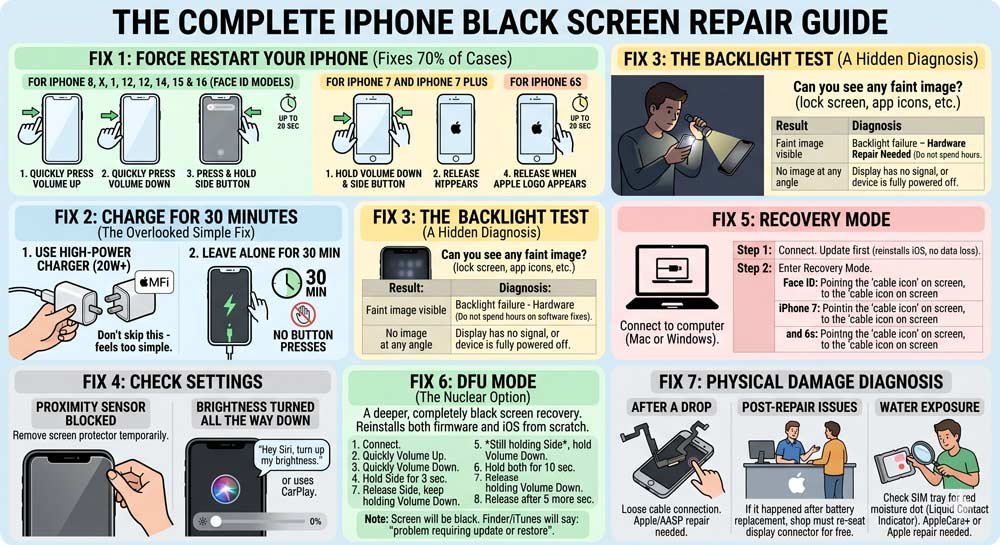
An iPhone black screen is not one problem — at least five distinct causes look identical. Diagnose before you fix.
Force restart resolves roughly 70% of cases — hold the button combination for a full 20 seconds before giving up.
Charge for 30 minutes with a genuine Apple cable before assuming hardware failure — a deeply drained battery causes a perfect black screen.
The backlight test (flashlight in a dark room) reveals whether your display is working but unilluminated — a different repair from a dead screen.
Recovery Mode preserves your data — always try Update before Restore.
DFU Mode is for corrupted firmware after a failed update or reset — it looks like a black screen and that’s normal.
If the black screen started after a repair, go back to that shop immediately. It’s their problem to fix.
Apple diagnostics are free — don’t spend money guessing.
Why Your iPhone Display Black Screen Happens (And Why It Matters to Get the Diagnosis Right)
Most guides tell you to “force restart your iPhone” and call it a day. That’s fine advice — if you have the most common scenario. But an iPhone black screen is not one problem. It’s at least five different problems that look identical from the outside.
Getting the diagnosis wrong costs you time, money, and potentially your data. Restoring your iPhone when you just needed a 30-minute charge is overkill. Charging your phone for an hour when you actually have a corrupted iOS install just wastes time.
Here’s why the diagnosis matters:
An iPhone that makes sounds, vibrates, or rings when called — while showing a black screen — has a display hardware issue, not a software crash. The phone is on. Only the screen isn’t working.
An iPhone that is completely silent and unresponsive — no vibration, no sound, not detected by a computer — most likely has a drained battery or a software crash.
These two scenarios need completely different fixes. Let’s walk through every one of them.
The 30-Second Diagnostic: Read This First
Before doing anything else, run through these quick checks. They take 30 seconds total and will tell you which fix to jump to.
Press the volume up button. Did you hear a click or feel anything? If yes, your phone is on.
Call your own number from another phone. Does your iPhone ring or vibrate? If yes, your phone is definitely on — the screen hardware is the issue.
Connect to a charger. Does a charging icon appear, even faintly? If yes, proceed with the battery fix.
Connect to a computer. Does Finder (Mac) or iTunes (Windows) detect your device? If yes, you can recover it without data loss.
Keep your answers in mind as you read the fixes below.
Follow these 7 proven methods to fix your iPhone display black screen issue step-by-step.
Fix 1: Force Restart Your iPhone (Fixes 70% of Cases)
Think of a force restart like flipping the circuit breaker in your house.
iOS can freeze in a state where the screen goes dark but the phone hasn’t actually powered off. A force restart kicks everything back to life — and it does not delete your data.
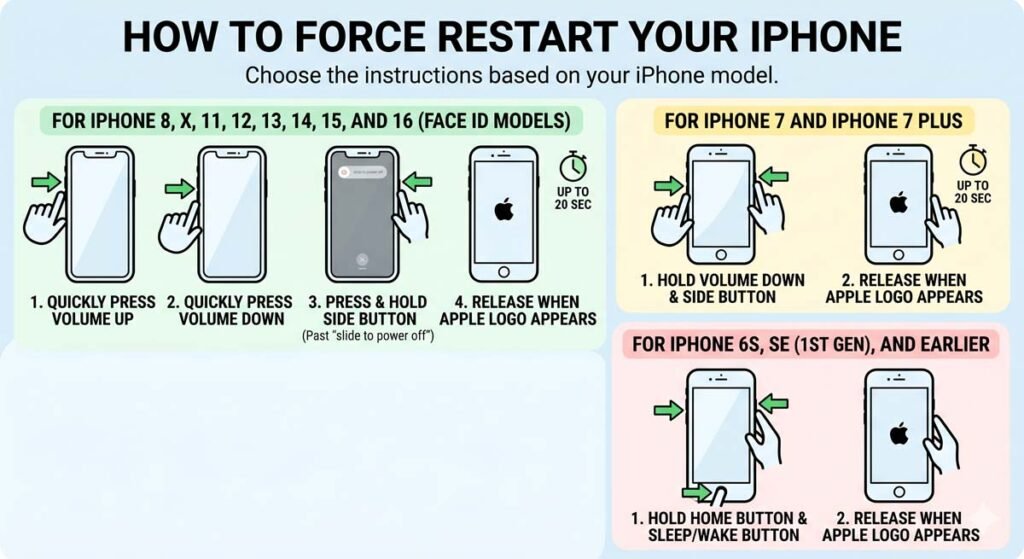
For iPhone 8, iPhone X, iPhone 11, 12, 13, 14, 15, and 16 (Face ID models):
Press and quickly release the Volume Up button.
Press and quickly release the Volume Down button.
Press and hold the Side button (right side).
Keep holding — even past the “slide to power off” screen.
Release when the Apple logo appears. This can take up to 20 full seconds.
For iPhone 7 and iPhone 7 Plus:
Press and hold Volume Down and the Side button simultaneously.
Keep holding until the Apple logo appears (up to 20 seconds).
For iPhone 6s, SE (1st gen), and earlier:
Press and hold the Home button and the Sleep/Wake (Top/Side) button at the same time.
Hold until the Apple logo appears.
Pro Tip: Most people give up after 10 seconds. On modern iPhones, it can take a full 15–20 seconds for the Apple logo to appear after a deep freeze. Keep holding. Count to 20 before you decide it didn’t work.
Force restart is the fastest way to fix an iPhone display black screen across all models.
Fix 2: Charge for 30 Minutes (The Overlooked Simple Fix)
A completely drained battery can leave your iPhone black screen looking identical to a hardware failure. When a battery drains past a critical threshold, it doesn’t have enough power to drive the display — even if technically the phone has a tiny sliver of charge left.
This is the fix most people skip because it feels too simple.
Use an Apple-certified cable (look for the MFi badge).
Use a 20W adapter or higher — a slow 5W charger may not revive a deeply drained iPhone.
Plug in and leave it completely alone for 30 minutes. Don’t press any buttons.
After 30 minutes, attempt the force restart from Fix 1.
If a faint low battery icon appears on screen — that’s a great sign. It means the display is working. Leave it charging for another 20–30 minutes before attempting to turn it on.
Expert Insight: Third-party cables are a hidden culprit here. A cable that charges your AirPods fine may not deliver enough current to wake a deeply drained iPhone. If your cable is old, frayed, or third-party, swap it for a genuine Apple cable or a certified MFi alternative before spending hours troubleshooting.
Fix 3: The Backlight Test (A Hidden Diagnosis Most People Miss)
Here’s a diagnostic trick that will save you hours of guesswork — and that almost no mainstream guide mentions properly.
Sometimes your iPhone screen appears black not because the display is dead, but because the backlight has failed. The display is actually producing an image — you just can’t see it without illumination behind it. It’s like a projector screen with the projector off.
How to perform the backlight test:
Go into a dark room.
Grab the brightest flashlight you can find (your other phone’s flashlight works great).
Hold the flashlight at a sharp angle directly against the surface of your iPhone screen.
Look closely. Can you see any faint image — a lock screen, app icons, anything?
What your result means:
Result
Diagnosis
Faint image visible
Backlight failure — display is working, backlight circuit is not
No image at any angle
Display has no signal, or device is fully powered off
If you can see a faint image, your iPhone is on and the display is functional. The backlight driver has failed — which is a hardware repair that Apple or an authorized provider needs to handle.
Do not spend hours on software fixes if the backlight test reveals this. You’ll be chasing the wrong problem.
Fix 4: Check Brightness and Proximity Sensor Settings
Before going deeper, check two quick things that trip up more people than you’d expect.
Proximity Sensor Blocked by a Screen Protector
The proximity sensor sits at the top of your iPhone screen. Its job is to turn off the display when you hold the phone to your ear.
If a thick or poorly installed screen protector is partially covering this sensor, your iPhone’s display can go dark and stay dark even after you take the phone away from your ear.
Remove your screen protector temporarily.
Test the screen.
If it comes back on, your screen protector was the culprit. Replace it with a model compatible with your iPhone’s Face ID sensor placement.
Screen Brightness Turned All the Way Down
It sounds obvious — but it happens. If Siri or an accessibility setting accidentally set brightness to zero, the screen is “on” but invisible in normal light.
If you can navigate blind, go to Settings → Display & Brightness and slide brightness up. software fixes if the backlight test reveals this. You’ll be chasing the wrong problem.
If your iPhone responds to button presses, try asking “Hey Siri, turn up my brightness.”
Or connect to CarPlay or a paired Bluetooth device and use voice control.
Fix 5: Connect to a Computer and Use Recovery Mode
If a force restart and charging haven’t worked, and your computer can detect your iPhone — you have a solid path to recovery without losing your data.
Step 1: Connect and check detection
On Mac (macOS Catalina or later): Open Finder → check the left sidebar for your iPhone.
On Windows (or older Mac): Open iTunes → check the top-left for the device icon.
If your device is detected — even on a black screen — backup your data immediately before doing anything else.
Step 2: Enter Recovery Mode
For iPhone 8 and later:
Press and quickly release Volume Up.
Press and quickly release Volume Down.
Press and hold the Side button — keep holding past the Apple logo.
Release only when you see the cable-and-laptop icon on screen.
For iPhone 7:
Hold Volume Down + Side button simultaneously.
Release when the cable icon appears.
For iPhone 6s and earlier:
Hold Home + Sleep/Wake simultaneously.
Release when the cable icon appears.
Step 3: Update or Restore
In Finder or iTunes, you’ll see two options:
Update — reinstalls iOS without erasing your data. Always try this first.
Restore — erases everything and installs a clean copy of iOS. Last resort.
Choose Update first. If it fails or your iPhone display black screen persists, proceed to Restore.
Fix 6: DFU Mode Restore (The Nuclear Option for Stubborn Cases)
DFU (Device Firmware Update) mode is a deeper recovery state than Recovery Mode. It tells your computer to completely reinstall both the firmware and iOS from scratch.
This is the fix for black screens that appeared after a failed update, a botched reset, or a software state that Recovery Mode couldn’t fix.
DFU mode looks like a completely black screen — which makes many people think it’s not working. It is. Your computer will recognize it.
DFU Mode for iPhone 8 and later:
Connect your iPhone to your computer.
Open Finder (Mac) or iTunes (Windows).
Press and quickly release Volume Up.
Press and quickly release Volume Down.
Press and hold the Side button for exactly 3 seconds.
While still holding Side, press and hold Volume Down.
Hold both for 10 seconds.
Release the Side button — keep holding Volume Down.
Hold Volume Down for 5 more seconds, then release.
Finder or iTunes will say: “There is a problem with the iPhone that requires it to be updated or restored.”
That message means DFU mode worked. Click Restore to perform a complete firmware reinstall.
What if this doesn’t work? If you exit DFU mode by accident (Apple logo appears), you held the button combination slightly too long. Start over from step 1.
Fix 7: Check for Damage — Physical, Water, and Post-Repair
If every software fix has failed, it’s time to look at physical causes.
After a Drop
A significant drop can loosen the display flex cable inside your iPhone. This cable connects the screen to the logic board. If it’s partially unseated, the iPhone is fully functional — but the display gets no signal and shows a permanent black screen. This is a hardware repair that requires opening the device. Apple or an Apple Authorized Service Provider can fix this.
After a Battery Replacement
If your iPhone black screen appeared after a third-party battery replacement, the technician almost certainly didn’t fully reseat the display connector after the repair. This is the shop’s fault and their responsibility to fix at no charge. Go back to them immediately. Bring documentation of when the screen went dark.
Water Exposure
Check inside your SIM tray for a liquid contact indicator — a small dot that turns red when moisture has been detected. If it’s red, water damage is likely contributing to your black screen. Take it to Apple; water damage repairs are not covered under standard warranty but may be covered under AppleCare+.
Save $329 on Repair That Wasn’t Needed
A typical example of an iPhone display black screen problem.
Marcus, a teacher in Austin, Texas, dropped his iPhone 15 Pro on a tile floor. The screen went completely black. He could still hear calls coming in — but couldn’t see anything. He assumed the display was shattered internally and booked an Apple Store appointment, expecting a $329 screen replacement quote.
The Apple Genius ran the diagnostic, noticed the display connector had partially unseated from the drop, reseated the connector, and handed the phone back in 20 minutes. Total cost: $0 (covered under AppleCare+).
The lesson: just because the screen is black doesn’t mean the screen is broken. A loose connector, a failed backlight, and a broken display panel all look the same from the outside. Always get the diagnostic before agreeing to a repair.
What to Do When Nothing Works
If you’ve worked through all seven fixes and still have an iPhone with a black screen, here’s your clear path forward:
Book a free Apple diagnostic at apple.com/support or via the Apple Support app. Apple diagnostics are free — they identify the exact problem before any repair cost is discussed.
Check your AppleCare+ status. Screen repairs under AppleCare+ cost $29 for the first two incidents in 2026. Without coverage, a display replacement at Apple runs approximately $329 for newer models.
Consider Apple Authorized Service Providers. Shops certified by Apple can perform official repairs at similar price points, often with shorter wait times than a Genius Bar.
Avoid unauthorized shops for logic board issues. Microsoldering repairs on a damaged display connector require specialist equipment. An amateur repair attempt on a damaged connector nearly always causes additional damage. Go to Apple or an authorized provider.
Discover 7 proven fixes to solve the iPhone display black screen quickly.
Frequently Asked Questions
Q: My iPhone screen is black but I can hear it ringing — what does that mean?
A: Your iPhone is on and working normally. Only the display has a problem. This is almost always a hardware issue — either a loose display flex cable, a failed backlight circuit, or physical damage to the display assembly. Run the backlight test first (flashlight in a dark room). Then take it to Apple for a free diagnostic. Do not spend time on software fixes for this scenario — the phone’s software is fine.
Q: Can a force restart on an iPhone delete my photos or data?
A: No. A force restart is equivalent to holding the power button on a computer — it forces the hardware to cycle power without touching your storage. Your photos, apps, messages, and settings are completely untouched. You can force restart as many times as needed without any data risk.
Q: My iPhone display went black after an iOS update — what do I do?
A: This is a known issue with certain iOS versions. First, attempt a force restart. If the screen comes back, go to Settings → General → Software Update and install any available patch. Apple regularly releases point updates to fix display-related regressions. If force restart doesn’t work, enter Recovery Mode via a computer, choose Update (not Restore) to reinstall iOS without erasing data.
Q: How much does an iPhone screen replacement cost at Apple in 2026?
A: Without AppleCare+, Apple’s out-of-warranty screen replacement costs approximately $279–$379 depending on the model — iPhone 16 Pro Max repairs sit at the higher end. With AppleCare+, the fee drops to $29 per incident for up to two screen repairs per year. Always get the free diagnostic before agreeing to a repair — loose connectors and backlight failures are often cheaper to fix than a full screen replacement.
Q: Is it safe to use third-party repair shops for an iPhone black screen?
A: For basic repairs like display connector reseating or screen replacements on out-of-warranty iPhones, Apple Authorized Service Providers are safe and use genuine Apple parts. Non-authorized shops can be appropriate for simple fixes but should be avoided for logic board-level repairs. Any repair on a modern iPhone (iPhone 12 and later) may trigger a notification about non-genuine parts — this doesn’t break your iPhone but can disable some features like True Tone.
Disclaimer
The information in this article is provided for educational purposes only. Repair costs, iOS procedures, and hardware specifications are accurate as of April 2026 and are subject to change by Apple at any time. Always verify current repair pricing at apple.com/support before proceeding. Performing a DFU Mode restore or factory restore will erase device data — back up to iCloud or a computer before proceeding when possible. AppleHeadlines.com is not affiliated with Apple Inc. Apple, iPhone, Face ID, and iOS are trademarks of Apple Inc.
Still stuck? Drop your specific situation in the comments — include what model you have, when the black screen appeared, and which fixes you’ve already tried. We’ll point you to the right next step.
Ruth writes in-depth guides about Apple products, focusing on practical solutions for everyday users. Her articles cover device setup, hidden features, troubleshooting, and the latest updates for iOS, watchOS, and other Apple platforms.
He regularly researches Apple updates and tests features on devices like the iPhone and Apple Watch to ensure readers receive accurate and helpful information.