



You just bought a thousand-dollar iPhone, yet your photos look grainy or flat.
It is a common frustration for millions of users.
Most people stick to the “out-of-the-box” defaults.
Those settings are designed for storage efficiency, not for professional art.
If you want your shots to look like they belong in a gallery, you must dig deeper.
This guide will transform your device from a basic point-and-shoot into a powerful cinema camera.
We have analyzed the latest iPhone camera settings for 2026 to help you master every pixel.
Quick Intro
Why Your iPhone Camera Settings Actually Matter
I have seen the iPhone evolve.
It has moved from a simple 2MP lens to a 48MP triple-lens powerhouse.
Hardware is only half the battle.
Software processing – Apple’s “Computational Photography” – decides how your image looks.
Adjusting your settings allows you to take control away from the AI.
You can decide the sharpness, the depth, and the color science.
By following this guide, you are not just taking photos.
You are crafting images with the same intent as a professional photographer.
1. The Foundation: Formats and Resolution
Before you take a single photo, you must set your foundation.
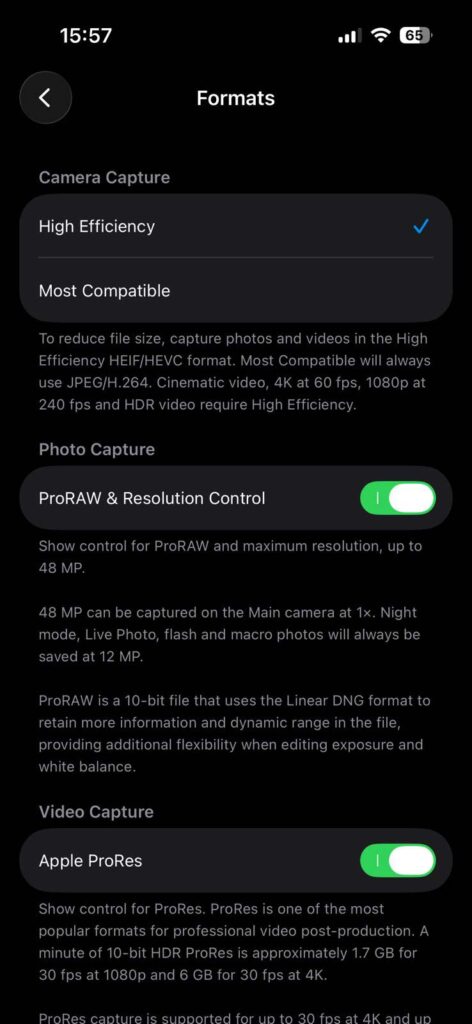
The iPhone camera app offers two main paths: High Efficiency and Most Compatible.
High Efficiency vs. Most Compatible
High Efficiency uses the HEIF format. It keeps file sizes small while maintaining 10-bit color depth.
Most Compatible uses JPEG. It is older and lacks the dynamic range needed for modern editing.
Setting the Right Resolution
For owners of the iPhone 15, 16, and the new 2026 iPhone 17, resolution is key.
The 24MP setting is the “Goldilocks” of resolution. It offers more detail than 12MP but doesn’t eat storage like 48MP.
It uses multiple frames to reduce noise effectively.
2. Unlocking the Pro Features: ProRAW and Resolution Control
If you own a Pro model, you are sitting on a goldmine of data. iPhone camera settings for photography reach their peak with ProRAW.
How to Enable ProRAW
The Analogy: The Grocery Store vs. The Chef
Think of a standard JPEG photo like a pre-cooked microwave meal. It is convenient, but you cannot change the ingredients. ProRAW is like a bag of fresh, raw groceries. It takes more work to “cook” (edit) it, but the final meal tastes exactly how you want it.
When to use 48MP
Do not use 48MP for everyday selfies. Use it for landscapes or photos you plan to print large. It captures incredible detail but creates files around 75MB to 100MB each.
3. Video Mastery: Cinematic and Action Modes
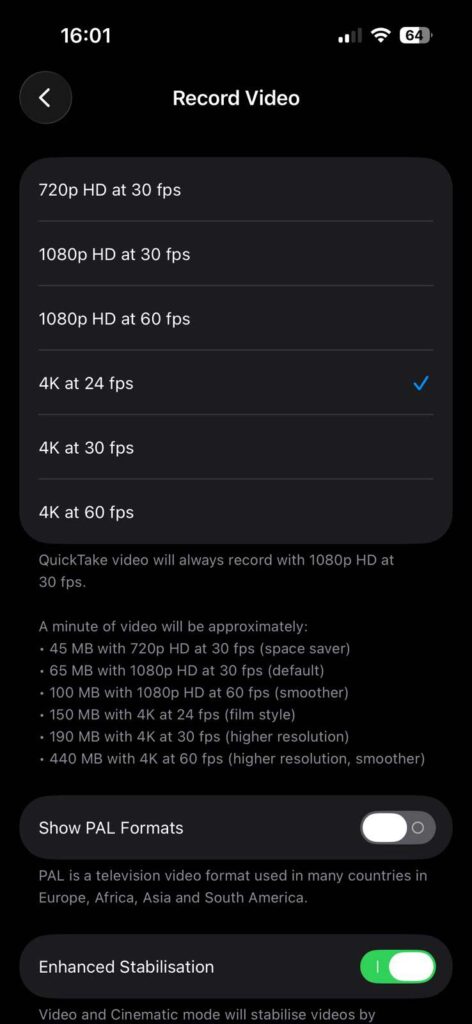
Apple currently leads the industry in mobile video. To get the best iPhone camera settings for video, you need to adjust your frame rates.
The “Cinematic” Secret
Why 24 fps? This is the standard frame rate for Hollywood movies. It provides a natural motion blur that feels high-end. If you want the “smooth” YouTube look, choose 4K at 60 fps.
Cinematic Mode and Action Mode
4. Composition Tools: The Grid and Level
Bad framing ruins good lighting. You should always enable these two hidden tools.
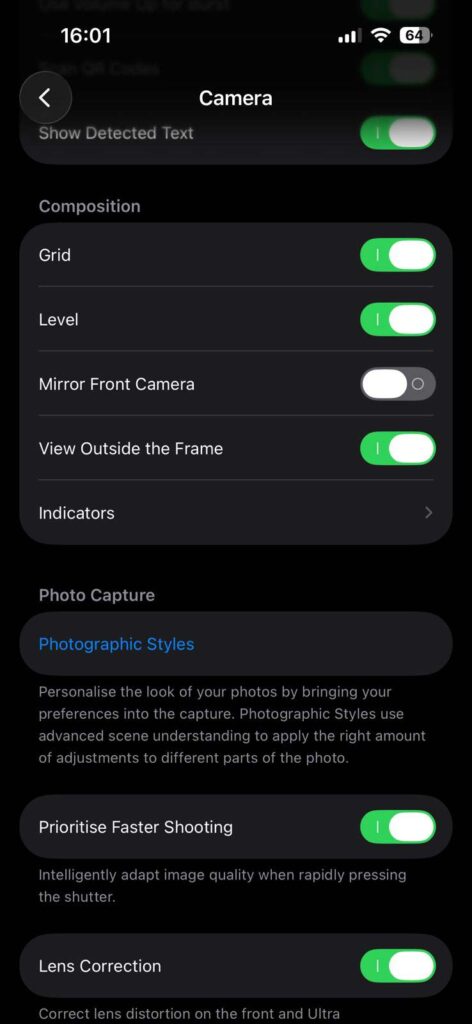
The Grid helps you follow the “Rule of Thirds.” Place your subject where the lines intersect. The Level adds a small horizontal line. It turns yellow when your phone is perfectly straight. No more crooked horizons in your beach photos!
💡 Pro Tip: The “Volume Up” Shortcut
In the heat of the moment, fumbling with the screen shutter can cause camera shake. Go to Settings > Camera and toggle Use Volume Up for Burst. Now, a single press of the volume up button takes a photo. Holding it down captures a burst of action shots. It feels more like a “real” camera.
5. Case Study: The Sunset Transformation
Last year, a reader named Sarah struggled with sunset photos on her iPhone 15 Pro. Her images looked “blown out” and the sky was white instead of orange.
We changed three specific iPhone camera settings:
The result?
Sarah captured a sunset in the Grand Canyon that looked like a National Geographic cover. By reducing the “fake” AI brightening, she kept the moody, deep oranges of the desert.
6. Model-Specific Optimizations (13 through 17)
Every generation of iPhone handles light differently. Here is how to tweak your specific model.
iPhone 13 Camera Settings for Best Quality
The iPhone 13 lacks the 48MP sensor.
iPhone 14 Camera Settings for Best Quality
This was the first 48MP sensor.
iPhone 15 & 16 Camera Settings for Best Quality
These models introduced the 24MP default.
iPhone 17 Camera Settings (The 2026 Standard)
The iPhone 17 introduces “Visual Intelligence” deep integration.
7. Mastering the “Camera Control” Button (iPhone 16 & 17)
The dedicated Camera Control button is a game-changer. It is not just a shutter. It is a touch-sensitive trackpad.
Expert Insight: I recommend setting your “Double Light Press” to Exposure. The iPhone often over-brightens scenes. Sliding the exposure down by -0.3 or -0.7 manually creates much more “moody” and professional images.
8. Troubleshooting: What if my photos still look bad?
Sometimes, settings aren’t enough. If your photos are blurry or “milky,” check these:
9. Preserve Settings: Stop the Reset
Don’t you hate it when you turn off “Live Photos” and it turns back on five minutes later?
- Go to Settings > Camera.
- Tap Preserve Settings.
- Toggle on Camera Mode, Creative Controls, and Live Photo.
This forces the iPhone camera settings app to remember your preferences. If you want Live Photos off, they stay off until you say otherwise.
FAQ
Q: Do these settings drain my battery faster?
A: Shooting in 48MP ProRAW and 4K 60fps video uses more processing power. If you are on a long trip, stick to 24MP and 4K 30fps to save battery.
Q: Why does my iPhone camera keep switching lenses automatically?
A: This is “Auto Macro” or lens switching for zoom. You can control this by enabling Macro Control in your settings and tapping the yellow icon when it appears.
Q: Is the iPhone camera settings reddit community a good source for tips?
A: Yes! Subreddits like r/iPhoneography are excellent for seeing real-world examples of these settings in action. Many users share their specific “Styles” and editing presets there.
Q: Should I use “Most Compatible” if I use a Windows PC?
A: Not necessarily. Windows 10 and 11 now support HEIF/HEVC files easily. High Efficiency is almost always the better choice for quality.
Disclaimer
Settings may vary slightly depending on your specific iOS version. Always ensure your iPhone is updated to the latest software for the most accurate menus. Professional photography results also depend on lighting and stability.
Ready to level up? Join our newsletter at AppleHeadlines.com for weekly tips on mastering your Apple ecosystem. Now, go out and capture something amazing!
More Read






Ruth writes in-depth guides about Apple products, focusing on practical solutions for everyday users. Her articles cover device setup, hidden features, troubleshooting, and the latest updates for iOS, watchOS, and other Apple platforms.
He regularly researches Apple updates and tests features on devices like the iPhone and Apple Watch to ensure readers receive accurate and helpful information.