

You picked the perfect photo.
You set it as your iPhone wallpaper. And then — it’s blurry. Not a little. Noticeably blurry, especially at the top.
You haven’t broken anything, and your screen is fine.
This is one of the most common iPhone frustrations since iOS 17, and it has a clear explanation — and real fixes.
This guide gives you everything: what’s causing it, how to stop it, and what to do if the usual tips don’t work.
Why blurry Images?
- The blur is intentional — Apple uses it to keep your clock and status bar readable.
- The #1 fix is tapping the Blur toggle in Settings > Wallpaper > Customize.
- Zooming out when setting a wallpaper triggers the blur. Zoom in instead.
- Pre-cropping to the Wallpaper aspect ratio is the most permanent solution.
- Sleep Focus mode deliberately blurs your lock screen — disable or unlink it.
- The screenshot trick is the fastest hack: screenshot your image at native resolution, then set it as wallpaper.
- The issue exists across iOS 16, 17, 18, and iOS 26 — with the same core fixes applying to all.
Why Is My iPhone Wallpaper Blurry? (The Real Reason)
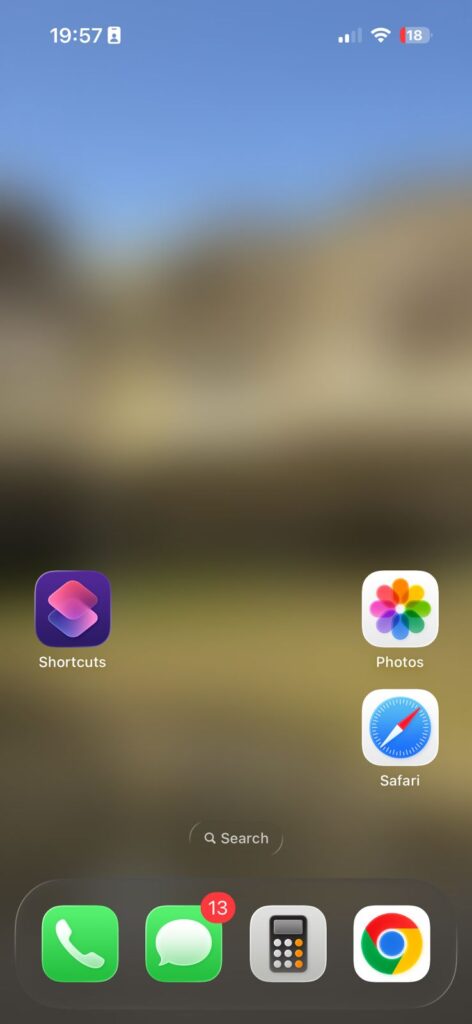
Before diving into fixes, let’s talk about why this happens. Understanding the cause means you’ll stop running into it again.
Apple’s “Legibility Blur” — The Feature Most People Don’t Know About
Starting with iOS 17, Apple introduced a system called Legibility Blur.
When you set a photo as your lock screen wallpaper and zoom out (or use an image that doesn’t perfectly match your iPhone’s resolution), iOS automatically applies a blur to the top portion of the image.

Why? Because that’s where your clock, date, battery indicator, and widgets live.
Apple blurs the background behind these elements so the text remains readable — regardless of how busy or bright your photo is.
Think of it like frosted glass on a bathroom window.
The glass isn’t broken. It’s designed to be translucent so you can see light without seeing detail.
Apple is doing the same thing to your wallpaper — making the status bar area readable without forcing you to use a plain-color background.
The problem? When your image doesn’t fit the screen at 1:1 scale, the blur zone expands dramatically. That’s when users notice it most.
How to Fix a Blurry Lock Screen Wallpaper on iPhone (Step-by-Step)
These fixes are listed from quickest to most involved. Start at the top.
Fix 1: Turn Off the Blur Toggle in Wallpaper Settings
This is the #1 fix that solves it for most people — and it’s the one Apple buries.
Note: If the circle is highlighted/filled, blur is ON. Tap it once to turn it off.
Fix 2: Pinch-Zoom IN on the Image When Setting It
This is counterintuitive but works every time.
When you zoom in, you’re giving iOS a full-resolution image that fills the frame — so it has no need to generate a blurred edge fill.
Fix 3: Pre-Crop Your Photo to the Correct Wallpaper Dimensions
This is the most reliable long-term fix for why your wallpaper is blurry on iPhone.
iPhone Screen Resolutions for Reference:
| iPhone Model | Screen Resolution |
|---|---|
| iPhone 16 Pro Max | 1320 × 2868 px |
| iPhone 16 / 16 Plus | 1179 × 2556 px |
| iPhone 15 Pro | 1179 × 2556 px |
| iPhone 14 | 1170 × 2532 px |
| iPhone 13 / 13 Pro | 1170 × 2532 px |
| iPhone SE (3rd gen) | 750 × 1334 px |
💡 Pro Tip: Use Screenshots as Wallpapers
Here’s a trick that Apple power users swear by: find your wallpaper image, open it full screen in the Photos app, and take a screenshot. Screenshots are always captured at your iPhone’s exact native resolution. Now use that screenshot as your wallpaper. No zoom needed. No blur. Works every time.
How to Fix a Blurry Home Screen Wallpaper
The Home Screen version of the blur is different — and easier to fix.
Fix 4: Check If a Focus Mode Is Causing the Blur
This one trips up a lot of iPhone users — especially those using Sleep Focus.
Why Is My Lock Screen Wallpaper Blurry at the Top — iOS 17 vs. iOS 18 vs. iOS 26?
This is one of the most-searched questions on Reddit and Apple’s own community forums — and the answer has evolved across updates.
iOS 16: No Automatic Top Blur
In iOS 16, the top blur didn’t exist as an automatic behavior. Users who experienced blur were mostly seeing it from the Legibility features or Focus-linked screens. If you’re still on iOS 16 and your lock screen wallpaper is blurry, it’s almost certainly a resolution mismatch or an active Focus mode.
iOS 17: The Update That Started It All
iOS 17.0 introduced the top-of-screen blur as a new system behavior. The blur activates when:
- You zoom out the wallpaper image
- The image doesn’t fill the frame natively
This caught millions of users off guard. Apple community forums and Reddit threads exploded with complaints. The fix at this stage was entirely manual — crop your photo correctly, or zoom in when setting it.
iOS 18: More Control, Same Core Behavior
iOS 18 didn’t remove the blur, but it made the Blur toggle in wallpaper settings more visible. Apple also made the Legibility Blur slightly less aggressive on well-fitted images. The “Blur” button in the Lock Screen customizer became the primary fix for most users.
iOS 26: What to Know Right Now
iOS 26 (currently in beta as of early 2026) carries the same wallpaper architecture. iOS 26 wallpaper blurry reports in beta forums mirror exactly what users saw in iOS 17 — the top-blur behavior is present. Apple has not added a global “disable Legibility Blur” toggle yet. The same fixes apply: correct resolution, zoom in when setting, or use the Blur toggle.
Why Sarah’s Wallpaper Looked “Broken”
Sarah, a graphic designer in Austin, Texas, upgraded to iOS 17 and set a wide-format landscape photo as her lock screen wallpaper — a beautiful mountain range shot she’d taken on a trip. The top third was blurred out. She thought her screen had a defect and booked a Genius Bar appointment.
The technician showed her the fix in 90 seconds: the photo was a 16:9 horizontal image. She’d pinched to zoom out to show more of the landscape. That triggered iOS’s automatic blur fill on the empty edges.
The solution? She used the Photos crop tool with the Wallpaper preset, repositioned the mountains, saved it, and set the new version. No blur. No Genius Bar needed.
The lesson: the blur is almost never a hardware problem. It’s almost always a resolution or zoom mismatch.
Troubleshooting: What If None of These Fixes Work?
Still blurry after toggling the Blur button?
- Force-restart your iPhone. Hold Volume Up → Volume Down → Side Button until the Apple logo appears.
- Re-apply the wallpaper from scratch. Go to Settings > Wallpaper, delete the current one, and start fresh.
- Check Reduce Transparency. Go to Settings > Accessibility > Display & Text Size > turn off Reduce Transparency.
Blur only appears in certain Focus modes?
- Open Settings > Focus and tap each active Focus.
- Tap Customize Screens and uncheck your lock screen from being linked to that Focus.
Wallpaper looks blurry on a new iPhone after restoring from backup?
- This can happen when wallpaper settings transfer but the linked Focus modes don’t resolve correctly.
- Set the wallpaper manually rather than relying on the backup restoration.
Using a low-resolution image?
- If your image is under 1,000 pixels on its shortest side, it will look blurry on a Retina display. Find or download a higher-resolution version of the image.
Nothing is working and the issue started after an iOS update?
- Go to Settings > General > Transfer or Reset iPhone > Reset > Reset All Settings.
- This resets display and wallpaper settings without deleting your data. Re-apply your wallpaper after.
FAQ
Q: Why is my lock screen wallpaper blurry at the top on iPhone?
A: Apple automatically blurs the top of your lock screen wallpaper to improve readability of the clock and status bar – a feature called Legibility Blur introduced in iOS 17. It becomes more visible when you zoom out the image or use one with a non-native resolution. Zoom in when setting the wallpaper, or pre-crop the photo using the Wallpaper preset in the Photos crop tool.
Q: Why is my wallpaper blurry on iPhone iOS 17 specifically?
A: iOS 17.0 introduced the automatic top-blur feature for lock screen wallpapers. It wasn’t present in iOS 16. The fix is to use an image that matches your iPhone’s exact screen resolution, zoom in (not out) when setting the wallpaper, or crop the photo using the Wallpaper aspect ratio in Photos beforehand.
Q: How do I unblur my iPhone home screen wallpaper?
A: Go to Settings > Wallpaper > Customize (under Home Screen) > tap the Blur button at the bottom to toggle it off. Apple blurs home screen wallpapers by default when you create a new wallpaper pair, but it’s easily turned off.
Q: Is the iOS 26 wallpaper blurry bug fixed?
A: As of early 2026, iOS 26 still uses the same Legibility Blur system introduced in iOS 17. Apple has not added a global toggle to disable it. The same three fixes (correct resolution, zoom in, use the Blur toggle) apply on iOS 26. Check the latest iOS 26 release notes for any updates on this.
Q: Can Sleep Focus make my wallpaper blurry?
A: Yes. When Sleep Focus is active, iOS dims and blurs your lock screen intentionally to reduce visual stimulation at night. Go to Settings > Focus > Sleep > Customize Screens and unlink your lock screen wallpaper from the Sleep Focus to prevent this behavior.
Disclaimer
The information in this article is provided for educational and troubleshooting purposes only. AppleHeadlines.com is not affiliated with, endorsed by, or sponsored by Apple Inc. iOS versions and interface details are subject to change with software updates. Screenshots and menu paths described are based on iOS 17, iOS 18, and iOS 26 beta builds as of March 2026. Always back up your iPhone before performing system resets. For persistent hardware issues, contact Apple Support directly at support.apple.com.
Found this guide helpful? Share it with someone who’s been frustrated by blurry iPhone wallpapers. Drop a comment below to tell us which fix worked for you — or if you found a method we missed

Ruth writes in-depth guides about Apple products, focusing on practical solutions for everyday users. Her articles cover device setup, hidden features, troubleshooting, and the latest updates for iOS, watchOS, and other Apple platforms.
He regularly researches Apple updates and tests features on devices like the iPhone and Apple Watch to ensure readers receive accurate and helpful information.