Search history on iPhone is stored in multiple places — Safari, Chrome, Firefox, and Siri each maintain separate histories.
Clearing Safari history (Settings > Apps > Safari > Clear History and Website Data) is the fastest full reset for Safari users.
Cookies and cache can be cleared independently if you want to keep your visited sites list.
Individual sites can be deleted from Safari’s history without wiping everything.
Chrome and Firefox require separate steps inside their own apps — Safari clearing does not affect them.
Siri history must be cleared in Settings > Siri & Search, not in any browser.
The grayed-out button is almost always a Screen Time or MDM restriction — not a glitch.
Private Browsing is the best proactive tool for sensitive searches you never want saved.
iCloud sync can restore cleared history — turn off Safari sync on all devices before clearing if this is happening to you.
Why Deleting Your iPhone Search History Actually Matters
Most people treat search history as harmless clutter. It’s not.
Your iPhone’s search history is a detailed diary of your personal life — your health concerns, financial worries, relationship questions, and daily habits.
Here’s why you should take clearing it seriously:
Privacy from other people. If you share your iPhone with a partner, family member, or hand your phone to a friend to make a call, your search history is one tap away from being seen.
Protection from data tracking.Safari’s cache and cookies store data that third-party advertisers use to build a profile of you. Clearing this data regularly limits what advertisers know about your browsing behavior.
Better device performance. A bloated Safari cache can slow down page loading and eat into your storage. Regular clearing keeps things running smoothly.
Security on shared networks. If you’ve browsed on a public Wi-Fi network, clearing your history and cookies removes locally stored data that could be exploited.
Expert Insight: According to Apple’s own privacy documentation, Safari’s Intelligent Tracking Prevention already blocks many third-party trackers — but it does not clear your local browsing history or cookies automatically. You still need to do that manually. Clearing regularly is a smart layer of personal privacy hygiene that no built-in feature replaces.
What “Search History” Actually Means on iPhone (It’s Not Just One Thing)
Here’s where most guides get it wrong. “Search history on iPhone” isn’t a single item you delete in one tap. It’s actually four separate data buckets, each stored in different places:
Data Type
What It Contains
Where to Delete It
Browser History
URLs of websites visited
Safari or Chrome Settings
Cache & Cookies
Site login data, preferences, tracking files
Safari Advanced Settings
Siri & Search History
Voice queries, typed Spotlight searches
Settings > Siri & Search
Spotlight Search Suggestions
App and content suggestions based on usage
Settings > Siri & Search
Understanding this breakdown is what separates a genuine privacy cleanup from a partial one.
Method 1: How to Delete Safari Search History on iPhone
Safari is the default iPhone browser and the most common place people want to clear their history.
Option A: Delete All Safari History at Once (Fastest Method)
Open the Settings app on your iPhone.
Scroll down and tap Apps.
Tap Safari.
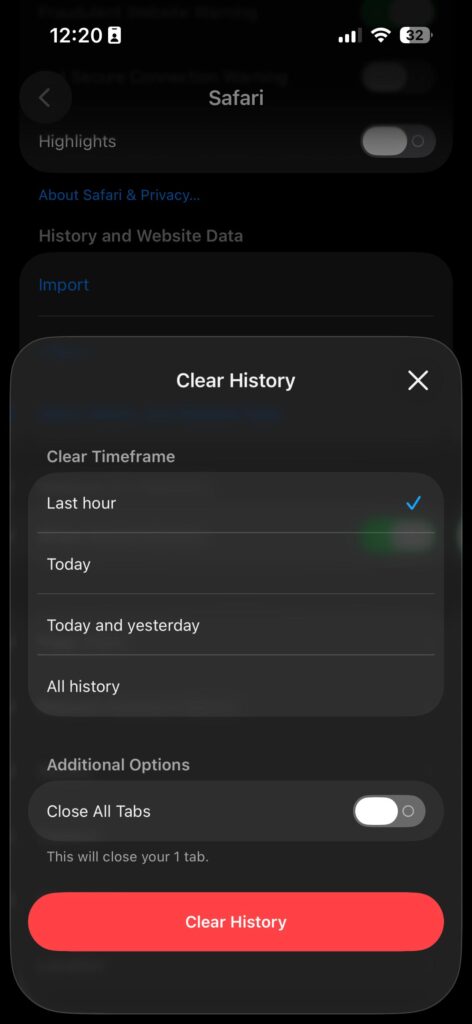
Scroll down and tap Clear History and Website Data.
Choose your timeframe: Last Hour, Today, Today and Yesterday, or All History.
Tap Clear History to confirm.
✅ This removes: Browsing history, cookies, and cached files. ❌ This does NOT remove: AutoFill information (saved passwords, addresses, credit cards).
Important: If the “Clear History and Website Data” button appears grayed out, skip to the Troubleshooting section below.
Choose a timeframe to clear Safari history on your iPhone instantly.
Option B: Delete Only Cookies and Cache (Keep Your History)
Sometimes you want to clear tracking data without erasing the list of sites you’ve visited. This is useful if you want to stay logged into sites but remove tracking cookies.
Open Settings.
Tap Apps, then tap Safari.
Tap Advanced.
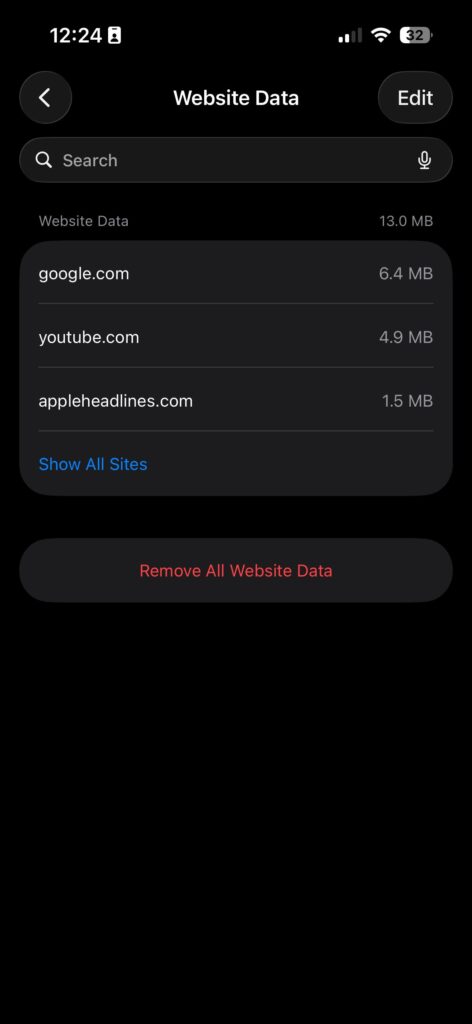
Tap Website Data.
Scroll to the bottom and tap Remove All Website Data.
Tap Remove Now to confirm.
Pro Tip: The Website Data screen actually shows you a list of every website that has stored data on your iPhone — and how much storage each one is using. You can delete individual sites from this list by swiping left on any entry and tapping “Delete.” This is incredibly useful if you only want to remove data from one specific website without clearing everything.
Option C: Delete a Single Website from Safari History
You don’t always need a nuclear option. If you only want to erase one or two specific sites:
Open the Safari app.
Tap the More button (three dots icon, bottom right).
Tap Bookmarks.
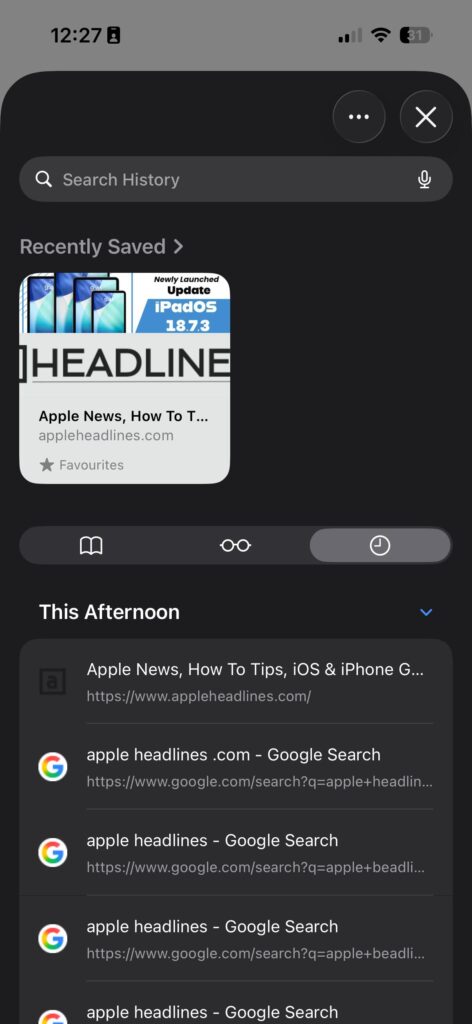
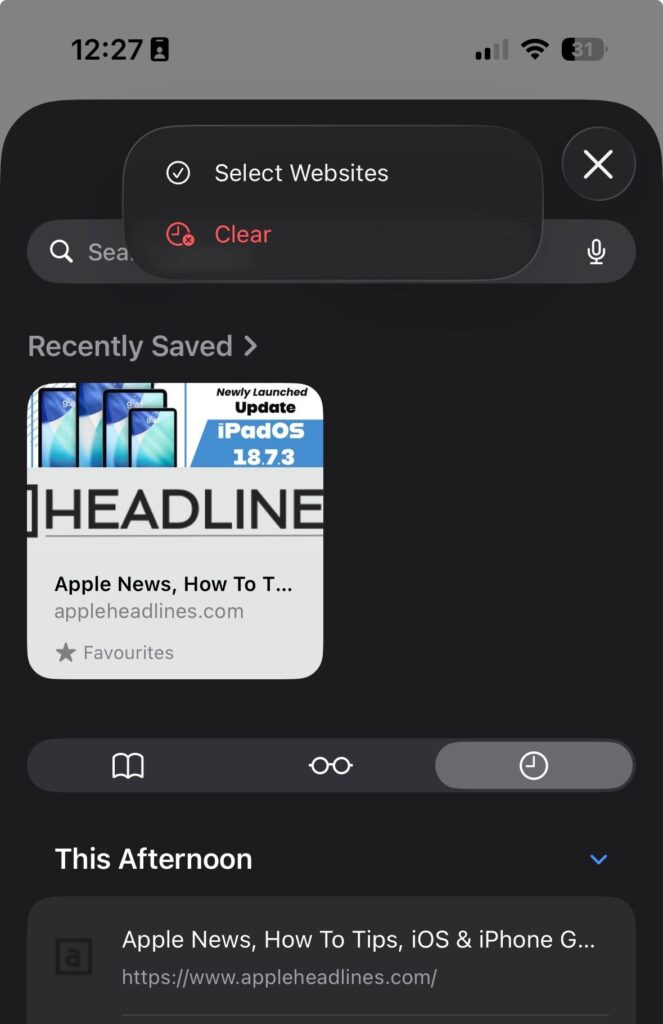
Tap the History tab (clock icon).
Tap the More button again (three dots).
Tap Select Websites.
Tap each site you want to remove.
Tap the Trash icon to delete selected entries.
Delete stored website data and cookies from Safari to free up space and protect privacy.
This is the most surgical approach. Use it when you want to remove specific searches without disturbing the rest of your history.
Method 2: How to Delete Chrome Search History on iPhone
Google Chrome stores its own separate history — clearing Safari does nothing to Chrome’s records.
Open the Google Chrome app on your iPhone.
Tap the three-dot menu (bottom right corner).
Tap History.
Tap Clear Browsing Data at the bottom.
Select the time range (Last Hour, Last 24 Hours, Last 7 Days, Last 4 Weeks, All Time).
Make sure Browsing History is checked.
Optionally check Cookies, Site Data and Cached Images and Files.
Tap Clear Browsing Data and confirm.
Note: If you’re signed into a Google account on Chrome, clearing history on your iPhone also clears it across your other synced devices. If you only want to clear it locally, sign out of your Google account in Chrome settings first.
Access and manage your Safari browsing history directly on your iPhone.
Method 3: How to Delete Firefox Search History on iPhone
Open Firefox on your iPhone.
Tap the hamburger menu (three lines, bottom right).
Tap History.
Tap Clear Recent History.
Choose the time range and which data types to include.
Tap OK to confirm.
Method 4: How to Delete Siri Search History on iPhone
Siri keeps its own log of your voice queries and Spotlight searches. Clearing your browser history doesn’t touch this.
Open Settings.
Tap Siri & Search (or Apple Intelligence & Siri on iOS 18+).
Tap Siri & Dictation History.
Tap Delete Siri & Dictation History.
Tap Delete to confirm.
To also clear what Siri learns from your app usage:
In Siri & Search, scroll through the list of apps.
For any app, tap it and toggle off Learn from this App.
Easily delete specific websites or clear all Safari history on your iPhone in just a few taps.
Method 5: How to Use Private Browsing Mode (Prevent History From Saving)
Think of Private Browsing like using a whiteboard instead of a notebook. You work on it, and when you’re done, everything is automatically erased — no action required.
In Safari:
Tap the Tabs icon (two overlapping squares, bottom right).
Tap the tab group name at the bottom of the screen.
Select Private.
Tap the + button to open a new private tab.
In Chrome:
Tap the three-dot menu.
Tap New Incognito Tab.
Private Browsing prevents your history from being saved locally, but it does not hide your activity from your internet provider, employer, or network administrator.
Real-World Case Study: The Shared iPhone Problem
Marcus, a 34-year-old teacher in Austin, Texas, was researching a medical symptom late one night using his iPhone. The next day, his teenage daughter picked up his phone to show a friend a YouTube video — and his Safari history was visible immediately when she tapped the address bar.
The problem wasn’t just embarrassment. The sites he’d visited had placed cookies on his device, meaning the next time someone used his phone to search Google, related ads started appearing.
Marcus’s fix: He set up a weekly reminder to clear his Safari history and cookies. He also enabled Private Browsing by default for sensitive searches, and turned on Screen Time to password-protect the ability to clear history — so his kids couldn’t accidentally or intentionally erase his important browsing session data either.
This is a real pattern seen across households. A five-minute setup once saves uncomfortable moments repeatedly.
What to Do When “Clear History” Is Grayed Out?
This is the most frustrating problem — and almost every other guide online either ignores it or mentions it in a single vague sentence. Here’s a complete fix path.
Reason #1: Screen Time Content Restrictions Are On
This is the most common cause. Screen Time can restrict the ability to clear browsing data.
Go to Settings > Screen Time.
Tap Content & Privacy Restrictions.
Tap Content Restrictions.
Tap Web Content.
Set it to Unrestricted Access.
Return to Settings > Apps > Safari and try clearing again.
If Screen Time has a passcode you don’t know, you’ll need the passcode holder (often a parent) to make this change.
Reason #2: A Device Management Profile Is Installed
Work iPhones and school-issued devices often have MDM (Mobile Device Management) profiles that block history clearing.
Go to Settings > General > VPN & Device Management.
Look for any profiles listed.
If one exists and is from your employer or school, contact your IT administrator — this restriction is enforced at the policy level and cannot be overridden by the user.
Reason #3: There’s Simply No Data to Clear
If you haven’t browsed anything since the last clear, the button will appear grayed out because there’s nothing to delete. Try visiting one website and then returning to the Clear History option.
Reason #4: iCloud Sync Is Restoring History
If you clear Safari history on your iPhone but it reappears after a few minutes, iCloud is syncing history back from another device (like your Mac or iPad).
Fix:
Go to Settings > [Your Name] > iCloud.
Scroll down and toggle Safari off.
When prompted, choose Keep on My iPhone or Delete from iPhone based on your preference.
Clear your Safari history.
Toggle Safari sync back on.
Alternatively, clear history on all synced devices at the same time to prevent it from restoring.
Reason #5: iOS Bug or Outdated Software
Force-quit Safari: double-click the Home button (or swipe up) to open the App Switcher, then swipe Safari away.
Restart your iPhone: press and hold the side button + volume down until you see “slide to power off.”
After restarting, go to Settings > Apps > Safari and try again.
If still not working, check Settings > General > Software Update and install any pending iOS updates.
How to Clear iPhone Search History Automatically
If you want hands-off privacy, you can set Safari to clear cookies and history on a schedule.
Go to Settings > Apps > Safari.
Under Privacy & Security, look for Close Tabs.
Set this to After One Day or After One Week — this automatically closes old tabs, reducing accumulated data.
For cookies specifically, you can’t set a fully automatic schedule in iOS yet — but enabling Prevent Cross-Site Tracking (in Settings > Safari > Privacy & Security) significantly limits what tracking cookies can do between clearing sessions.
Frequently Asked Questions
Q: Does clearing Safari history delete my saved passwords? No. Clearing your Safari history and website data does not affect passwords saved in your iCloud Keychain or AutoFill settings. Your passwords, credit cards, and address information remain intact. To delete saved passwords, go to Settings > Passwords separately.
Q: Will websites still recognize me after I clear my cookies? Yes — you will likely be signed out of most websites after clearing cookies. This is because cookies store your login session. You’ll need to log back into sites like Amazon, Gmail, and social media after a full clear. Clearing only your history (without cookies) will not sign you out.
Q: Does deleting search history on iPhone also delete it from Google? No. Clearing your iPhone’s local Safari history removes it from your device. But if you were signed into a Google account while searching on Safari, those searches may still appear in your Google My Activity (myactivity.google.com). You’ll need to delete those separately from Google’s website or app.
Q: Can someone still see what I searched even after I delete my history? Your iPhone’s local history will be gone. However, your Internet Service Provider (ISP), network administrator, and any websites you visited may still have records of your activity. Deleting local history does not make your past browsing invisible to external parties.
Q: How often should I clear my iPhone search history? For most users, once a month is sufficient to keep your device performing well and limit the accumulation of tracking cookies. If you regularly browse sensitive topics (medical, financial, personal), consider clearing weekly — or simply use Private Browsing for those sessions so no cleanup is needed afterward.
Ready to Take Control of Your iPhone Privacy?
Clearing your search history takes under two minutes — and now you know exactly how to do it for every browser, every data type, and every edge case. Bookmark this guide so you can reference it anytime a family member asks, or whenever iOS updates change where these settings live.
Want to go further? Check out our guides on [setting up Screen Time for kids], [using a VPN on iPhone], and [managing iCloud privacy settings] for a complete iPhone privacy setup.
Disclaimer
The information in this article is intended for general educational purposes only. Steps may vary slightly depending on your iOS version (this guide reflects iOS 17, iOS 18, and iOS 26 Beta). AppleHeadlines.com is not affiliated with Apple Inc. Feature locations may change in future iOS updates. Third-party apps (Chrome, Firefox) are subject to change by their respective developers. This guide does not constitute legal or security advice. For enterprise or MDM-managed devices, consult your IT administrator before attempting to modify device settings.
Virginia J. Alfonso is a seasoned technology writer with a passion for all things digital. With over a decade of experience covering the latest in tech innovation, gadgets, and software, Virginia brings a unique blend of technical expertise and accessible writing to her work. Her articles focus on making complex tech topics easy to understand for readers of all levels.