



If your Apple iPhone says “iPhone Storage Full” even though you barely have apps or photos, you are not alone.
Many users encounter this frustrating issue after installing iOS updates or using their device for a long time.
Sometimes the storage warning appears even when several gigabytes of space should still be available.
This usually happens due to cached data, system files, or hidden storage usage that the device fails to display correctly.
The good news is that this problem can usually be fixed without deleting important data.
In this guide, you’ll learn why iPhone storage shows full when it isn’t and how to fix it step-by-step.
Why iPhone Storage Shows Full When It’s Not
Before fixing the issue, it’s helpful to understand why it happens.
The most common reasons include:
1. Large System Data
iOS stores temporary files known as System Data. Over time, these files can grow very large and occupy several gigabytes of storage.
2. Cached App Files
Apps like social media, browsers, and streaming services store cached data to load faster. However, this cached data can accumulate and consume a lot of storage.
3. Photos in Recently Deleted Folder
When you delete photos, they are not immediately removed from your device. Instead, they move to the Recently Deleted album and remain there for 30 days.
4. Message Attachments
Photos, videos, and documents sent through messages may remain stored on your device for years if not removed.
5. iOS Software Bugs
Sometimes the storage warning appears because of a temporary glitch in iOS.
How to Check What Is Using iPhone Storage
Before removing anything, check what is actually consuming storage.
Follow these steps:
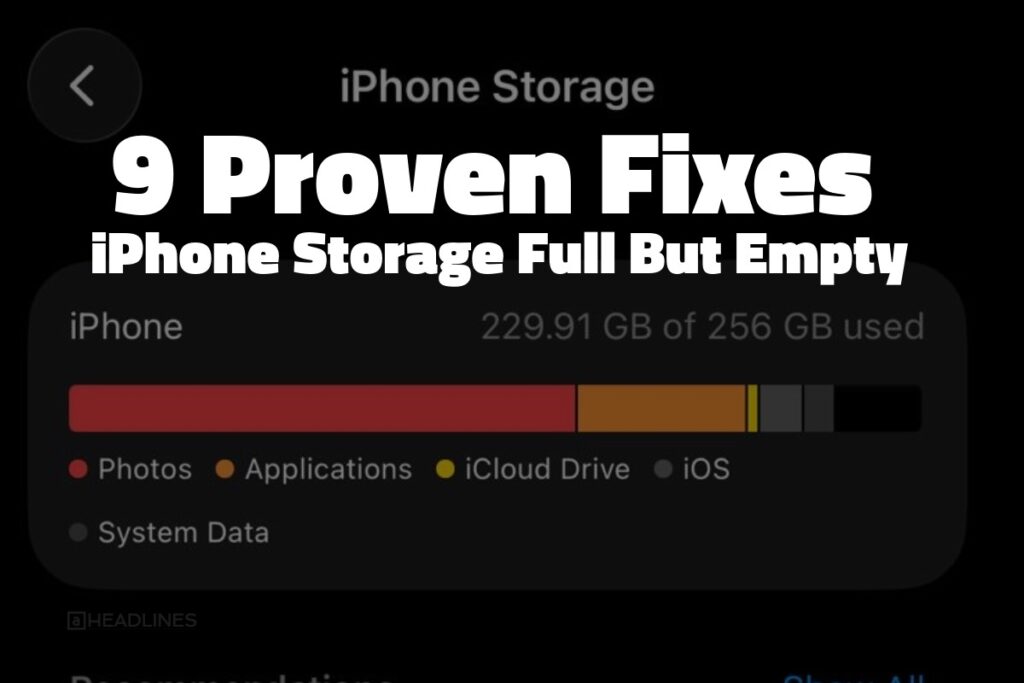
Here you will see a storage graph showing how much space is used by:
- Apps
- Photos
- Messages
- System Data
If System Data is unusually large, clearing cache or restarting the device can help.
Fix 1: Restart Your iPhone
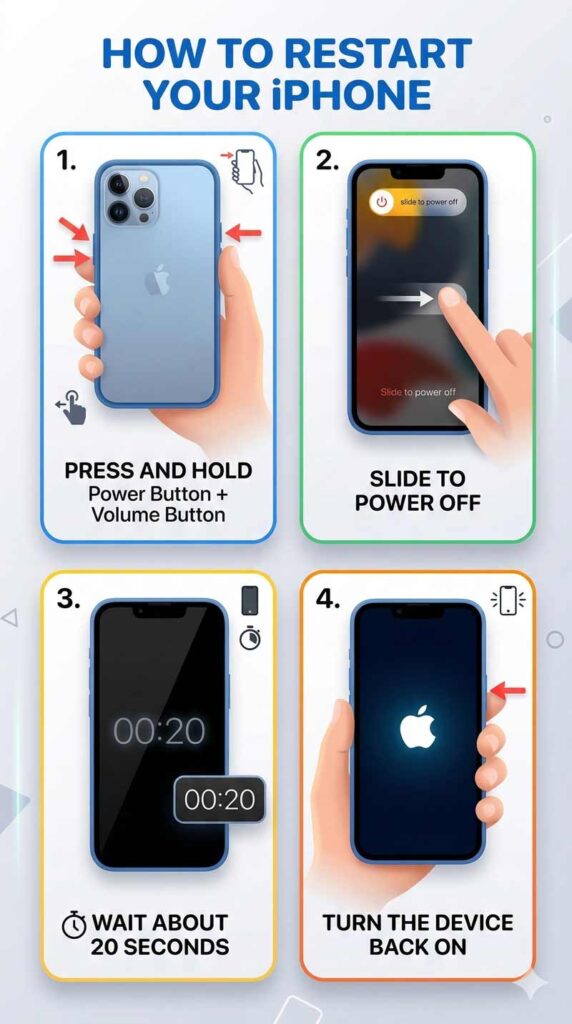
Restarting your device clears temporary system files and refreshes memory.
This simple step can often fix the storage error.
Steps to Restart
Restart Your iPhone
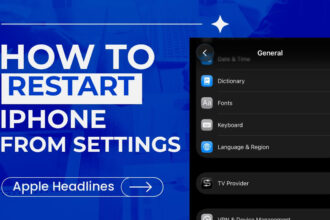
After restarting, check the storage again in Settings.
Fix 2: Clear Safari Cache
The Safari browser stores cached images, scripts, and cookies to load websites faster. Over time, these files may take up significant storage.
Clearing Safari cache can free up space quickly.
Steps
This removes browsing history and cached files from your device.
How to Clear Cache on iPhone

Fix 3: Delete Recently Deleted Photos
Many users forget that deleted photos are stored for 30 days before permanent removal.
If you recently deleted many images or videos, they may still be occupying storage.
Steps
Or go to iPhone Storage and you got a option to Empty “Recently Deleted” Album.
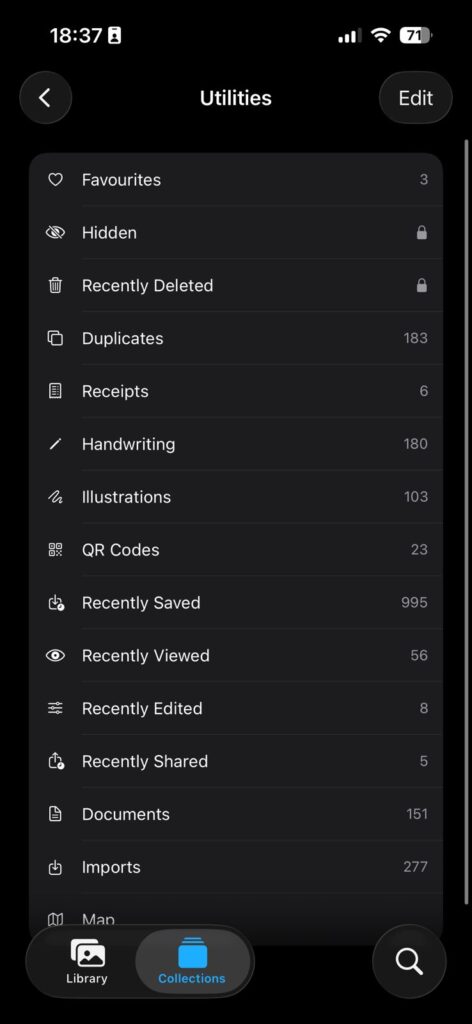
This will immediately free up storage.
Fix 4: Remove Large Message Attachments
Text messages with videos and images can use a surprising amount of space.
Steps
Here you will see sections like:
- Photos
- Videos
- GIFs
- Stickers
Delete large attachments you no longer need.
Fix 5: Offload Unused Apps
Many apps take up storage even when they are rarely used.
The Offload App feature removes the app but keeps its documents and data.
Steps
If you reinstall the app later, your data will still be available.
Fix 6: Delete and Reinstall Large Apps
Some apps accumulate a lot of cached data that cannot be removed manually.
Popular examples include:
- social media apps
- streaming apps
- navigation apps
Deleting and reinstalling the app clears all cached files.
Steps
Fix 7: Update iOS
Software bugs sometimes cause incorrect storage calculations.
Updating your device may fix the problem.
Steps
Updates often include performance improvements and bug fixes.
Fix 8: Reset All Settings
If the issue persists, resetting all settings can resolve system glitches.
This option does not delete your data, but it resets:
- Wi-Fi networks
- privacy settings
- system preferences
Steps
After restarting, check storage again.
Fix 9: Use iCloud Storage for Photos
If photos are using most of your storage, enable iCloud Photos.
Steps
This keeps smaller versions of photos on your device while full versions are stored in the cloud.
Tips to Prevent iPhone Storage Problems
To avoid the “storage full” error in the future, follow these simple tips:
Delete Unused Apps
Remove apps you no longer use.
Clear Browser Data Regularly
Browsers accumulate cached files quickly.
Manage Photos and Videos
Large videos can consume several gigabytes of storage.
Restart Your iPhone Weekly
Restarting clears temporary system files.
Frequently Asked Questions
Why does my iPhone say storage full when it’s not?
This usually happens due to system data, cached files, or software bugs that incorrectly calculate storage usage.
Does restarting iPhone free storage?
Yes. Restarting clears temporary system cache and may reduce system data.
Will resetting settings delete my photos?
No. Resetting settings does not remove personal files like photos or contacts.
Why is System Data so large on iPhone?
System data includes logs, cache, and temporary files created by iOS and apps.
Over time, these files can grow significantly.
Final Thoughts
Seeing a storage warning when you still have space available can be confusing, but in most cases the issue is caused by cached data, system files, or hidden attachments.
By clearing browser data, deleting large message attachments, removing unused apps, and updating iOS, you can usually resolve the problem within minutes.
Regular maintenance will help keep your Apple iPhone running smoothly and prevent storage issues in the future.
Related Reads







Virginia J. Alfonso is a seasoned technology writer with a passion for all things digital. With over a decade of experience covering the latest in tech innovation, gadgets, and software, Virginia brings a unique blend of technical expertise and accessible writing to her work. Her articles focus on making complex tech topics easy to understand for readers of all levels.