



Software Update Failed iOS 15.7 – 16 Fixed Possible Ways
- Retry After Sometime
- Check For Supported Device for iOS 15.7
- Check Connectivity:
- Check Your Device Storage :
- Use iTunes for Update 15.7
- Delete Previous Updates
- Select Another WI-FI network
- Reset Wi-Fi Router
- Check the Apple Server Status
- Check the Date & Time
- Reset All Settings
- Force to Reboot Your Apple Device
- Check Your Phone Battery
- Turn off VPN
- Contact Apple Support
- Try Update in Recovery Mode
It is good practice to update the iOS system to the latest version to have a better experience using the iPhone or iPad. Recently, Apple released iOS 16.0 update. Users often encountered iOS 15.7 update issues while updating the iOS system.
This article can be considered a detailed guide to tackle all your error to update iOS 15.7. Users can follow all the troubleshooting checks to complete iOS 16 update.
How to resolve the software update failed iOS 15.7?
1. Retry After Sometime:
When Apple released the new iOS update, all iPhone and iPad users immediately tries to update their devices. This brings the load on Apple servers and users might get an update error. So, users can wait for some time and then check for updates again.
2. Check For Supported Device for iOS 15.7:
While updating your device to the latest version, it is necessary to check the compatibility of your device with the updated version. Some updates are available for the selected devices only. Users should check the list of supported devices before updating iOS 15.7.
3. Check Connectivity:
A stable and fast internet connection is a primary requirement for updating the iOS system. If users are facing issues while updating iOS then, users should check the internet connection.
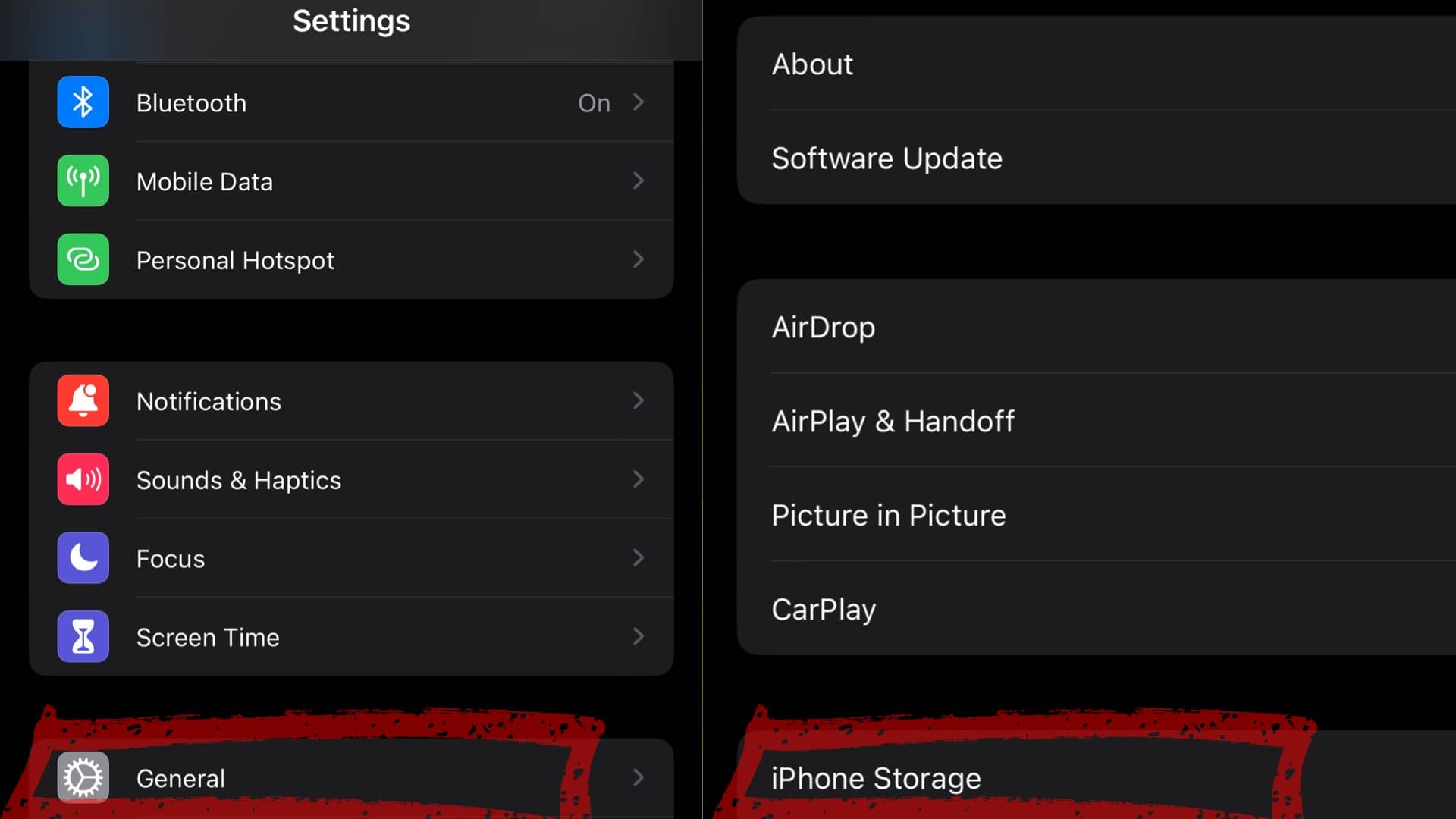
4. Check your Device Storage :
To install any update, sufficient storage space is required in the device. Therefore, users should ensure that their iPhone or iPad are having enough storage space to install the update.
- Go to Settings > General > iPhone Storage.
- Here users can find all duplicate files, applications, and media and delete them.
Check the image >>

5. Use iTunes for update 15.7
Users can alternatively use iTunes to update ios 15.7. It is a good option for an easy and hassle-free ios 15.7 update process.
- Download and Install the latest version of iTunes on your computer.
- Open iTunes software and connect your iPhone or iPad with a USB cable.
- Select your device.
- Go to Device Summary -> Check for updates.
- Click on the download and update button.
6. Delete Previous Updates
Deleting previous updates and downloading the latest update helps many users to resolve software update failed errors. To do this, go to Settings-> General-> iPhone Storage-> ios 15.7 and then tap on the delete update button.
7. Select another WI-FI network:
Users can use another network for updating the ios system. Many times poor connection can pause the ios system update so using another network can fix this issue.
8. Reset Wi-Fi router:
Sometimes, incorrect router settings can cause an interrupted internet connection. Users can reset the Wi-Fi router, connect to the internet and check for ios system updates.
9. Check the Apple Server Status:
It is a rare case but, users should visit the Apple system status page before installing an update. If there is a green circle before updating related services then, the user can update. If there is a green color circle before updating related services then, there is a system problem. In this case, a user should wait until Apple fixes the issues.
10. Check the Date & Time:
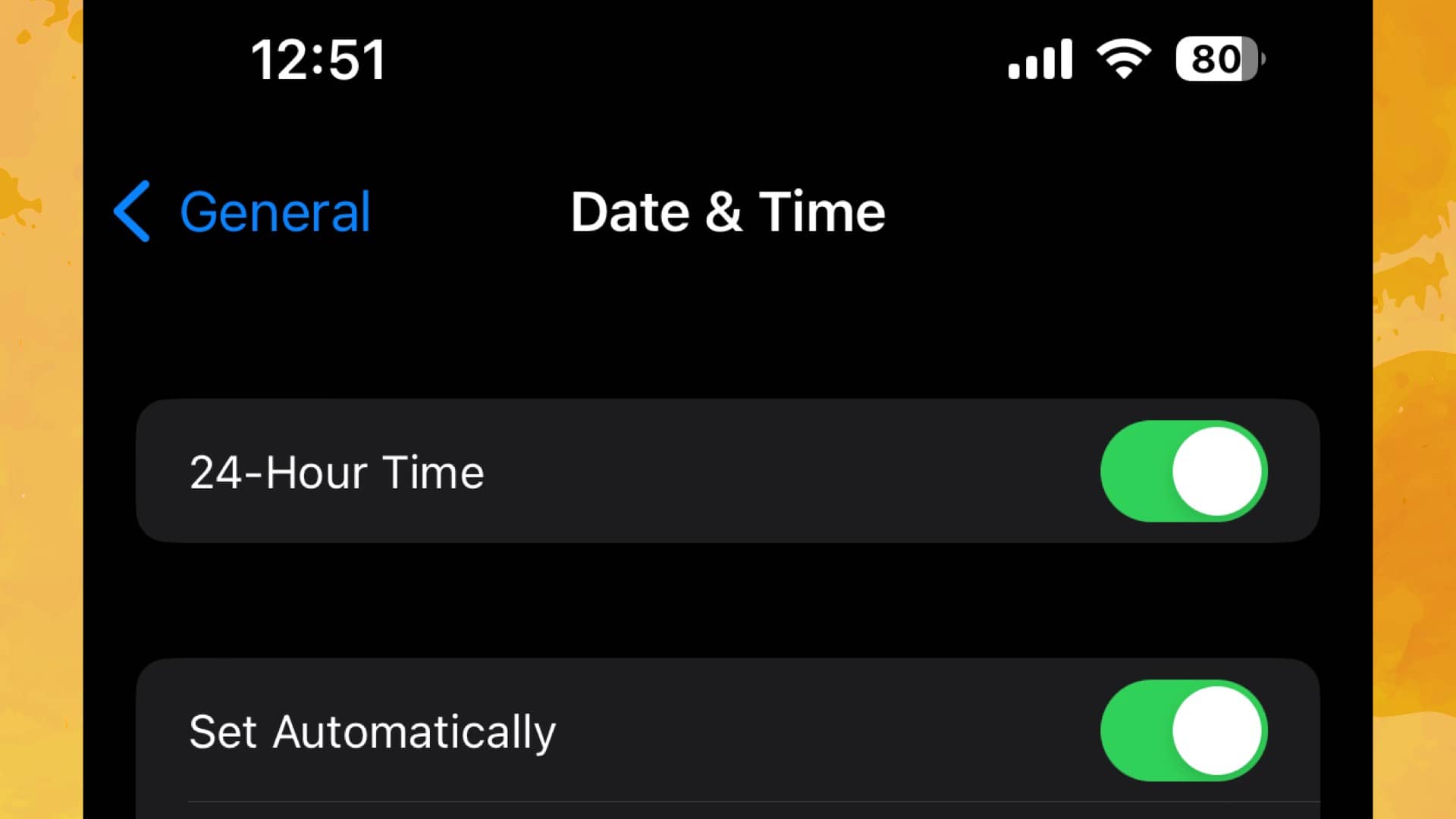
If the date and time of the iPhone or iPad do match with the date and time of your region then, ios 15.7 update failed an error occurred. Users can check the date and time settings.
- Go to Settings-> General.
- Click on the date and time and toggle Set Automatically On.
11. Update in Recovery mode
Connect your device to the computer and itunes, turn your device’s recovery mode on and update from Recovery mode.
12. Force to Reboot your Apple Device:
Users can reboot their devices and install the update. To reboot the device, go to Settings-> General-> Shutdown. Users can also use the power and volume-up buttons to reboot their iPhone or iPad.
13. Reset all settings :
If rebooting iPhone doesn’t help to fix the problem then, the user can reset all network settings in the following manner.
- Go to Settings > General.
- Tap on reset and click on the reset network settings button.
- Turn off your device and after a few seconds turn it on.
- Check of ios 15.7 updates.
14. Check your phone battery:
It is necessary to have 50% battery charging to update the ios system. To avoid this, users can simply put their device on charging and start updating ios 15.7.
15. Turn off VPN:
Users should disable VPN or proxy connection to avoid issues while updating the ios system.
16. Contact Apple Support – Visit Apple Store
There is a always recommended to get apple support or visit Apple store is your device still have update failed issue. they will guide and diagnose any hardware or software problem causing the update failure.
The above solutions assist a user in fixing a software update failed problem. Users can now easily update the ios system on their devices.

T’kal is the lead strategist and developer behind Apple Headlines. With a background in digital marketing and web development, he specializes in technical Apple troubleshooting, software news, and hardware rumors. T’kal focuses on delivering high-authority tech content that bridges the gap between Apple enthusiasts and the latest industry innovations.