


Quick Answer: Open Settings, tap your name, then tap Subscriptions. Choose the service you want to end and tap Cancel Subscription.
You’ll keep access until your current billing period ends — Apple never issues a partial refund for time you’ve already paid for.
You spotted a charge you didn’t expect.
Or maybe you’re just tired of paying for five streaming apps you use twice a month.
Either way, you want it gone, and you want it gone without digging through menus for twenty minutes.
Good news: canceling a subscription on iPhone takes under a minute once you know where Apple hides the button.
Below are all four ways to do it — plus what to do when the subscription refuses to disappear.
Why This Trips People Up (And Why It Matters)
Subscription creep is real.
The average American now pays for 12 or more recurring digital services, and a large share of that spending goes toward subscriptions people forgot they even started — usually a free trial that quietly rolled into a paid plan.
Apple bundles hundreds of these under one Subscriptions menu, but the button only shows up if the app was purchased through Apple’s billing system in the first place.
That distinction — Apple-billed versus provider-billed — is the single biggest reason people can’t find the cancel option they’re looking for. We’ll cover both scenarios so you’re never stuck.
Method 1: Cancel From Settings (Fastest Way)
This works for any subscription billed directly through your Apple Account, including App Store apps, Apple Music, Apple TV+, iCloud+, and Apple Arcade.
- Open Settings on your iPhone.
- Tap your name at the very top of the screen.
- Tap Subscriptions.
- Tap the subscription you want to cancel.
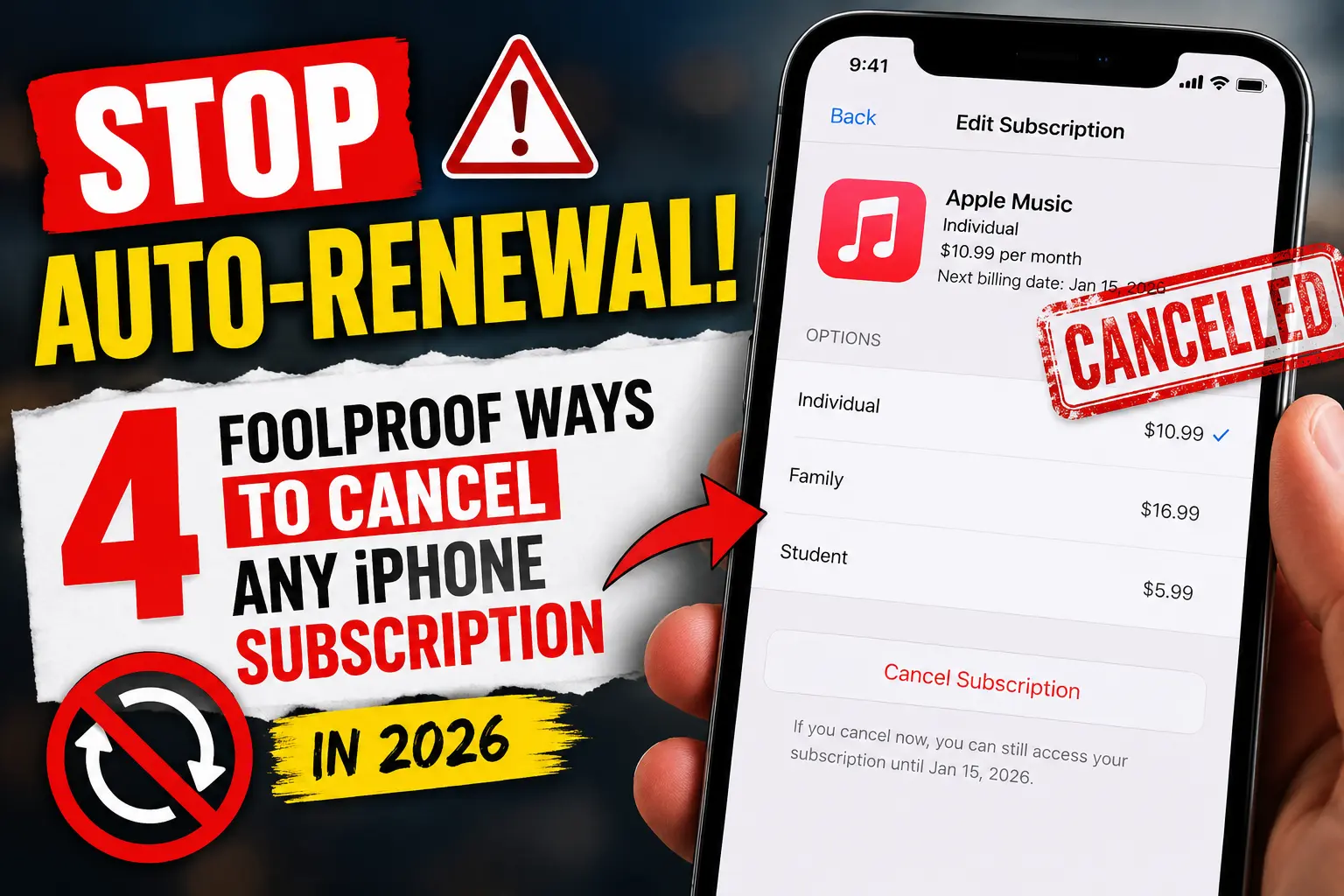
- Scroll down and tap Cancel Subscription.
- Confirm when prompted.

When we tested this on our iPhone 17 Pro running iOS 26.5.1, the Cancel Subscription button sat right below the renewal date, with no extra tap required to reveal it. If you see a red expiration date instead of a cancel button, the subscription is already canceled and will simply lapse.
Method 2: Cancel From the App Store
Prefer staying inside the App Store instead of digging through Settings? This lands you on the exact same subscription list.
- Open the App Store.
- Tap your profile icon in the top-right corner.
- Tap Subscriptions.
- Select the subscription you want to end.
- Tap Cancel Subscription and confirm.
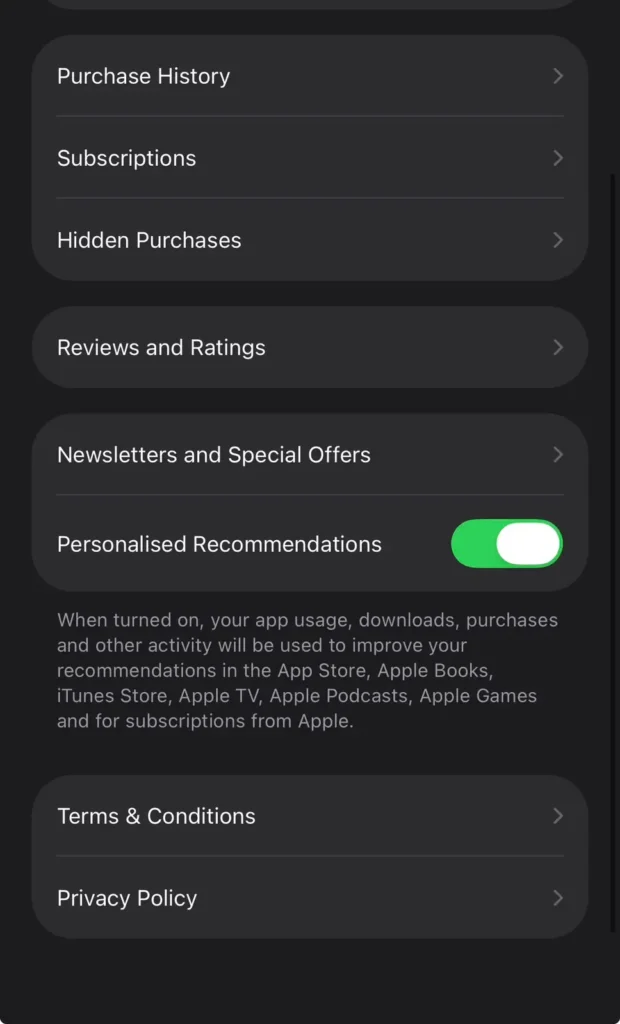
Both this method and Method 1 pull from the same backend list , so it doesn’t matter which one you use. Pick whichever app you already have open.
Method 3: Cancel From Account.Apple.com (No iPhone Required)
Left your iPhone at home, or managing a family member’s subscription from your laptop? Apple’s account website handles cancellations from any browser.
- Go to account.apple.com and sign in.
- Scroll to the Subscriptions section.
- Select the subscription you want to cancel.
- Follow the on-screen prompts to confirm cancellation.
This is also the only method that works if you’re on a Chromebook, an Android tablet, or a work computer that won’t let you install iTunes.
Method 4: Cancel Apple Subscriptions on Windows 10 (Updated for 2026)
Here’s where most guides give you outdated instructions. iTunes for Windows is being phased out, and Apple’s own current documentation now points Windows users toward the Apple Music app or Apple TV app for Windows first, treating iTunes as a legacy fallback.
If you have the Apple Music or Apple TV app for Windows:
- Open the Apple Music or Apple TV app on your PC.
- Click your name at the bottom of the sidebar, then choose View My Account.
- Scroll to Settings and click Manage next to Subscriptions.
- Find the subscription, click Edit, then Cancel Subscription.
If you’re still running an older version of iTunes for Windows:
- Open iTunes.
- From the menu bar, choose Account > View My Account.
- Scroll to Settings and click Manage next to Subscriptions.
- Select the subscription, click Edit, then Cancel Subscription.
Either path cancels a subscription on Windows 10 or 11 without needing to touch your iPhone at all — useful if you manage a family Apple Account from a shared PC.
💡 Expert Insight: Starting with iOS 26.5, Apple introduced a monthly-payment option with a 12-month commitment for App Store subscriptions — letting you spread an annual price across 12 payments instead of one lump sum. It’s a genuinely useful freshness note, but as of this writing it’s rolling out in markets outside the US and Singapore, so most American readers won’t see it in their Subscriptions menu yet. Worth checking back on if you’re weighing annual versus monthly pricing later this year.
How to Cancel a Subscription on iPad
The process is identical to iPhone, since both run iOS and iPadOS from the same Apple Account backend.
- Open Settings on your iPad.
- Tap your name at the top.
- Tap Subscriptions.
- Select the subscription and tap Cancel Subscription.
If you manage subscriptions across both an iPhone and an iPad signed into the same Apple ID, canceling on one device cancels it everywhere — you don’t need to repeat the process on each device.
Canceling Specific Apple Subscriptions
How to Cancel Apple Music Subscription
Apple Music follows the exact same Settings > Subscriptions path above. If you’re on a Family Plan and want to downsize instead of fully canceling, our Apple Music Family Plan guide breaks down how switching plans affects billing and prorated charges.
How to Cancel Apple TV+ Subscription
Same steps: Settings > [Your Name] > Subscriptions > Apple TV+ > Cancel Subscription. If you subscribed through a bundle like Apple One, canceling Apple TV+ individually is possible — look for Choose Individual Services instead of canceling the whole bundle.
How to Cancel an App Subscription on iPhone (Third-Party Apps)
Fitness apps, dating apps, and productivity tools that offer in-app subscriptions almost always route billing through Apple. That means the same Settings menu cancels them too — you don’t need to open the app itself or hunt for a cancel button buried in its own account screen.
The Gym Membership Analogy
Think of an iPhone subscription like a gym membership you paid for monthly. Canceling doesn’t kick you out of the building the moment you sign the cancellation form — you keep your keycard until the paid period runs out. Apple works the same way: cancel today, and you keep full access until the current billing cycle ends. You won’t get charged again, but you also won’t get a refund for the days already paid for.
How Marcus Canceled Subscriptions?
A reader named Marcus emailed us after noticing a $9.99 charge from a meditation app he hadn’t opened in eight months.
He’d deleted the app back in January, assuming that removed the subscription too. It didn’t — deleting an app never cancels its subscription.
He found the charge still active under Settings > Subscriptions, canceled it in about 15 seconds, and set a recurring phone reminder to review his subscription list every three months. That single habit change has since saved him roughly $180 a year across three forgotten trials.
What if the Subscription Doesn’t Show Up on iPhone?
If you can’t find a subscription in Apple’s list, it’s almost always billed directly by the service provider rather than through Apple. Netflix, Spotify (in most cases), and many news apps fall into this category.
To confirm and cancel:
- Search your email inbox for “receipt from Apple” or the app’s own billing confirmation.
- If there’s no Apple receipt, check your bank or card statement for the company name.
- Log in to the provider’s own website or app and look for Account, Billing, or Membership settings.
- Cancel directly through that provider — Apple has no ability to cancel a subscription it doesn’t bill.
How to Cancel an Apple Account (Not the Same Thing)
Canceling a subscription and canceling your Apple Account are two completely different actions. Canceling a subscription simply stops a specific recurring charge.
Deleting your Apple Account removes your entire Apple ID, iCloud data, purchase history, and access to every Apple service tied to it — a step you can only take through account.apple.com under Sign-In and Security > Delete Account, and one that can’t be undone after the grace period ends.
If you’re just trying to stop a charge, stick to the subscription-cancellation steps above; don’t delete the whole account by mistake.
Troubleshooting: What if This Doesn’t Work?
- No Cancel Subscription button appears: The subscription is likely already canceled, or it’s billed by the provider rather than Apple. Check for a red expiration date instead.
- You were charged after canceling: Confirm your cancellation date against your billing cycle. Cancellations that happen less than 24 hours before renewal sometimes process one cycle too late.
- The Subscriptions page won’t load: Restart your iPhone and check your internet connection, then try again. A temporary Apple ID sync issue can freeze this screen.
- You’re canceling a family member’s subscription: You can’t. Only the Apple Account holder listed on the original receipt can cancel it — ask them to follow these same steps.
- You don’t remember which Apple ID you used: Search your email for old Apple receipts. The account used for the purchase is always listed on the receipt itself.
- The app charged you but isn’t in your Subscriptions list at all: It’s a provider-billed subscription. Jump back to the section above on canceling outside of Apple.
Key Takeaways
- Settings > [Your Name] > Subscriptions is the fastest way to cancel almost anything billed through Apple.
- Canceling never triggers an instant refund — you keep access until the current billing period ends.
- Deleting an app does not cancel its subscription; you must cancel it separately first.
- If a subscription isn’t listed under your Apple Account, it’s billed by the provider directly, and only they can cancel it.
- Windows users should use the Apple Music or Apple TV app first in 2026, with iTunes as a fallback only.
- Canceling a subscription and deleting your Apple Account are entirely separate actions — don’t confuse the two.
Frequently Asked Questions
No. Canceling only stops future billing. Your app and any locally stored data usually remain until you delete the app yourself, though cloud-synced content may become inaccessible once access expires.
Sometimes. Apple occasionally grants refunds for accidental charges through reportaproblem.apple.com, but it isn’t guaranteed and isn’t automatic just because you canceled.
You lose access immediately in most cases, since there’s no paid period left to run out. Cancel at least 24 hours before a trial ends if you want to use the full trial first.
Yes. Go back to Settings > Subscriptions, scroll to the inactive or expired section, and select the service to restart it under current pricing.
Yes, as long as both devices share the same Apple Account. Subscriptions are tied to the account, not the device.
Sources
- Apple Support — If you want to cancel a subscription from Apple
- Apple Support — How to cancel a subscription on your iPhone
Disclaimer
This article reflects testing on an iPhone 17 Pro running iOS 26.5.1 as of July 2026. Menu locations, button labels, and Apple’s subscription policies can change with future iOS updates. This content is for general informational purposes only and does not constitute financial or legal advice. AppleHeadlines.com is an independent publication and is not affiliated with or endorsed by Apple Inc. Always confirm current steps at support.apple.com if this guide predates a recent iOS release.
Ready to take control of your subscriptions? Open Settings right now and check your Subscriptions list — you might find a charge you forgot all about.

T’kal is the lead strategist and developer behind Apple Headlines. With a background in digital marketing and web development, he specializes in technical Apple troubleshooting, software news, and hardware rumors. T’kal focuses on delivering high-authority tech content that bridges the gap between Apple enthusiasts and the latest industry innovations.