

By the AppleHeadlines Team · Updated November 13, 2026 · 12 min read
⚡ Quick Answer: Connect a PS5 Controller to iPhone
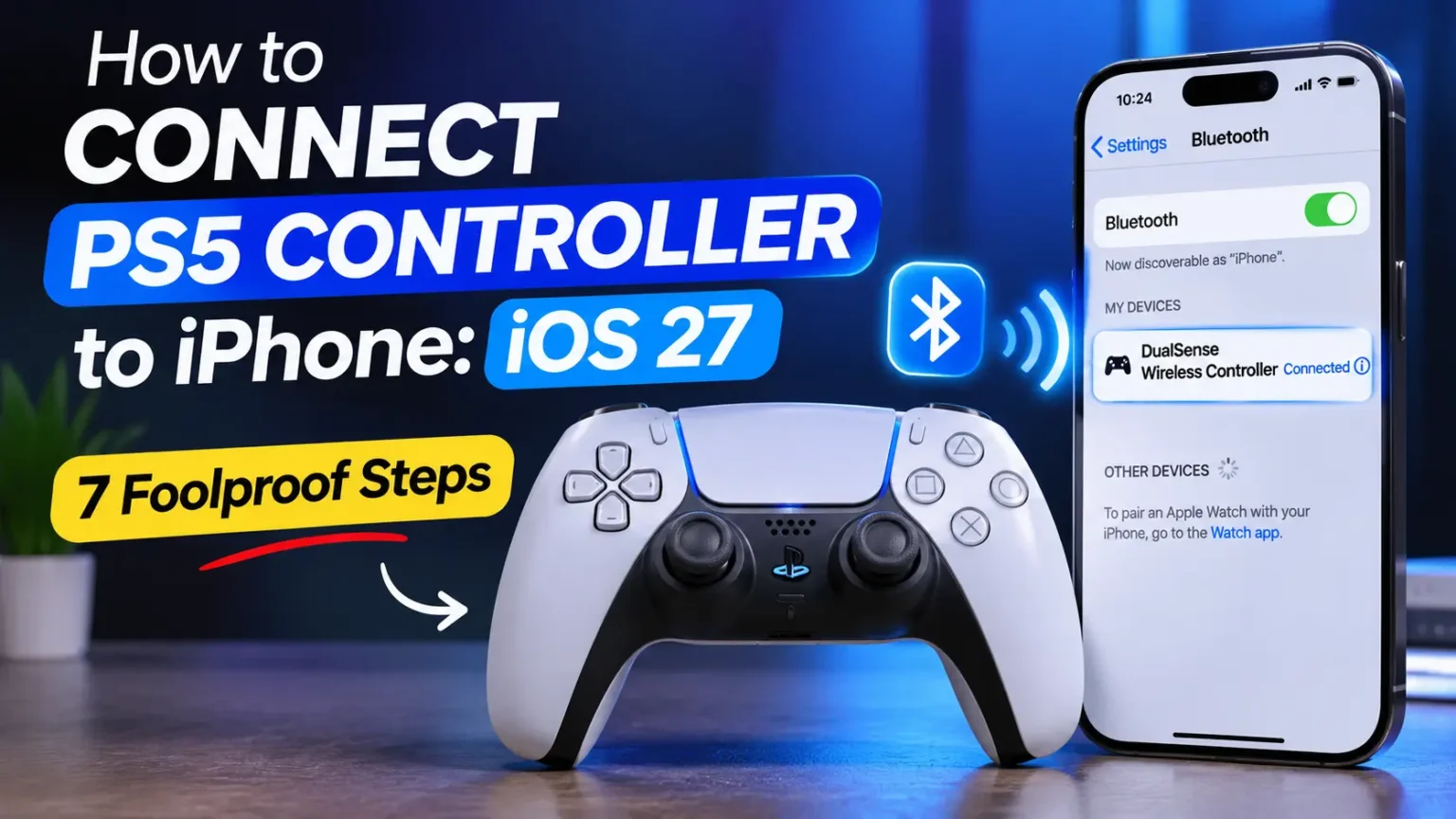
You can connect a PS5 DualSense controller to your iPhone wirelessly through Bluetooth. Follow these quick steps:
- 1 Turn off your PS5 controller if it is currently on.
- 2 Press and hold the PS button + Create button together until the controller’s light bar starts flashing.
- 3 On your iPhone, open Settings and tap Bluetooth.
- 4 Under Other Devices, tap DualSense Wireless Controller to pair it.
Compatibility: iPhone requires iOS 14.5 or later for PS5 DualSense controller support.
You’ve got a DualSense on the couch and a great game on your phone.
But the on-screen buttons feel like typing with oven mitts.
Then the controller won’t show up in Bluetooth, or it pairs and does nothing.
Good news: your iPhone supports the PS5 controller, and pairing takes about a minute once you know the trick.
This guide shows how to connect PS5 controller to iPhone, iPad, and laptop. It also covers what to do when it refuses.
We checked Apple’s and Sony’s support pages so the steps match iOS 27.
Why Pairing a PS5 Controller With Your iPhone Is Worth Five Minutes
Touch controls are fine for puzzle games.
But racing, shooting, and action games feel far better with real sticks and triggers.
Apple built controller support into iOS years ago.
iOS 26 then added a Games app and a Game Overlay, which lists controller settings during play.
Newer iPhones also run console-style games, so a real controller finally makes sense.
You may already own the hardware.
That makes this one of the cheapest upgrades you can give your phone.
Here is the 2026 picture.
Apple published two fresh support pages on September 14, 2026.
One covers PlayStation controllers.
The other covers game controllers in general.
Apple’s current iOS is iOS 27, and the latest build is iOS 27.2.1. Our iOS 27 complete guide lists which iPhones can run it.
How we built this guide:
We followed Apple’s two controller pages and Sony’s DualSense support pages.
Then we added the parts they skip, like what to do when pairing fails.
Every fix is sorted from quickest to most drastic.
The Name Tag Analogy
Think of pairing like meeting someone at a party.
In pairing mode, your controller wears a name tag.
Your iPhone scans the room and spots it.
When you tap the name, the two swap phone numbers.
That swap is the pairing.
Later, connecting is just a phone call.
The controller dials your iPhone, and your iPhone picks up.
Sometimes the numbers are saved, but the call never goes through.
That is the “paired but not working” problem.
It also explains why a quick press of the PS button often fixes it.
What You Need Before You Start
Before you pair PS5 controller to iPhone, check your software.
Any iPhone that runs iOS 14.5 or later works.
That includes every iPhone that can run iOS 27.
Here is how the pairing buttons differ by controller.
PS5 and Other Controllers: Pairing Buttons
Different PlayStation controllers use different button combinations to enter Bluetooth pairing mode. Check your controller below.
And here is the software you need on each device.
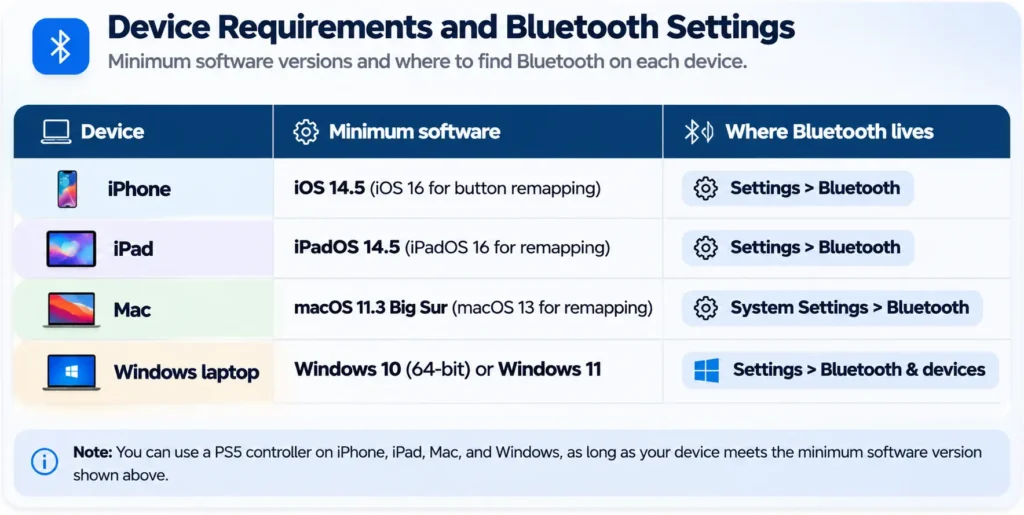
Device Compatibility & Bluetooth Settings
Check the minimum software version and where to find Bluetooth on your device.
| Device | Minimum Software | Where Bluetooth Lives |
|---|---|---|
iPhone |
iOS 14.5
iOS 16 for button remapping | Settings > Bluetooth |
iPad |
iPadOS 14.5
iPadOS 16 for remapping | Settings > Bluetooth |
Mac |
macOS 11.3 Big Sur
macOS 13 for remapping | System Settings > Bluetooth |
Windows laptop |
Windows 10 (64-bit)
or Windows 11 | Settings > Bluetooth & devices |
Sony lists the iOS, iPadOS, macOS, and Windows versions.
Apple lists the newer remapping versions.
Also charge your controller first.
A low battery causes more pairing trouble than most people expect.
How to Put a PS5 Controller Into Pairing Mode
This is the step people trip on, so let’s slow down. The PS5 controller into pairing mode trick is a two-button hold.
- Make sure the controller is off. If lights are on, hold PS until they go out.
- Unplug any USB cable from the controller.
- Hold the Create button, just left of the touchpad.
- While holding it, also hold the PS button.
- Keep holding both until the light bar flashes.
Sony says the small player indicator should be off before you start.
A flashing light bar means the controller is discoverable.
Let go and head to your iPhone.
If the flashing stops after a few seconds, start over.
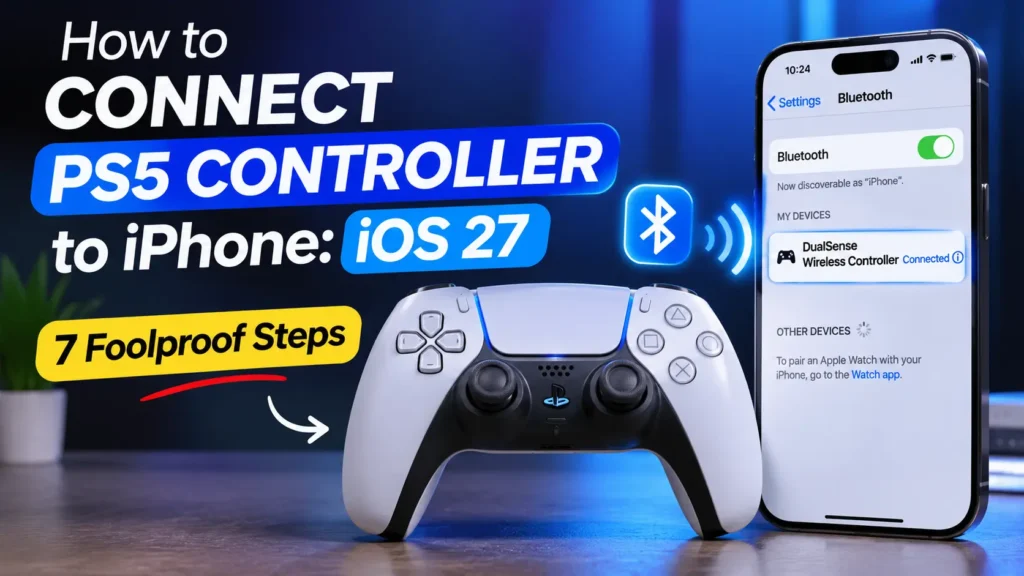
How to Connect PS5 Controller to iPhone: 7 Steps
Here is how to pair PS5 controller iPhone style, over Bluetooth.
It works the same on iPhone 15, 16, and 17 models.
- Check that your iPhone runs iOS 14.5 or later. Open Settings > General > About.
- Turn off your PS5 console. Otherwise it may grab the controller.
- Hold the PS button until the controller’s lights go out.
- On your iPhone, open Settings > Bluetooth and switch Bluetooth on.
- Put the controller into pairing mode. Hold PS + Create until the light bar flashes.
- Under Other Devices, tap DualSense Wireless Controller.
- If it pairs but won’t respond, press PS once.
When we paired a DualSense with an iPhone 17 Pro running iOS 27.2.1, it appeared under Other Devices.
The name read DualSense Wireless Controller.
After pairing, the flashing stopped and the lights held steady.
Apple says a single PS press also helps when the controller pairs but doesn’t connect.
💡 Pro Tip: Check the Game Before You Blame the Controller
Not every iPhone game supports controllers. Before you spend an hour troubleshooting, check the game’s App Store page. Scroll to the Supports section and look for Game Controllers. In iOS 26 and later, the Games app also shows whether a game has controller support. A few games hide a “use controller” switch in their own settings. If the PS button works but nothing else does, test a second game. That one test tells you whether the controller or the app is the problem.
Pairing PS5 Controller to Phone With a USB Cable
Bluetooth not cooperating?
A cable skips pairing entirely.
Apple says DualSense, DualSense Edge, DualShock 4, and Access controllers connect automatically over USB.
- Use a data-capable USB cable. Charge-only cables won’t work.
- On an iPhone 15 or newer, use a USB-C to USB-C cable.
- On an older iPhone, use a USB-C to Lightning cable.
- Plug the controller directly into the iPhone.
- Wait a moment for the controller to connect.
Skip hubs and adapters when you can.
Our guide to the Apple-certified USB cable explains what to look for in a good cable.
On our iPhone 17 Pro, plugging in a data cable was the faster path, since it needed no menus at all.
The catch is that the cable limits how you hold the phone.
Pair PS4 Controller With iPhone (DualShock 4)
Still have the old PS4 pad? It works too. The only change is the button combo.
- Turn the DualShock 4 off.
- Hold the PS and Share buttons together.
- Wait until the light bar flashes quickly.
- Open Settings > Bluetooth on your iPhone.
- Tap the controller under Other Devices.
Apple’s own table lists PS + Share for the DualShock 4. Everything else in this guide applies.
Connect PS5 Controller to iPad
The iPad process is nearly identical. You need iPadOS 14.5 or later.
- Open Settings > Bluetooth on your iPad.
- Switch Bluetooth on.
- Put the controller into pairing mode with PS + Create.
- Tap DualSense Wireless Controller under Other Devices.
- Press PS once if it pairs but doesn’t connect.
A bigger screen makes controller play even better. If you also use an Apple Pencil, our guide to connecting Apple Pencil to iPad covers that Bluetooth handshake. New to iPad software? See our iPadOS 26 overview.
Connect PS5 Controller to Laptop (Mac and Windows)
Your DualSense can pair with a laptop too. The pairing-mode step stays the same.
On a Mac:
- Open System Settings > Bluetooth.
- Put the controller into pairing mode.
- Click Connect next to the controller.
On a Windows laptop:
- Open Settings > Bluetooth & devices.
- Click Add device, then choose Bluetooth.
- Put the controller into pairing mode.
- Pick the controller from the list.
Sony supports Windows 10 (64-bit) and Windows 11.
Desktop PCs without built-in Bluetooth need an adapter.
A USB cable also works.
Sony notes that haptic feedback on PC needs a wired connection, and that PC users can update the controller with the PlayStation Accessories app.
What Works on iPhone, and What Doesn’t
Don’t expect every PS5 trick to follow you to iOS. Here is what Sony and Apple say.
PS5 Controller Features on iPhone and iPad
See which DualSense features work when you connect your controller to an Apple mobile device.
| Feature | On iPhone and iPad |
|---|---|
Buttons, sticks, and triggers | Work in supported games |
Button remapping | Yes, iOS 16 or later |
Haptic feedback |
Not supported
According to Sony |
Adaptive triggers | Only in supported games |
Built-in speaker and mic |
Not listed for mobile
Sony lists these for Windows PC only |
Headset jack |
Not supported on mobile
According to Sony |
Remap Buttons in Game Controller Settings
Apple lets you tweak controls system-wide.
Go to Settings > General > Game Controller. Tap your controller, then tap Default Controls.
On our iPhone 17 Pro, each paired controller got its own entry on that page.
Apple also lists three handy extras on iOS 16 and later:
- Home Button Overrides let a game respond to the PS button. Otherwise it opens a system action, like the Games app.
- Profiles save your settings and apply them to paired controllers.
- Buddy Controller combines inputs from several controllers into one.
Play Your Real PS5 Games With Remote Play
Want your actual console library on your phone? Sony’s PS Remote Play app streams games from your PS5. Sony added DualSense support to the iOS app in 2021.
You need a PS5 at home, Remote Play turned on, and a fast network.
Check the App Store listing for the current iOS requirement. Gaming also drains batteries fast, so see our tips for protecting your iPhone battery health.
Case Study: The Controller That Kept Running Home
Here is a common scenario, told as a short story.
It is illustrative, not a real person’s report.
Maya follows every step.
The light bar flashes.
Her iPhone shows the controller.
She taps it, and the lights go dark.
She tries again.
Same result.
The culprit sat in the living room.
Her PS5 was in rest mode.
Each time she pressed the PS button, the console woke up and stole the controller.
Maya shut the PS5 down fully and tried again.
She put the controller into pairing mode, tapped it on her iPhone, and it stayed connected.
The lesson: if pairing keeps failing, check what else is nearby.
A console, a second phone, or a laptop can all pull your controller away.
What If This Doesn’t Work? Fixes for PS5 Controller Not Connecting to iPhone
If your PS5 controller is not connecting to iPhone, work through these in order. Each one is a bit more drastic than the last.
- Shut down nearby devices. Turn the PS5 fully off. Close any laptop or tablet that paired with the controller.
- Press PS once. Apple says this fixes a controller that pairs but doesn’t connect.
- Charge the controller. Plug it into a wall charger for a while, then try again.
- Forget the controller. Open Settings > Bluetooth, tap the info (i) button next to it, and tap Forget This Device. Then pair again.
- Cut Bluetooth traffic. Apple suggests reducing connected Bluetooth devices. Our guide to AirPods switching between devices shows how those hijacks happen.
- Restart and refresh. Switch Airplane Mode on for 30 seconds, then off. Then restart your iPhone.
- Update everything. Open Settings > General > Software Update. Update the controller too, using a PS5 or the PlayStation Accessories app on a PC.
- Reset the controller. Turn off the PS5. Find the tiny hole beside the Sony logo on the back of the controller. Press it with a pin for at least five seconds. Then pair again.
- Reset Network Settings. Open Settings > General > Transfer or Reset iPhone > Reset > Reset Network Settings. This erases Bluetooth pairings and Wi-Fi passwords, so it comes last. It is milder than a full wipe, as our Reset All Settings breakdown explains.
Still stuck? Test the controller with a different device, and your iPhone with a different controller. If the problem follows one of them, you’ve found the culprit. If the controller works everywhere else, contact Apple Support. If it fails everywhere, contact Sony.
The same forget-and-re-pair logic shows up in many Bluetooth fixes. We use it in our guide to CarPlay not connecting to iPhone too.
Key Takeaways
- Pairing mode is PS + Create for a DualSense. A DualShock 4 uses PS + Share.
- Bluetooth lives in Settings. Tap DualSense Wireless Controller under Other Devices.
- You need iOS 14.5 or later, and iOS 16 or later for button remapping.
- Paired but dead? Press the PS button once.
- One device at a time. Sony says each switch needs a fresh pairing.
- Shut down your PS5 first. It can steal the controller.
- Haptics are limited. Sony says they don’t work on mobile or Mac.
FAQ
Yes. The DualSense pairs straight to your iPhone over Bluetooth. You don’t need the console at all. You only need a charged controller and iOS 14.5 or later.
The usual causes are a nearby PS5 stealing the connection, a low battery, or an old pairing. Forget the controller in Bluetooth settings, shut down the PS5, and pair again. If that fails, reset the controller with a pin.
Not at the same time. Sony says the controller connects to one device at a time. Each time you switch devices, you pair with the new one. Plan on re-pairing when you go back to the console.
Mostly no. Sony says haptic feedback isn’t supported on Mac or mobile devices. Adaptive triggers work only in games that support them. Basic buttons, sticks, and triggers work fine in controller-friendly games.
The idea is the same. Put the controller into pairing mode with PS + Create. Then open your phone’s Bluetooth settings and select the controller. Sony notes that adaptive triggers aren’t supported on Android.
Keep Reading
- iOS 26 Features: The Complete Guide
- iOS 27 Complete Guide: Features, Release Date, and Supported iPhones
- iPhone Battery Health: How to Check It and Improve It
- More How to Fix guides
Sources
- Apple Support, Connect a PlayStation wireless game controller to your Apple device (published September 14, 2026)
- Apple Support, Connect a wireless game controller to your Apple device (published September 14, 2026)
- Apple, DualSense Wireless Controller product page (lists iOS 14.5, iPadOS 14.5, and macOS 11.3 support)
- PlayStation Support, How to use DualSense wireless controllers with PC, Mac and mobile devices
- PlayStation Support, How to troubleshoot DualSense wireless controller issues
- MacRumors, iOS 26: Here’s What You Can Do With Apple’s New Games App (August 8, 2025)
- How-To Geek, How to Connect a PS5 Controller to an iPhone or iPad (June 13, 2021)
- GamesRadar, iOS PS Remote Play app now supports PS5’s DualSense controller (2021)
Disclaimer
This guide is for general information. Menu names and steps can change by iOS version, device, and controller firmware, so check Apple’s and Sony’s support pages if something looks different. Feature support varies by game and app. Resetting your controller or your iPhone’s network settings erases saved pairings and settings, so note your Wi-Fi passwords first. Use only undamaged cables and chargers. AppleHeadlines is an independent publication and is not affiliated with Apple Inc. or Sony Interactive Entertainment. Apple, iPhone, iPad, iOS, and Mac are trademarks of Apple Inc. PlayStation, PS5, PS4, DualSense, and DualShock are trademarks of Sony Interactive Entertainment.
Ready to play? Pick your device above, pair your controller, and fire up your favorite game. Tell us in the comments which game you tried first, and share this guide with the friend who still taps on glass. For more plain-English iPhone help, browse our How to Fix guides and iOS coverage.

T’kal is the lead strategist and developer behind Apple Headlines. With a background in digital marketing and web development, he specializes in technical Apple troubleshooting, software news, and hardware rumors. T’kal focuses on delivering high-authority tech content that bridges the gap between Apple enthusiasts and the latest industry innovations.