



Quick Answer: Go to Settings → Privacy & Security → Microphone and toggle off any app you don’t want using it. To stop Siri from listening system-wide, go to Settings → Apps → Siri and turn off “Listen for ‘Hey Siri,'” then head to Settings → General → Keyboard and disable Enable Dictation. There’s no single master switch — Apple splits microphone control across five different screens, and we’ll walk through every one of them below.
That orange dot at the top of your screen again.
You didn’t open the camera or start recording, but something on your iPhone just tapped the microphone.
Maybe an ad felt a little too specific.
Maybe you just don’t want random apps listening while you talk. Whatever the reason, you want the mic genuinely off – not muted for one call, but locked down.
The good news: Apple gives you real control here. It’s just scattered across more menus than it should be.
Why Microphone Privacy Actually Matters
Every iPhone ships with three microphones – bottom, top, and near the rear camera — working together for calls, Siri, and video.
Since iOS 14, Apple has flashed an orange dot in the status bar the instant any app touches the mic.
That single design choice forced app developers to be honest about background access, because users could finally see it happening in real time.


Apple requires every app to ask before it can use your microphone for the first time.
Once you tap Allow, though, most people never revisit that decision.
Multiply that across dozens of installed apps and it’s easy to end up with far more access granted than you’d choose today.
Auditing it isn’t paranoia — it’s the same basic hygiene as checking which apps can see your location.
Method 1: Turn Off Microphone Access for Specific Apps
This is the fastest fix for “I don’t want this one app listening.”
- Open Settings.
- Tap Privacy & Security.
- Tap Microphone.
- Find the app in the list.
- Toggle it off.
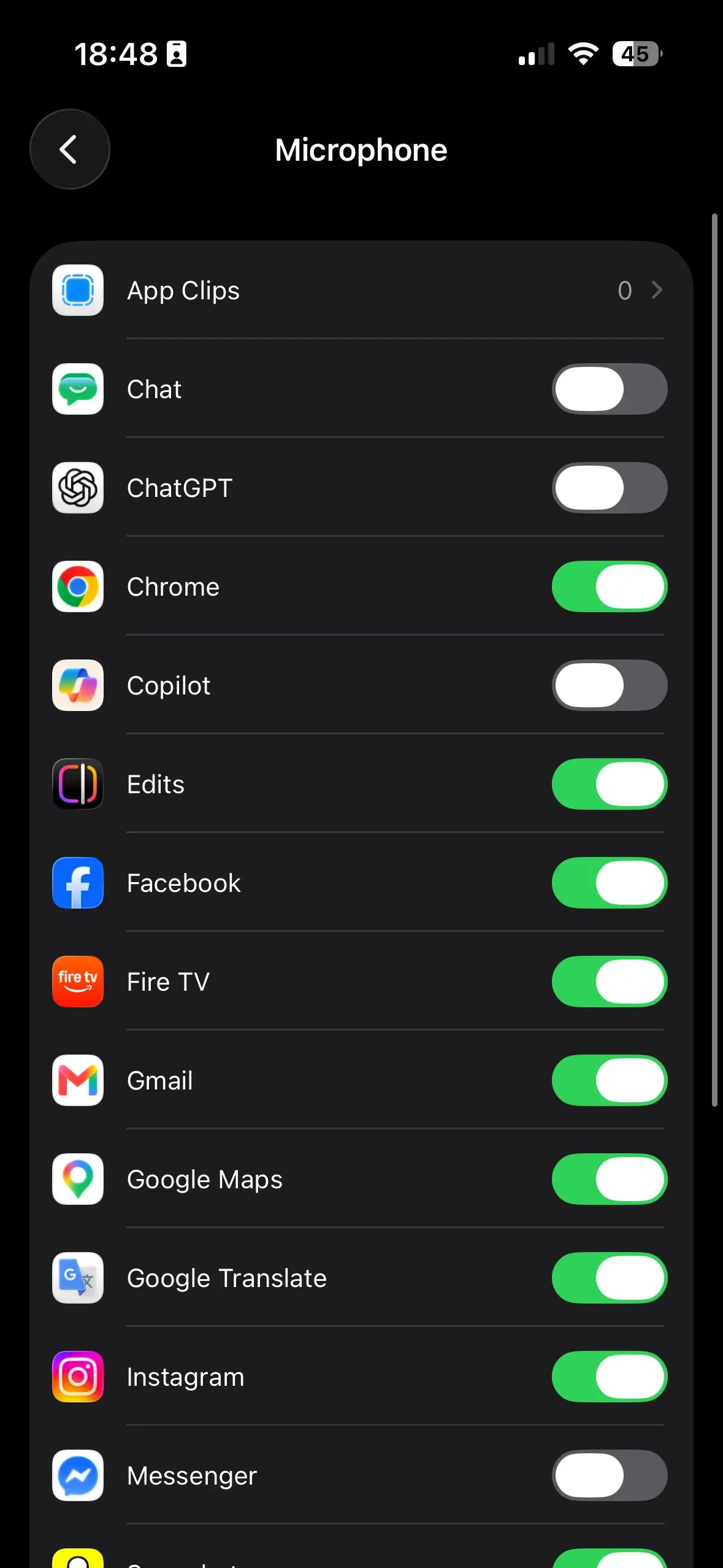
The app instantly loses microphone access. It can’t record or listen again until you flip the switch back on. When we tested this on an iPhone 17 Pro running iOS 26.5, the change applied immediately — no restart, no delay, no re-login required.
Method 2: Disable Microphone Access Right From an App’s Settings Page
Some apps show mic controls closer to the surface.
- Open Settings and scroll to the app itself.
- Tap the app’s name.
- Toggle Microphone off from that screen.
Same result as Method 1, different entry point. Handy if you’re already inside an app’s settings and don’t want to backtrack through the full Privacy menu.
Method 3: Shut Down Siri and Dictation System-Wide
Siri and Dictation are the two features that use the microphone most persistently, since both are designed to listen for a wake phrase or typed voice input.
- Go to Settings → Siri.
- Turn off Listen for “Hey Siri.”
- Turn off Press Side Button for Siri, if you use an iPhone with Face ID.
- Go back to Settings → General → Keyboard.
- Turn off Enable Dictation.
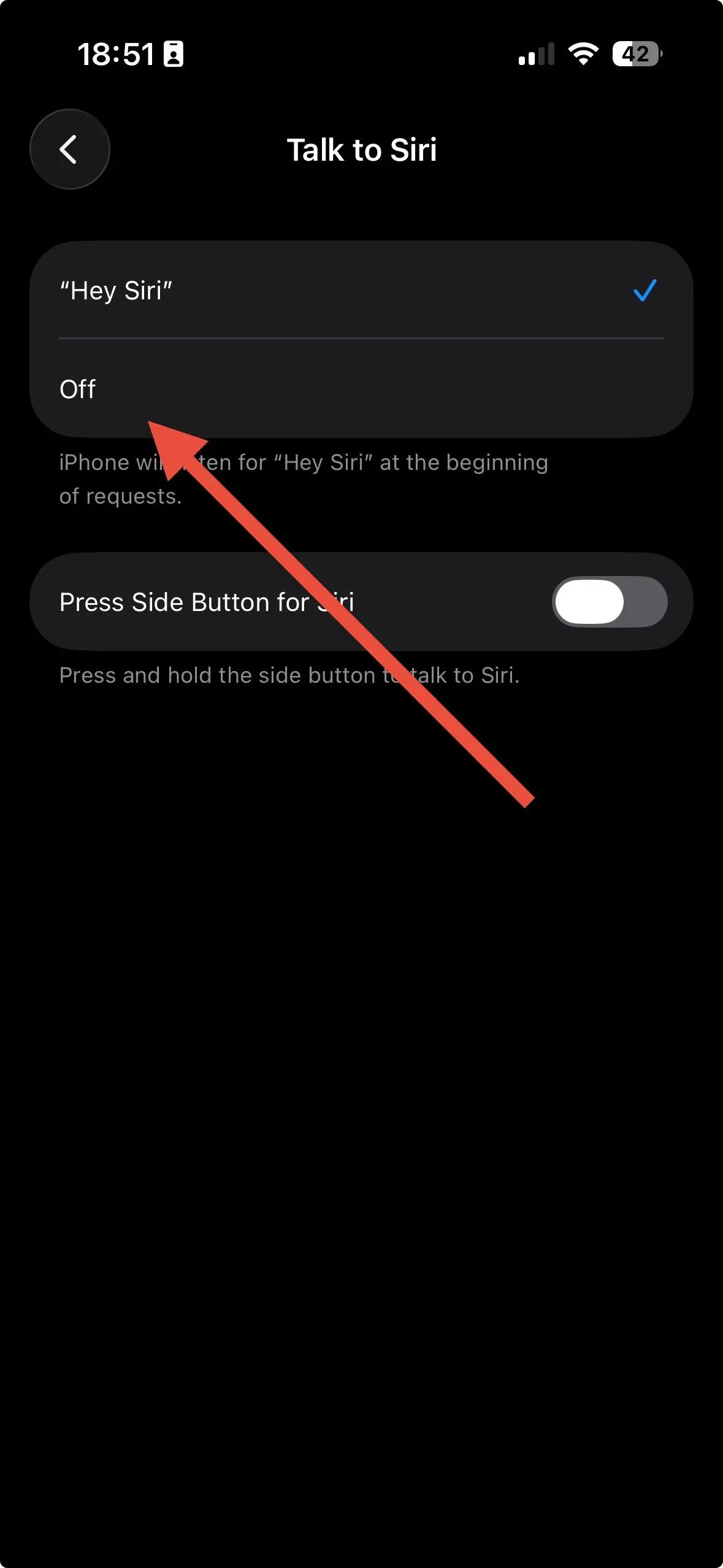
This is also how you handle the LSI question we hear most: how to disable iPhone microphone listening at the OS level, rather than app by app. Fair warning — disabling Dictation removes the little microphone icon from your keyboard everywhere, including Messages, so this is also the fix for “iPhone turn off microphone texting” if you’ve ever fat-fingered that button mid-conversation.
Method 4: Mute the Microphone During Calls and FaceTime
For mute microphone during calls iPhone situations, you don’t need Settings at all.
- During a phone call or FaceTime, look for the Mute button.
- Tap it once.
- The icon fills in, confirming you’re muted.
- Tap again to unmute.
Muting is temporary and call-specific. It doesn’t revoke any app’s underlying permission — it just silences your voice for that conversation.
Method 5: Block Microphone Access Entirely With Screen Time
This is the closest thing iOS has to a hardware kill switch, and almost none of the competing guides walk through it correctly.
- Open Settings → Screen Time.
- Tap Content & Privacy Restrictions and turn it on.
- Tap Privacy.
- Tap Microphone.
- Select Don’t Allow.
With this set, no app — installed now or in the future — can request microphone access at all, until you switch it back to Allow. It’s the right call for a shared family iPhone, a kid’s device, or any phone you want permanently locked down.
Pro Tip: The Setting Everyone Forgets
Expert Insight: Most guides stop at app permissions and Siri.
They skip Safari’s per-website microphone permission, buried in Settings → Apps → Safari → Microphone. Websites can request mic access too — for voice search widgets, video chat embeds, or AI tools running in-browser — completely separate from the app-level Microphone list.
If you’ve locked down every app but still see that orange dot while browsing, this is almost always where it’s coming from.
A Simple Way to Think About It
Picture your iPhone’s microphone like a shared conference-room phone with a mute button, a lock on the door, and a receptionist who screens every caller.
The app toggle (Method 1) is the receptionist turning away one specific caller.
Siri and Dictation (Method 2) are separate extensions that ring independently of the front desk.
The Mute button (Method 4) just puts the current call on hold. Screen Time (Method 5) is the one that locks the whole room and takes the phone off the hook entirely.
Most people only ever use the mute button, then wonder why the room still feels bugged.
Real-World Case: The Podcast Guest Who Wasn’t Actually Muted
A reader named Daniel, a part-time podcast guest, wrote in frustrated that his co-host kept hearing background noise even after he muted the call.
The problem wasn’t the mute button — a second voice-memo app was separately capturing ambient audio for an unrelated feature he’d forgotten he’d enabled.
Muting silenced the call app; it did nothing to the app quietly running behind it. Auditing every app in Settings → Privacy & Security → Microphone ended the mystery for good.
What If the Microphone Won’t Turn Off?
If you’ve followed every method above and an app still seems to access the mic, work through this list:
- Check for Screen Time restrictions set by someone else. If the toggle in Settings is greyed out, Content & Privacy Restrictions is likely already active. That’s the same grayed-out pattern we cover in our guide to managing Stolen Device Protection when settings won’t budge.
- Look for a Mobile Device Management (MDM) profile. Work or school iPhones can have microphone rules locked by an administrator. Check Settings → General → VPN & Device Management.
- Force-quit and reopen the app. A stuck background process can occasionally keep holding onto a permission that was already revoked; a fresh launch usually clears it.
- Restart the iPhone. This resolves the rare case where iOS itself hasn’t refreshed a permission change.
- Reinstall the app if the toggle refuses to appear in the Microphone list at all — this usually means the app hasn’t properly registered its permission request with iOS.
If you’re also dealing with Face ID prompts blocking these settings, our Face ID troubleshooting guide covers the most common causes.
Key Takeaways
- No master switch exists. Microphone control is split across app permissions, Siri, Dictation, Screen Time, and Safari.
- Settings → Privacy & Security → Microphone is the fastest, most common fix for a single app.
- Screen Time → Content & Privacy Restrictions → Microphone → Don’t Allow is the strongest lockdown available.
- Muting a call only silences that call — it doesn’t revoke any app’s permission.
- Safari has its own separate microphone setting, hidden from most guides.
Frequently Asked Questions
No. Airplane Mode disables wireless radios, not the microphone hardware or app permissions.
Yes. Use Method 1 — toggle off just that app in Settings → Privacy & Security → Microphone, leaving every other app’s permission untouched.
This is almost always a Screen Time restriction, an MDM profile, or a background app still running from before you revoked access. Force-quitting the app or restarting your iPhone clears most cases.
Not entirely, but it removes voice input from your keyboard everywhere, including texting. Siri’s wake-word listening is controlled separately under Settings → Apps → Siri.
No. iPhones have no hardware switch for the microphone. Covering the port with tape can damage the device and isn’t something Apple recommends.
Sources
- Apple Support: Privacy & Security settings documentation, support.apple.com
- Apple Support: Screen Time and Content & Privacy Restrictions documentation, support.apple.com
Related reading on AppleHeadlines:
Turn Off Private Browsing on iPhone
iPhone Camera Not Working? Fixes That Actually Work
Disclaimer: This guide reflects iOS 26.5 as tested on iPhone 17 Pro, current as of July 2026. Apple may relocate or rename these settings in iOS 27 or later updates. AppleHeadlines.com is not affiliated with or endorsed by Apple Inc. For official guidance, visit support.apple.com. This article is for informational purposes only and does not constitute technical or legal advice.

T’kal is the lead strategist and developer behind Apple Headlines. With a background in digital marketing and web development, he specializes in technical Apple troubleshooting, software news, and hardware rumors. T’kal focuses on delivering high-authority tech content that bridges the gap between Apple enthusiasts and the latest industry innovations.