


Go to Settings → Accessibility → Display & Text Size and toggle off Smart Invert. If it keeps coming back, also go to Settings → Accessibility → Accessibility Shortcut and remove Smart Invert from the list.
You unlock your iPhone and everything looks like a photo negative – whites are black, your app icons look alien, and your camera preview is a disaster.
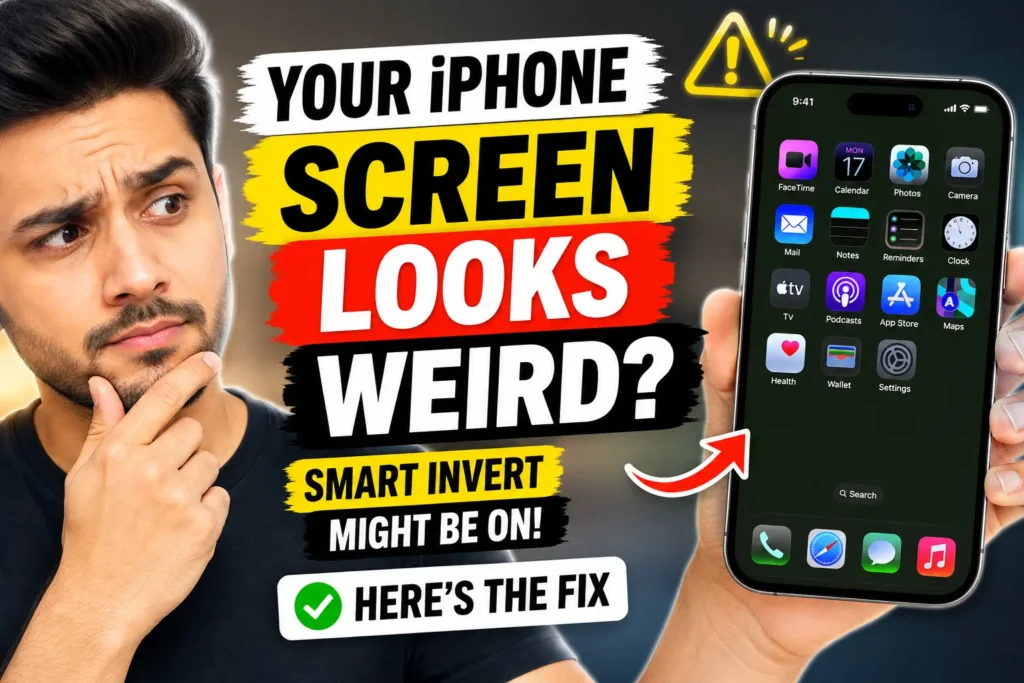
You’ve accidentally turned on Smart Invert, and it’s one of the most disorienting iPhone glitches people trigger without realizing it.
Here’s exactly how to fix it, and how to make sure it never sneaks back on again.
Key Takeaways
- Turn off Smart Invert via Settings → Accessibility → Display & Text Size.
- Triple-click your side or home button for instant access when the screen is hard to read.
- Remove Smart Invert from your Accessibility Shortcut to stop accidental activation.
- Per-App Settings is the hidden cause when the toggle fix doesn’t stick.
- Back Tap gestures can silently trigger Smart Invert — check yours.
- Smart Invert ≠ Dark Mode — they serve different purposes entirely.
The Standard Fix: Turn Off Smart Invert in Settings
This works on every iPhone model running iOS 12 and later — including iPhone 16, iPhone 15 series, and the iPhone 17 Pro on iOS 26.
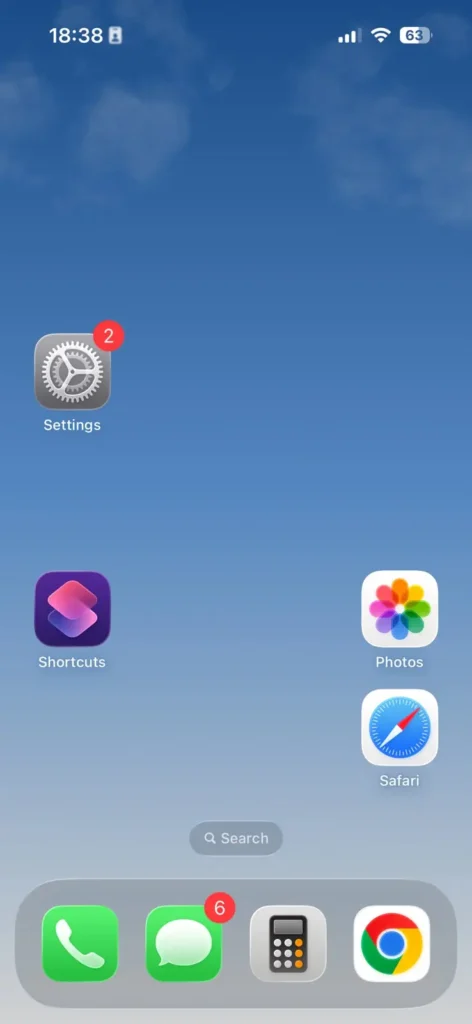
Step 1:Open the Settings app (the gray gear icon on your home screen).
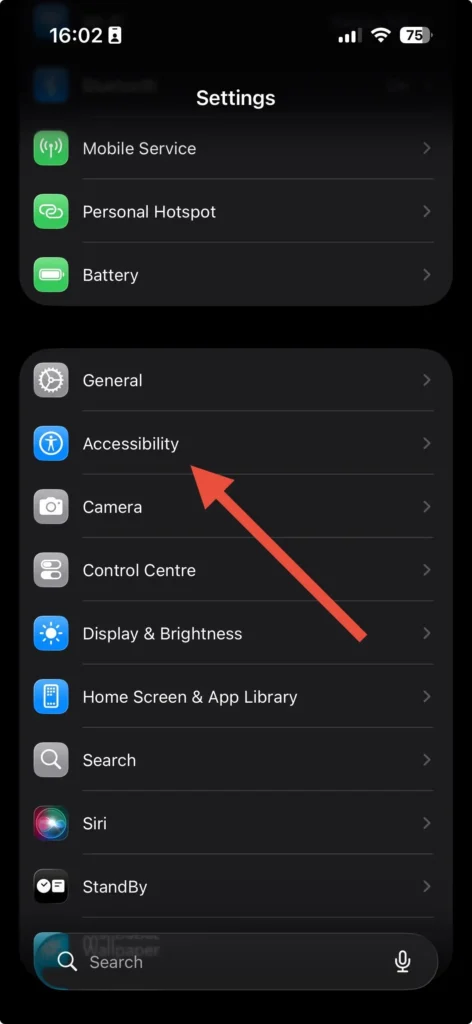
Step 2: Scroll down and tap Accessibility.
Step 3: Tap Display & Text Size.


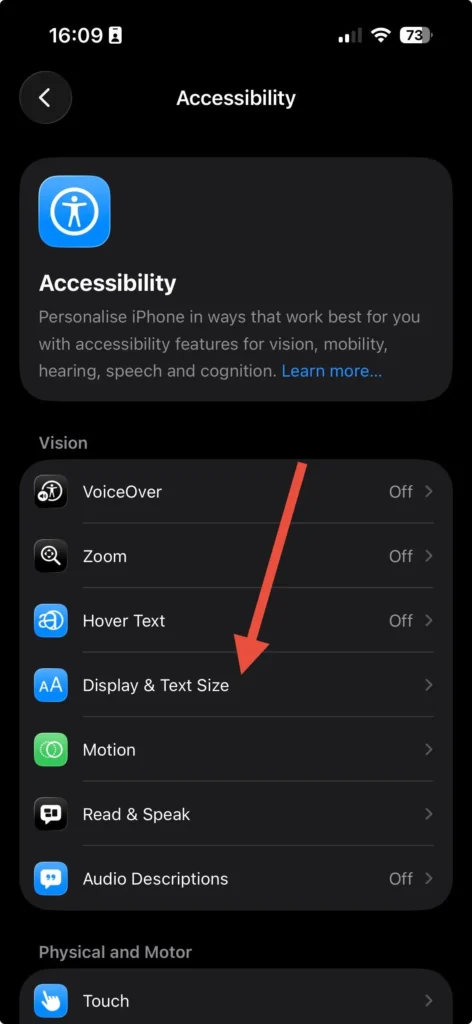
Step 4: Find Smart Invert near the top of the list.
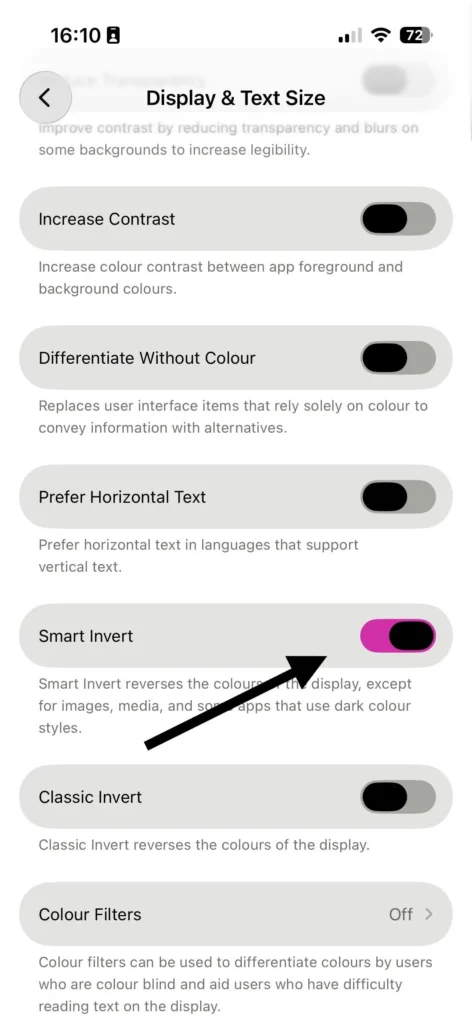
Step 5: Tap the toggle to turn it off. It should turn gray.
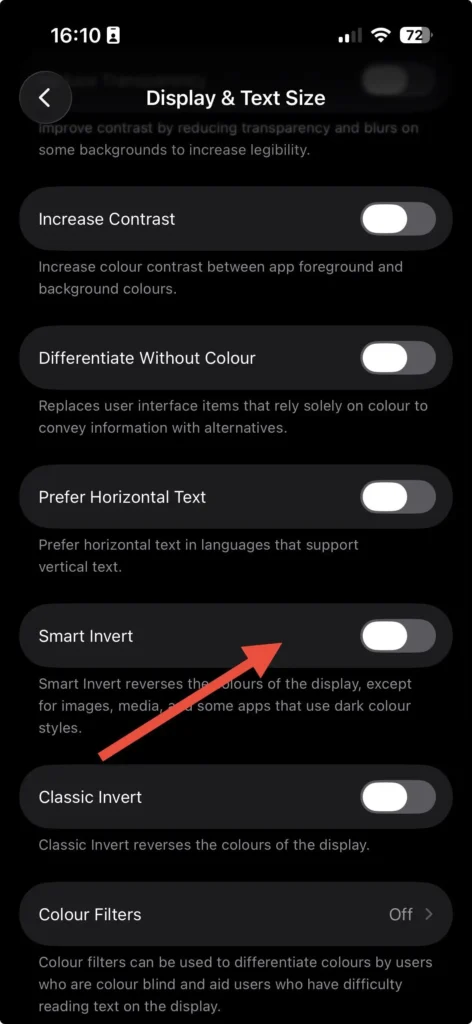
When we tested this on an iPhone 16 Pro running iOS 18.4, the screen returned to normal colors instantly — no restart needed. The same steps apply on iOS 26.
Also check: While you’re here, confirm Classic Invert and Color Filters are also toggled off. All three can affect your display colors, and it’s easy to have more than one on at a time.
Pro Tip: Remove Smart Invert from Your Accessibility Shortcut Permanently
If your iPhone keeps triggering Smart Invert every time you triple-click the side button, the shortcut is the culprit. Here’s how to remove it:
Step 1 : Go to Settings → Accessibility.
Step 2: Scroll to the very bottom and tap Accessibility Shortcut.
Step 3: Look for Smart Invert in the list with a checkmark next to it.
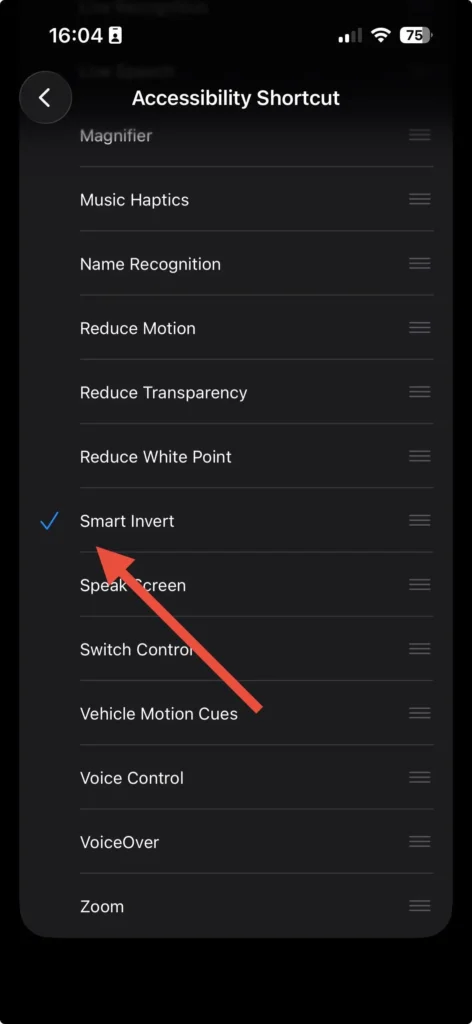
Step 4: Tap it to uncheck and remove it from the rotation.
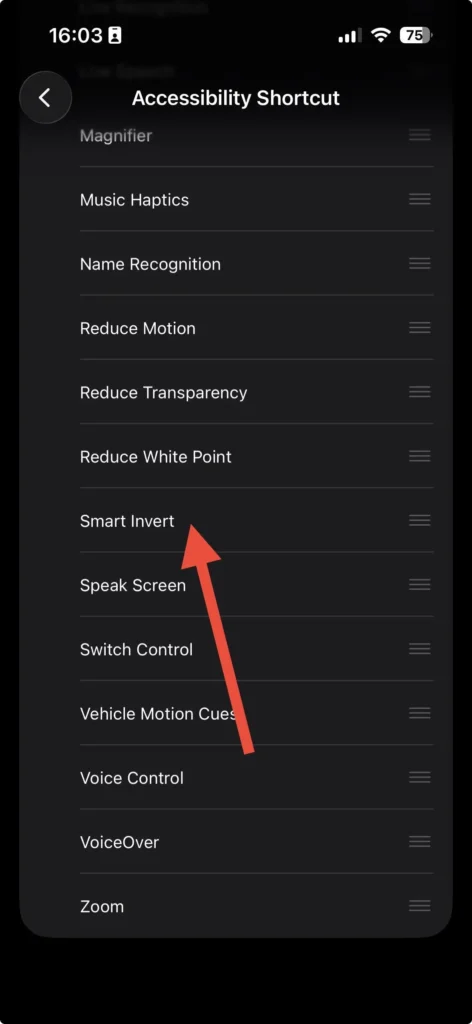
Once removed, triple-clicking the side button won’t accidentally activate Smart Invert ever again.
Why Does Smart Invert Keep Turning On By Itself?
This is one of the most-asked questions in Apple Community forums – and for good reason. Multiple iPhone users across iOS 13 through iOS 18 have reported Smart Invert activating on its own after restarts or software updates.
The three most common causes:
1. Per-App Settings — This is the sneakiest one. A specific app (like a game or social media app) can have Smart Invert enabled only for that app, overriding your global setting.
- Fix: Go to Settings → Accessibility → Per-App Settings.
- Tap any listed app (especially games like Roblox — this is a known trigger).
- Set Smart Invert to Off or Default.
2. Back Tap — If you have double or triple back-tap gestures configured, one might be triggering Smart Invert when you set your phone face-down on a surface.
- Fix: Go to Settings → Accessibility → Touch → Back Tap.
- Check Double Tap and Triple Tap — if either is set to Smart Invert, change or remove it.
3. iOS Update Residue — After some iOS updates, accessibility shortcuts can re-enable themselves.
- Fix: Restart your iPhone after any update, then re-check Display & Text Size and Accessibility Shortcut settings.
What Is Smart Invert (And Why Does It Look So Strange)?
Smart Invert is an iOS accessibility feature designed to help users with visual sensitivities. It reverses the colors on your display similar to a dark mode on overdrive except for images, media, and apps that already use dark color styles. That’s the “smart” part.
Think of it like a photo darkroom effect applied to your entire UI. Text becomes white-on-black, colorful icons flip to their color opposites, and your camera roll suddenly looks like something from a horror film.
It’s genuinely useful for people with certain visual impairments. But for most users, finding it on unexpectedly is pure confusion.
Classic Invert, by comparison, flips absolutely everything — including photos and videos. That’s why Smart Invert is the one Apple surfaces first under accessibility settings.
Smart Invert vs. Dark Mode: They’re Not the Same Thing
A common misconception: people assume turning on Dark Mode is doing the same job as Smart Invert, or vice versa. They’re very different.
| Feature | What It Does | Affects Photos? |
|---|---|---|
| Smart Invert | Reverses all non-media UI colors | No |
| Classic Invert | Reverses every pixel on screen | Yes |
| Dark Mode | Uses dark color palette in supported apps | No |
Dark Mode is the right choice for most users who want easier nighttime reading. Smart Invert is an accessibility tool – powerful, but not a Dark Mode substitute. If you’re happy with Dark Mode’s result, you’ll find it under Settings → Display & Brightness → Dark.
Troubleshooting: What If Smart Invert Won’t Stay Off?
If you’ve followed every step above and Smart Invert keeps returning, try these escalating fixes:
Step 1 — Check Per-App Settings (described above). This resolves the issue for most people.
Step 2 — Restart your iPhone. Go to Settings → General → Shut Down, then power back on.
Step 3 — Update iOS. Some versions had bugs causing Smart Invert to re-enable on boot. Go to Settings → General → Software Update.
Step 4 — Reset All Settings. This won’t erase your data but resets every system preference to default. Go to Settings → General → Transfer or Reset iPhone → Reset → Reset All Settings.
Step 5 — Contact Apple Support. If nothing works, reach out at apple.com/support or visit your nearest Apple Store.
Frequently Asked Questions
Go to Settings → Accessibility → Display & Text Size and toggle Smart Invert off. Then go to Settings → Accessibility → Accessibility Shortcut and uncheck Smart Invert so it can’t be re-activated by triple-clicking the side button.
The most common causes are: Smart Invert is assigned to an Accessibility Shortcut you’re triggering accidentally, Back Tap is set to activate it, or Per-App Settings have Smart Invert enabled for a specific app. Check all three locations.
Yes. With Smart Invert active, your camera preview will appear color-inverted. The actual photos and videos saved are unaffected, but the live viewfinder will look strange. Turning off Smart Invert restores the normal camera preview.
Smart Invert reverses UI colors but preserves images and media. Classic Invert flips every single pixel on the screen, including photos and videos. For most users who want easier reading, Dark Mode is a better alternative to either.
Not by default, but individual apps can have Smart Invert set differently via Per-App Settings. Check Settings → Accessibility → Per-App Settings if you notice Smart Invert only activating in certain apps.
📌 Further Reading:
Ready to take back control of your iPhone display? Share this guide with anyone whose screen looks “wrong” — chances are Smart Invert is why.
Disclaimer: The information in this article is intended for general guidance only. iOS settings menus and navigation paths may vary slightly between iOS versions. Always back up your device before performing a Reset All Settings. This article does not constitute professional technical or legal advice. Apple, iPhone, iOS, and related terms are trademarks of Apple Inc.
Recently Published Topic:
- How to Remove AirPods From Apple ID: 3 Ways, 1 Hidden Lock Trap (iOS 27)

- iCloud for Windows Can’t Sign In? 7 Hidden Blockers Behind the Endless Login Loop (2026)
- Siri Suggestions Not Working? 7 Sneaky Reasons Your iPhone Shows Random Apps (iOS 27)
- Printer Keeps Going Offline on Mac? 8 Sneaky Culprits Behind the Fake “Offline” Status
- iPhone Duo Pre-Order Delays: 6 Smart Ways to Dodge the January 2027 Wait
- Mac Startup Disk Full? 9 Safe Deletes (and 5 Files You Must Never Touch)






T’kal is the lead strategist and developer behind Apple Headlines. With a background in digital marketing and web development, he specializes in technical Apple troubleshooting, software news, and hardware rumors. T’kal focuses on delivering high-authority tech content that bridges the gap between Apple enthusiasts and the latest industry innovations.