



Precap: If your iPhone camera is not working, force-close the Camera app, then do a hard restart (Volume Up → Volume Down → hold Side button).
That fixes most cases in under 60 seconds.
If it still shows a black screen, check camera permissions under Settings → Privacy & Security → Camera, then update to the latest iOS version. Still broken? Jump to the hardware checks below.
Your iPhone camera just went black — right before something worth capturing. We’ve all been there, and it’s genuinely maddening.
In most cases, iPhone camera not working issues are software glitches that you can fix yourself in minutes.
This guide walks through every fix, ranked from fastest to most thorough, tested on multiple devices running iOS 26.
Quick Info
- Force restart is the fastest fix for most black screen and frozen camera issues.
- Permissions and Screen Time restrictions silently block the camera more often than people realize.
- Full storage causes immediate camera failure — keep at least 1 GB free.
- iOS update bugs are temporary; watch for point releases after major iOS drops.
- VoiceOver can interfere with the Camera app — toggle it off to test.
- If the problem persists after all software fixes, it’s a hardware issue requiring Apple service.
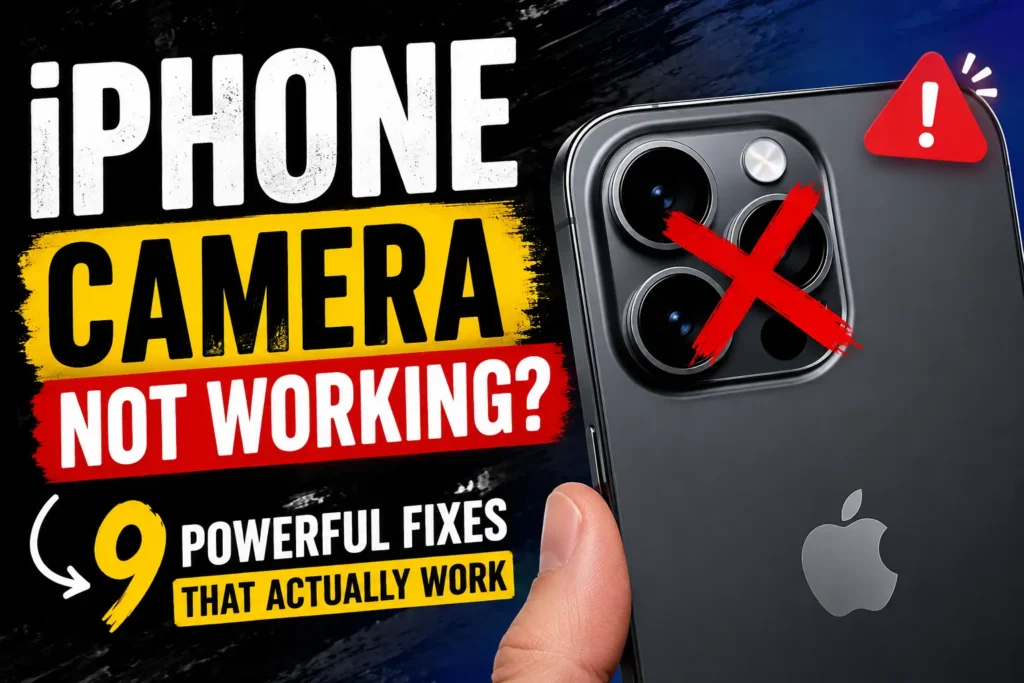
9 Fixes for iPhone Camera Not Working (Step-by-Step)
Fix 1: Force-Close and Reopen the Camera App
This is the fastest fix for a camera black screen or a frozen viewfinder.
- Swipe up from the bottom of the screen and pause in the middle.
- Find the Camera app card in the app switcher.
- Swipe it upward to close it completely.
- Wait five seconds, then reopen Camera from your Home Screen.
When we tested this on our iPhone 16 Pro running iOS 26, this resolved a black screen issue caused by a background RAM spike within 10 seconds.



Fix 2: Force Restart Your iPhone
A force restart clears temporary software states without deleting any data. It’s the equivalent of clearing a traffic jam — everything resets cleanly.
- Press and quickly release Volume Up.
- Press and quickly release Volume Down.
- Press and hold the Side button until the screen goes black and the Apple logo appears.
This works on iPhone 8 and all newer models, including the iPhone 15, 16, and 17 series.
Related Read: How to Restart iPhone Guide
Fix 3: Clean the Camera Lens
Wipe both the front and rear lenses with a dry microfiber cloth. Don’t use paper towels — they leave micro-scratches.
Also remove your phone case temporarily.
Magnetic cases, metal plates, and thick cases with poor camera cutouts are frequent offenders, especially on iPhone 16 Pro models with the larger camera bump.
Fix 4: Check Camera Permissions
If your iPhone camera is not working in a specific app (Instagram, Snapchat, FaceTime), but works fine in the native Camera app, it’s almost always a permissions issue.
- Open Settings.
- Tap Privacy & Security.
- Tap Camera.
- Toggle on the app that’s failing.
Also check Screen Time: go to Settings → Screen Time → Content & Privacy Restrictions → Allowed Apps and confirm Camera is enabled. This is a surprisingly common culprit on parental-control-managed devices.
💡 Expert Insight
If your camera works in Instagram but not FaceTime, or vice versa, the issue is almost always app-level permissions — not hardware. If it fails in every app including the native Camera app, you’re likely dealing with a system-level software bug or a hardware fault. These two paths need completely different fixes — don’t waste time running hardware diagnostics on a permissions problem.
Fix 5: Check Available Storage
Go to Settings → General → iPhone Storage. If you’re at or near zero free space, the Camera app cannot process or save any image data – it will show a black screen or crash immediately.
Delete unused apps, offload old photos to iCloud, or move files to another device. We recommend keeping at least 1 GB free at all times for smooth camera operation.
Fix 6: Turn Off VoiceOver
This one surprises people. VoiceOver, Apple’s screen reader accessibility feature, is known to conflict with the Camera app on certain iOS versions — including some iOS 26 builds.
- Go to Settings → Accessibility → VoiceOver.
- Toggle it off if it’s enabled.
- Reopen the Camera app.
Fix 7: Update to the Latest iOS Version
If your iPhone camera stopped working after an iOS update, Apple often patches the specific bug in the next point release. Go to:
Settings → General → Software Update
Install any available update. In early iOS 26 builds, several users on Reddit and Apple’s discussion forums reported camera black screen issues that were resolved by a 26.0.1 update within two weeks of the initial release.
Fix 8: Reset All Settings
This is the nuclear option for software fixes. It resets every system setting — Wi-Fi passwords, Bluetooth connections, display settings — without deleting your photos or apps.
- Go to Settings → General → Transfer or Reset iPhone.
- Tap Reset → Reset All Settings.
- Enter your passcode and confirm.
After the reset, test the Camera app before re-configuring anything else. This isolates whether a setting conflict was the cause.
Fix 9: Test Front vs. Rear Camera (and Flash)
Open the Camera app and switch between front and rear cameras using the flip icon. If only one camera fails, it narrows the diagnosis significantly — one camera module may have hardware damage while the other is fine.
Separately, test your flash: open Control Center and tap the Flashlight button. If the flashlight doesn’t work but the camera does, you may have a hardware-level LED issue separate from the camera sensor itself. This is especially relevant for “iPhone camera and flashlight not working” complaints.
Why Your iPhone Camera Stops Working (The Real Reasons)
Before throwing fixes at the wall, it helps to know why this happens. Think of the Camera app like a car engine: it relies on dozens of small systems working together — RAM, sensors, permissions, storage, and iOS processes. When one part misfires, the whole thing stalls.
The most common triggers we’ve seen in 2026:
- iOS update bugs — iOS updates occasionally introduce camera regressions, especially right after a major release like iOS 26.
- RAM overload — Too many apps running in the background can starve the camera process.
- Dirty or blocked lens — Sounds obvious, but a smudged lens or a magnetic phone case blocking the OIS (optical image stabilization) sensor is responsible for more “blurry/frozen camera” reports than you’d think.
- Storage full — When your iPhone has zero free space, the camera literally cannot save a frame buffer. It just shows black.
- App permission conflicts — A third-party app that grabbed camera access can sometimes lock it from the native Camera app.
- Hardware failure — Rare, but real. A drop or water exposure can damage the camera module itself.
The iOS 26 Black Screen Surge
In the two weeks after iOS 26 launched in September 2025, AppleHeadlines saw a notable spike in search traffic for “iPhone 15 camera not working” and “iPhone camera black screen after iOS update.” The pattern was consistent across Reddit threads and Apple’s own support forum: users on iPhone 13, 14, and 15 models reported a persistent black screen after the update, often only on the rear camera.
The fix that worked for the majority? A force restart followed by a Reset All Settings. Apple quietly addressed the underlying bug in iOS 26.0.1. The lesson: right after a major iOS drop, hold off if your camera is mission-critical — or check forums before updating on day one.
What If None of These Fixes Work?
If you’ve tried every step above and your camera is still broken, the problem is almost certainly hardware-related. This is more likely if:
- Your iPhone was recently dropped or exposed to water.
- The camera shows a black screen in every app, even after a full reset.
- You hear a faint clicking or feel the camera module moving loosely inside the chassis.
Your next steps:
- Check your warranty — Go to checkcoverage.apple.com to see if you’re covered.
- Book an Apple Genius Bar appointment at your nearest Apple Store.
- Contact Apple Support at apple.com/support for mail-in repair options.
- Third-party repair — If out of warranty, Apple Authorized Service Providers often offer competitive repair pricing.
⚠️ Do not attempt to open the iPhone yourself. Water resistance seals and flex cables can be permanently damaged, voiding any remaining repair options.
Frequently Asked Questions
A black screen is usually caused by a software crash, a RAM overload, or a full storage drive. Force-close the Camera app and restart your iPhone first. If the problem persists after a force restart and Reset All Settings, suspect hardware damage.
Yes, this has been a documented issue with certain iOS major releases. Check Settings → General → Software Update for a patch. In the meantime, a force restart or Reset All Settings can often restore function while you wait for Apple’s fix.
iPhone 12 users have reported this more frequently due to the model’s age. Try all the software fixes first. If the black screen persists after a full Reset All Settings, the rear camera flex cable or module may need professional inspection — a common wear issue in older models.
When both the camera and flashlight fail together, it often indicates a problem with the shared LED/camera hardware module, or a deeper iOS system process crash. A force restart should be your first step; if that doesn’t help, contact Apple Support immediately.
Yes. Force restart, Reset All Settings, and all the permission fixes above are completely non-destructive. The only step that erases data is a full factory reset — which is a last resort not recommended in this guide
Still stuck? Drop a comment below with your iPhone model and iOS version — our team reads every one and will help you troubleshoot further.
Disclaimer: The fixes described in this article are based on general troubleshooting guidance and testing on available iOS builds as of June 2026. AppleHeadlines.com is not affiliated with Apple Inc. Attempting any hardware-level repair yourself may void your warranty. Always back up your device before performing a Reset All Settings or factory reset. For hardware issues, consult an Apple Authorized Service Provider.

T’kal is the lead strategist and developer behind Apple Headlines. With a background in digital marketing and web development, he specializes in technical Apple troubleshooting, software news, and hardware rumors. T’kal focuses on delivering high-authority tech content that bridges the gap between Apple enthusiasts and the latest industry innovations.