




Press Option + Command + Escape on your keyboard, select the frozen app, then click Force Quit. That’s the fastest way to kill a stuck app on any Mac running macOS Sequoia or later.
You’re mid-deadline.
Your Mac is showing that dreaded spinning rainbow wheel – and the app won’t respond to anything. Sound familiar?
A frozen app doesn’t mean your Mac is broken. It just means one program got stuck, and macOS has five different escape hatches built in. Here’s exactly how to use all of them.
Preview:
Why Apps Freeze on Mac (And Why Force Quitting Is Safe)
Think of a frozen app like a traffic jam on a single lane road. The stuck car (your app) isn’t breaking anything — it’s just blocking the lane.
Force quitting removes that car entirely so everything else can flow again.
Apps typically freeze because of memory overload, software bugs, a bad update, or a runaway background process.
On a MacBook Air M3 or M4 running macOS Sequoia 15, this is less common than on older Intel machines — but it still happens.



Games like The Sims 4, creative apps like Photoshop, and even browsers can hit a wall occasionally.
Force quitting is safe. You’ll lose any unsaved work in that specific app, but your Mac, other open apps, and your files stay completely untouched.
Related → Running low on memory? Check our guide on How Much RAM Does a MacBook Air Have? to understand your Mac’s limits.
Method 1: The Keyboard Shortcut (Fastest)
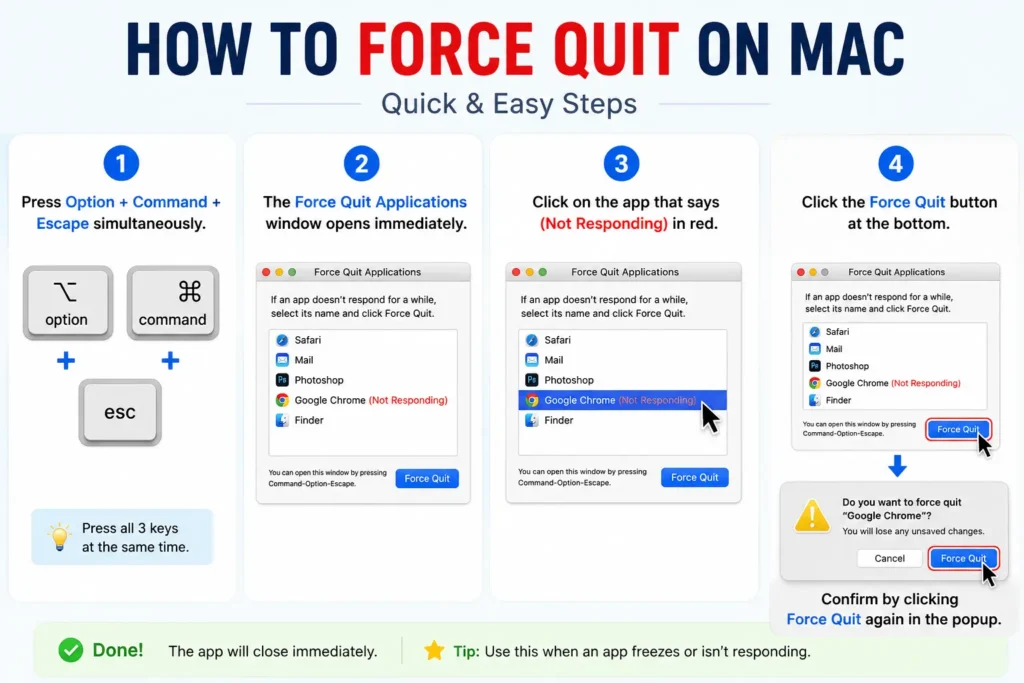
This is the go-to move. Works on every Mac, every macOS version.
- Press Option + Command + Escape simultaneously.
- The Force Quit Applications window opens immediately.
- Click on the app that says (Not Responding) in red.
- Click the Force Quit button at the bottom.
- Confirm by clicking Force Quit again in the popup.
When we tested this on a MacBook Air M4 running macOS Sequoia 15.4, the window appeared in under one second. Even when the screen was partially frozen, this shortcut still worked.
Pro Tip: If you only have ONE frozen app open and it’s currently active, hold Command + Option + Shift + Escape for three seconds. macOS will instantly kill only that foreground app — no dialog box needed.
Method 2: Force Quit from the Apple Menu
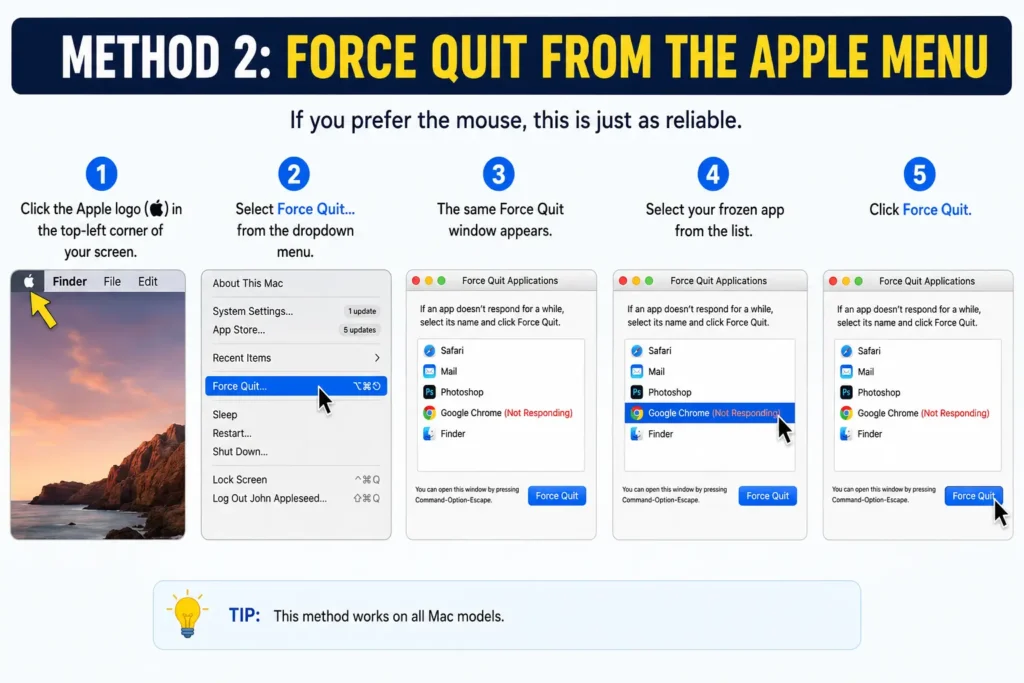
If you prefer the mouse, this is just as reliable.
- Click the Apple logo (🍎) in the top-left corner of your screen.
- Select Force Quit… from the dropdown menu.
- The same Force Quit window appears.
- Select your frozen app and click Force Quit.
This works even on older Intel Macs running macOS Monterey or Ventura. The Apple menu is always accessible, even when an app is hanging.
Method 3: Force Quit from the Dock
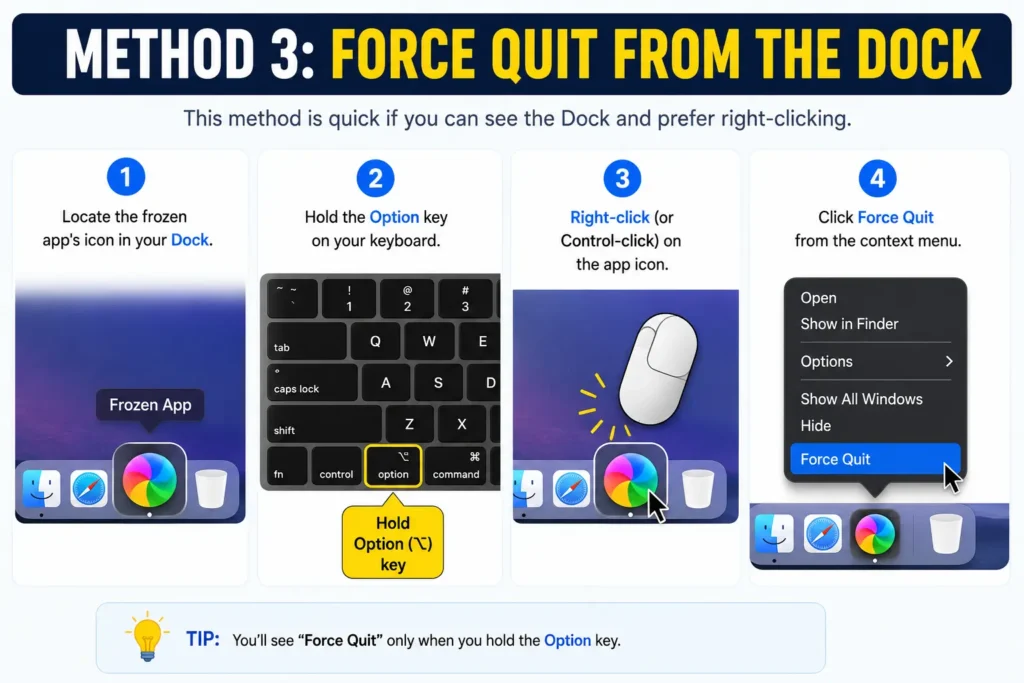
This method is quick if you can see the Dock and prefer right-clicking.
- Locate the frozen app’s icon in your Dock.
- Hold the Option key on your keyboard.
- Right-click (or Control-click) on the app icon.
- Click Force Quit from the context menu.
One nuance: if the app is completely frozen and its icon is bouncing or blank, this still works. Hold Option first before right-clicking — without Option, you’ll only see “Quit,” not “Force Quit.”
Method 4: Force Quit Using Activity Monitor (Advanced)
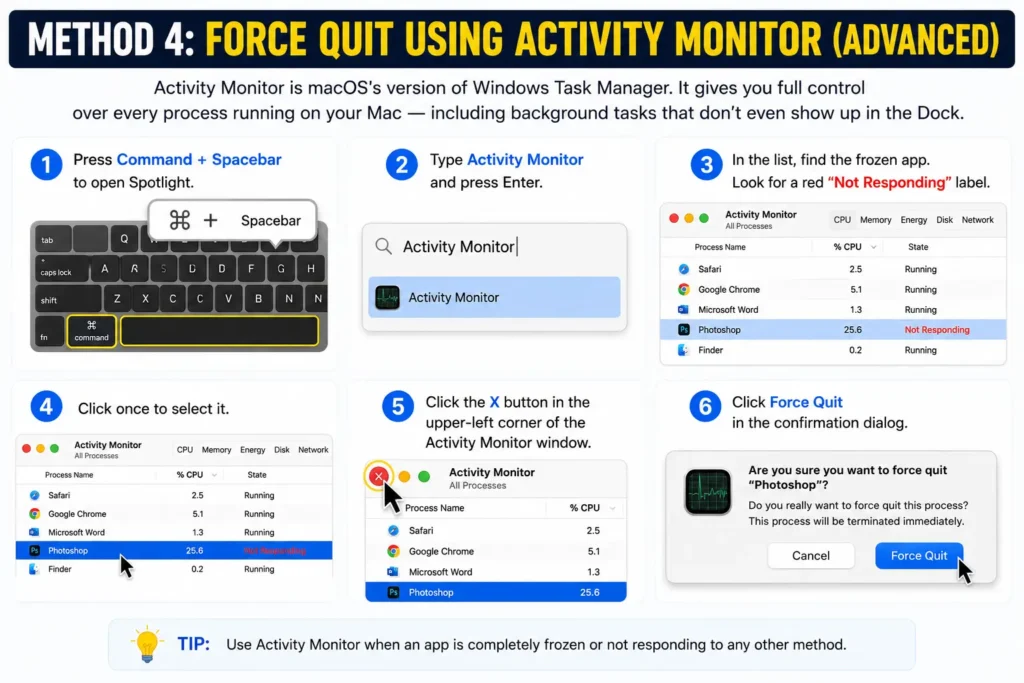
Activity Monitor is macOS’s version of Windows Task Manager. It gives you full control over every process running on your Mac – including background tasks that don’t even show up in the Dock.
- Press Command + Spacebar to open Spotlight.
- Type Activity Monitor and press Enter.
- In the list, find the frozen app. Look for a red “Not Responding” label.
- Click once to select it.
- Click the X button in the upper-left corner of the Activity Monitor window.
- Click Force Quit in the confirmation dialog.
Activity Monitor also shows you which apps are eating the most CPU or memory. If one app is consuming 90%+ of your CPU, that’s likely your culprit — even if it doesn’t show as frozen yet.
Dealing with an app that keeps crashing after you force quit it? –
See our How to Restore iPhone in iTunes guide for broader troubleshooting context on Apple device recovery.
Method 5: Force Quit via Terminal (Power User Method)
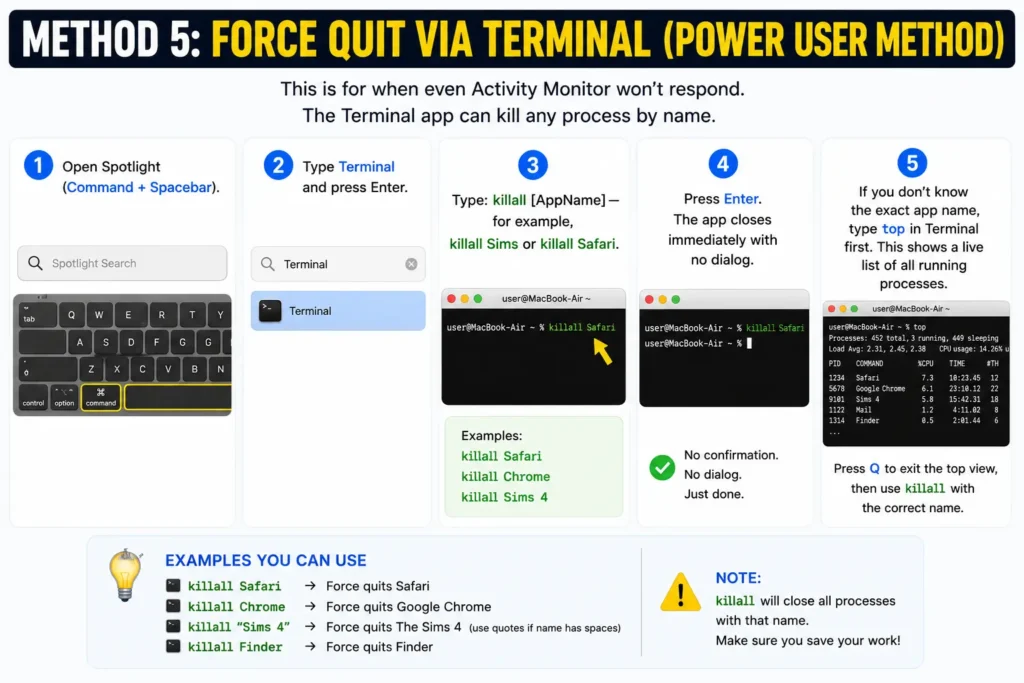
This is for when even Activity Monitor won’t respond. The Terminal app can kill any process by name.
- Open Spotlight (Command + Spacebar).
- Type Terminal and press Enter.
- Type:
killall [AppName]— for example,killall Simsorkillall Safari. - Press Enter. The app closes immediately with no dialog.
If you don’t know the exact app name, type top in Terminal first. This shows a live list of all running processes. Press Q to exit the top view, then use killall with the correct name.
What If My Entire Mac Is Frozen?
Sometimes the freeze goes deeper — the cursor won’t move, keyboard shortcuts do nothing, and even the Apple menu is unresponsive. This is a full system hang, not just an app problem.
Here’s what to do, in order:
- Wait 30–60 seconds. macOS sometimes recovers on its own from a temporary spike.
- Try the keyboard shortcut anyway. Option + Command + Escape occasionally breaks through even a deep freeze.
- Force restart. Hold the Power button (or Touch ID button on newer Macs) for 8–10 seconds until the screen goes black. Release and press once to restart.
⚠️ A force restart will close all unsaved work across every app. Only do this as a last resort.
The Sims 4 Freeze
One of our readers — a college student on a MacBook Air M2 — reported that The Sims 4 would freeze completely during large neighborhood loads. The spinning wheel would appear, and no keyboard shortcut worked because the game had taken over the full screen.
The fix: She used Command + Option + Escape first. When that didn’t open the dialog (game was in true full-screen mode), she switched to Method 5 — opened a second desktop using Mission Control (swipe up with three fingers), launched Terminal from there, and typed killall Sims4. The game closed in under two seconds, and macOS remained fully stable.
Lesson: If a full-screen app locks your shortcuts, Mission Control is your escape route. Swipe up to create a new Space, open Terminal or Activity Monitor, and force quit from there.
Force Quitting on a MacBook Air vs. MacBook Pro: Any Difference?
No. All five methods above work identically across:
- MacBook Air M2, M3, M4
- MacBook Pro M3, M4, M4 Pro, M4 Max
- Mac mini, iMac, Mac Studio, Mac Pro
The steps are the same whether you’re on macOS Monterey, Ventura, Sonoma, or Sequoia 15. The only thing that varies is how quickly the Force Quit dialog opens — on Apple Silicon Macs, it’s noticeably faster than on older Intel machines.
What About macOS Sequoia 15 — Anything New?
As of macOS Sequoia 15 (the latest version in 2026), Apple hasn’t changed the core force quit experience. The same shortcuts and menus apply. However, macOS Sequoia introduced smarter memory management that reduces freezes overall — especially helpful for users running multiple AI-heavy apps simultaneously.
If you’re still on macOS Ventura or Sonoma, all methods in this article still apply perfectly.
Redear’s Questions
Q: How do I force quit on Mac when the keyboard isn’t responding?
If your keyboard is fully unresponsive, use the trackpad to click the Apple menu → Force Quit. If that’s also frozen, hold the Power button for 10 seconds to force restart the entire Mac.
Q: Is force quitting the same as macOS’s Task Manager? \
Not exactly. macOS doesn’t have a Task Manager like Windows. The closest equivalent is Activity Monitor, which shows all running processes. Force Quit is a simplified version of that. For full process control, use Activity Monitor or Terminal.
Q: How do I force quit on Mac if I’m used to Windows shortcuts?
On Windows, you press Ctrl + Alt + Delete to access Task Manager. On Mac, the equivalent is Option + Command + Escape for Force Quit, or Command + Spacebar → Activity Monitor for full process management.
Q: Why does the rainbow spinning wheel appear?
The spinning “beach ball” (officially called the Spinning Wait Cursor) appears when an app is too busy to respond to your input. It’s macOS telling you “this app is occupied right now.” If it lasts more than 15–20 seconds, the app is likely frozen and should be force quit.
Q: Will force quitting delete my files?
No. Force quitting only ends the app’s process. Your saved files on disk remain intact. You’ll only lose any changes you made since the last time you saved within that app.
Wrap-Up
A frozen Mac app is frustrating, but it’s always fixable. Whether you’re dealing with a spinning rainbow wheel in The Sims 4, a stuck browser tab, or a creative app that’s gone rogue, one of these five methods will get you back on track in under 30 seconds.
Option + Command + Escape is the shortcut worth memorizing right now. Everything else is a bonus.
Found this helpful? Bookmark it for next time — because there’s always a next time. And if your Mac feels sluggish even after force quitting apps, check our Mac category for more performance tips.
Disclaimer: The steps in this article apply to macOS Monterey through macOS Sequoia 15 (2026). Force quitting terminates the selected process immediately. Always save your work frequently to minimize data loss. AppleHeadlines is not affiliated with Apple Inc. Apple, Mac, MacBook, and macOS are trademarks of Apple Inc.
Our Recent Topics:
- iPhone Reset All Settings: 17 Hidden Things It Wipes (Your Photos Aren’t One)

- iOS 27 Unresponsive Touchscreen: The Sneaky 2-Swipe Bug Freezing iPhones (Plus 6 Rescue Steps)

T’kal is the lead strategist and developer behind Apple Headlines. With a background in digital marketing and web development, he specializes in technical Apple troubleshooting, software news, and hardware rumors. T’kal focuses on delivering high-authority tech content that bridges the gap between Apple enthusiasts and the latest industry innovations.