




Selling your iPhone and can’t get past that grey toggle?
Or maybe Apple’s service center is asking you to disable Find My before they’ll touch your screen?
This guide covers every real-world scenario, including what to do when nothing seems to work.
Quick Story
Why Turning Off Find My iPhone Actually Matters
Find My iPhone is Apple’s powerful location and anti-theft system.
It does two critical jobs: it shows your device’s location on a map, and it enforces Activation Lock – a security layer that prevents anyone from resetting or reactivating your iPhone without your Apple ID credentials.
Here’s why knowing how to turn it off is just as important as having it on:
Think of Find My like a deadbolt on a house. It protects the current owner — but if you’re handing over the keys, you have to actually unlock it first. The new owner can’t change the locks until the old one is removed.
Method 1: How to Turn Off Find My iPhone Directly on Your Device
This is the fastest method if you still have your iPhone in hand.


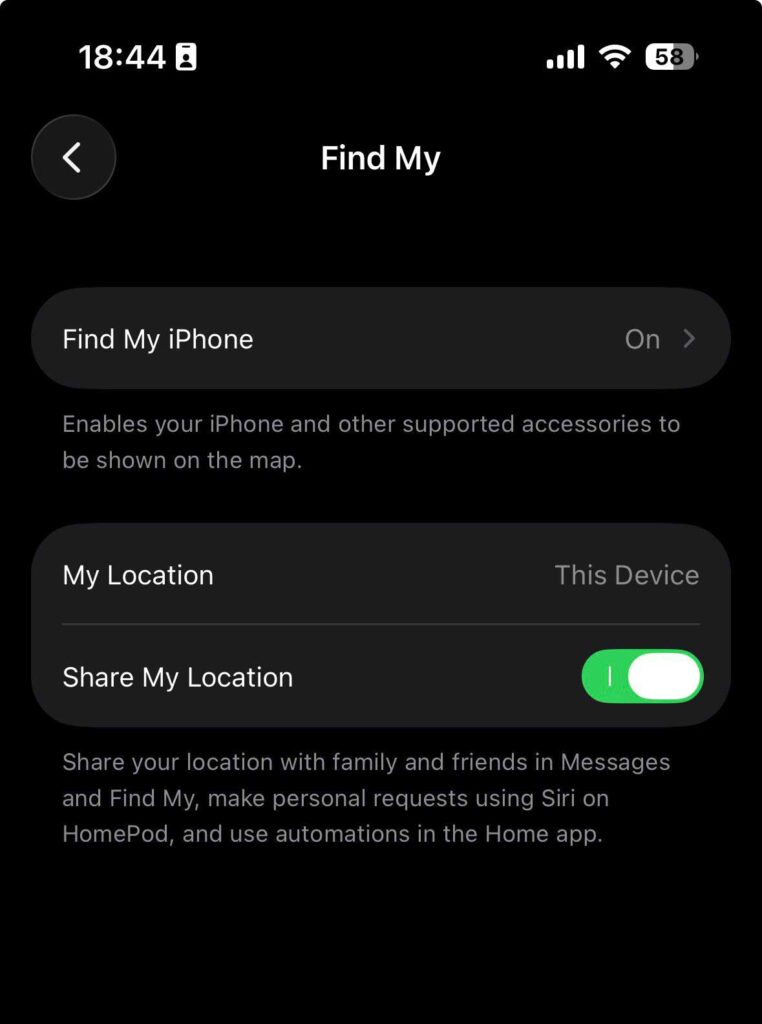
That’s it. Activation Lock is now removed from your device.
Works on: iPhone 13, iPhone 14, iPhone 15, iPhone 16, and all models running iOS 16 or later.
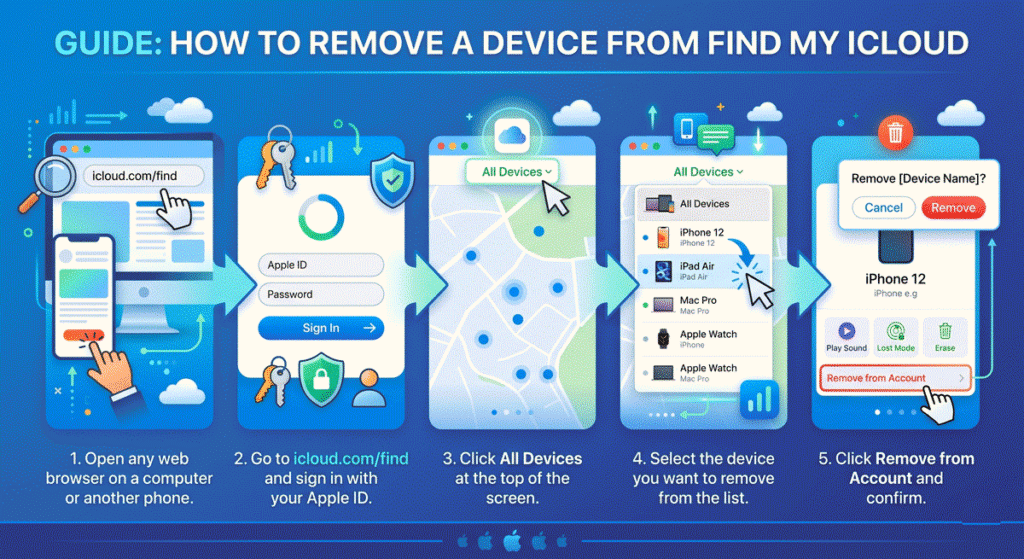
Method 2: How to Turn Off Find My iPhone from iCloud (Without the Phone)
No longer have the device? Maybe it was lost, stolen, already sold, or sent in for repair. You can still remove it remotely using iCloud.com.
Important: This method only works if the device is connected to the internet. If the iPhone is offline, the removal will process the next time it comes online.
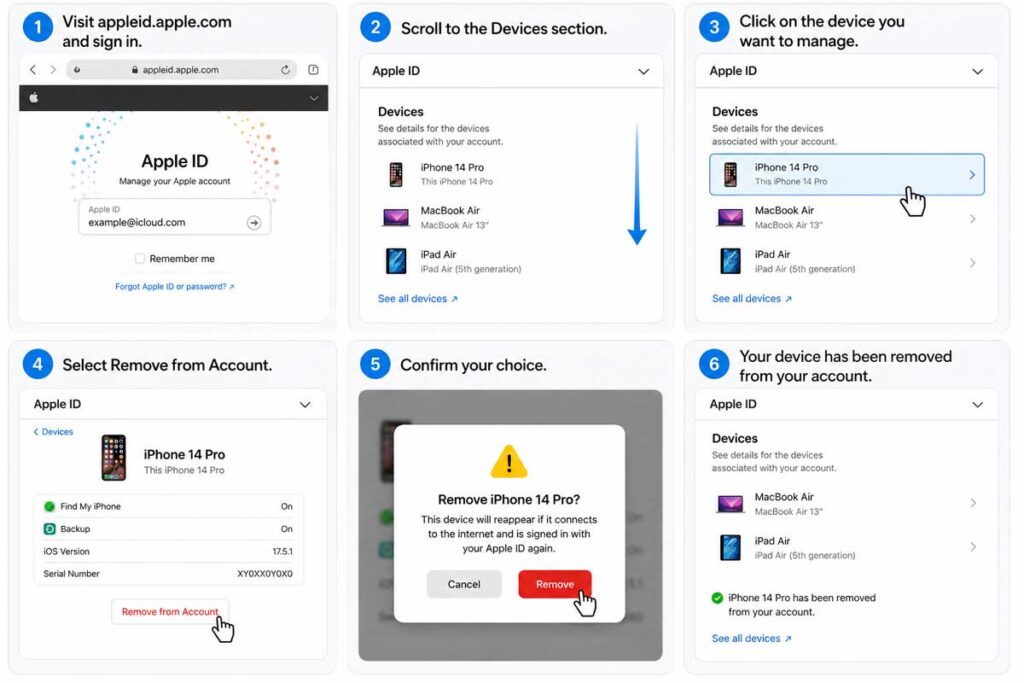
Method 3: How to Turn Off Find My iPhone Without the Phone (Using Apple’s Website)
This is similar to Method 2 but uses the full iCloud device management portal — useful if you want to see all devices at once.
This removes the device from your Apple ID entirely, which also disables Activation Lock.
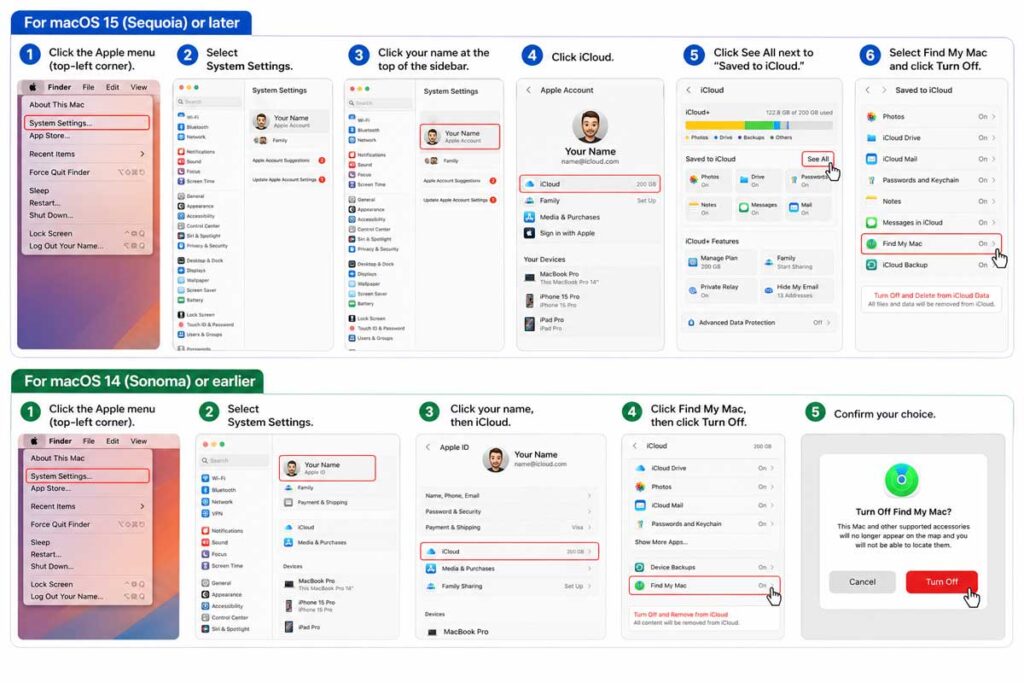
Method 4: How to Turn Off Find My iPhone on Mac (macOS 14 and macOS 15)
If you’re trying to disable Find My on a Mac — not an iPhone — the process is slightly different depending on your macOS version.
For macOS 15 (Sequoia) or later:
For macOS 14 (Sonoma) or earlier:
What If Find My iPhone Is Greyed Out? (The Toggle Won’t Move)
This is one of the most common frustrations — you see the Find My iPhone toggle, but it’s completely grey and won’t respond to taps. Here’s why that happens and how to fix it.
Why Is Find My iPhone Greyed Out?
The most likely cause is Screen Time restrictions. If Screen Time is enabled and “Account Changes” are restricted, iOS will lock down Find My as well.
Here’s how to fix it:
Another cause: the device is managed by an organization (a school or employer). If your iPhone is managed through a Mobile Device Management (MDM) profile, your IT administrator may be preventing changes to Find My. Contact your IT department in that case.
Expert Insight
Why can’t Apple just turn it off for you? Apple intentionally makes this difficult — on purpose. Activation Lock was introduced in 2013 specifically because iPhone theft rates dropped by 40% in major U.S. cities within a year of its launch, according to law enforcement data. If Apple could bypass it remotely, so could thieves. The system only works because it’s airtight. Even Apple Support cannot remove Activation Lock without proof of ownership (your Apple ID credentials or original purchase receipt).
A Real-World Case: The Trade-In Nightmare
Marcus, a tech professional from Austin, Texas, walked into an Apple Store in early 2026 ready to trade in his iPhone 15 Pro toward the new iPhone 16e. The Genius Bar employee ran a quick check and handed the phone back — Find My was still enabled.
Marcus couldn’t remember his Apple ID password. He’d set it up years ago with an old email address he no longer used. It took him 45 minutes at the Genius Bar to recover his account via Apple ID account recovery, verify his identity, and finally turn off Find My. His trade-in appointment had to be rescheduled.
The lesson: before any trade-in, sale, or service visit, disable Find My first. It takes 30 seconds when you know your Apple ID password — and potentially hours when you don’t.
How to Turn Off Find My iPhone on a Stolen Device
If your iPhone was reported as stolen and you’re seeing a “Stolen Device Protection” message or a locked screen, the situation is different.
Note: Stolen Device Protection (introduced in iOS 17 and active in 2026) adds a security delay for sensitive actions when your iPhone is away from familiar locations. Even if you know the passcode, some actions may require waiting up to an hour. This is by design.
Troubleshooting: What If This Still Doesn’t Work?
Problem: “Activation Lock” screen appears after factory reset
Solution: The reset didn’t disable Find My before wiping. You must sign in with the original Apple ID that was linked to the device. If you don’t know the credentials, contact Apple Support with your proof of purchase (receipt or order number from apple.com).
Problem: Find My is off, but the buyer still sees Activation Lock
Solution: Have the buyer connect the iPhone to Wi-Fi and try again. Sometimes the iCloud servers need a few minutes to sync the removal. If it persists, go back to icloud.com and confirm the device no longer appears in your account.
Problem: You forgot your Apple ID password
Solution: Visit iforgot.apple.com and use your trusted phone number or recovery key to reset access. Apple’s account recovery process can take anywhere from a few minutes to several days depending on your security setup.
Problem: The device isn’t showing up on icloud.com/find
Solution: The device must be connected to Wi-Fi or cellular to appear. If it’s completely powered off or reset, it may not appear. In this case, use appleid.apple.com → Devices to manage it instead.
How to Turn On Find My iPhone (And Why You Should)
Once your new owner sets up the device — or once you’re back with a fresh iPhone — turning Find My back on is equally straightforward.
Keeping Find My enabled is strongly recommended for everyday use. It’s your best defense against theft, and it helps Apple Support verify device ownership if you ever need warranty service.
Frequently Asked Questions
Q: Can I turn off Find My iPhone without knowing my Apple ID password?
No — not legitimately. Apple requires your Apple ID password to disable Find My, which is the whole point of Activation Lock. If you’ve forgotten your password, visit iforgot.apple.com to recover access. If you’ve completely lost access to your Apple ID, you’ll need to contact Apple Support with your original proof of purchase.
Q: Why can’t I turn off Find My iPhone — it’s greyed out?
This almost always means Screen Time’s Content & Privacy Restrictions are blocking account changes. Go to Settings → Screen Time → Content & Privacy Restrictions → Account Changes → Allow. If your iPhone is managed by an employer or school, contact your IT administrator.
Q: Does a factory reset turn off Find My iPhone?
No. This is a critical mistake many people make. A factory reset does not disable Find My or remove Activation Lock. You must turn off Find My before performing a reset, or the new user will be locked out of the device permanently until the original Apple ID is entered.
Q: How do I turn off Find My iPhone from iCloud?
Sign into icloud.com/find on any browser, click All Devices, select your iPhone, and click Remove from Account. This works even if you don’t have the phone with you, as long as the device is connected to the internet.
Q: How do I turn off Find My on iPhone 13 specifically?
The process is identical to all modern iPhones running iOS 15 or later: Settings → [Your Name] → Find My → Find My iPhone → toggle off → enter Apple ID password → confirm. There’s no iPhone-model-specific variation for this feature.
Disclaimer
This article is intended for informational purposes only and reflects Apple’s iOS and iCloud systems as of 2026. Steps may vary slightly with future iOS updates. AppleHeadlines.com is an independent publication and is not affiliated with, endorsed by, or sponsored by Apple Inc. If your device has been reported stolen, consult local law enforcement and Apple Support directly. Do not attempt to disable Find My on a device you do not own — doing so may violate federal and state law.
Ready to make the switch hassle-free? Bookmark this page before your next iPhone upgrade — you’ll thank yourself later. Got a question we didn’t cover? Drop it in the comments below and our team will respond within 24 hours.

T’kal is the lead strategist and developer behind Apple Headlines. With a background in digital marketing and web development, he specializes in technical Apple troubleshooting, software news, and hardware rumors. T’kal focuses on delivering high-authority tech content that bridges the gap between Apple enthusiasts and the latest industry innovations.